Overview
What is the Claims Manager?
The Claims Manager is a central hub in Elation Billing where you can view and manage every individual charge line across all of your practice’s claims. It provides comprehensive data points and filtering capabilities to help you efficiently track and work your accounts receivable.Why is the Claims Manager important?
The Claims Manager streamlines your billing workflow by allowing you to:- View all claims and charges in one location
- Filter and search for specific claims quickly
- Make bulk updates to multiple claims at once
- Track aging balances and work accounts receivable efficiently
Workflow Instructions
Navigate to Claims Manager
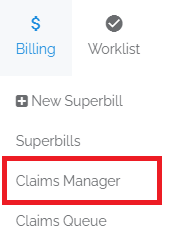
- Access Claims Manager - Click on the Claims Manager option under the Billing drop-down menu. You can also click the claims box on a patient page and then click the charges button for a claims manager view on that patient only.
Understanding the Overview
Here you can see a number of data points for your claims and charges. Sometimes, if patient or insurance names are quite long, some columns may be pushed out of view and hidden, but can be expanded by clicking the expand button on the left.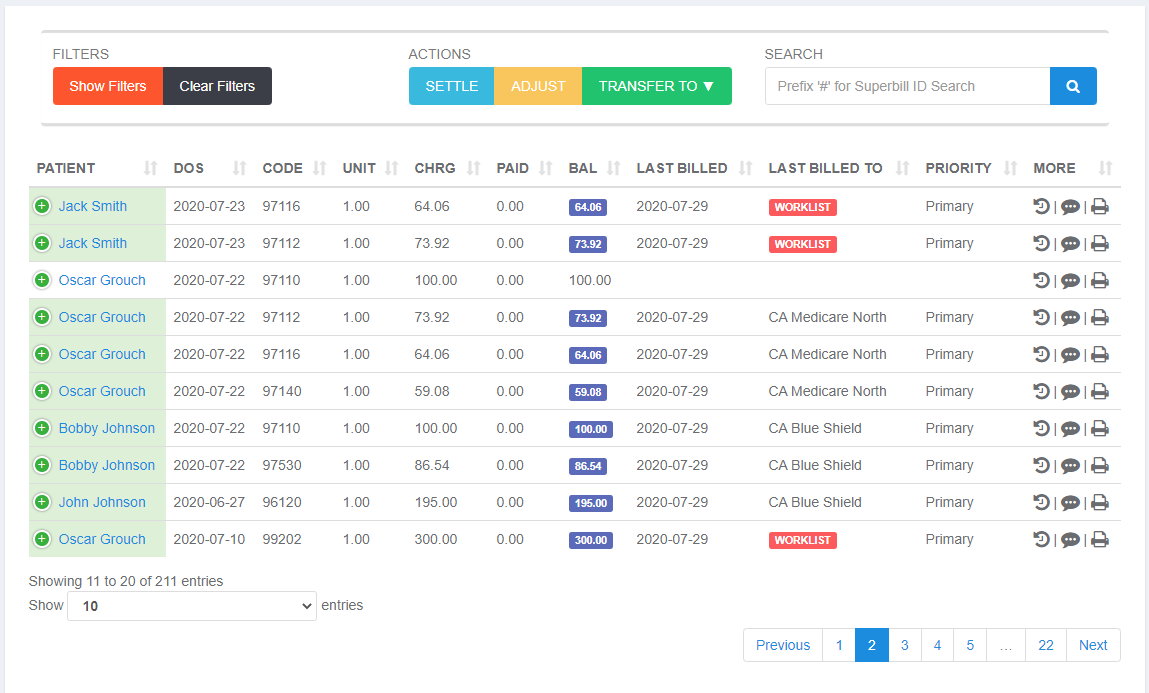
Color Coding
You will note that Charge Lines, as well as Balance Amounts, are color-coded. A guide to these colors can be found in the lower-left of the Claims Manager. In the example below: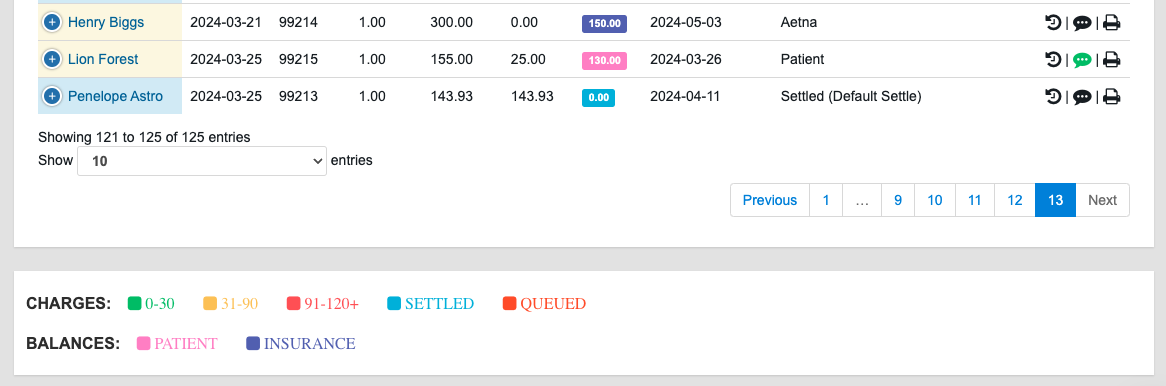
- Henry Biggs - The charge line is Yellow (balance is 31-90 days old). The Balance Responsibility belongs to the Insurance (Purple).
- Lion Forest - The charge line is Yellow (balance is 31-90 days old). The Balance Responsibility belongs to the Patient (Pink).
- Penelope Astro - The charge line and Balance Responsibility are both Light Blue.
Filter Claims
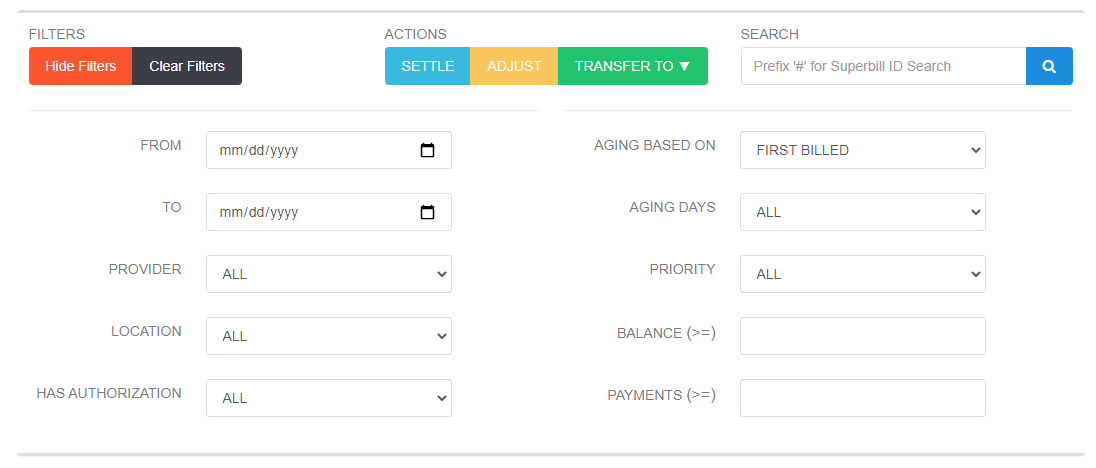
To filter the list, you can use the search bar and type in a patient name, a payer name, or a code. You can also prefix the search with a # and enter a number to search by the Superbill number.- Show/Hide Filters - Click Show Filters/Hide Filters to expand more filter options.
Use the Aging Filters to help you when working accounts receivable. You can combine this with a search for a payer name, which also helps with working AR.
Select Claims
You can select one Claim Line by clicking any white part of the line.To select multiple claim lines one-by-one
Hold [Ctrl] (Windows) / [Command] (Mac) while clicking any white portion of the desired claim lines.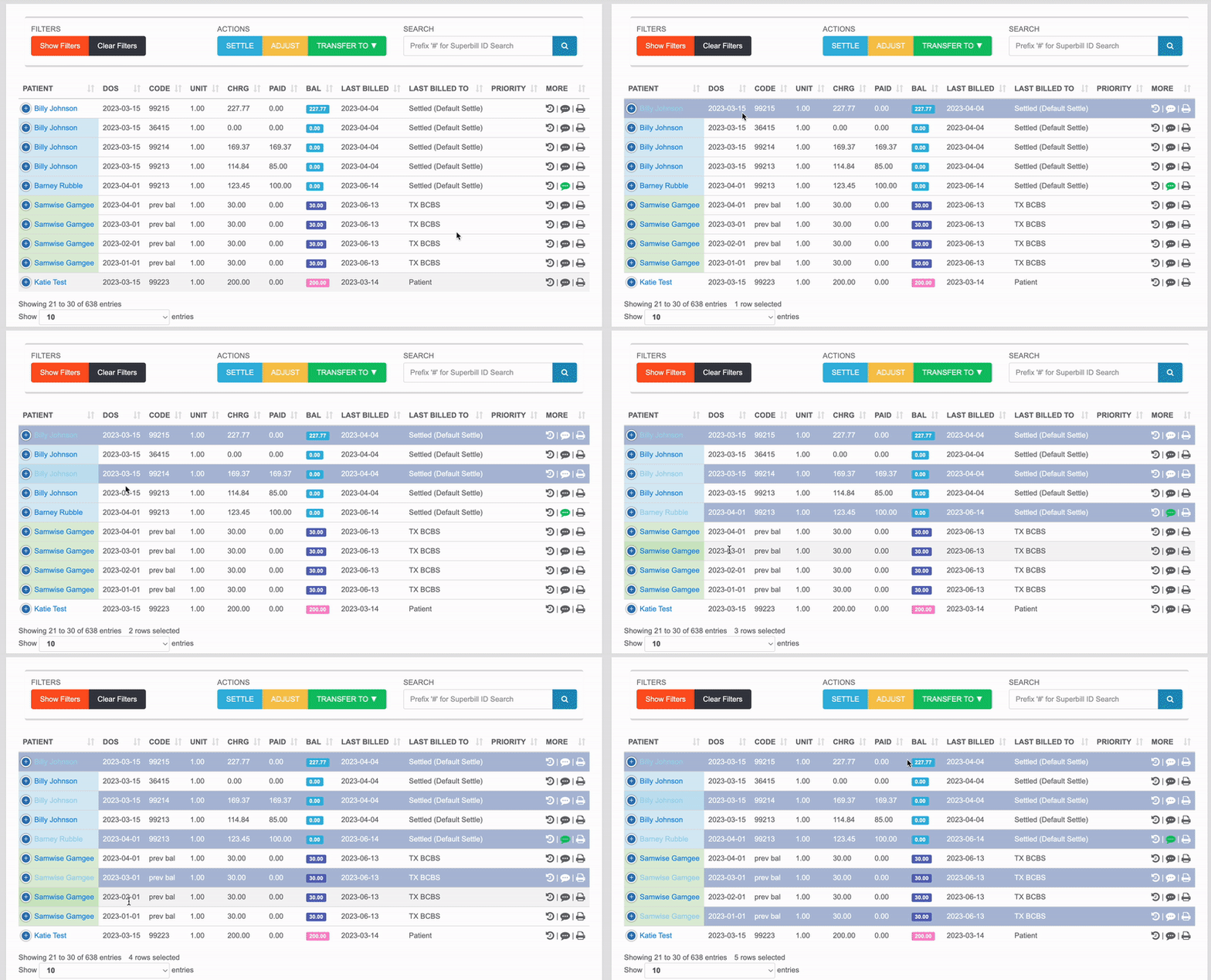
To select multiple claim lines in a row
Hold [Shift] and click any white portion of the first and last claim-line in your desired list.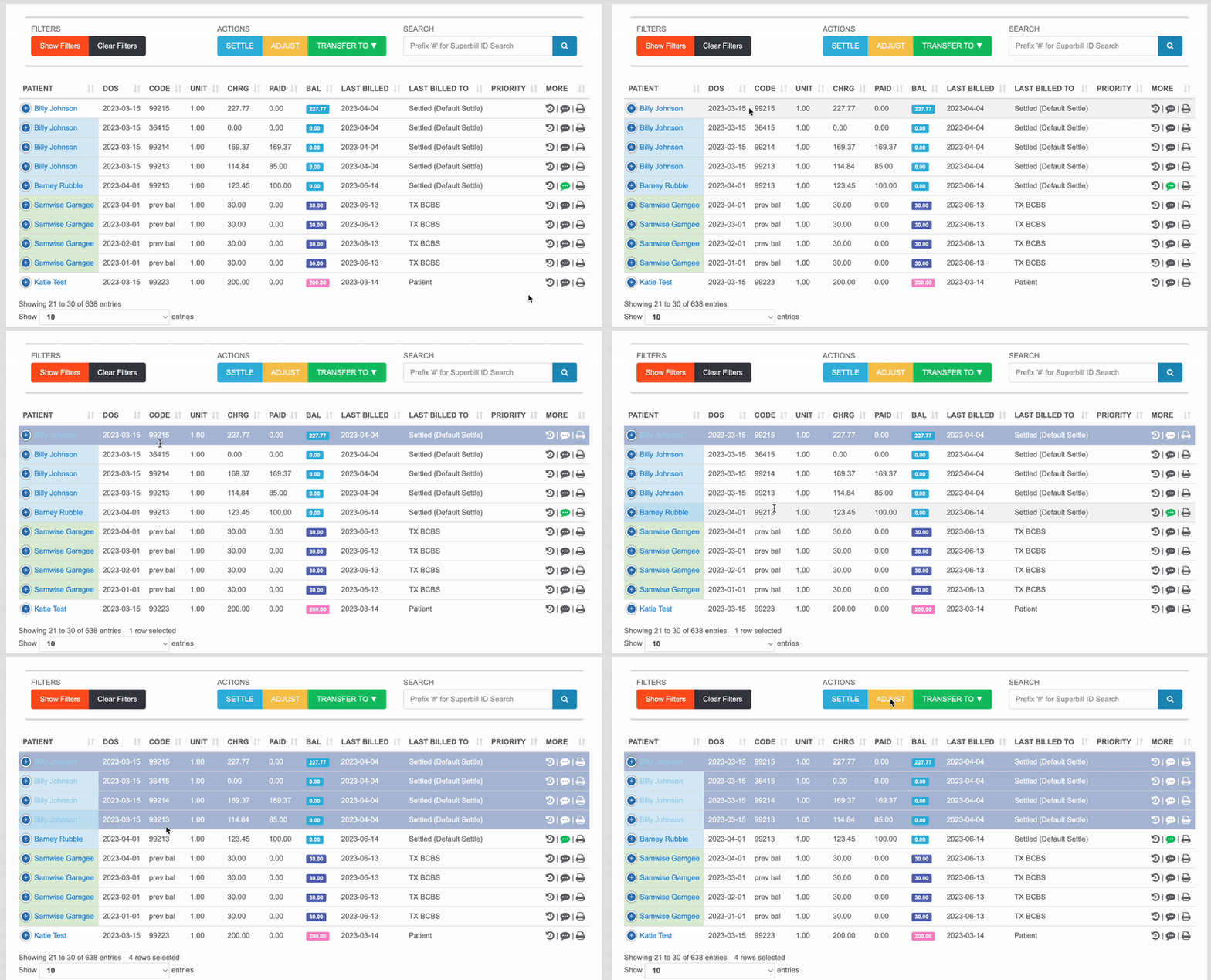
Use Action Buttons
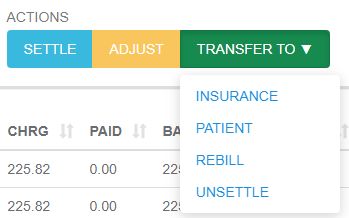
Once selected you can use the Settle, Adjust, or Transfer To buttons to make quick changes to your claims. Transfer To allows you to:- Transfer the balance to an Insurance or the Patient
- Rebill the Claim(s)
- Unsettle the Claim(s)
Additional Claim Actions