
Overview
What is Adding a New Provider?
Adding a new provider registers a healthcare provider in Elation Billing so they can be selected as the rendering provider on claims. Providers are added using their individual NPI (National Provider Identifier).Why is Adding a New Provider important?
Claims require a rendering provider to be specified. Adding providers to your practice settings ensures they appear in drop-down options when creating or editing claims on superbills.Workflow Instructions
Adding a New Provider
-
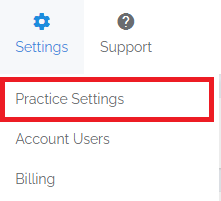
Navigate - Select the Practice Settings option from the Settings drop-down menu, then select the Providers tab.

-
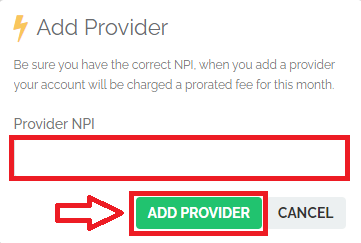
Add Provider - Click on the +Add Provider button, then enter the provider’s NPI (usually this is the individual NPI) and click Add Provider to confirm.
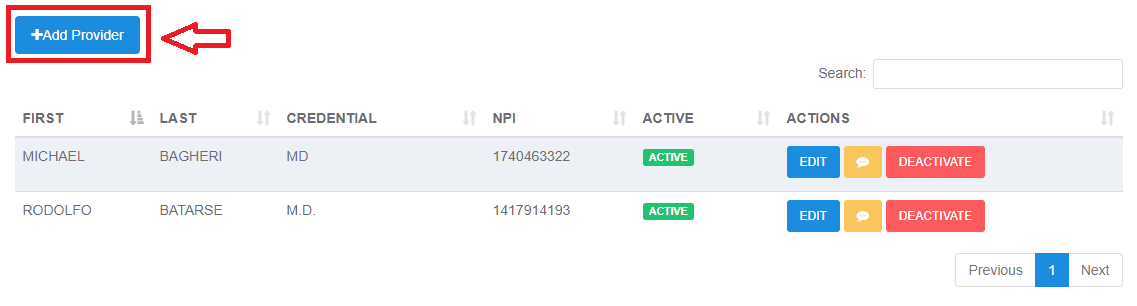
- Verify Completion - You should now see your provider on the list as well as in the drop-down options when creating or editing claims on a superbill.