Overview
What is Adding or Editing Patient Insurance?
Adding or editing patient insurance is the process of entering and updating insurance policy information for patients in Elation Billing. This includes selecting the insurance payer, priority level, and member ID.Why is Adding or Editing Patient Insurance important?
Accurate insurance information is essential for proper claim routing and timely reimbursement. Having the correct payer, member ID, and policy priority ensures claims are submitted to the right insurance company.Workflow Instructions
Elation EHR + Billing Practices
For Elation EHR + Billing practices, insurance should be added in the EHR. See Managing Insurance for more information on adding insurance to patients.
Adding or Editing Insurance in Elation Billing
- Navigate - You can add and edit patient insurance policies from a patient page, a superbill, or when posting a payment. Look for the insurance box shown below.
-
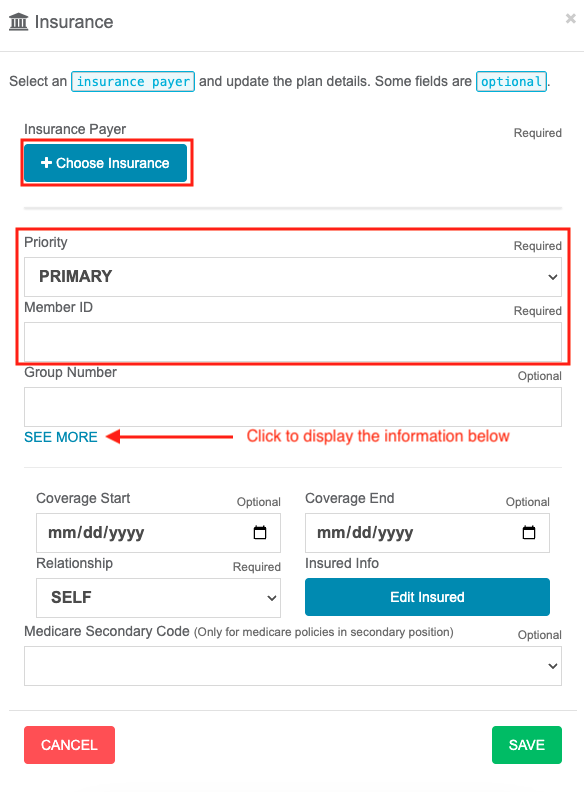
Add or Edit Insurance Policy - Click on the + New button in the insurance box or click on the yellow pencil to edit.
Required fields:
- Choose Insurance - Select the insurance payer
- Priority - Select Primary, Secondary, or Tertiary
- Member ID - Enter the patient’s member ID
- Click SAVE
If the patient has no insurance coverage, select the Self Pay Insurance.
Optional fields (click See More):
- Coverage Start/End dates
- Relationship between the Patient and the Insured
- Medicare Type Code/Medicare Secondary Code
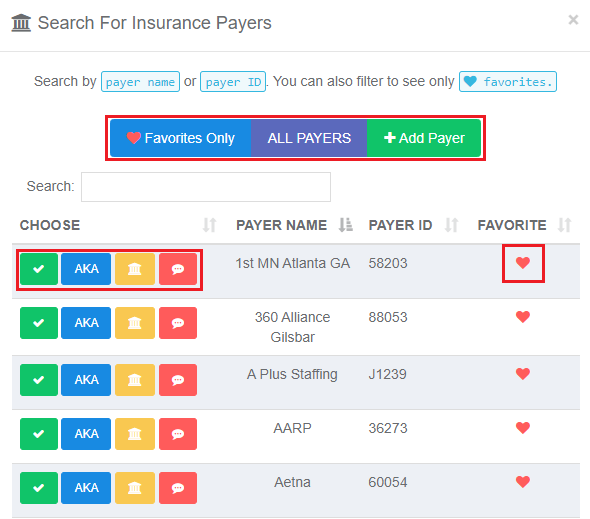
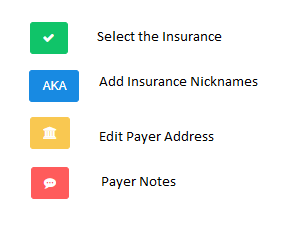
- Choose Insurance and Search for Payers - When you click Choose Insurance, you’ll see an insurance list. The default view shows your favorites.
- Click All Payers to view all available payers
- Click Add Payer to add a new payer by linking to an existing payer ID or using payer ID PAPER for paper claims