Setup and Use of Text/Email Bot
Navigate
- Access Send Statements - Click on Patients → Send Statements.
- Click Text and Email Automation Button - On the Send Statements Page, click the Text and Email Automation button.
The number tag on the button will show the amount of current text and emails going out through the Bot.
Setup

Setting up your text/email bots to send out statement reminders is part of the statement setup and is done BEFORE you complete the statement wizard and start sending your statements. If you like the idea of sending statement reminders until the bill is paid, we recommend using this feature. Once the bots are ACTIVE, any text/email statements you send in the statement wizard will be added to your automated list.
Setting Up Automated Statements (Text/Email Only)
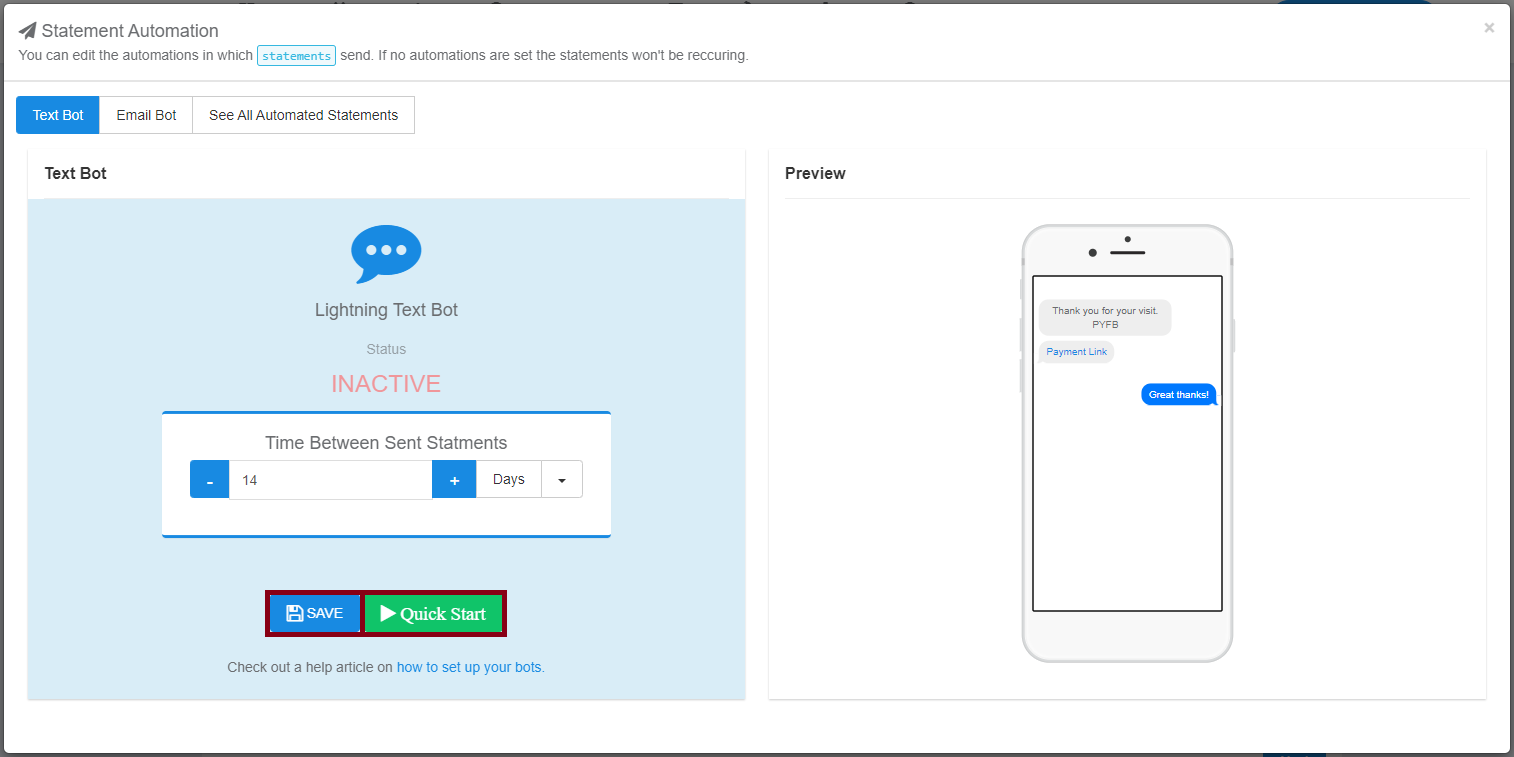
- Select Bot Type - When the Statement Automations window opens, it will default to text bot. If you would like to switch, you can press the Email Bot button at the top.
- Set Parameters - Once you are on the desired bot, set the parameters by inputting a number and selecting from the drop-down (days, weeks, or months). Click Save to set the parameters.
Reading the Set Automations
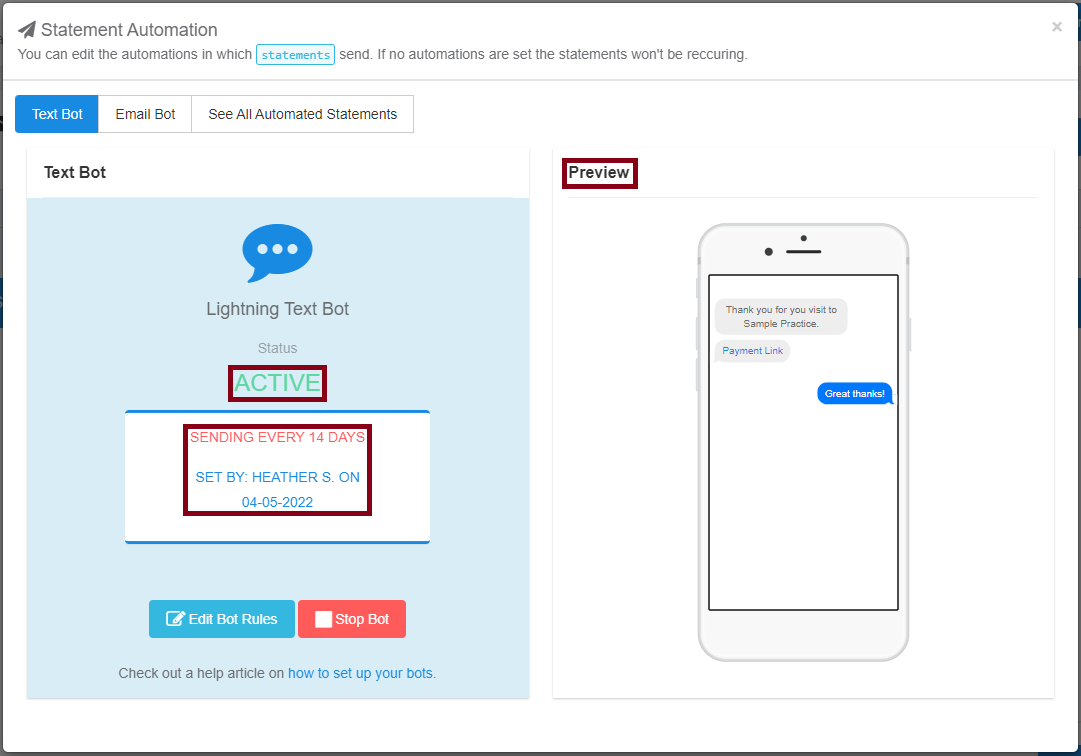
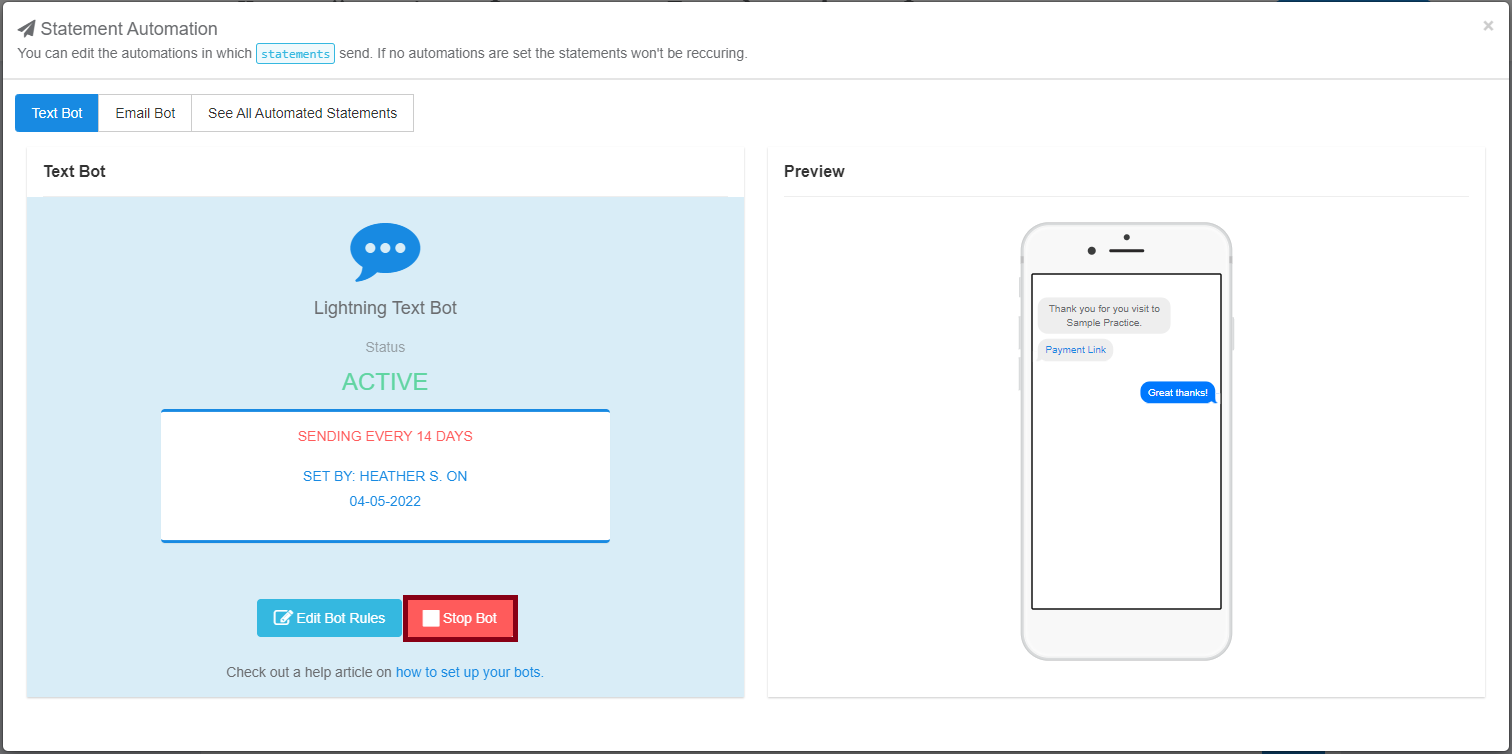
Now that you have automation active, there are a couple of things to review:- The status of the Bot will show it is active - this is the best way to tell if your bot is turned on or off
- The details of the bot will now be listed, showing how often the bot will send an email/text to the patient to pay their bill
- You will have an updated Preview portion showing what is being sent to the patient by either text or email
Setting the Electronic Message
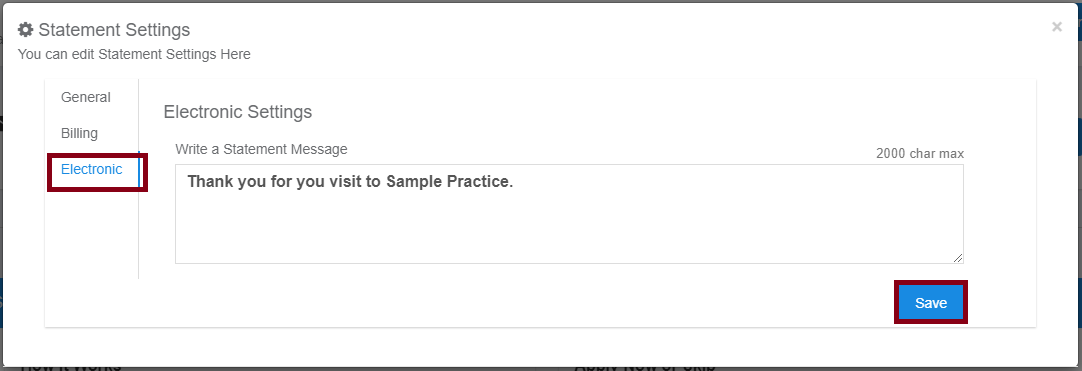
- Access Settings - If you would like to change the message sent in emails and texts, click on the Settings button.
- Save New Message - When the Statement Settings window opens, click down to the Electronics tab. In this tab, you can write a new message by deleting the old message and clicking Save. When you hit save it will update all electronic messages, even on texts and emails currently going out.
If you would like to completely delete your message and go back to the default message, you can delete the message and just save the blank text box.
Sending Out Texts/Emails
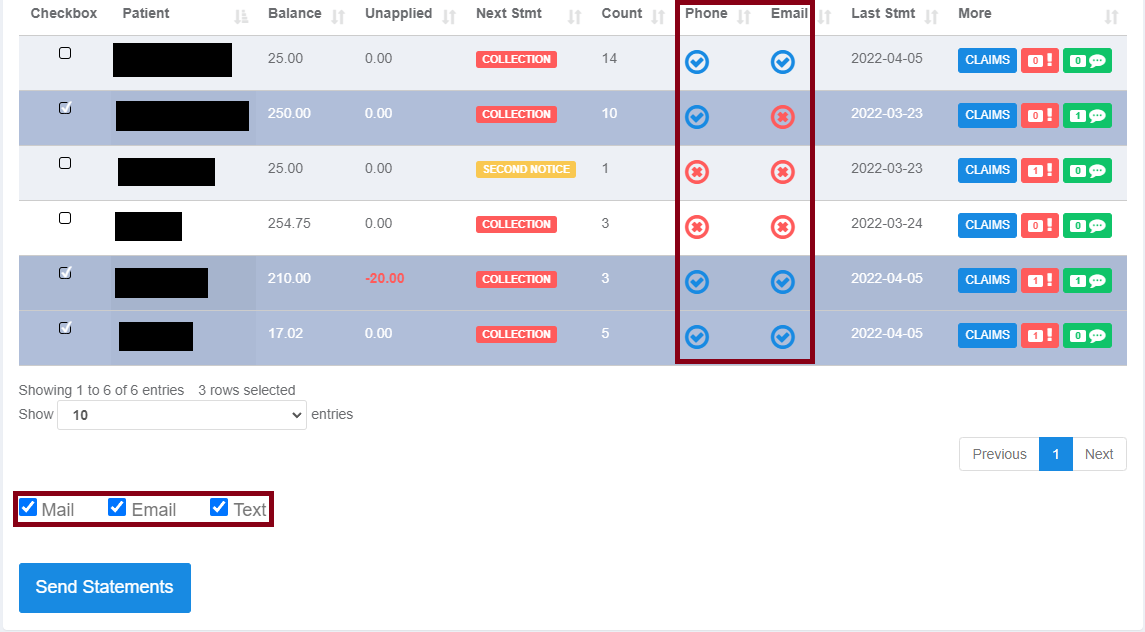
To start the automation you will need to send statements out. When you get to the table to send out statements there will be some new options:
- New columns indicate if the patient has a phone number or email (checkmark = yes, x = no)
- Checkboxes indicate whether you want to send out email, text, and mail
- Make sure to mark text or emails to send out your statements
- A text/email will send at that moment and then follow the automation parameters
If automation is not set, the statement will send only once to a patient.
Stopping the Bot
- Stop All Automations - To stop the bot from running, click Stop the Bot. There is a confirmation notice on this button so you can’t stop all of them by accident. This will stop all ongoing automations.
Extra Information
Checking All Automations
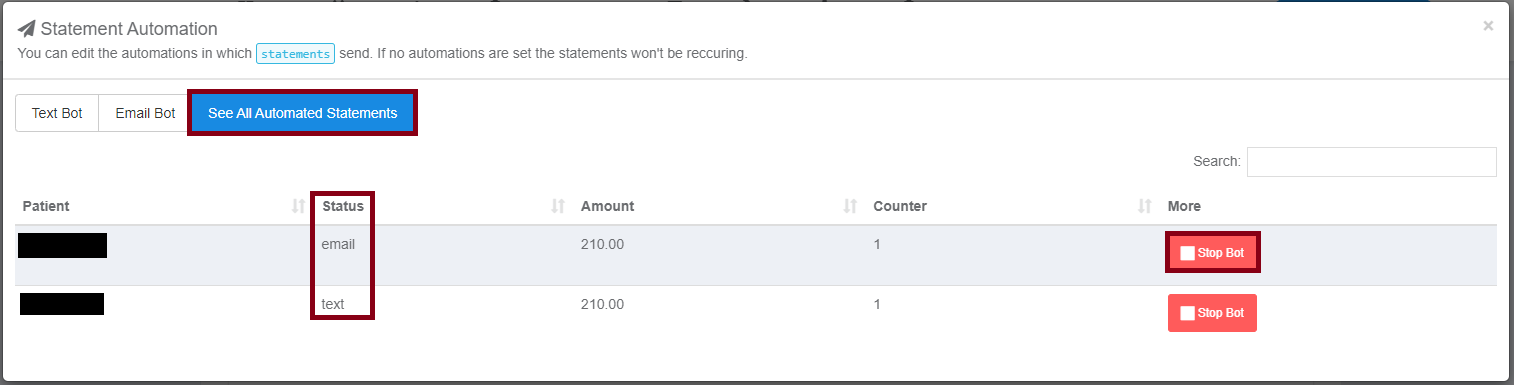
If you would like to check a detailed look at what is going out, click the See All Automated Statements tab. The following information will be listed:- Name of the patient receiving the email/text
- Whether it is a text or email
- The amount on the statement
- The number of times an email/text was sent