
Overview
This guide walks you through processing three types of payment adjustments:
Reversals, takebacks, and recoupments that arrive on an ERA cannot be auto-posted and must be handled manually using the workflow below.
Workflow Instructions
Voiding or reversing payments (Full)
Use this workflow when a patient or payer retracts/recoups an entire payment — whether the claim will be resubmitted afterward or not.1
Go to Payments → Payments and find the payment in question.
- Search by patient, payer, posted date or check/reference #.
2
On the claim(s) that were fully reversed/recouped, click Detail to expand the payment fields if they’re not already visible.
3
If the claim is marked as Settled in the Bill To field, change from Settled to Primary Insurance to prevent
$NaN values. The $NaN value appears when a Settled claim’s amounts are zeroed out before the disposition is changed; switching to Primary Insurance first avoids it.4
Empty all Allowed, Adjusted, Interest and patient responsibility (Deductible, Coinsurance, CoPayment) fields.
5
Change the Payment to $0.00. This will ensure the claim appears in financial reports.
6
Click Save at the bottom of the payment window to save the claim payment edits.
7
Click Edit at the top of the payment window.
8
Add the total retracted/recouped amount to the Ignored field. The Ignored field records the retracted/recouped amount for audit purposes without affecting the claim balance.
9
Click Save.
10
Add a Claim Note and Payment Note to explain the Ignored amount if needed.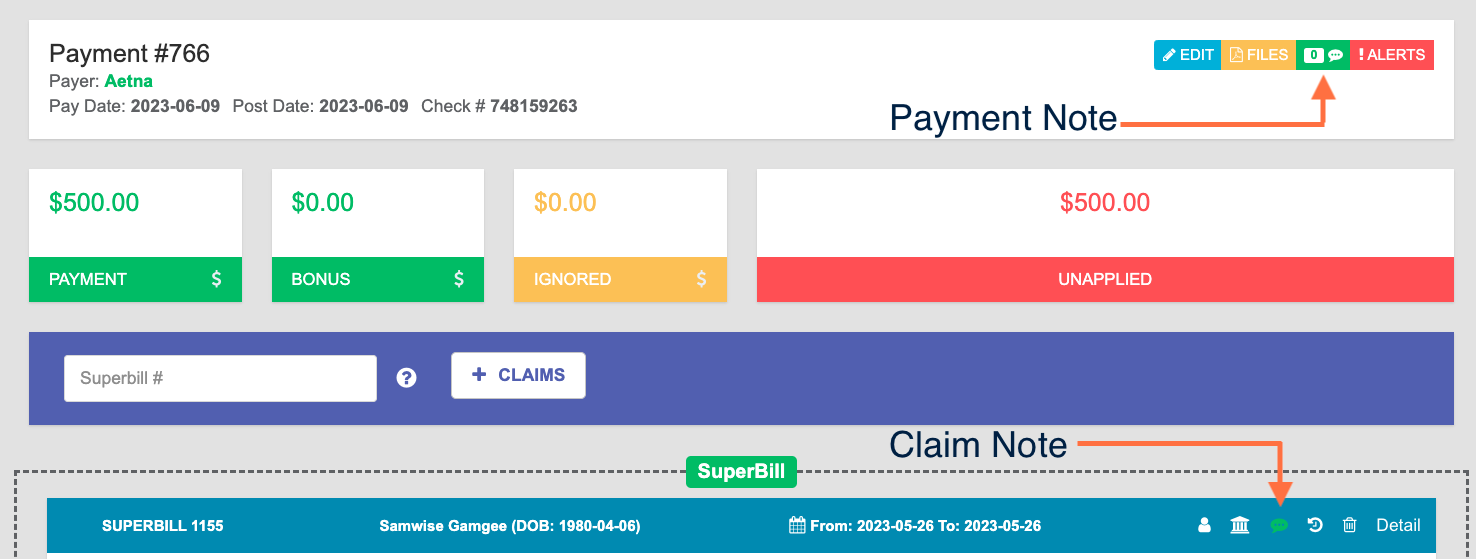
11
Review any claims that still have a balance and see if you need to send them to the Payer again.
Voiding or reversing payments (Partial)
Use this workflow when a patient or payer retracts/recoups a portion of the original payment (e.g., $30 of a $100 payment)1
Go to Payments → Payments and find the payment in question.
- Search by patient, payer, posted date or check/reference #.
2
On the claim(s) that were partial reversed/recouped, click Detail to expand the payment fields if they’re not already visible.
3
If the claim is marked as Settled in the Bill To field, change from Settled to Primary Insurance to prevent
$NaN values. The $NaN value appears when a Settled claim’s amounts are zeroed out before the disposition is changed; switching to Primary Insurance first avoids it.4
Reduce the amount in the Payment field by the retracted/recouped amount (e.g., in the example above, change $100 to $70.00.
5
Adjust the Allowed, Adjusted, Interest and patient responsibility (Deductible, Coinsurance, CoPayment) fields to match the corrected adjudication on the new EOB.
6
Click Save at the bottom of the payment window to save the claim payment edits.
7
Click Edit at the top of the payment window.
8
Add the total retracted/recouped amount to the Ignored field. The Ignored field records the retracted/recouped amount for audit purposes without affecting the claim balance.
9
Click Save.
10
Add a Claim Note and Payment Note to explain the Ignored amount if needed.
11
Review any claims that still have a balance and set Bill To to the correct responsible party for the remaining balance.
Updating payments
Use when the payer reprocessed a claim and the adjudication changed (different allowed amount, payment, adjustment codes, or patient responsibility).Payer increases the payment amount
1
Go to Payments → Payments and find the payment in question.
- Search by patient, payer, posted date or check/reference #.
2
On the claim(s) with the updated payment, click Detail to expand the payment fields if they’re not already visible.
3
If the claim is marked as Settled in the Bill To field, change from Settled to Primary Insurance to prevent
$NaN values. The $NaN value appears when a Settled claim’s amounts are zeroed out before the disposition is changed; switching to Primary Insurance first avoids it.4
On the original payment, update the claim’s Allowed amount to the new value.
5
Add a Claim Note and Payment Note to explain the updated amount if needed.
6
Click Save at the bottom to save the payment changes on the claim.
7
Create a new payment using the instructions in the Recording & posting a payment in Elation Billing article - if an existing ERA is available then post from that ERA.
- Record the additional payment from insurance in the Payment Amount field.
8
Add the corresponding claim to this new payment.
9
Record the Payment from this new payment onto the claim.
10
Add a Claim Note and Payment Note to explain the additional payment amount if needed.
11
Click Save at the bottom to save the payment changes on the claim.
Payer reduces the payment amount
1
Go to Payments → Payments and find the payment in question.
- Search by patient, payer, posted date or check/reference #.
2
On the claim(s) with the updated payment, click Detail to expand the payment fields if they’re not already visible.
3
If the claim is marked as Settled in the Bill To field, change from Settled to Primary Insurance to prevent
$NaN values. The $NaN value appears when a Settled claim’s amounts are zeroed out before the disposition is changed; switching to Primary Insurance first avoids it.4
On the original payment, update the claim’s Allowed amount to the new value.
5
Reduce the Payment to the new paid amount.
6
Update the Adjusted section to match the new EOB/ERA.
- If the payer changed the reason (for example, original
CO45is nowPR1deductible), remove the old adjustment and add the corrected one.
7
Update the patient responsibility fields (Deductible, Coinsurance, CoPayment) if the new EOB/ERA shifted the balance to the patient.
8
Edit the Payment details and put the difference in payment in the Ignored field so the original check total still balances (e.g., if the Payer reduced the paid amount by $30 then put that $30 in the ignored field - if there’s an existing ignored amount then add $30 on top of it).
9
Click Save to save the updated payment details.
10
Add a Claim Note and Payment Note to explain the additional payment amount if needed.
11
Review any claims that still have a balance and set Bill To to the correct responsible party for the remaining balance.
12
Click Save at the bottom to save the payment changes on the claim.
Updating adjustments only
Use when the payment amount didn’t change but the payer updated adjustment reason codes or patient responsibility.1
Go to Payments → Payments and find the payment in question.
- Search by patient, payer, posted date or check/reference #.
2
On the claim(s) with updated adjustment information, click Detail to expand the payment fields if they’re not already visible.
3
Update the adjustment codes and patient responsibility fields to match the corrected EOB.
4
Add a Claim Note and Payment Note to explain the changes if needed.
5
Click Save at the bottom to save the payment changes on the claim.
Managing recoupments in ERA’s
When a payer issues a recoupment via ERA, it typically appears as a negative-payment line offsetting a prior payment, embedded inside a current remittance.1
Auto-post the current ERA as usual. The recoupment line will be flagged for review.
2
For the recoupment line, follow the instructions in the Voiding or reversing payments (Full) or Voiding or reversing payments (Partial) sections against the original payment record (not the current ERA payment).
3
Apply the remaining positive lines on the current ERA normally using Steps 7-11 from the Payer increases the payment amount section
4
Confirm both the previous payment record and the current ERA balance independently.
Special cases
- Multiple claims on the original payment — Only modify the affected claims details; leave other claims untouched. The Ignored amount on the payment header should equal only the voided/recouped portion.
- Multiple payers on one claim (primary + secondary) — Reverse only the affected payer’s payment record. The other payer’s posting and Bill-To routing stay intact.
- Original payment included Bonus or Ignored amounts — Leave those amounts unchanged. The new Ignored entry for the void/recoupment should be added to the original ignored amount.
- Closed accounting period — If the original payment is in a closed period, do not backdate the reversal. Use the current Posting Date and document the original period in the Note.
- Stop payment / bounced check — Treat as a full void. Use the original check number plus a suffix (for example,
12345-NSF) in the Note. - Patient payment reversal (refund or returned check) — This workflow does not apply. Use the patient credit and refund workflow instead — see Manage patient credits and overpayments and Integrated Refunds.
- Claim previously transferred to patient who paid — After reversing the insurance payment, the patient’s payment may now appear as a credit. Reconcile the credit with the patient as needed.