This article explains how to locate an ERA (Electronic Remittance Advice) from a patient’s record in Elation Billing. An ERA is the electronic version of a payment explanation sent by an insurance payer — it details what was paid, adjusted, or denied on a claim.
If you’re looking for an EOB file you uploaded manually, see Patient, Claim, and Payment Files instead.

Workflow Instructions

1
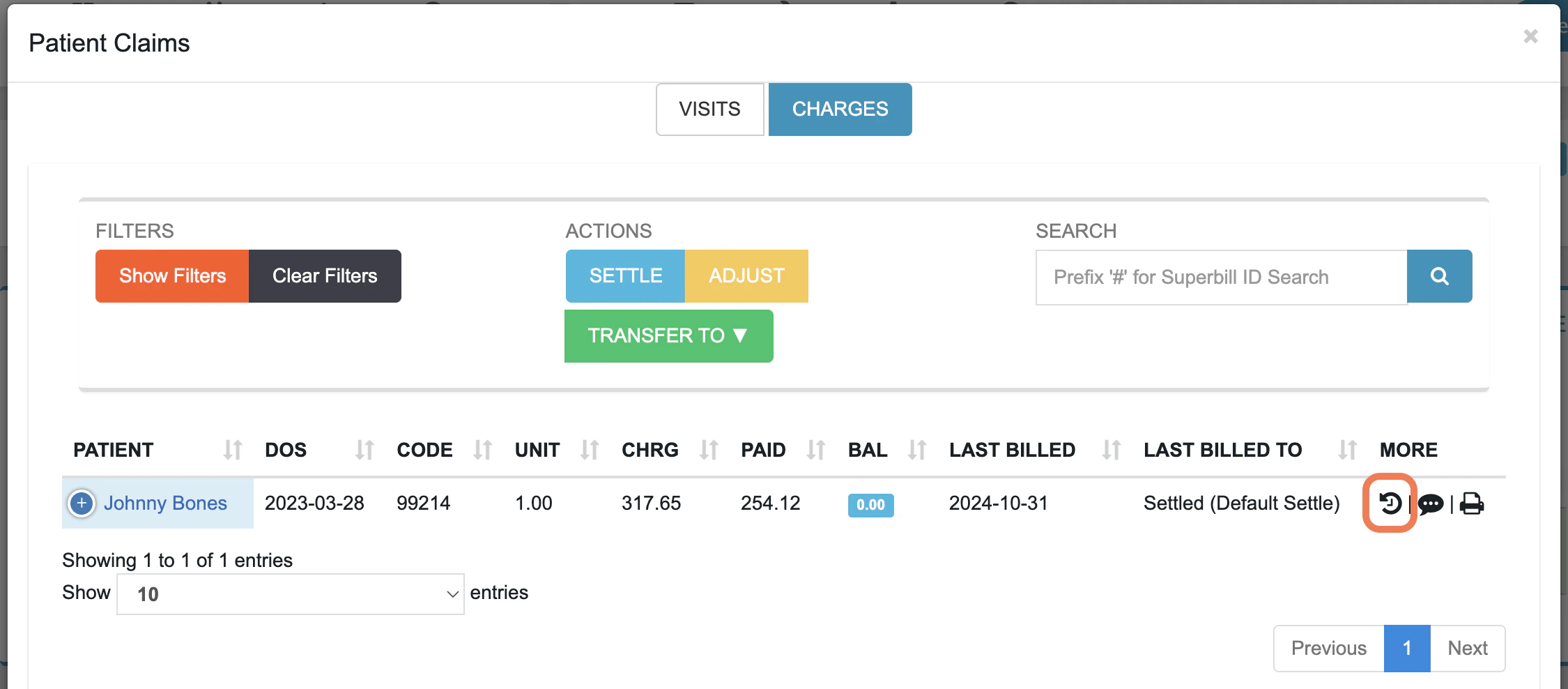
From the patient’s record (not a Superbill), click ClaimsCharges.
2
Click the Claim History button next to the claim you want to view.Elation Billing Claim History Button In Claims View
3
Under Clearinghouse Activity, find a row in the Type column that shows ERA Received.
4
Click Open ERA at the end of the row and select the type of ERA you want to view.
  • Full ERA - shows you the full ERA tied to the payment - it may or may not have payments for other patient claims.
  • Partial ERA - show you only the part of the ERA that is relevant to the patient.

Troubleshooting

The Open ERA button doesn’t appear on an auto-posted payment. This can happen if the ERA was deleted or if the payment was imported in a way that didn’t attach the ERA. Try searching for the ERA directly by check number using the ERAs search tool. No financial transactions appear in Claim History. Financial Transactions only appear after a payment has been posted to the claim. If the claim hasn’t been paid or posted yet, there will be no transactions to navigate from.