
Elation Billing Quick Start Video
This video walks you through the basics of using Elation Billing to submit claims to payers and manage submitted claims.Claim Creation Workflow
Overview
Browser Recommendation
While Elation Billing will function in most standard internet browsers, it is optimized for use in Google Chrome.Lifecycle of a Claim
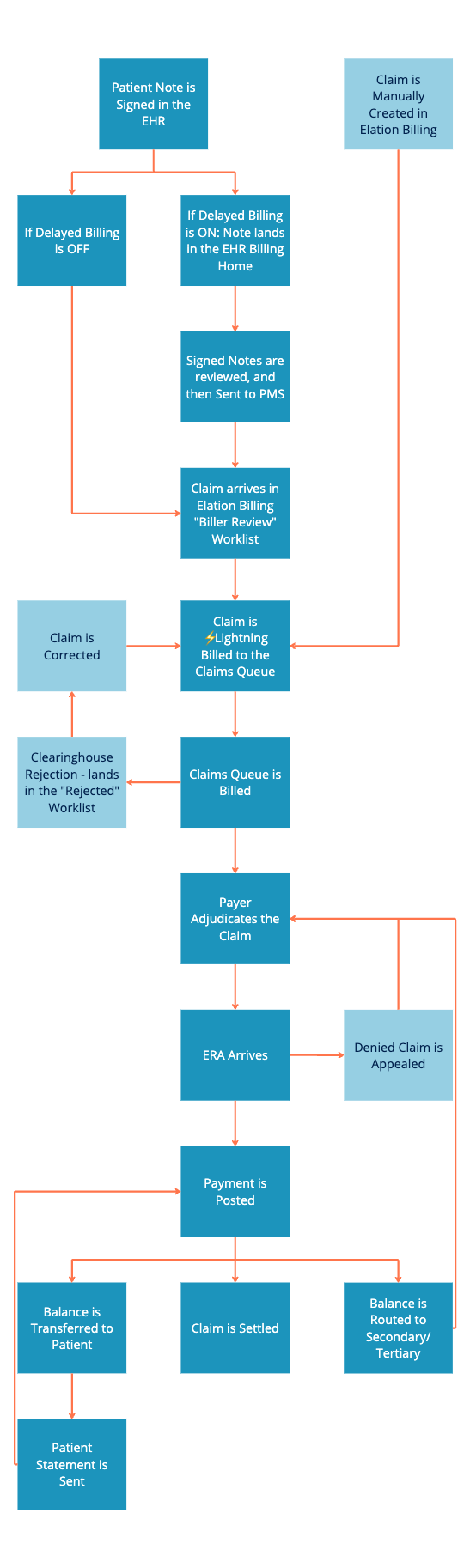
Elation All-in-One Customers will rarely create a claim manually in Elation Billing. Manual claim creation is generally reserved for tracking payments from Capitation, Prop 56, etc.
Finding Support
There are a few ways to get help with Elation Billing:-
Chat Support - Click the chat bubble in the lower-right corner of any Elation Billing page.

-
Support Ticket Portal - Use the toolbar: select Support → Support Ticket Portal.
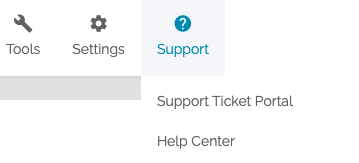
- Help Center - Navigate to the Help Center’s dedicated page from the Support button.
Key Features
Favorite Payers and EDI Enrollments
Selecting your favorite (commonly used) payers and enrolling in their EDI is one of the first steps in establishing your practice.Claims
- Filing a Claim - Create superbills and submit claims. For All-in-One users, claims are generally created in the EHR by signing a Note with Billing Information.
- Claims Queue - Where claims land when you bill. Print paper claims, review what’s ready, and transmit.
- Claims Manager - Manage all claims with filters and bulk updates.
- Worklist - Tag claims requiring further action with default or custom tags.
- Notes and Alerts - Leave permanent notes or temporary alerts on patients and claims.
- Running Eligibility - Get real-time eligibility updates for enrolled payers.
Payments
- Auto-Post ERAs - Automatically generate payments from ERA data.
- Collect Patient Payments - Initiate collection from EHR or Elation Billing.
- Post Payments Manually - Full control for paper EOBs or ERAs with denials.
- Claim Appeals - Handle appeals from Claims Manager or Patient page.
- Capitation Payments - Track capitation, Prop 56, and similar payments.
Statements and Patient Billing
- Send Statements - Available via mail, email, and text.
- View and Print Statements - Access previously sent statements.
- Payment Plans - Establish automatic payment plan statements.
Reports & Tools
- Document Center - Upload and store files linked to Patients, Claims, or Payments.
- ⚡️Lightning Insights - Powerful reporting tools for practice performance.
- ⚡️Lightning Reports - Focused views of practice data.