Overview
What is an Alert?
Alerts are visual notifications that display important information about a patient or claim. Patient Alerts appear across the patient’s pages and superbills, while Claim Alerts appear only on the specific superbill.Why are Alerts important?
Alerts help ensure critical billing information is visible to all staff working with a patient or claim. They can highlight special billing requirements, payment arrangements, or other important notes.Workflow Instructions
Adding a Patient Alert
- Navigate - Click on the Alerts box at the bottom of a patient profile page.
Patient Alerts will appear in Elation Billing:- On the patient’s Elation Billing page
- On any of the patient’s Superbills
- On any Payments that have the patient’s Superbills added For Elation EHR + Billing users, alerts will also appear in the EHR:
- When scheduling Patient Appointments
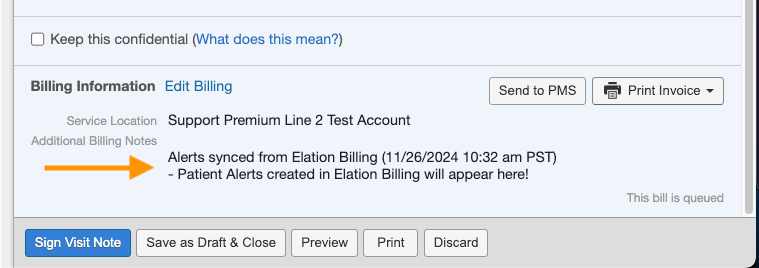
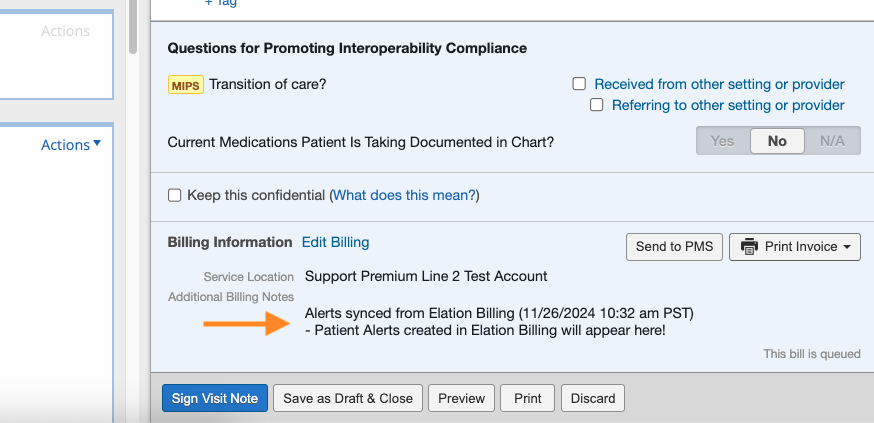
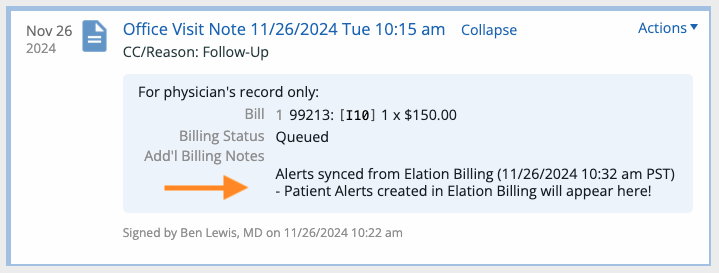
- In a Visit Note’s Billing Information → Additional Billing Notes
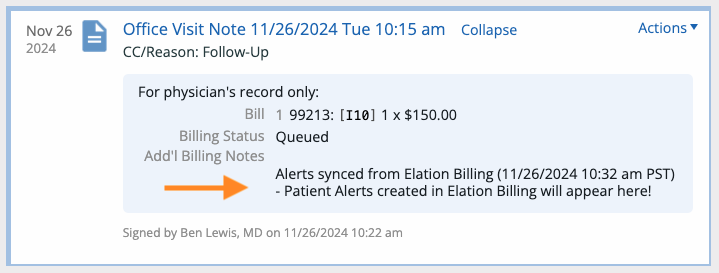
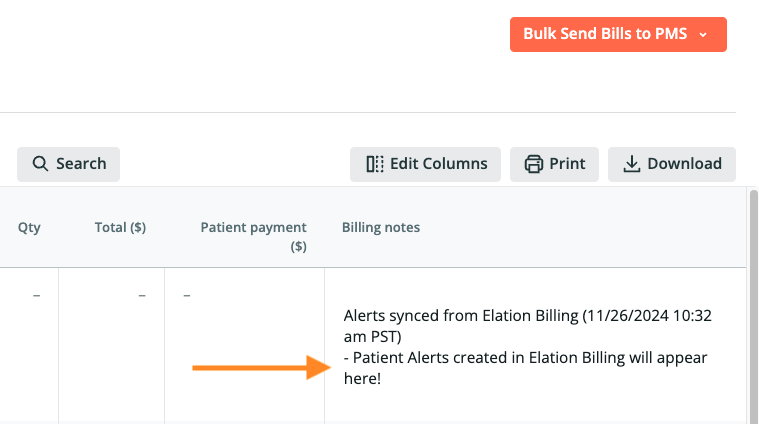
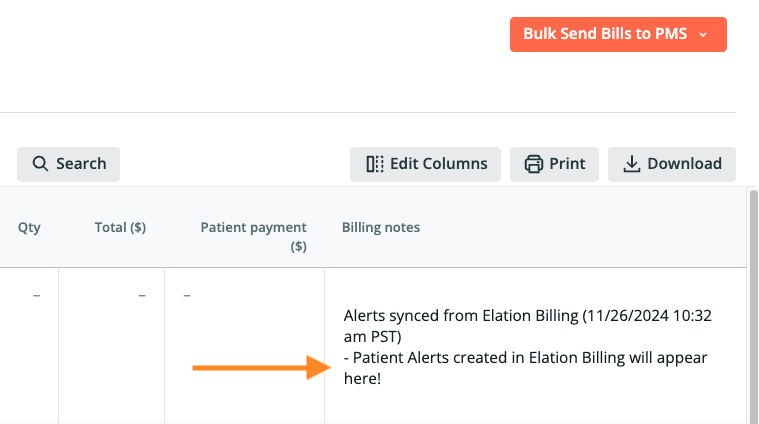
- In the Billing Home → Billing Notes
Adding a Claim Alert
Claim Alerts will appear:- On the Superbill
- On any Payments that have the Superbill added
- Navigate - Click on the Alerts button on the top right of the Superbill.

Creating the Alert
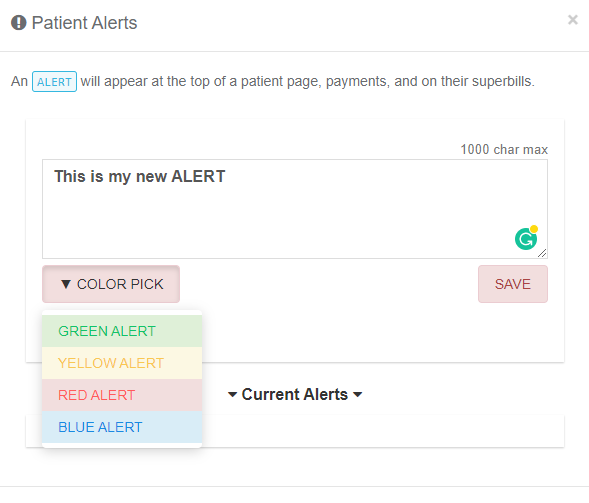
- Enter Alert - Enter the text for the alert, choose a color, and click SAVE.
Viewing Alerts
In Elation Billing
- Patient Alerts display on the patient page, claims, and payments posted
- Claim Alerts display on Superbills
In the EHR (Elation EHR + Billing only)
Patient Alerts will also appear in the EHR, while Claim Alerts remain only in Elation Billing. You can review Patient Alerts in the EHR:- When scheduling Patient Appointments
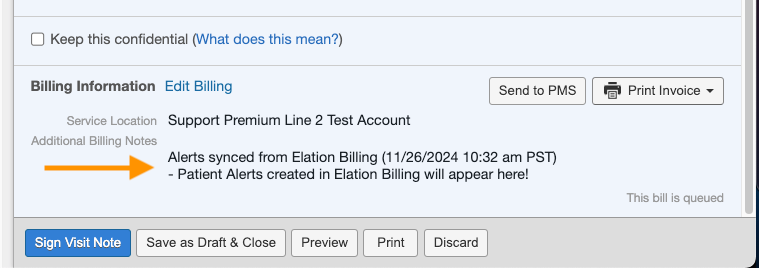
- In a Visit Note’s Billing Information → Additional Billing Notes
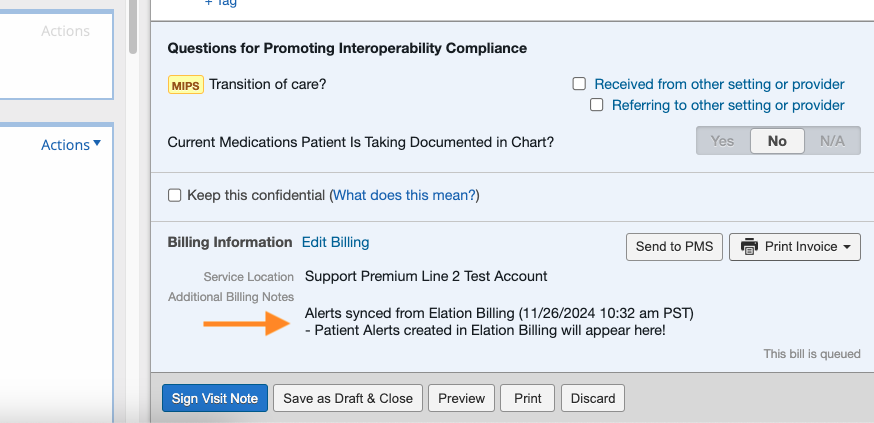
- In the Billing Home → Billing Notes