
Overview
What is the Claims Queue?
The Claims Queue is where your claims land after designating where they’ll be billed. It serves as the last stop for claims before they’re sent out to their payer(s).Why is the Claims Queue important?
The Claims Queue allows you to review claims before submission, make last-minute edits, remove claims that aren’t ready, and batch-submit claims to payers efficiently.Workflow Instructions
Navigating to the Claims Queue
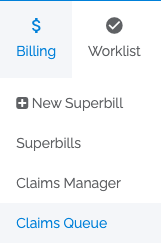
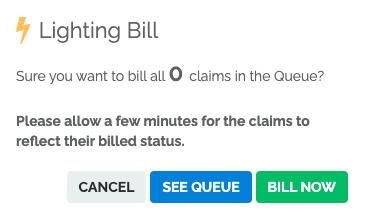
There are two ways to reach the Claims Queue:-
From the Billing dropdown menu - Select Claims Queue from the Billing menu.
-
From the Bill Now button - Click Bill Now, then select See Queue.

Using the Claims Queue
Once you are in the Queue, you can see the claims that have been designated for sending to their respective payer(s).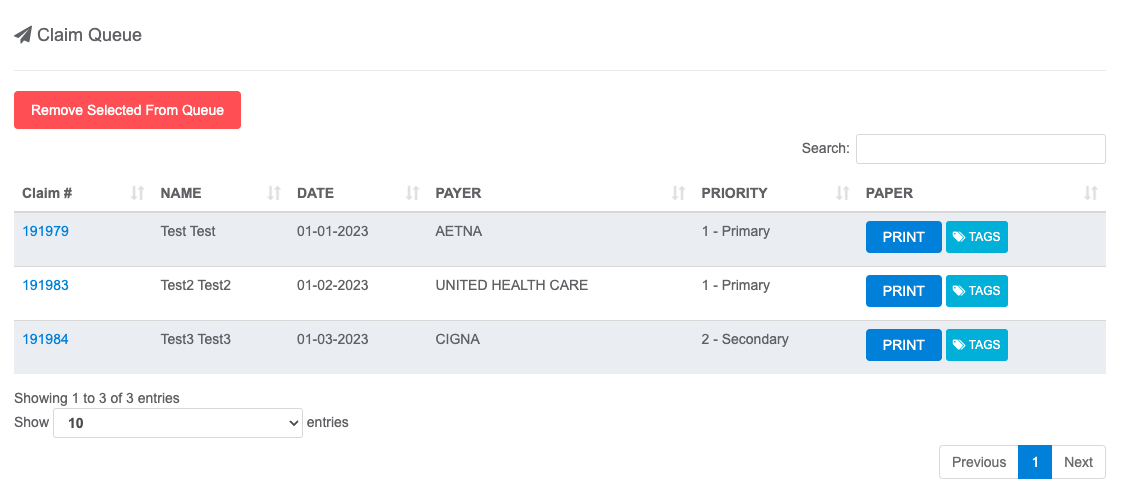
- View a Claim - Click the blue Claim # to open the claim in a new tab.
- Remove Claims from Queue - Click anywhere within the claim’s row (that isn’t a button) to select it, then select Remove Selected From Queue.
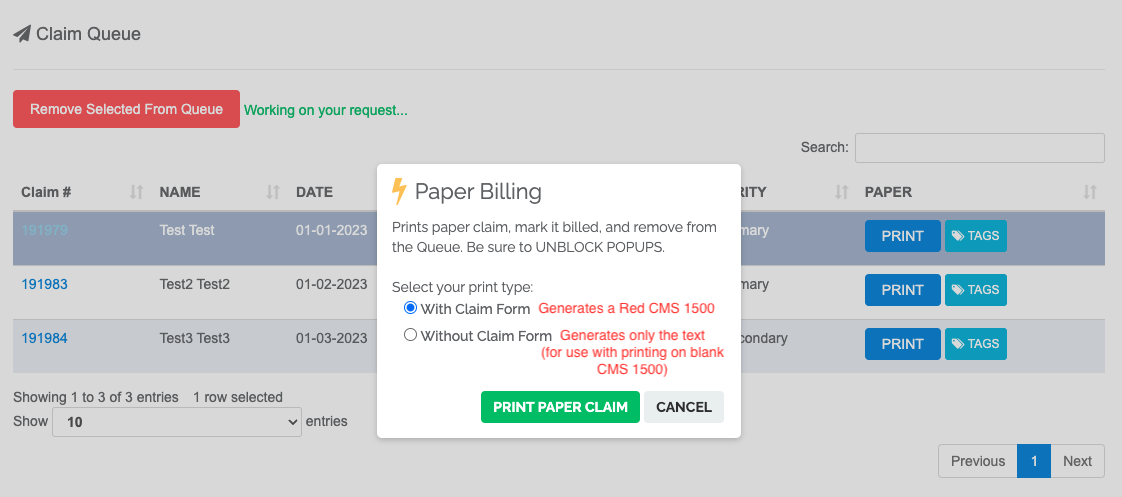
- Print for Paper Billing - Click PRINT to generate a claim form, mark the claim as Billed, and remove it from the Queue.
If the 1500 form is not appearing, it’s most likely due to a pop-up blocker. In Chrome, click the pop-up blocked icon in the address bar and select Always allow pop-ups and redirects from app.elationemr.com. In Firefox, click the pop-up blocked notification in the address bar and select Allow pop-ups for app.elationemr.com.
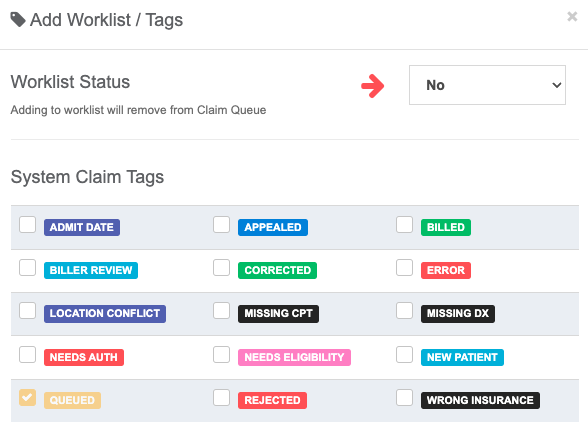
- Manage Tags - Click TAGS to update the tags on a claim. By default, any claim in the Queue will be tagged “Queued”.
If a claim’s Worklist Status is changed to Yes, it will be automatically removed from the Queue once this status is saved.
Billing the Queue
- Submit Claims - When you are ready to send your Queue off to the payer(s), click the Bill Now button, then click Bill Now in the popup that appears.
- Automatic Tag Update - Billing claims will automatically change their Tag from Queued to Billed.
- Claim Transmission - At this stage, the claims will be sent to the clearinghouse, where they’ll be routed to the payer.