Overview
What are Integrated Refunds?
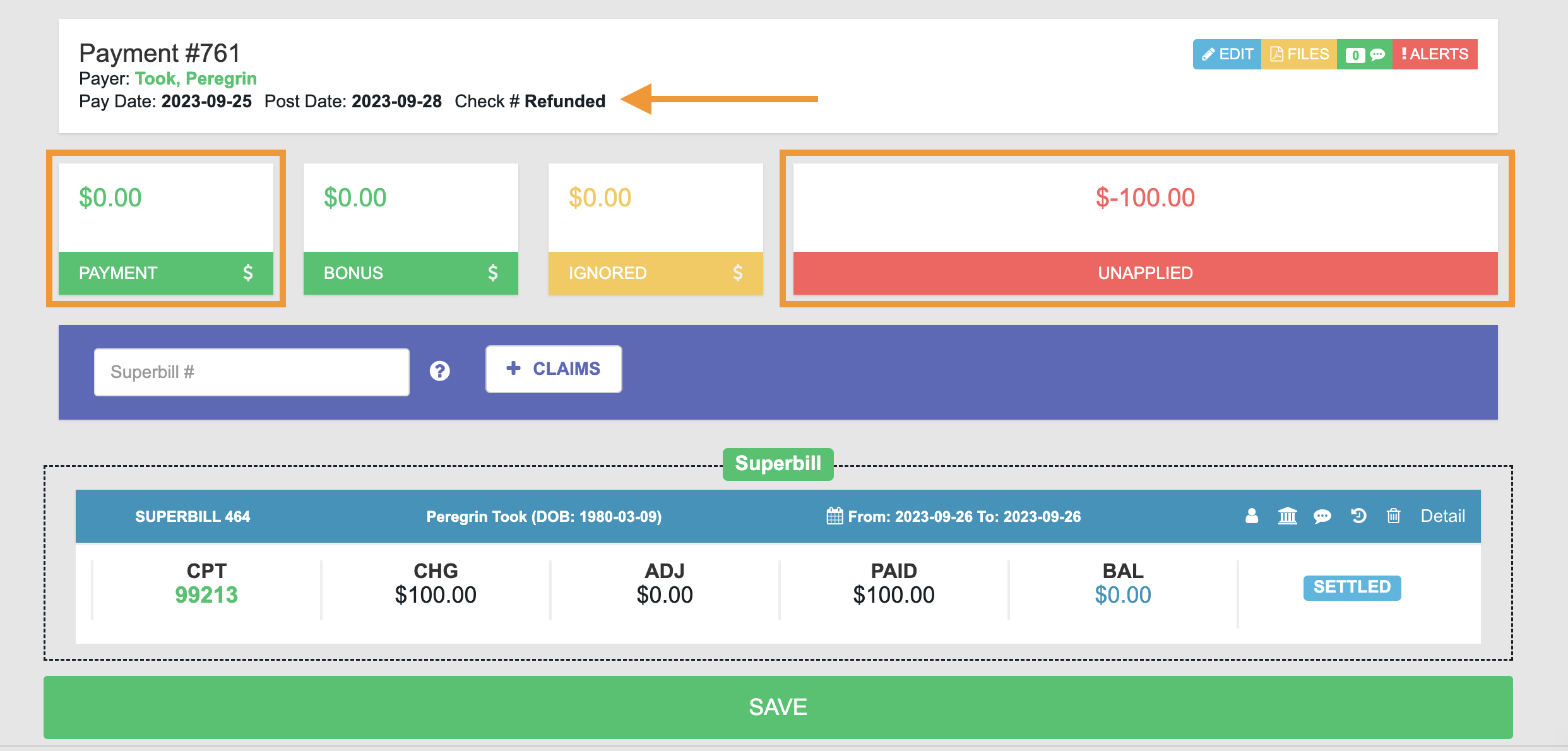
In the EHR, using Refund or Mark Refunded will apply the following changes in Elation Billing:- Update the Payment amount to $0
- Update the Check Number to Refunded
It will NOT update or remove any Superbills that have been added to the Payment.
Workflow Instructions
Processing a Refund
- Navigate to Patient Payment Report - In the EHR (not Elation Billing), navigate to Reports → Patient Payment Report.
-
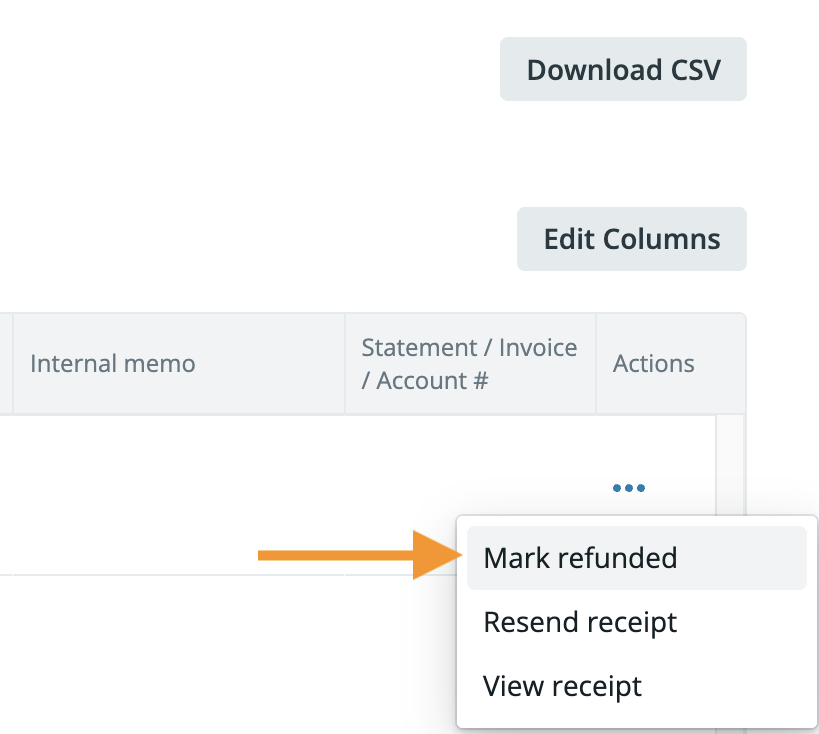
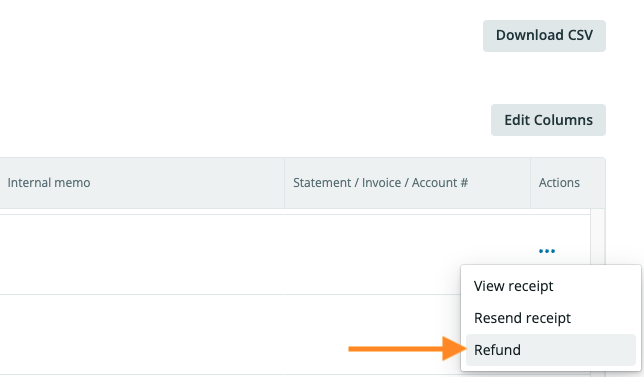
Refund or Mark Refunded - Once you’ve found the Patient Payment you wish to refund, use the Actions button:
For Cash/Check Payments → Mark Refunded
For Credit Card Payments → Refund
-
Review in Elation Billing - Verify the refund was processed correctly.
Before the Refund
The payment will look something like this: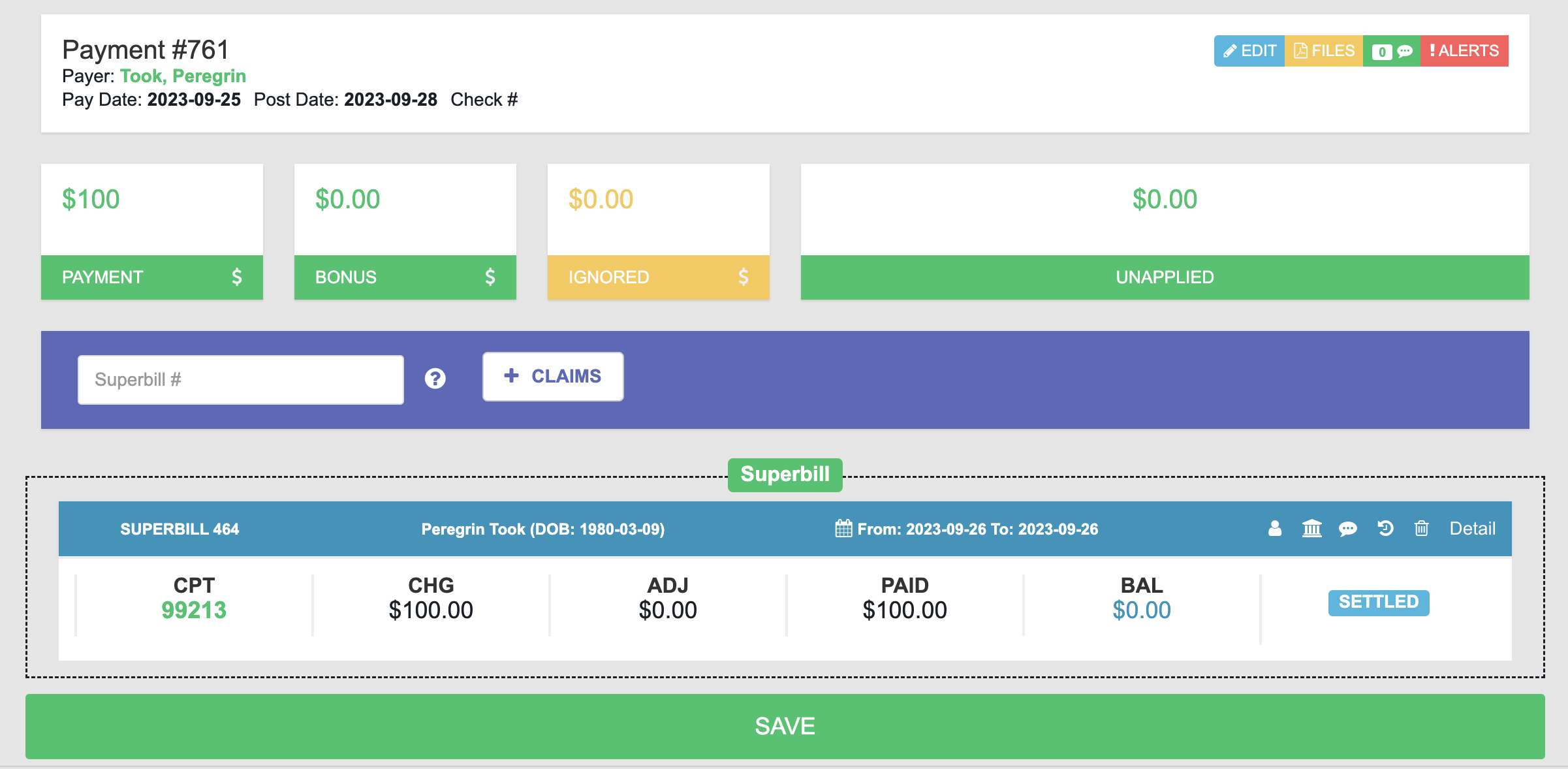
After the Refund
- The Check # has been updated to Refunded
- The Payment amount has been updated to $0
- The Unapplied amount will represent the amount that is now over-applied to any Superbills