
Managing To Do’s
I am a Staff Level User but I am seeing Draft Notes in my Requiring Actions. Why does this happen?
If a Staff Level User starts a visit note draft then the visit note draft will be assigned to a Provider Level User. If there are multiple Provider Level Users in the practice, then the assignment will follow these rules:- If the visit note draft was created via the Visit Note Automation feature in the Calendar, then the visit note draft will be assigned to the Provider that the appointment belongs to.
- If the visit note draft was created from the patient’s chart and is not tied to an appointment, then the visit note draft will be assigned to the Provider assigned in practice for the patient.
How do I check another staff member’s inbox to find a message I sent them?
You can check another user’s inbox by clicking on the View Queue For: button a the top of the inbox list and then selecting their name. Click here to learn more about this dropdown.Ordering Tests & Procedures
What do I use to order a test for something that doesn’t fit the current order forms (ex. EEG)?
We recommend using the Referral Form to order tests that do not fall in the lab, imaging, cardiac, pulmonary or sleep categories. Click here to learn more about the Referral Form .How do I order durable medication equipment?
There are two options for ordering durable medical equipment depending on the order is going to:- Use the Prescription Form if the order is going to a pharmacy.
- Use the Referral Form if the order is going to any other supplier.
Scheduling
When a patient cancels an appointment, how will I be notified?
When a patient cancels their appointment via an appointment reminder, your office will be notified in two ways:- The Provider Level User that the patient was scheduled with with receive an email about the cancellation. The email will be sent to the Provider Level User’s EHR login email.
- The patient’s appointment status will be updated to Cancelled. The ‘Show canceled appointments in the calendar’ Setting must be turned on in order for you to see canceled appointments in the Calendar. Learn more about this Setting.
I want to include a link to the exact appointment type I want my patient to book in a Patient Letter. Is this possible?
You can include a link to the exact appointment type you want you patient to book if you are using the Booking Site feature. Each Appointment Type as a Direct URL that can be found in the main Appointments tab at the bottom of each appointment type. Click here to learn more about the Booking Site feature .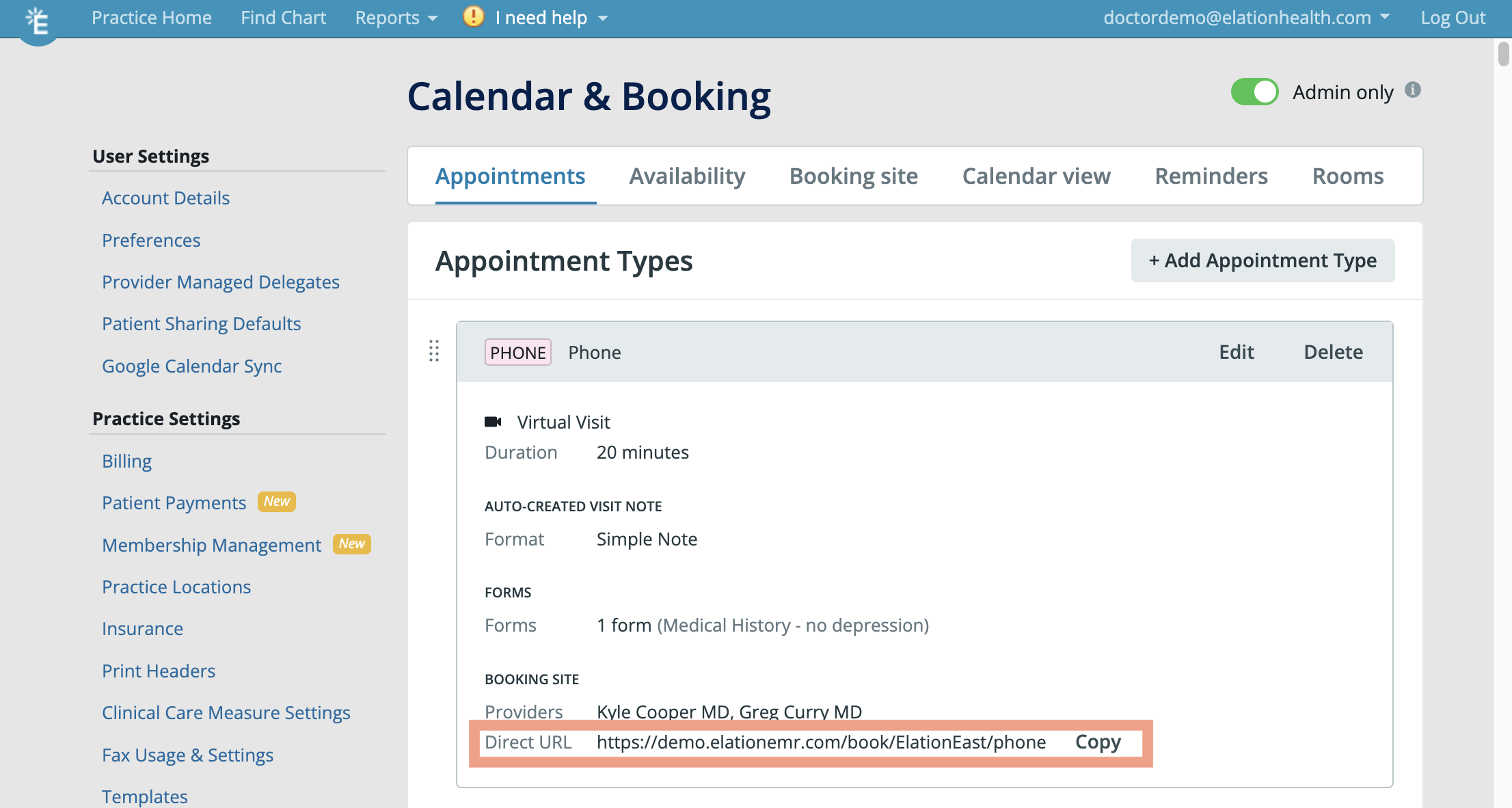
Related Articles
- Best Practice- How to order durable medical equipment
- Calendar Guide- How to set up the provider calendar
- Letters & Referrals Introduction- Sharing clinical data outside of Elation
- Patient Booking Site Guide
- Practice Home Guide- Checking for requiring action items
- Visit Note Documentation Guide- Using visit note automation for appointments