
What is visit note automation?
By clicking on a patient’s name from their appointment in the Elation calendar for appointments scheduled for today, Elation will automatically open a visit note for that encounter and pre-populate the following information based on settings that you have configured for the specific appointment type tied to the appointment.Why is visit note automation useful?
Elation’s visit note automation feature allows your practice to create an encounter experience that is tailored specifically to a particular appointment type in the Elation calendar. Visit note automation will save your practice time on documentation and ensure you are getting credit for the services being rendered (based on billing codes), while allowing you to spend more time focused on patient care.Visit note automation best practices
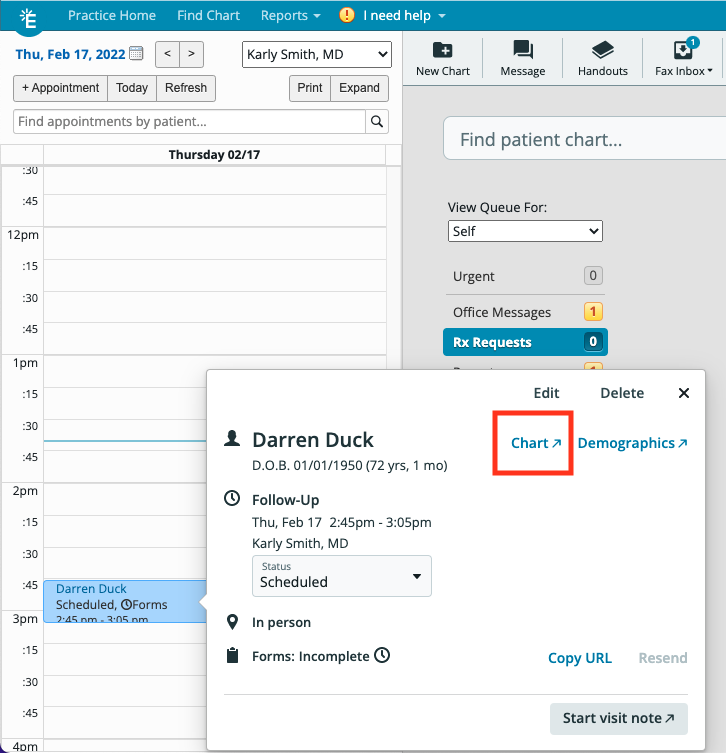
If you want to open a visit note using visit note automation**,** click on the patient’s name in the Elation calendar for the appointment that you would like to open a visit note for. Elation will respect the specific appointment that you select from the calendar, even if there are multiple appointments on the same day.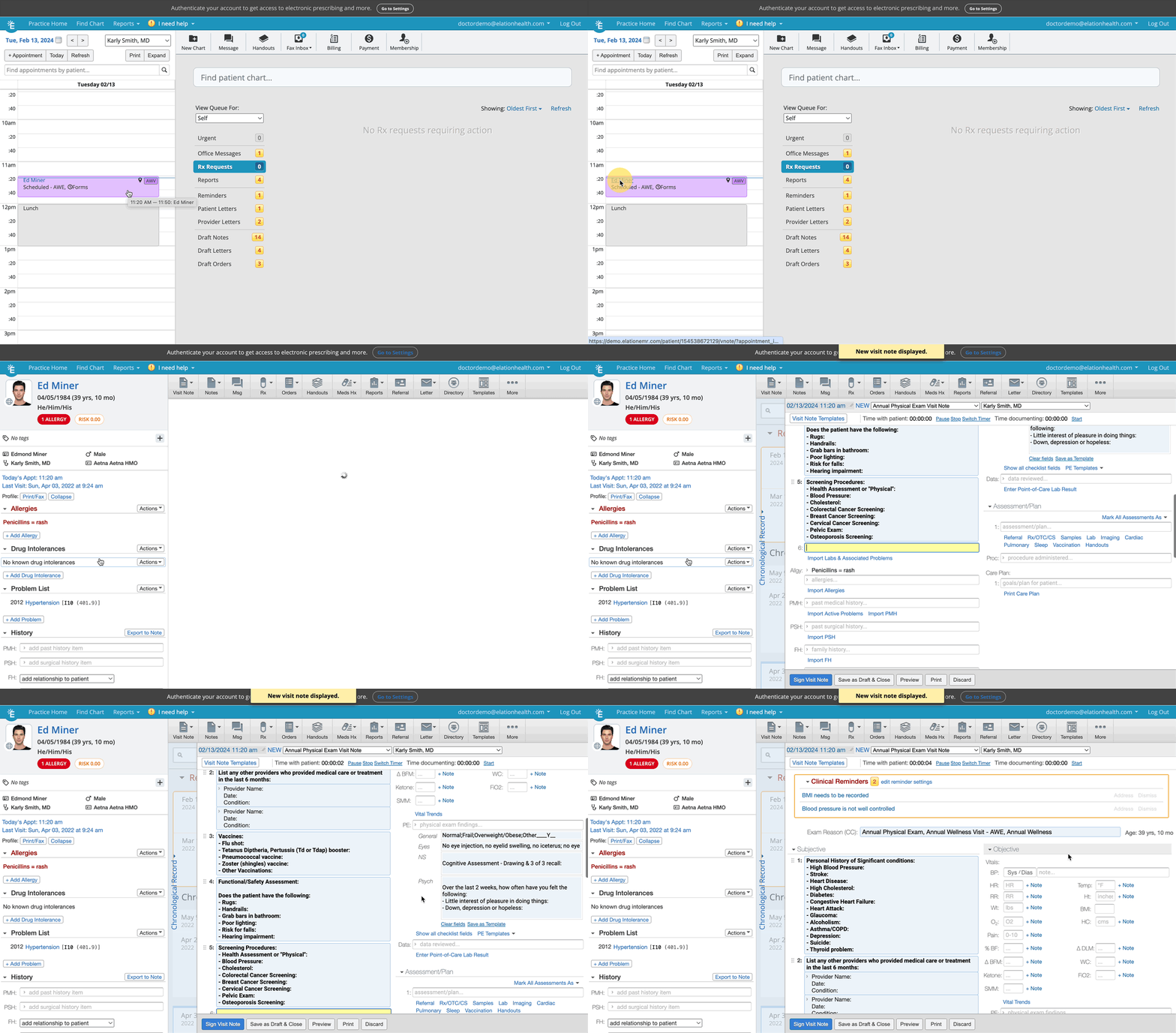

How to set-up visit note automation
- Navigate to your Settings page
- Select Calendar & Booking >> Appointments
- Find the appointment type that you’d like to customize and click Edit
- In the dialog’s left-hand navigation, click Auto-created visit note, then select the visit note format, visit note category, and visit note template that you would like to tie to that appointment type in the drop-downs that appear
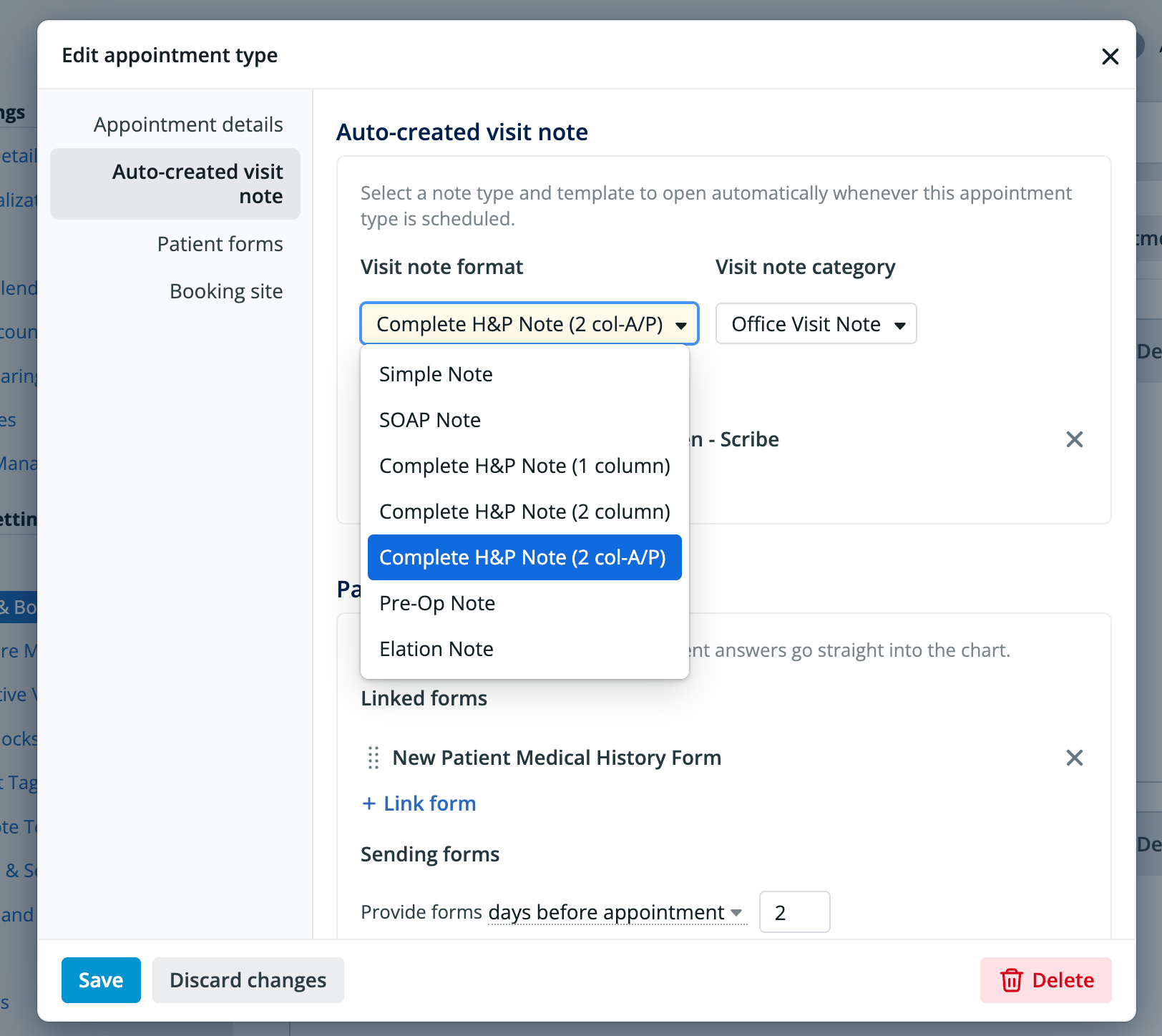
- Reference the Visit Note Documentation Guide- Visit Note Formats and Visit Note Templates Guide for more information.
- Click Save
Common use cases
Visit note automation has commonly been used by practices for the following appointment types. Reference the Visit Note Categories Guide and Visit Note Templates Guide as needed.Telehealth
- Select (or create) the Telehealth visit note category
- Select the pre-created *E Telehealth visit note template to populate Telehealth attestation documentation and the appropriate CPT® and modifier codes into your visit note draft.
Annual Exams
This can include women’s health, well-child/adolescent care, and annual wellness exams- Select (or create) the Annual or Wellness Exam visit note category
- Associate corresponding visit note template(s) to the appointment type.
- This visit note template may contain common wellness exam questions to ensure your wellness exams consistently have the set of questions you’d like answered present.
- You may also choose to include annual exam CPT codes in your visit note template, so that these may be automatically applied through visit note automation to ensure you receive credit/reimbursement for the visit
Common procedures, including flu shot and injections
- Select the Procedure or a more procedure-specific visit note category
- Associate corresponding visit note template(s) to the appointment type.
- This visit note template may contain routine questions that must be asked as part of the procedure
- You may also apply procedure CPT codes to the billing section of the visit note template to ensure that your practice receives credit/reimbursement for the service rendered
Turning off auto-created visit notes
Turning off visit note automation is not a self-serve setting—it must be done by Elation Support.If you do not want to use the Visit Note automation, you can request for the feature to be turned off. Have an Admin Level User in the practice click the I need help -> Contact Elation Support button to submit a request and a member of the Support Team will assist you with turning this feature off.
Related Articles
- Visit Note Documentation Guide- Visit Note Formats
- Visit Note Categories Guide
- Visit Note Templates Guide
- Calendar Guide- How to set up the provider calendar
- Calendar Guide- Using the Calendar for appointments & events
- Billing Guide- Creating a Super Bill and coding for your visit
- Telehealth: Billing & Workflow Recommendations