
What is amending visit notes in Elation?
Amending visit notes in Elation allows Provider Level Users to make changes to signed visit notes and should be used with discretion. Best practice for clinicians is to always review their encounter documentation for accuracy and completion before signing visit notes. Provider Level Users can only amend visit notes that they have personally signed. Signing a visit note signifies that the Provider Level User has determined the visit note is complete and using one of the Sign Note options acts as an electronic signature to finalize the note.Why is amending visit notes useful?
Amending visit notes is useful as it allows Provider Level Users to make changes if necessary to previously signed visit notes. Elation helps track the amendments made and provides an audit trail of the amendments. Some examples of cases when a visit note needs to be amended are when a patient is correcting a date of injury, or generally improving details of documentation.How to amend a visit note
Provider Level Users can only amend visit notes that they have signed. Visit notes can be saved as drafts so that you, or other users at your practice, may add additional information to the visit notes if needed. Click Save as Draft & Close to save and close the draft.
- Click Actions on the right hand side of the visit note
- Click Amend Note
- A window will appear asking you to confirm that you would like to proceed with amending the note
-
All changes will be tracked and logged for auditing and legal purposes.
- Make the changes you wish to make on the visit note and select Sign Amended Visit Note
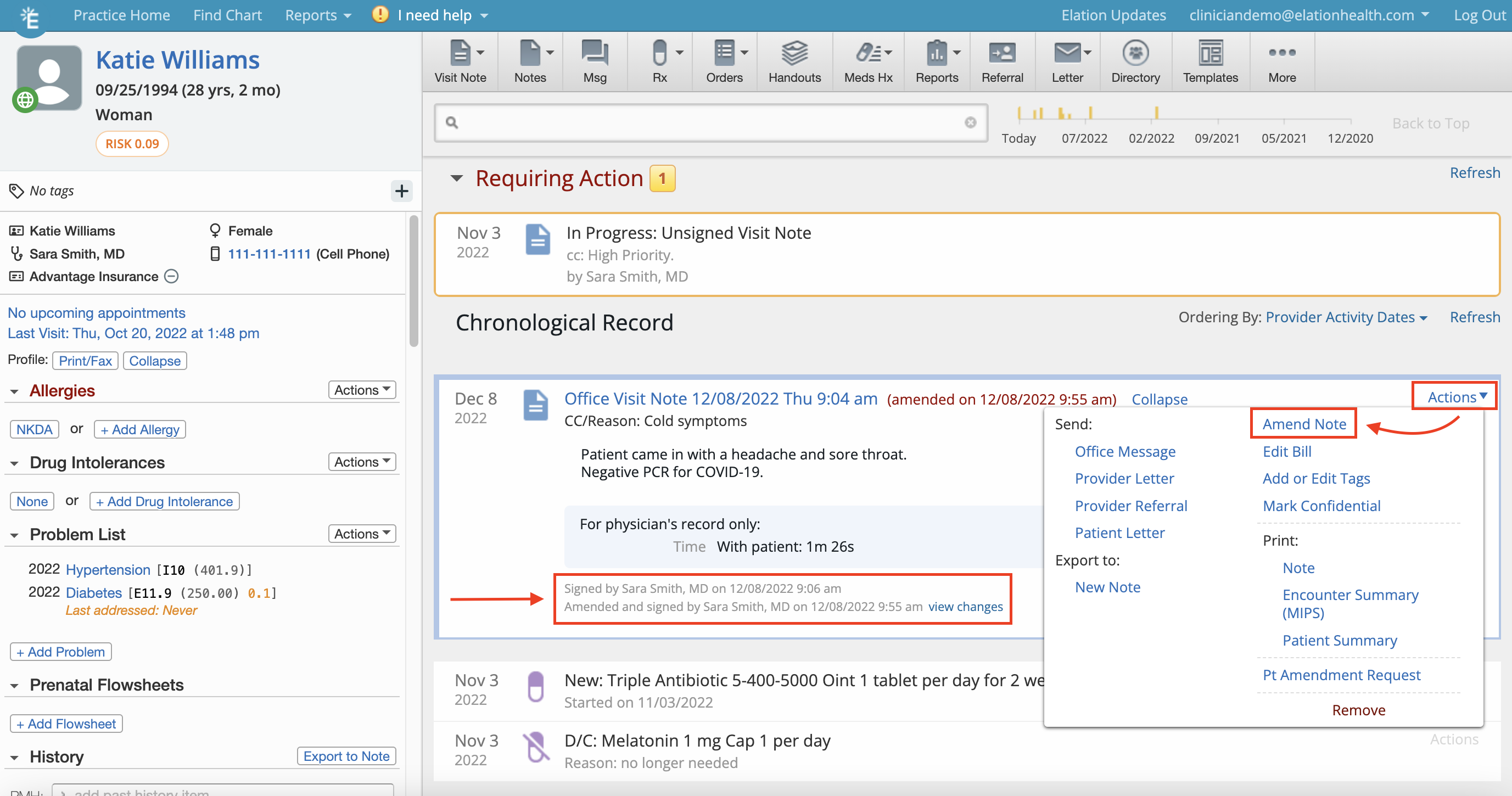
Viewing amendments made to the visit note
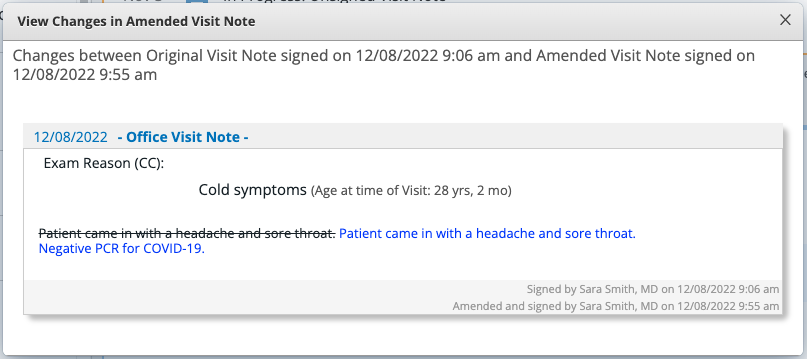
Elation helps track amendments made and provides an audit trail of the amendments. There are a few ways to view amendments made to visit notes:- View Changes
- Audit Log
View Changes
The specifics of the amendments can be found by clicking View Changes at the bottom of the visit note next to the receipt of the amendment. In the window that appears, deletions will be displayed as strikethroughs and additions will be displayed in blue font.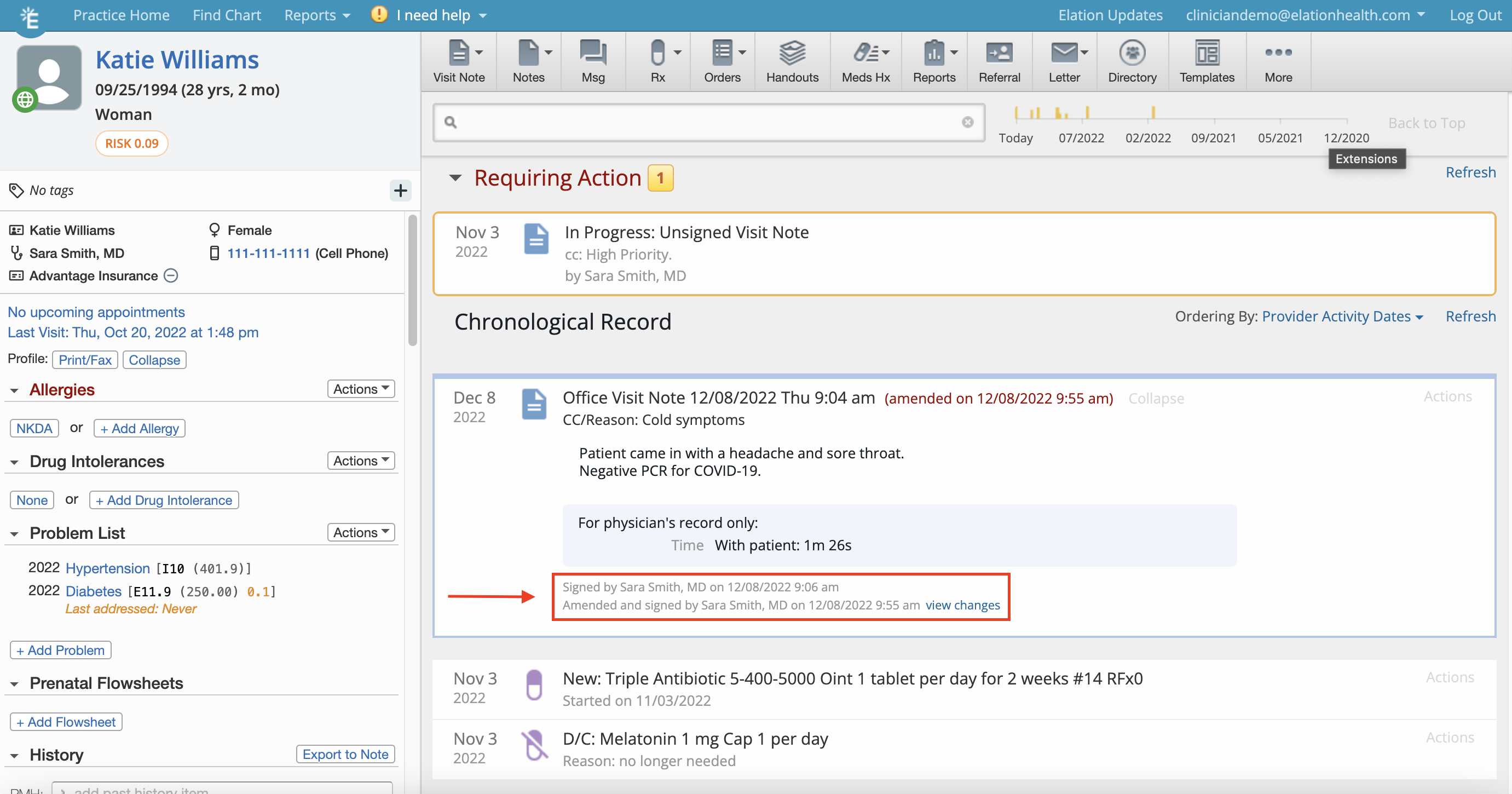
Audit Log
Admin Level Users can view a log of amendments to the visit note through the Audit Log feature. Please reference the Patient Chart Guide- Audit Logs for more information on this feature. The action of starting and completing an amendment to a visit note is displayed in the Audit Log as a *VisitNoteEdit * Record Type.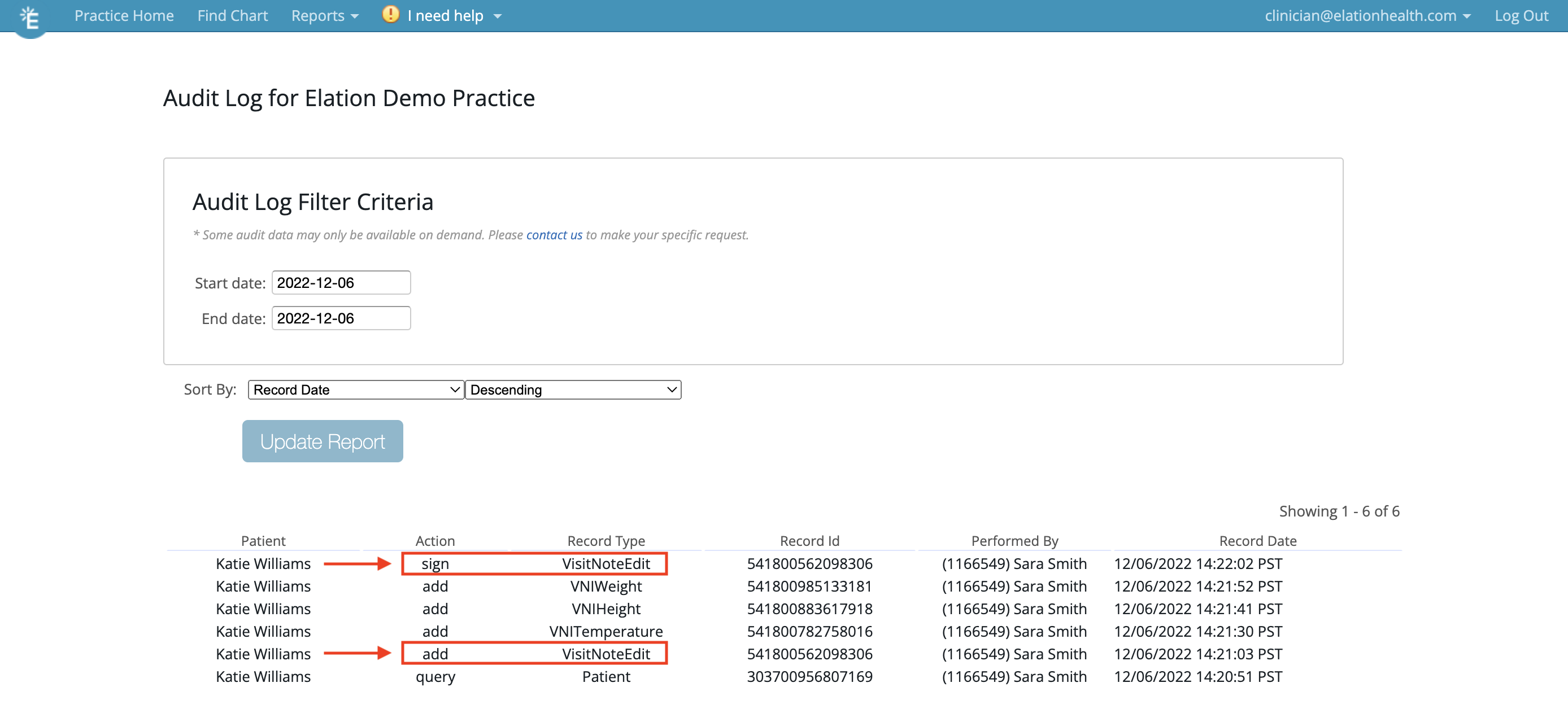
Frequently Asked Questions
Can supervising providers or authorized staff delegates amend visit notes on behalf of other providers?
No, supervising providers or authorized staff delegates cannot amend visit notes on behalf of other providers. Provider Level Users can only amend visit notes that they have personally signed. However, authorized staff delegates are able to edit billing information on a visit note if they have been designated as a Billing delegate by the Provider Level User. Please note that billing edits will not have the same annotations that amendments do.If the wrong provider signed off on a note, how do I correct that?
Amending a note doesn’t change which provider signed it. To have the correct provider sign the note instead, use Actions > Export to New Note to create a draft with the same content, have the correct provider review and sign the new note, and then delete the original note that has the incorrect signature.How are amended visit notes displayed when printed or shared?
When amended visit notes are printed or shared, they will display the most recent information within the visit note, and will also display the receipts of amendments made. These receipts show the date and time of the amendment and the name of the Provider Level User who made the amendment.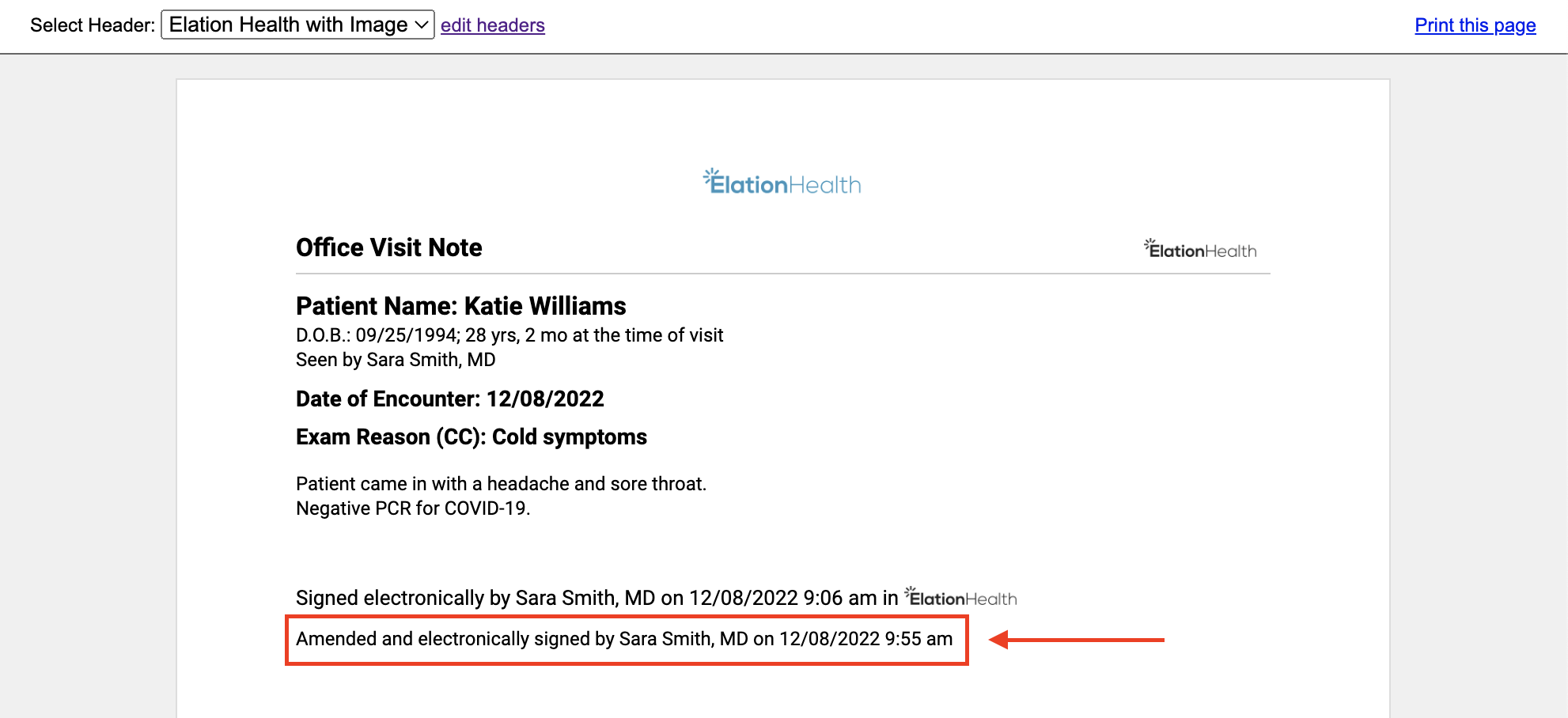
How do I share the amendments for auditing purposes?
We recommend taking a screenshot of the window that appears when clicking View Changes and sharing that screenshot. Deletions will be displayed as strikethroughs and additions will be displayed in blue font in the window.Can I amend a signed Phone Note?
No, the Amend Note option is not available for Phone Notes — it only appears for signed Visit Notes/Elation Notes. To document a correction or addendum to a signed Phone Note, create a new phone (chart) note in the same patient’s chart, state in the body that it’s an addendum to the original phone note (including its date), describe the correction, and sign the new note. This keeps the original phone note intact while recording the update.Can I remove just one attachment from a signed note without deleting the others?
You can’t remove a single attachment from a signed note and keep the rest. Use Actions → Export to New Note to create a new note with the same content, minus the bad attachment. Sign the new note, then delete the original. Actions → Remove & Refile Images exists on some notes, but it removes the whole note and sends every attachment back to Incoming Documents — it’s not a selective option, and you’d need to refile everything to rebuild the note. If you delete a note by mistake, recover it from I need help → I accidentally deleted a note or report, or from the User Activity Log.How do I document an amendment requested by a patient?
Please reference the Visit Note Documentation Guide- Documenting amendment requests from patients for detail on how to document an amendment requested by a patient.Can I create a referral from within an amended visit note?
You can open the Referral button from an amended visit note, but the resulting referral does not link back to that visit. To keep a referral properly linked to a visit, use one of these approaches instead:- Create the referral from a new, unsigned visit note: start the new note, use the Referral button, sign and send the referral so it links to that visit, and then sign the visit note.
- Create the referral separately, then use Select chart items to attach on the referral to manually attach the signed or amended visit note.