
- What are Visit Note Templates?
- Why are Visit Note Templates useful?
- How to Use Visit Note Templates
- How template fields map to other Visit Note Formats
What are Visit Note Templates?
Visit Note Templates are pre-created documents with clinical information that can re-used for any patient encounter. Templates are created using the Complete H&P Note (2-Column), however, they can be applied to any visit note format. Click on the relevant note type to see how the fields export to the Simple note , SOAP note , Complete H&P Note (2-col-A/P) note , Complete H&P Note (1 Column) and Pre-Op Note . Every customer will have 6 Elation (E*) templates to get them started! You can:- Create custom templates that suit your practice needs
- Export templates across all visit note formats
- Add one or multiple templates to a visit note
- Associate CPT® codes and billing items
- Add POS and billing notes to auto-populate information needed for virtual billing
- Capture document tags to assist with reporting
- Manage templates easily within your workflow
Why are Visit Note Templates useful?
Elation designed Visit Note Templates to reduce repetitive documentation during and after a patient encounter. Templates also encourage consistent workflows across providers and staff by clearly laying out the steps and questions to be addressed. This allows for a more efficient and streamlined workflow amongst your practice.How to Use Visit Note Templates
- Visit Note Template management window
- Create a custom Visit Note Template
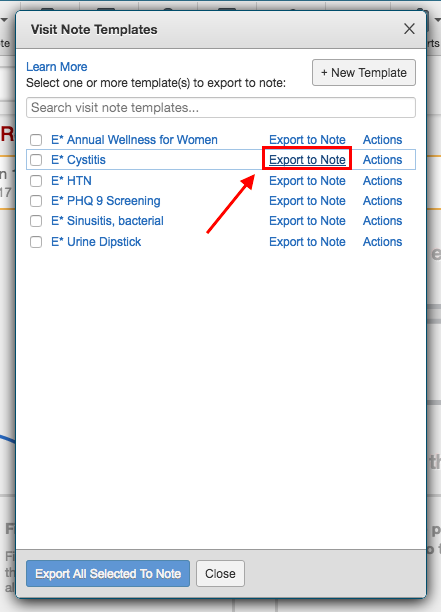
- Export one or more templates to a visit note
- View or edit a Visit Note Template
- Duplicate a Visit Note Template
- Delete a Visit Note Template
Visit Note Template management window
There are two ways to open the visit note template management window. You can either:- Click on the Templates icon in a Patient Chart & select ****Visit Note Templates” from the dropdown menu
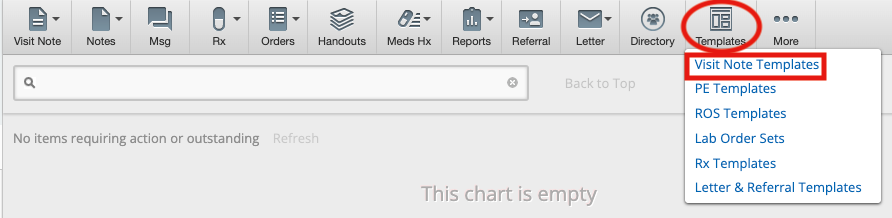
- Open any visit note format in a Patient Chart & click on the Visit Note Templates button at the top left-hand corner of the visit note

Create a custom Visit Note Template
You can customize visit notes with your own templates from the management window. All templates will be created using the Complete H&P Note (2-Column) format, however, they can be applied across all visit note formats.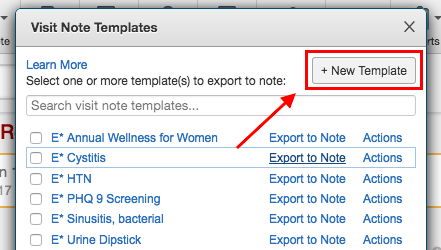
- Press the + New Template button
- Enter a name for the template
- Fill content into the appropriate sections
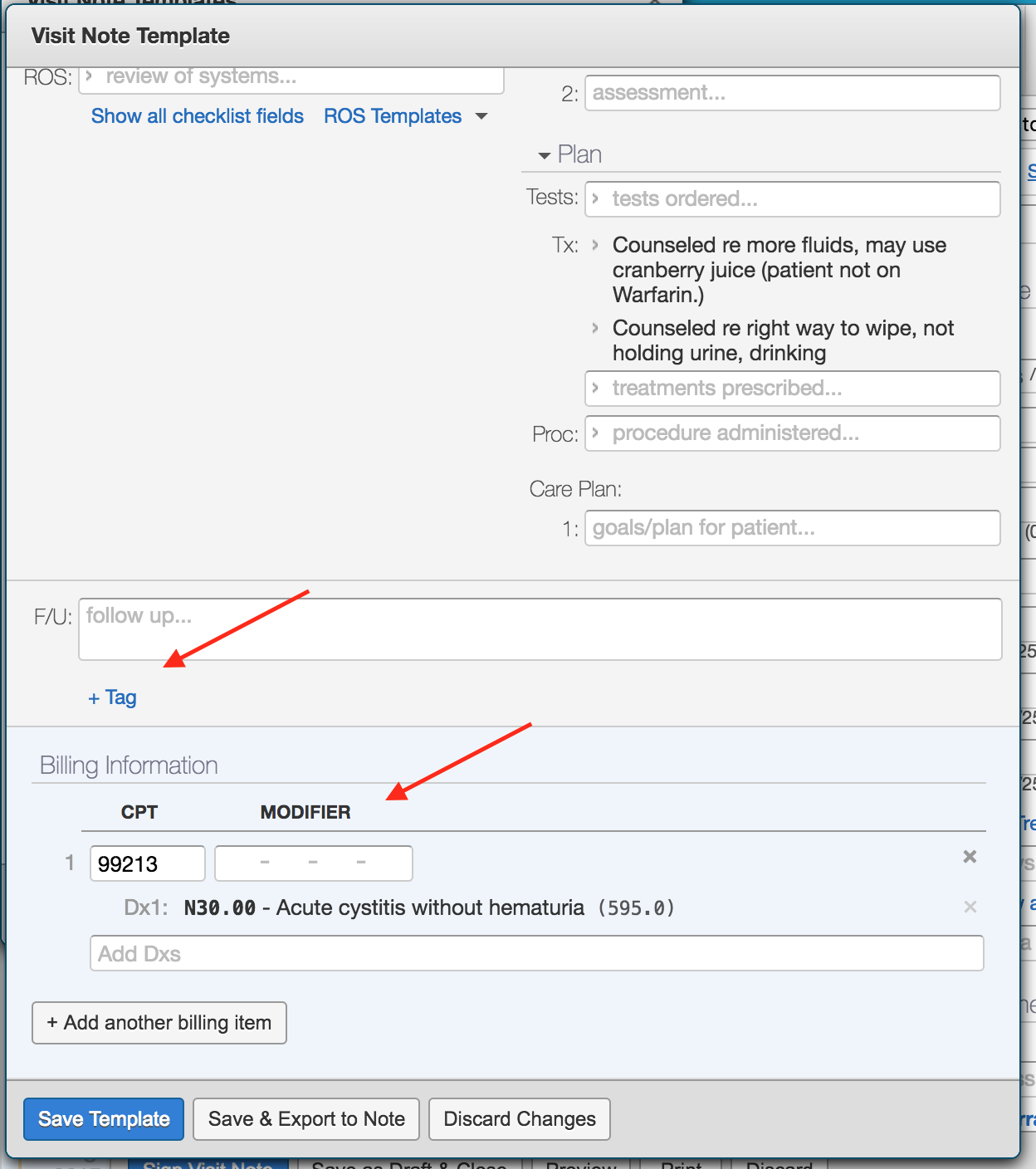
- Include applicable document tags
- Add relevant billing items
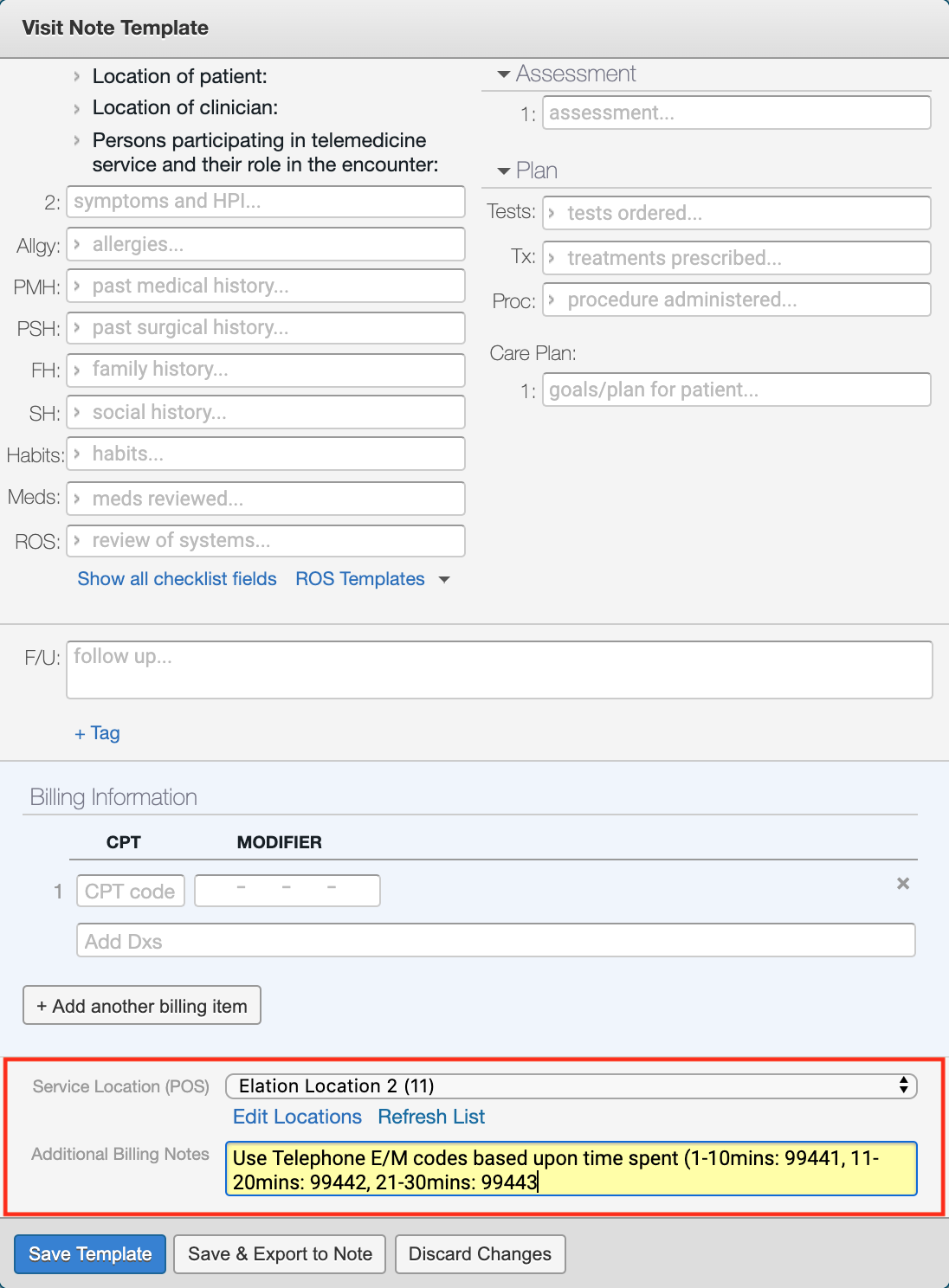
- Add POS and billing notes (which are needed for virtual billing)
- Press the Save Template button
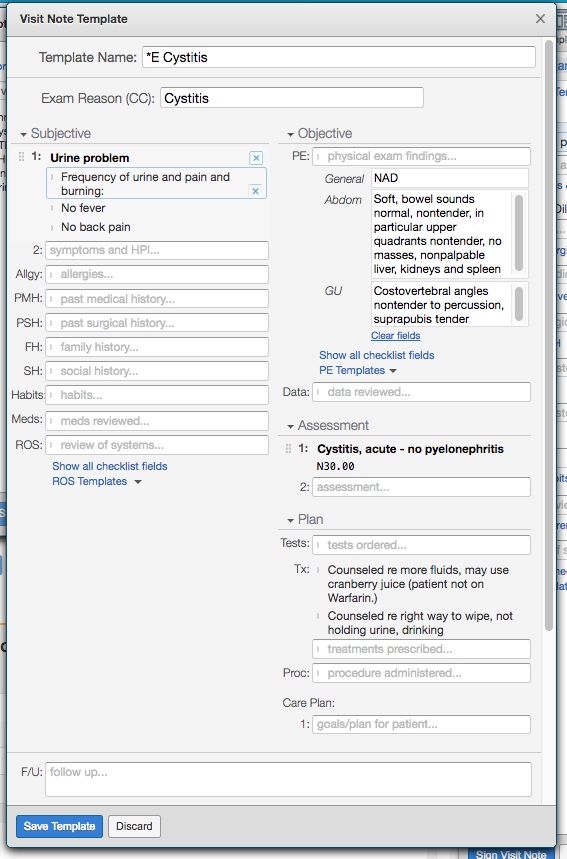
- One of the main benefits of Elation templates is that you can include billing items (which will associate the relevant CPT codes with the visit note) and document tags.
Enter POS & Billing Notes:
Use the visit note template to include information needed for virtual billing by entering the place of service/ POS (i.e. telehealth of office) and adding billing notes.- Add the service location/ POS (e.g. telehealth or office) to your visit note templates to auto populate it into the visit’s billing information. Adding a POS is important for proper claims submission.
- Billing Notes can be used to add a reminder to yourself or your biller when it is not clear what code to enter into the CPT billing field upfront. See image below for an example.
- Please note that a. Billing Notes will appear on detailed patient invoices b. Not all Elation/ PMS integrations will sync billing notes.
Export one or more templates to a visit note
One of the key benefits of our Elation visit note templates is that you can choose whether to add one template or add multiple templates. It’s up to you!- Open the Visit Note Template management window
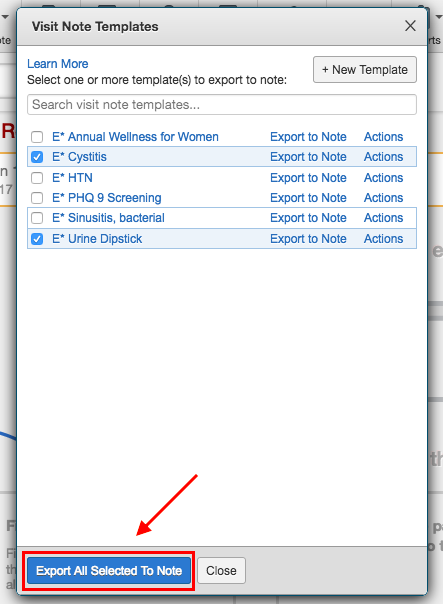
- Select one or more checkboxes next to the template(s) of interest
- Click the Export All Selected to Note button
View or edit a Visit Note Template
Templates can be adjusted at your discretion from the template management window.- Click on the Templates icon in the Patient Chart
- Select Visit Note Templates
- Find the template you would like to alter
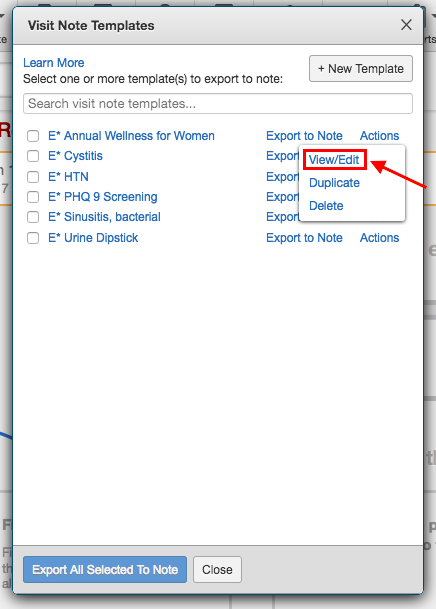
- Click Actions and select View/Edit from the dropdown menu
- Make the necessary changes
- Press the Save Template button
Duplicate a Visit Note Template
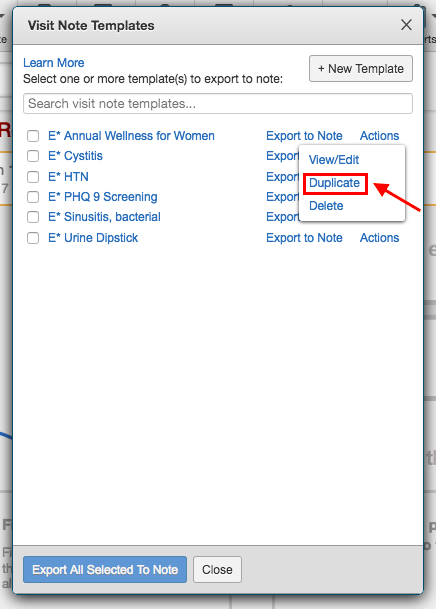
You can copy any template to quickly modify it for a similar purpose. For example, duplicate the E* Annual Wellness for Women template and modify the appropriate fields so it can be used for a men’s wellness visit.- Click on the Templates icon in the Patient Chart
- Select Visit Note Templates
- Find the template you would like to copy
- Click Actions and select Duplicate from the dropdown menu
- Make the necessary changes
- Press the Save Template button
Delete a Visit Note Template
You can remove visit note templates that are no longer relevant from the template management window.- Click on the Templates icon in the Patient Chart
- Select Visit Note Templates
- Find the template you would like to delete
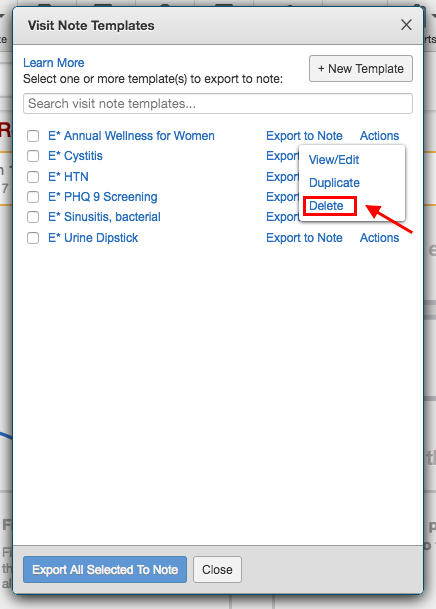
- Click Actions and select Delete from the dropdown menu
How template fields map to other Visit Note formats
- Simple Note Format
- SOAP Note Format
- Complete H&P Note (2 col-A/P) Format
- Complete H&P (1 column) & Pre-Op Note Formats
Simple Note Format
The majority of the template fields are populated into the single box of the Simple Note, as highlighted in the image below, other than vital information which has designated fields.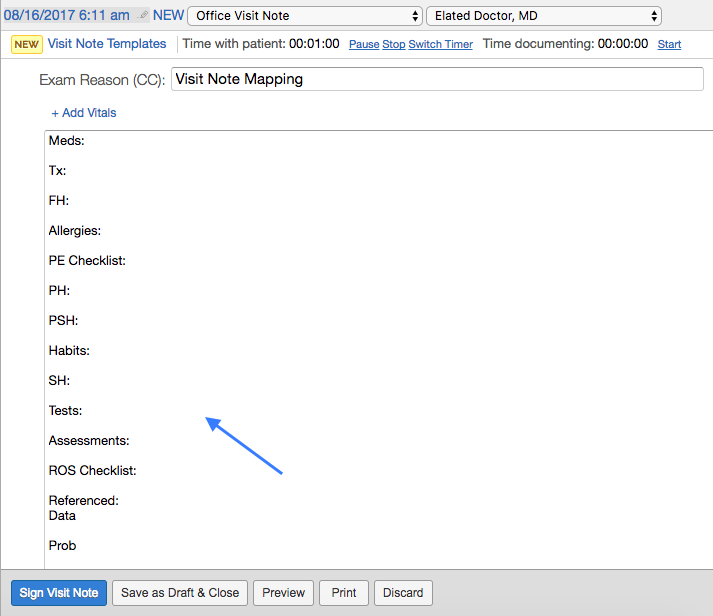
SOAP Note Format
The template fields are divided across the 4 sections so that:- Subjective information populates in the Prob section
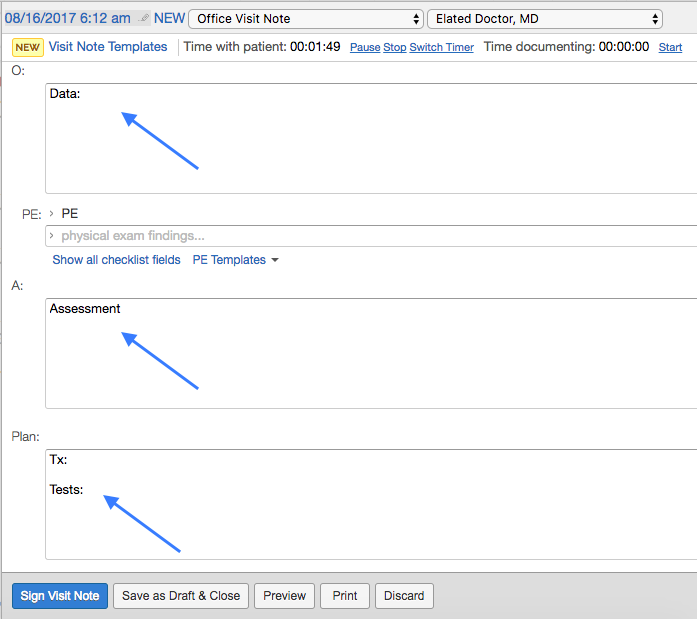
- Data field appears in the O section
- Assessment is located in the A section
- Test and Tx display the Plan section
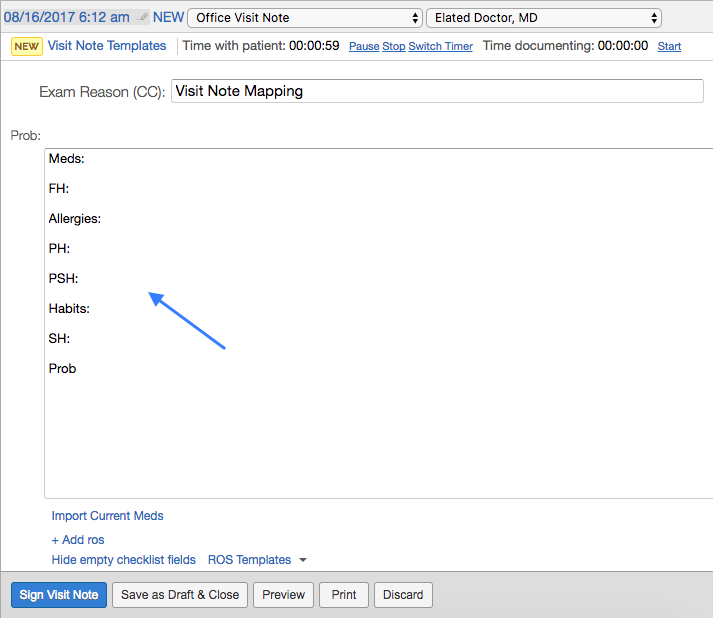
Complete H&P Note (2-col-A/P) Format
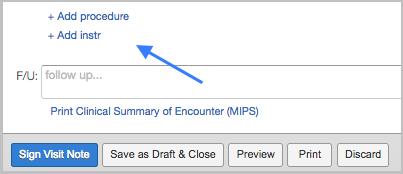
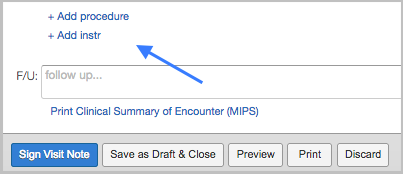
The alignment is identical, except for Assessment, Tests and Tx which is located in the Assessment/Plan section of the note. In order to review the template procedure or care plan details, you will need to click on the dedicated button (+ Add procedure or + Add instr) to expand the section.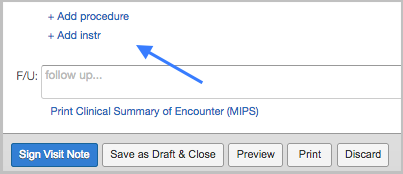
Complete H&P Note (1 Column) and Pre-Op Note Format
The two main distinctions between these notes and the Complete H&P Note (2 Column) are that (1) HPI is located in Prob section and (2) Assessment, Tests and Tx will all be located in the Assessment/Plan section. In order to review the template procedure or care plan details, you will need to click on the dedicated button (+ Add procedure or + Add instr) to expand the section.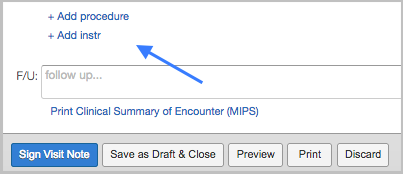
Frequently Asked Questions (FAQ)
Do I have to have a visit note open to export a template?
No. The system will open a providers’ default visit note type or a Complete H&P Note (2-Column) for a staff member if they export a template from the template management window without a visit note open.Why does some template text remain blue?
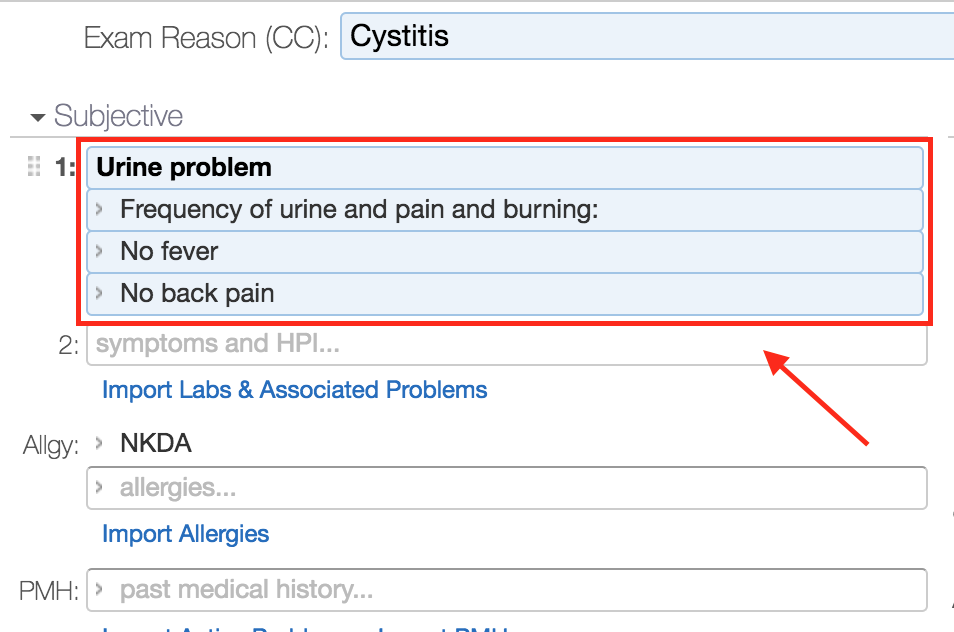
We highlight the text exported from the template into the visit note in blue to distinguish what information has been added. The blue color will be removed once you click into the section to either review, edit or add to the section.How can I distinguish my templates from other providers at my practice?
We recommend adding your initials or name at the beginning of the template that way they are grouped together and easy to search within the toolbar. The Elation templates are a great example as they are all grouped with E*.The template management window only shows a few templates. How do I see the rest of my practice’s templates?
The template management window displays every active template for your practice, not a limited subset. If you don’t see a template you’re expecting, use the search bar at the top of the window to filter the list by name rather than scrolling through the full list.Can I use templates to document in house lab results?
Yes! We added the E* Urine Dipstick template as an example of how you can use templates to capture lab result data cleanly within the visit note.I use a templating tool outside of Elation. Can I use also use Visit Note Templates?
Elation visit note templates can serve as your primary templating tool or work alongside third party solutions. The distinct value of using Elation templates is that you can:- Export multiple templates to a visit note at once
- Associate document tags to assist with reporting
- Associate billing items to streamline visit note sign off