
What is the Audit Logs feature?
The Audit Logs feature within a patient chart is available for Admin Level Users at your practice to track actions taken in a specific chart and track who at your practice has viewed the chart. These logs display the following information for your reference:- What type of action was taken on what type of chart item
- Shows specific information detailing if items were deleted, edited, and more
- Which user took the action
- Displays the user’s name from your practice
-
The date & time the action occurred
Why are Audit Logs useful?
The Audit Logs feature is a useful and valuable tool for your practice to track actions and access within a specific patient chart. Some common actions to track within the chart are deletion/creation of specific items within a record, deletion/creation of records, and access. Reference the recommended use cases for more information on how to best utilize this feature.Using Audit Logs
The Audit Logs feature is available within a patient chart for Admin Level users at your practice. Please follow these steps below to access this feature.- Start in a patient chart and click More in the top grey navigation bar of the chart
- Click Data Exchange
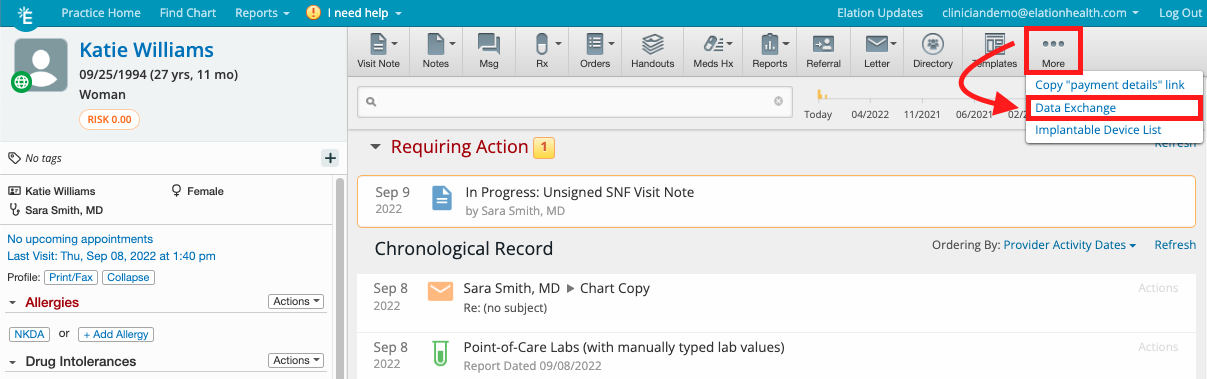
- Click Audit Logs from the window that appears
- A new tab will open on your browser and will bring you to the Audit Log page.
New actions can take up to 30 minutes to appear in the Audit Log. If you don’t see a recent action, wait and then refresh the page.
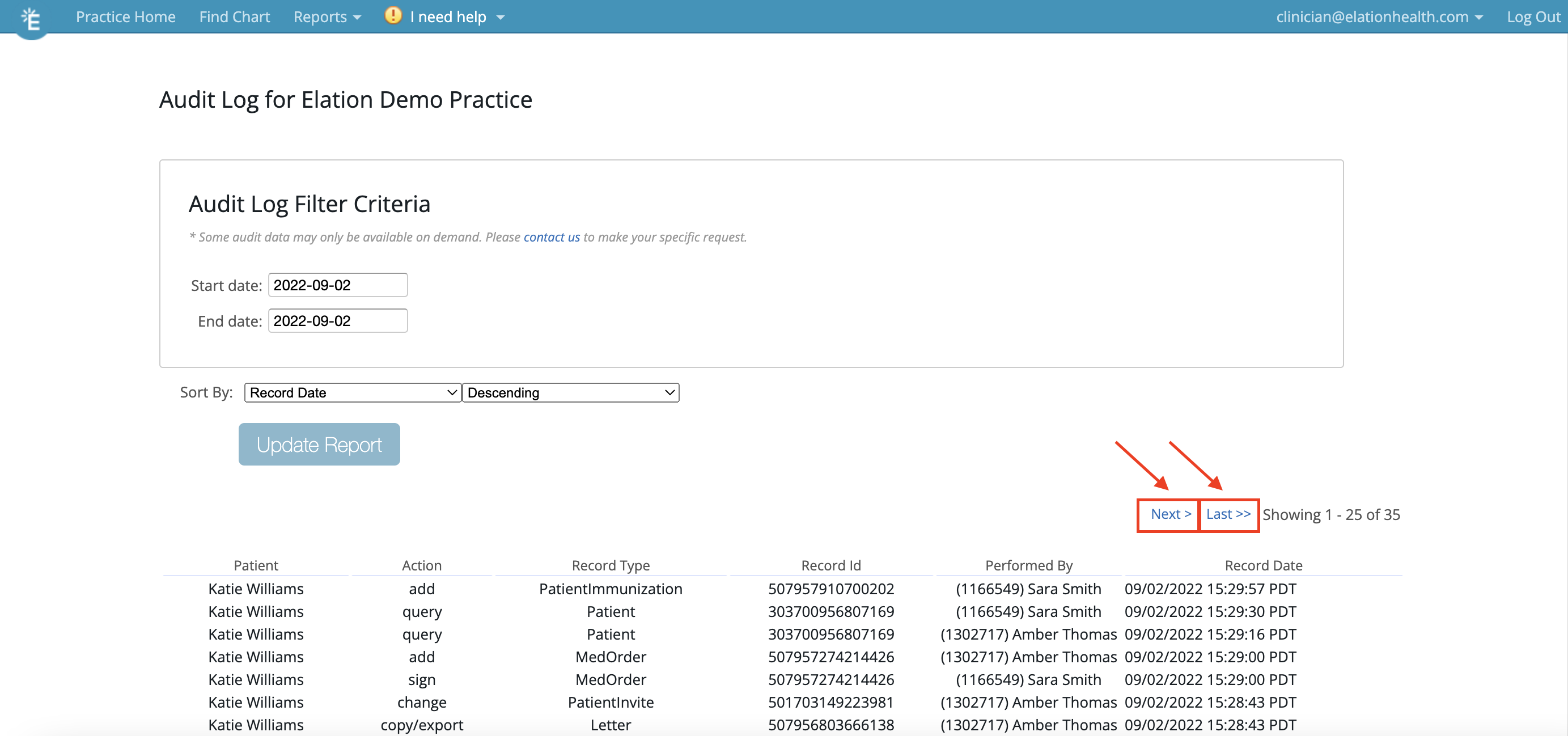
- Each Audit Log page will show up to 25 actions. If your date range includes more than 25 actions, you can navigate to the other pages by using the Next> and Last>> buttons, as shown below.
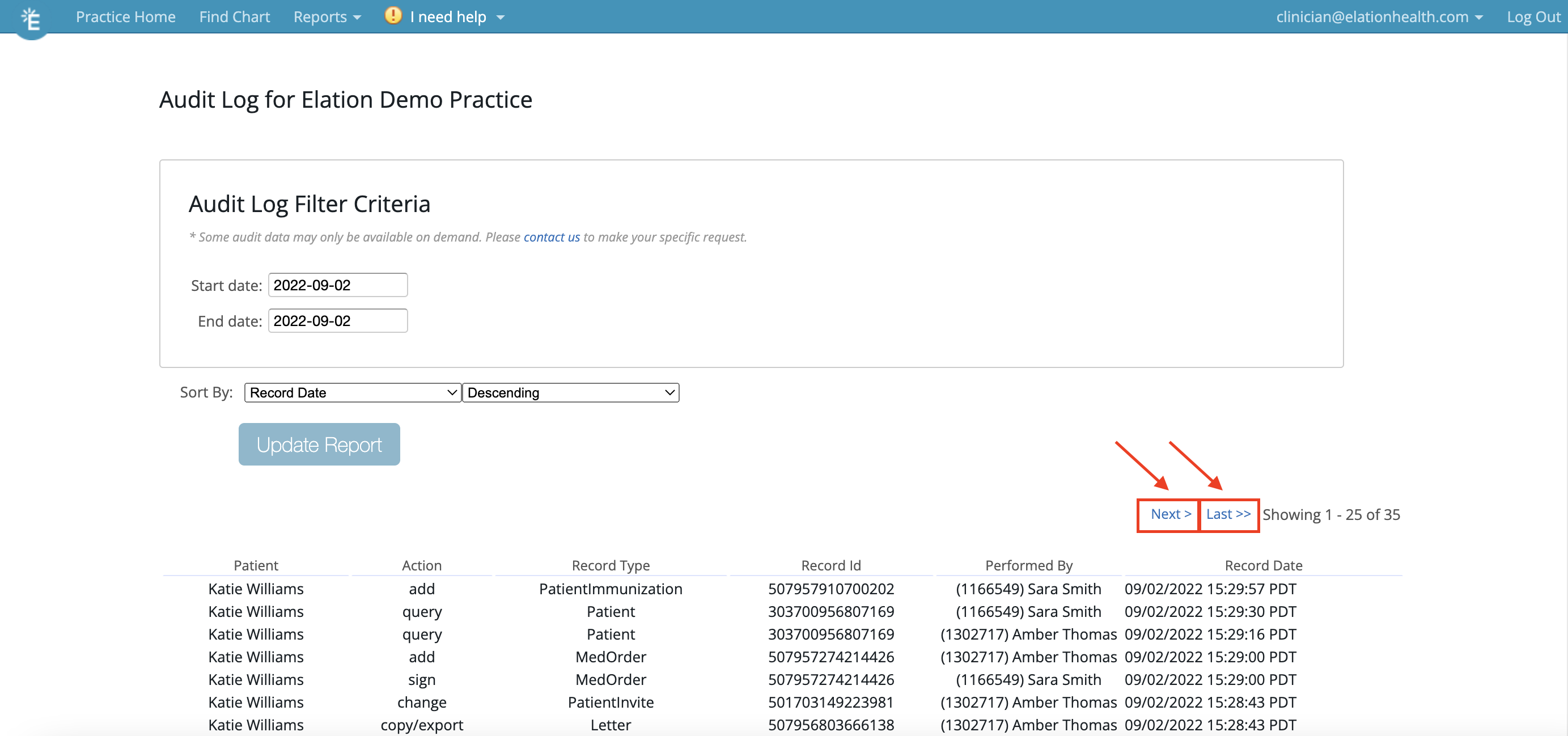
Audit Log page guide
You can use the various Audit Log filters below to customize your search (match the number to the image below):- You can filter the date range here by typing in your preferred date range
- You can sort the information by the following categories
- Patient
- Action
- Record Type
- Record ID
- Performed By
- Record Date
- You can sort the information in either Descending or Ascending order
Action Definitions
Tips and recommended use cases
Below are a few examples of recommended use cases for how your practice can best utilize this feature: Scenario 1 Your practice is looking to track down who deleted a lab order from the chart in the last 3 days. To find this information in Audit Logs, please take the following steps:- Access Audit Logs using the steps detailed in the Using Audit Logs section
- Set the date range for the past 3 days
- Sort the information by action and locate the Delete logs under the Action column
- Access Audit Logs using the steps detailed in the Using Audit Logs section
- Sort the information by Record Type and locate VitalsCollection in the Record Type column.
- Access Audit Logs using the steps detailed in the Using Audit Logs section
- Sort the information by Action and locate Query under the Action column
Gathering additional details
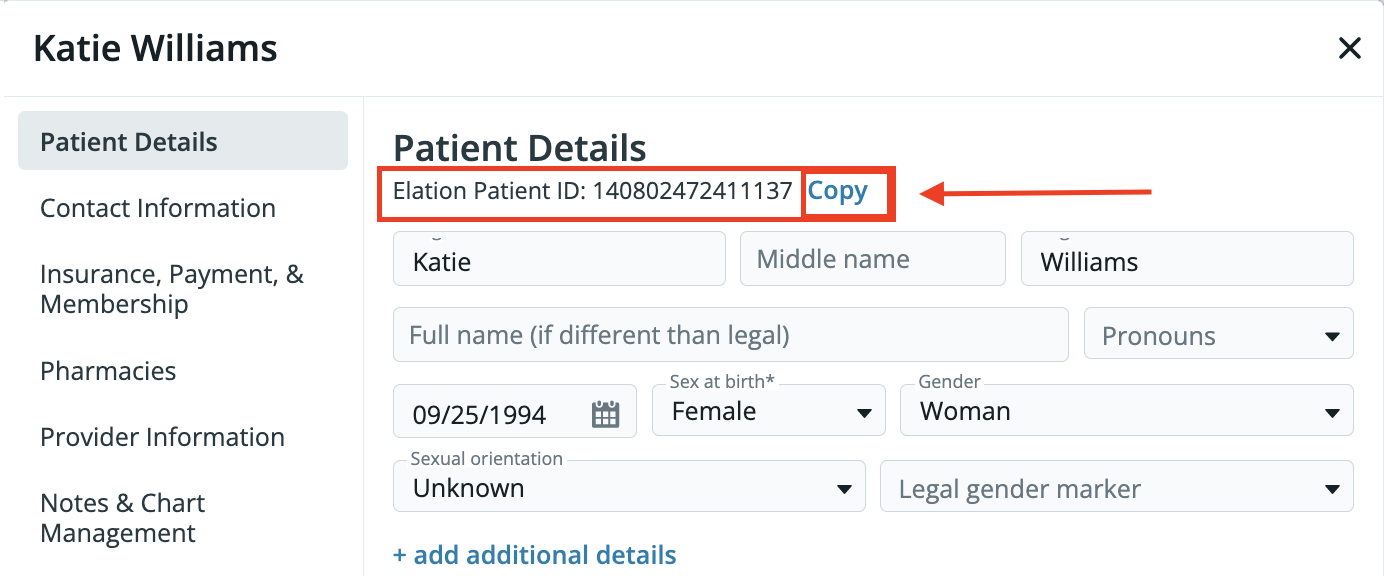
Need more information regarding a specific action from the Audit Log? Please contact our Support Team using the I need help -> Contact Elation Support button and include the following information in your request:- Description/context for what information you are looking for
- Patient chart ID (located in the patient’s demographic window)
- Date of the action and time of the action
- Record ID
- Relevant Users involved