
What is the Patient Longitudinal Record (PLR)?
Conventional “enterprise chart” systems allow for a single patient chart to be accessible and editable by anyone within a network. The Patient Longitudinal Record (PLR), a Premium EHR feature, improves upon this model by allowing individual practices to curate and maintain their own chart for any patient, while simultaneously granting them secure, on-demand access to the documentation of other providers caring for that patient within the same geographic location or Enterprise network.Why is the Patient Longitudinal Record (PLR) valuable?
The Patient Longitudinal Record (PLR) is a vehicle to effortlessly share clinical information to all providers caring for a patient within the same network, enabling each individual provider to deliver more comprehensive care. Think of it as a cloud of patient information that one can access on demand; notes, reports, orders, and data that would otherwise be locked behind the walls of an individual practice are now easily accessible and able to be directly imported into your version of the patient’s record.Coordinated Care
The PLR makes it easy for collaborating providers to monitor the activities of their peers. When one provider signs a visit note or receives lab results, they can immediately make that information available to all other providers to which they are connected to. Those other providers can quickly search and find that information, and choose to import it into their records. The PLR allows each practice to carefully curate their own record for each patient.Availability
Imagine your own notes supplemented by a reservoir of knowledge, statistics, and documents from a care team you trust. PLR puts this hub at your fingertips for more informed clinical decision making, easier government attestation, less painful auditing, and more.Uninterrupted Communication
No more faxing referrals, requesting records, or chasing down lab results, if one provider has the data, so do you. You can always opt to make an item “Confidential” and it will not be shared.How do I turn on the Patient Longitudinal Record (PLR) feature?
The Patient Longitudinal Record (PLR) feature is a product for Premium EHR customers only.- If you are interested in upgrading to the Premium EHR subscription to use this feature, click the I need help button to notify Elation and a member of the Elation Team will reach out to assist you.
- If you are already a Premium EHR user and you are interested in using this feature, click the I need help button to notify Elation and a member of the Elation Team will turn this feature on for you.
How is information shared?
When the Patient Longitudinal Record (PLR) feature is turned on for the various practices in your network that are on Elation EHR, you will immediately have access to all of the patients and their records. All of your records for all patients will also be automatically shared with any practice within the same network. If you already have an existing chart for the patient, use the Chronological Record search to view records from other providers and practices. You can also import a patient from the network into your EHR.Importing a new patient chart from the network
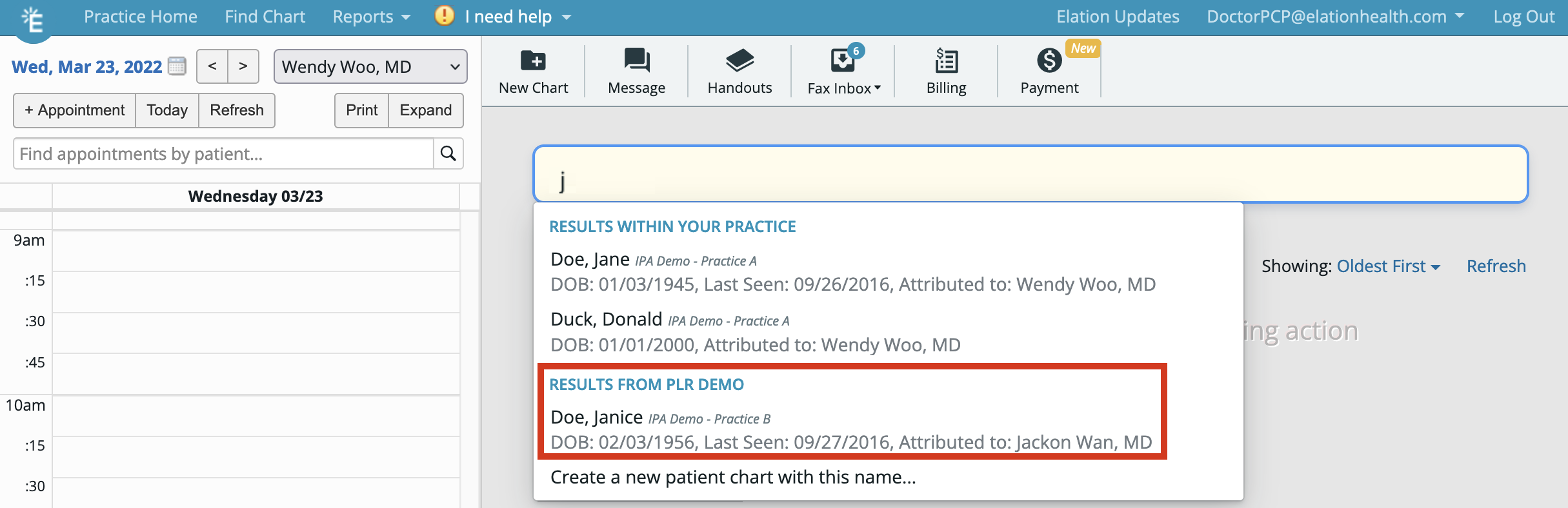
If a provider in your practice is seeing a new patient that already has a record in another practice in your community network, you can pre-populate the new chart in your practice using their information. It’s an incredible way to save time.- Search for the patient using the Find patient chart bar in your Practice Home
- Select the patient from the Results from network section of the search results
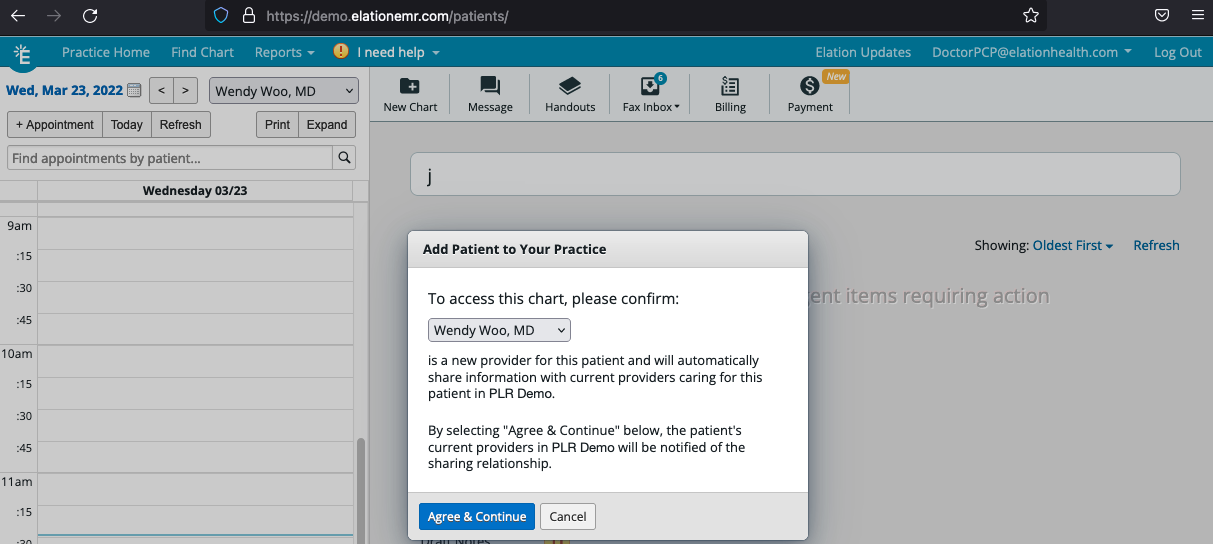
- Select a provider to assign the patient to and click Agree & Continue
- The patient’s chart has now been imported into your practice and you can now search for the patient and view the contents of their chart.
Shared information
The following records (except records marked as ‘confidential’) will be shared with the collaborating provider and their practice once access is granted and start sharing is enabled:- Clinical Profile
- Visit Notes
- Vitals
- Orders
- Reports
Access notifications
When a provider from another practice begins to access your records via the network, you will see a notification in the Outstanding Items section of your patient’s chart.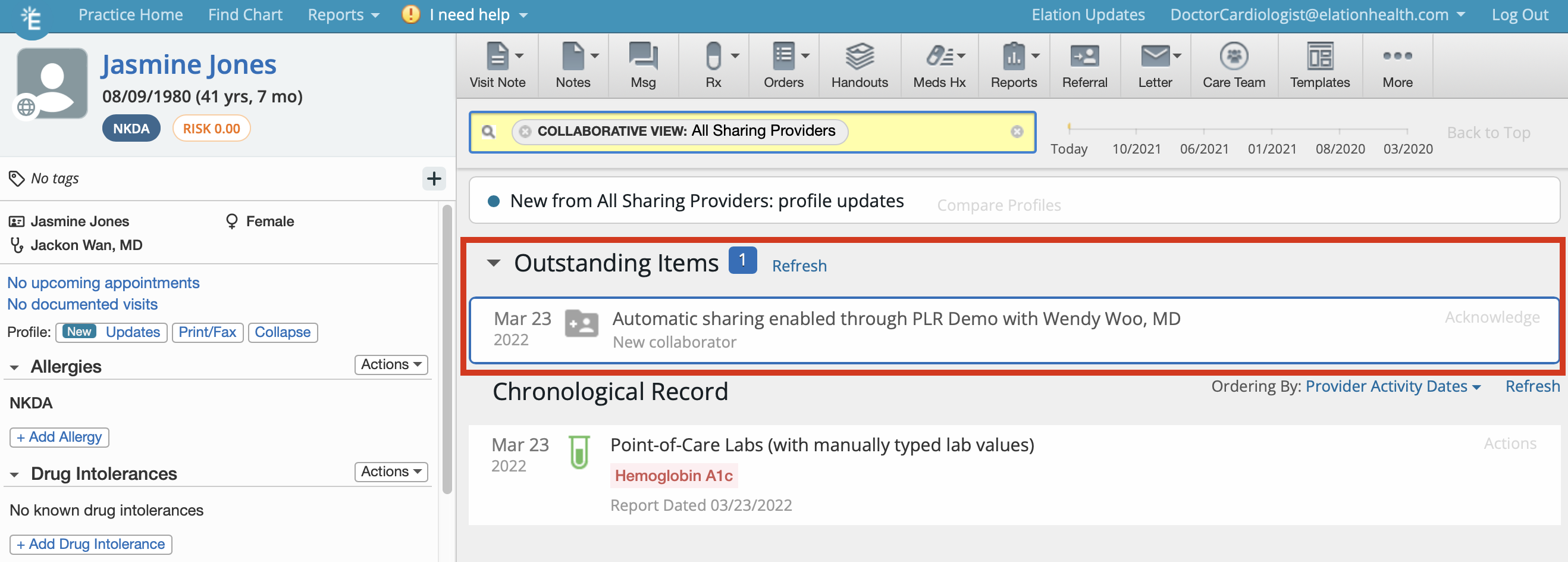
Viewing shared information
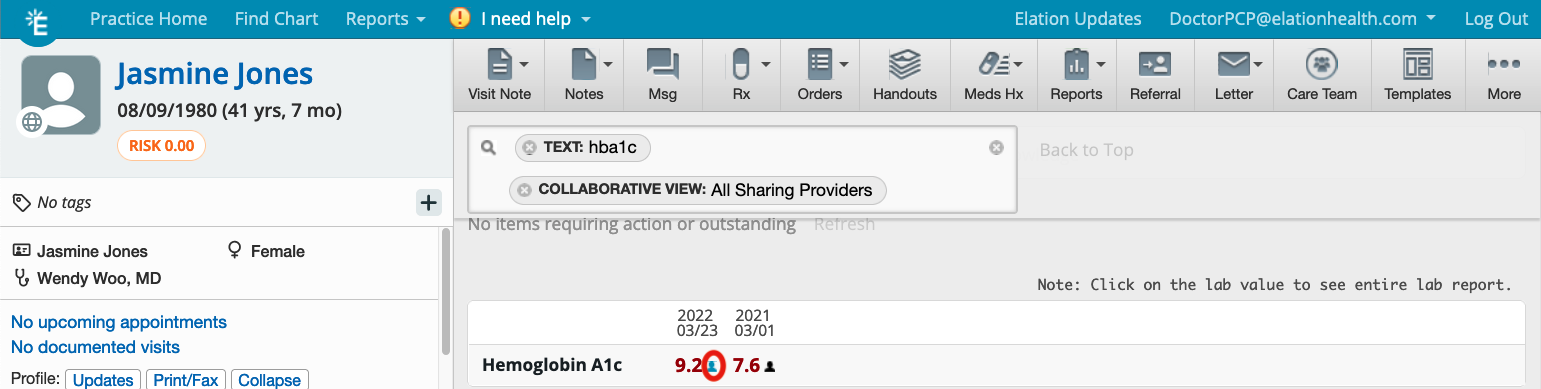
Any time you open a chart for a shared patient, the **Collaborative View:All Sharing Providers ** option in the Chronological Record search will display information in your personal record along with other clinical data that’s been shared by other providers caring for that same patient on Elation. You can:-
filter the results further to display items from a specific provider, or filter for a specific type of document using the Chronological Search filter
- Click Show to view items from sharing providers
- Click Acknowledge to dismiss the notification
- Click Compare Profiles or the Updates button in the Clinical Profile to view new Clinical Profile information
- Documents with a white background are documents that you have signed into your patient record
- Documents with a gray background are ones that have been shared by other providers via PLR and have not been signed into your record
- Click Actions >> Preview for specific records to view the record first or go straight ahead and click Actions >> Import and Sign to pull the content into your chart to add to your personal record for this patient
- For anything coming from the PLR, the name of the provider who shared it will be displayed off to the right
Clinical Profile updates
The Collaborative View adds a Profile Updates button to each patient’s chart. This button allows you to view Clinical Profile updates that other providers on the patient’s Care Team have made, and compare them to your own Clinical Profile for that patient. When comparing the Clinical Profile, new additions to the patient’s chart will be highlighted with a blue icon. Individual or multiple items can be imported into your own Clinical Profile to make sure you always have the most up-to-date clinical information on hand. Additionally, if you have your sharing turned on, any updates you make in your chart will be surfaced to other providers who have access to a patient’s shared records to import at their discretion.-
Notes in the ‘Confidential’ section in the Clinical Profile will not be shared with collaborating providers. Use this section to store information that you do not want to share with anyone outside of your practice.