Overview
What is the Patient Cohort feature?
The Patient Cohort feature, available with the Premium EHR, allows Admin Level Users to group patients based on chart data and restrict access to those cohorts. Once Patient Cohort restrictions are enabled:- Assigned users can access charts within their cohorts without restriction.
- The Provider assigned in practice (as listed in Patient Demographics) always has full access to their patients’ charts.
- All other users** may either be completely blocked or granted limited access—any limited access is logged in the patient’s chronological record.
When a patient does not belong to any cohort, no access restrictions will appear on their chart for any user.
What are the benefits of the Patient Cohort feature?
The Patient Cohort feature offers several key benefits:- Enables targeted privacy controls for specific patient groups—such as behavioral health, employees, or high-profile individuals—while maintaining general chart access for the rest of the practice.
- Allows you to align access permissions with your practice’s privacy standards.
- Logs all limited access attempts for visibility and accountability.
Setup
Requesting the feature
The Patient Cohorts feature is for Premium EHR customers only.- If you are interested in upgrading to the Premium EHR subscription to use this feature, click the I need help button to notify Elation and a member of the Elation Team will reach out to assist you.
- If you are already a Premium EHR user and you are interested in using this feature, click the I need help button to notify Elation and a member of the Elation Team will turn this feature on for you.
Specifying Chart Access Settings
An Admin Level User can specify the level of access granted to non-assigned users by:Workflow Instructions
Creating new Patient Cohorts and assigning access permissions
Only Admin Level Users can manage Patient Cohorts.
| 1 | Click Reports -> Patient Cohorts. 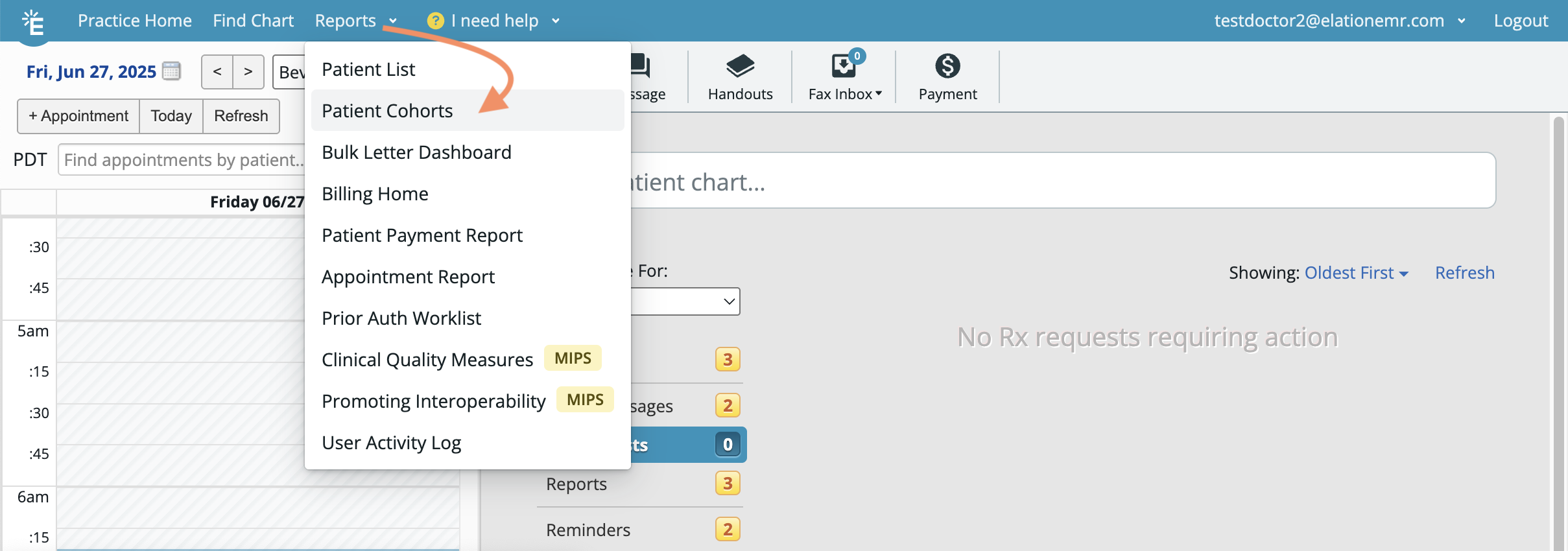 |
|---|---|
| 2 | Click Create a Patient Cohort . |
| 3 | Apply the necessary filters for the cohort. A minimum of one patient criteria must be selected in order to create a cohort. Criteria include: Provider assigned in practice • Patient Passport Status • Sex at Birth • Race • Ethnicity • Preferred Language • Preferred Contact Method • Patient Status • State • Patient Tags • Document Tags |
| 4 | Click Preview List to see the patients that meet the selected criteria. |
| 5 | Click Save as Patient Cohort once you have verified the list of patients is accurate. 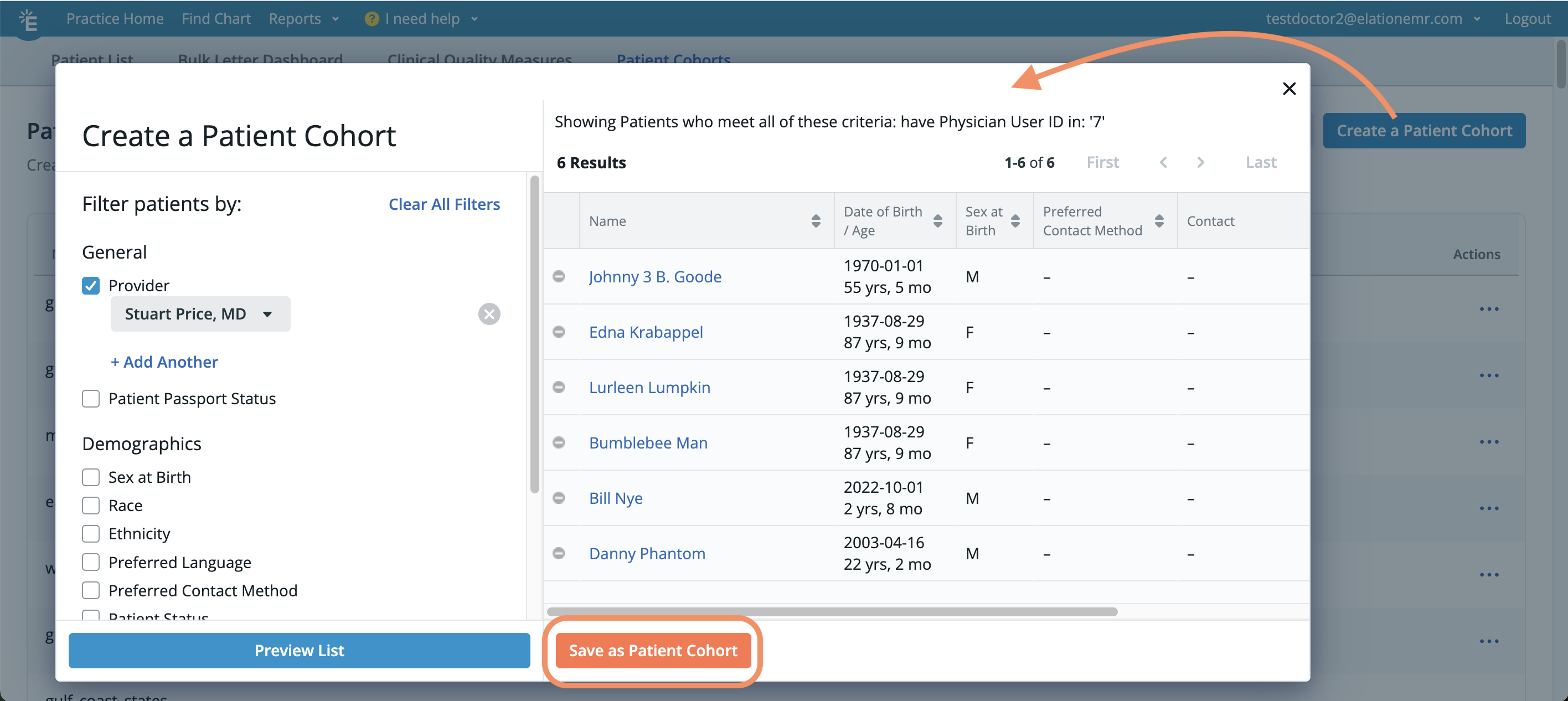 |
| 6 | Enter a name for your Patient Cohort in the Patient Cohort Name field. We recommend using a descriptive name to distinguish multiple cohorts. |
| 7 | Click + Add User Group to select the User Groups that can have access to the patients in this cohort. If no user groups are added, the cohort can still be created, but no access restrictions will be applied. Click here to learn more about creating User Groups. 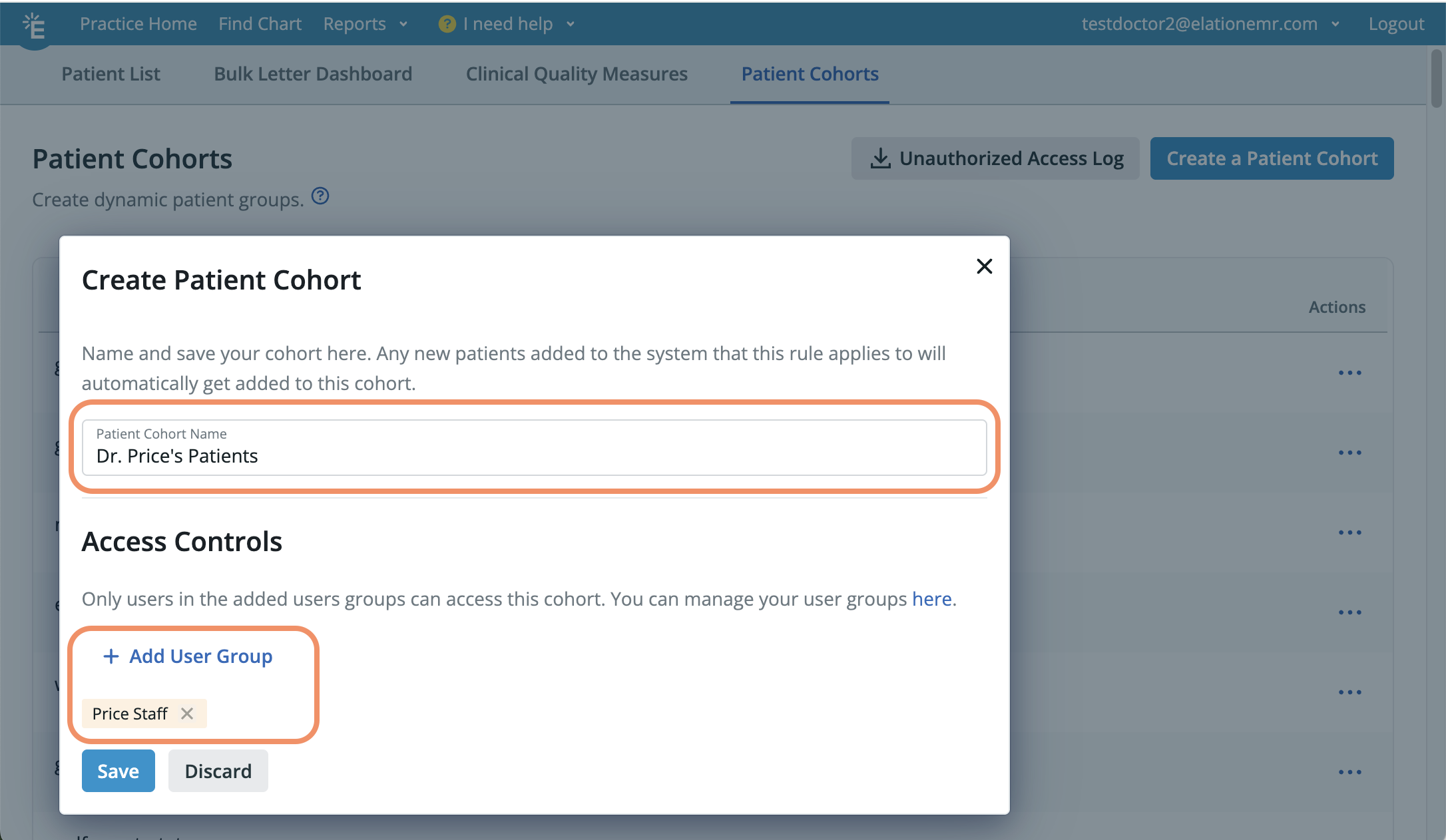 |
| 8 | Click Save to save the new Patient Cohort. |
| 9 | Once a Patient Cohort is created, any patient who meets the criteria will be automatically added. |
New Patient Cohort restrictions take effect the next time users log into Elation. After creating cohorts, ask all users to log out and log back in to apply the updated settings.The Provider assigned in practice always has access, even if not part of the Patient Cohort. Be sure each patient has the correct provider assigned.
Managing existing Patient Cohorts
Viewing Cohort Criteria
To view a cohort’s criteria, click the Actions -> Cohort Criteria next to the Patient Cohort name. Criteria and User Groups cannot be edited for existing cohorts. To make changes, create a new Patient Cohort with the updated details and delete the outdated one.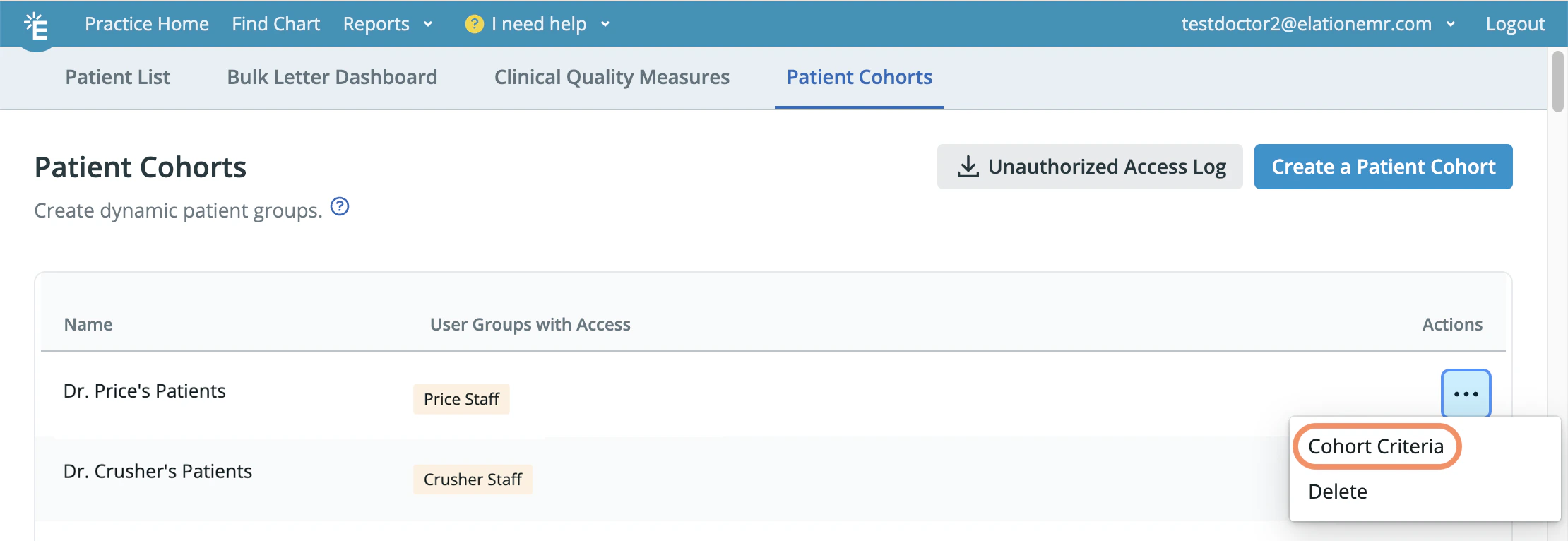
Deleting a Patient Cohort
Removing a Patient Cohort lifts the access restrictions applied to its patients. To delete a Patient Cohort:Accessing patient charts that are part of Patient Cohorts
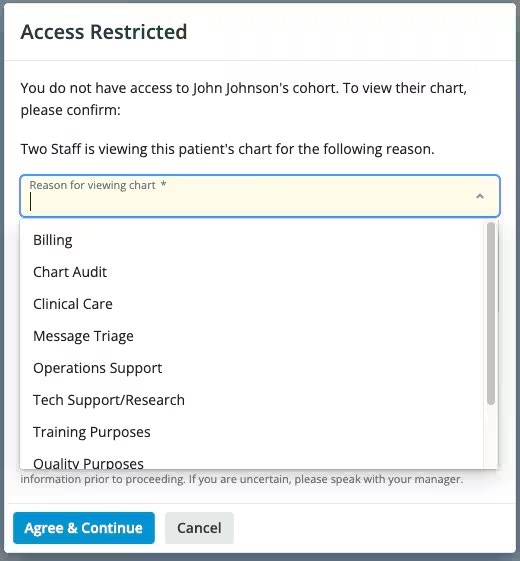
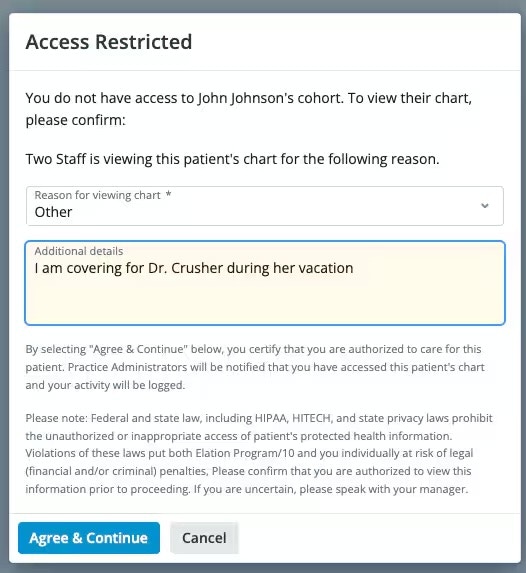
The Provider assigned in practice always has full access to their patients’ charts and assigned users can access charts within their cohorts without restriction. When any other user attempts to access a restricted chart, they will see one of the following depending on your practice’s Chart Access Settings.- Warning & Optional Bypass - An Access Restricted warning will appear and the user must select a reason in order to gain access to the restricted chart. If they enter then their name will be recorded in the Unauthorized Access Log.
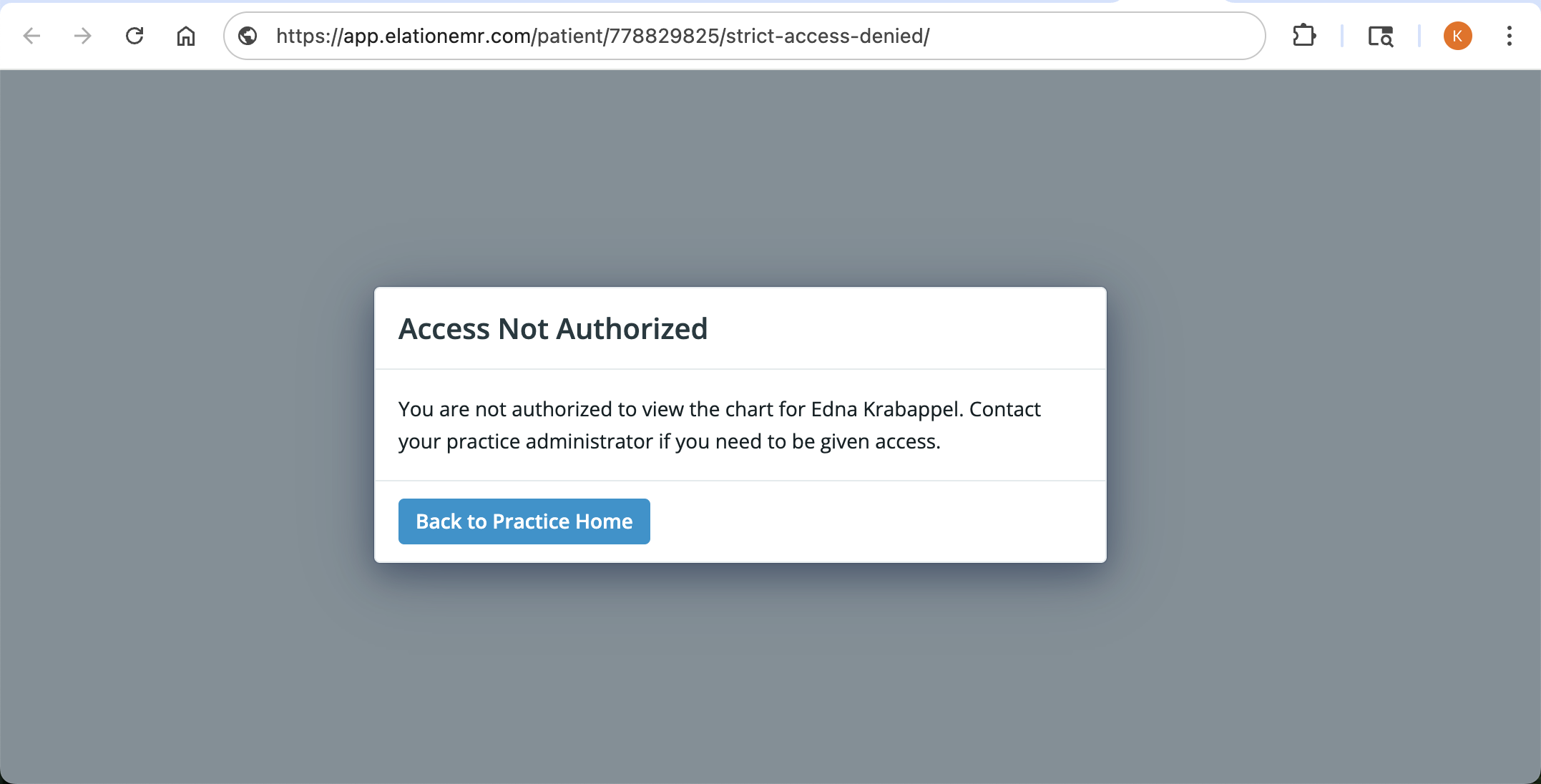
- Strict Access Controls - An Access Not Authorized pop-up will appear to block the user from entering the chart. The user will be redirected back to the Practice Home page.
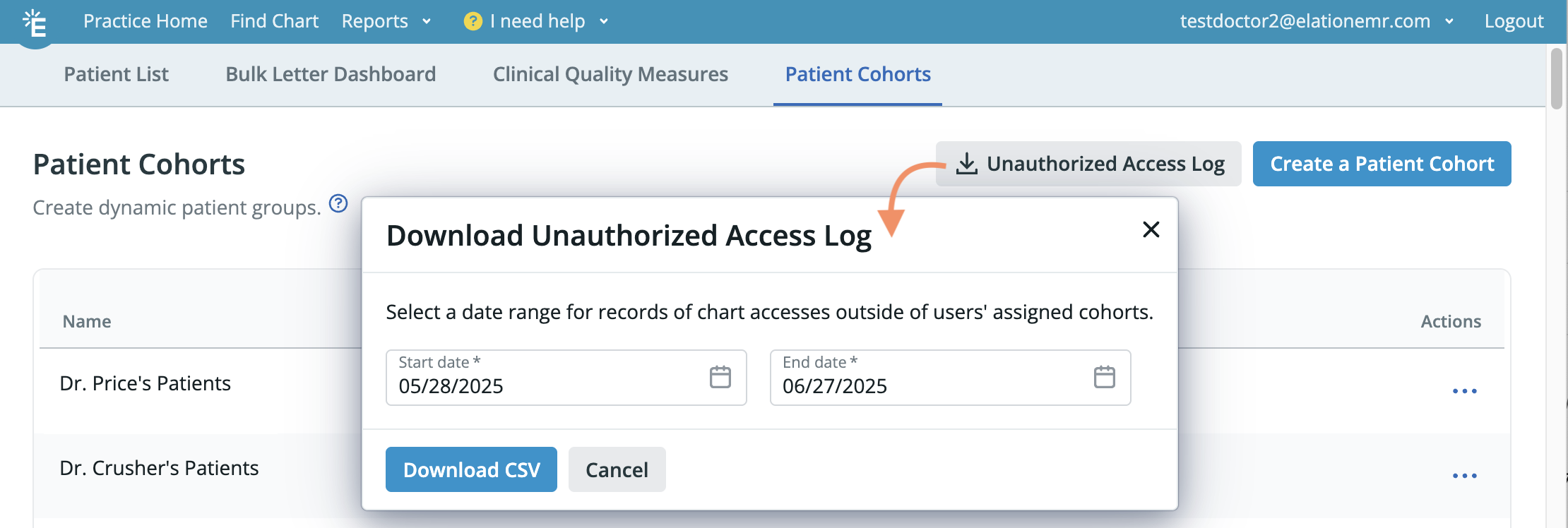
Viewing the Unauthorized Access Log
If the Warning & Optional Bypass setting is enabled, Admin Level Users can use the Unauthorized Access Log to track access: 1 Click Reports -> Patient Cohorts . 2 Click Unauthorized Access Log . 3 Select the date range you want to view. 4 Click Download CSV . 5 Open the file using a spreadsheet compatible software like Google© Sheets or Excel©.