What is the Patient Chart?
The patient chart is a page within Elation that is specific to a patient at your practice and stores comprehensive medical information about the patient. There are many care and documentation actions you can take from the patient chart such as documenting visit notes, prescribing medications, sending eFaxes, and more.Why is the Patient Chart important?
The patient chart is important because it enables your practice to document patient medical information for all of your patients electronically and store the information per the specific patient.Usability of the Patient Chart
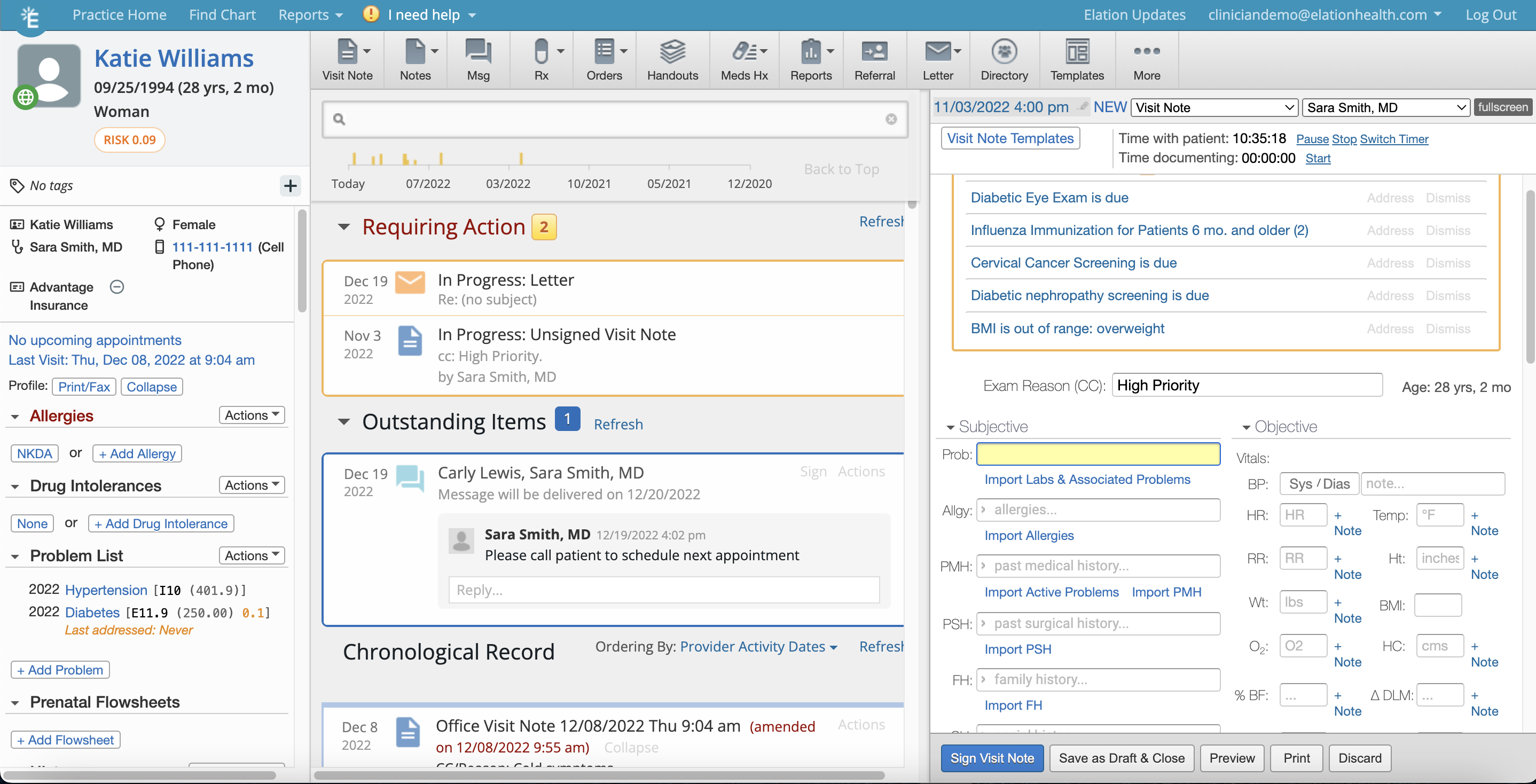
The patient chart is designed to display like a paper chart. It has three columns and additional pop up windows so that you can reference various items in the chart without losing your place. The columns and pop up windows ensure that you do not need to leave your single webpage to reference the patient’s data. Each aspect of the patient chart provides opportunity for efficient and specialized documentation.Viewing records in the chart
The three columns of the patient chart allow you to view multiple records and care facilitation tools at the same time. You are able to freely move popup windows, like the Prescription Form shown below, around the patient chart so that you can see other aspects of the chart that need to be referenced. If your device has a screen resolution of 1440x900 or higher, you are able to adjust the size of in-progress visit notes and letters to fullscreen or halfscreen. The Clinical Profile will always be displayed.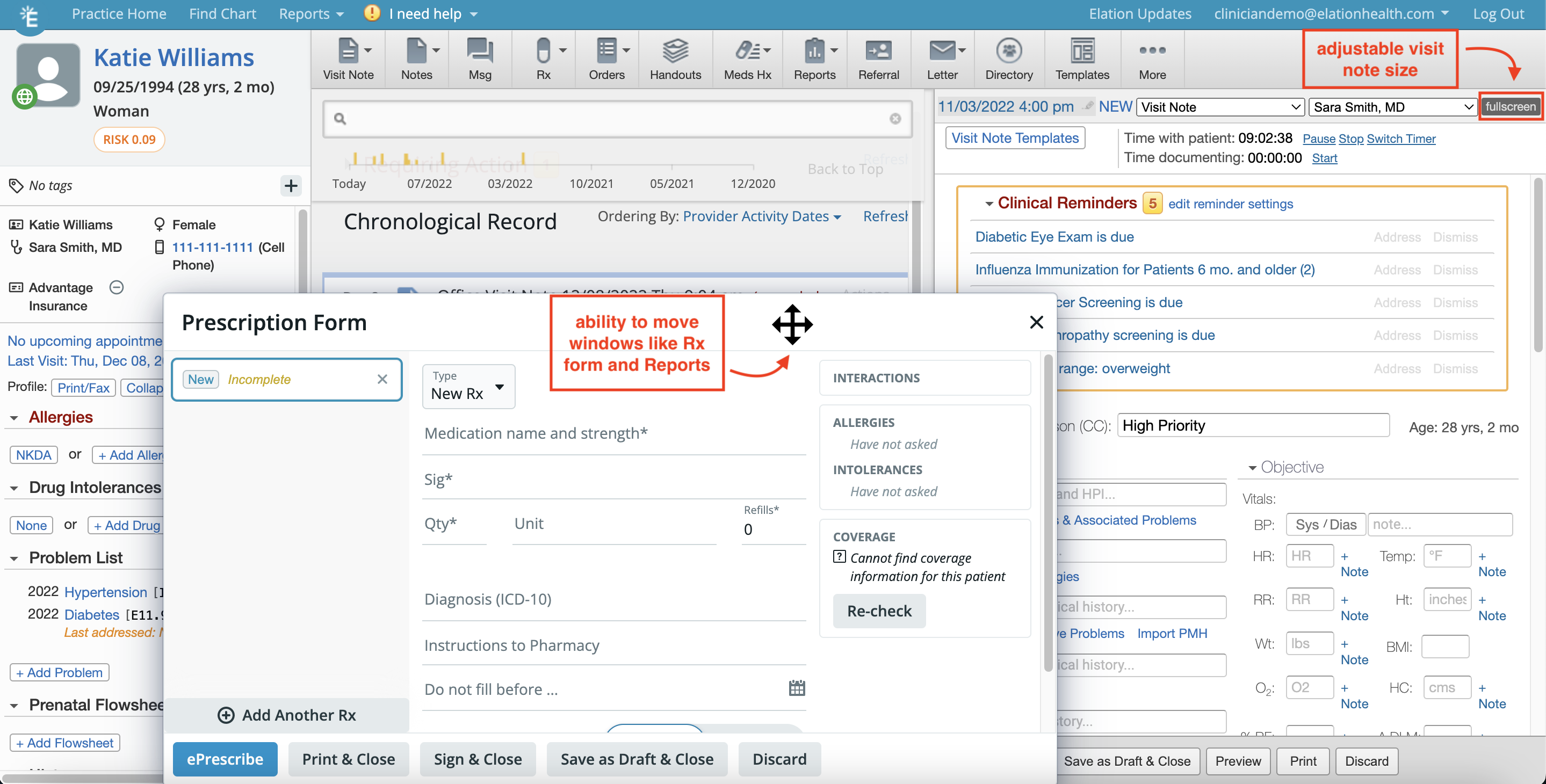
Navigating the Patient Chart
Below are the various sections of the patient chart: Overview of patient chart sections: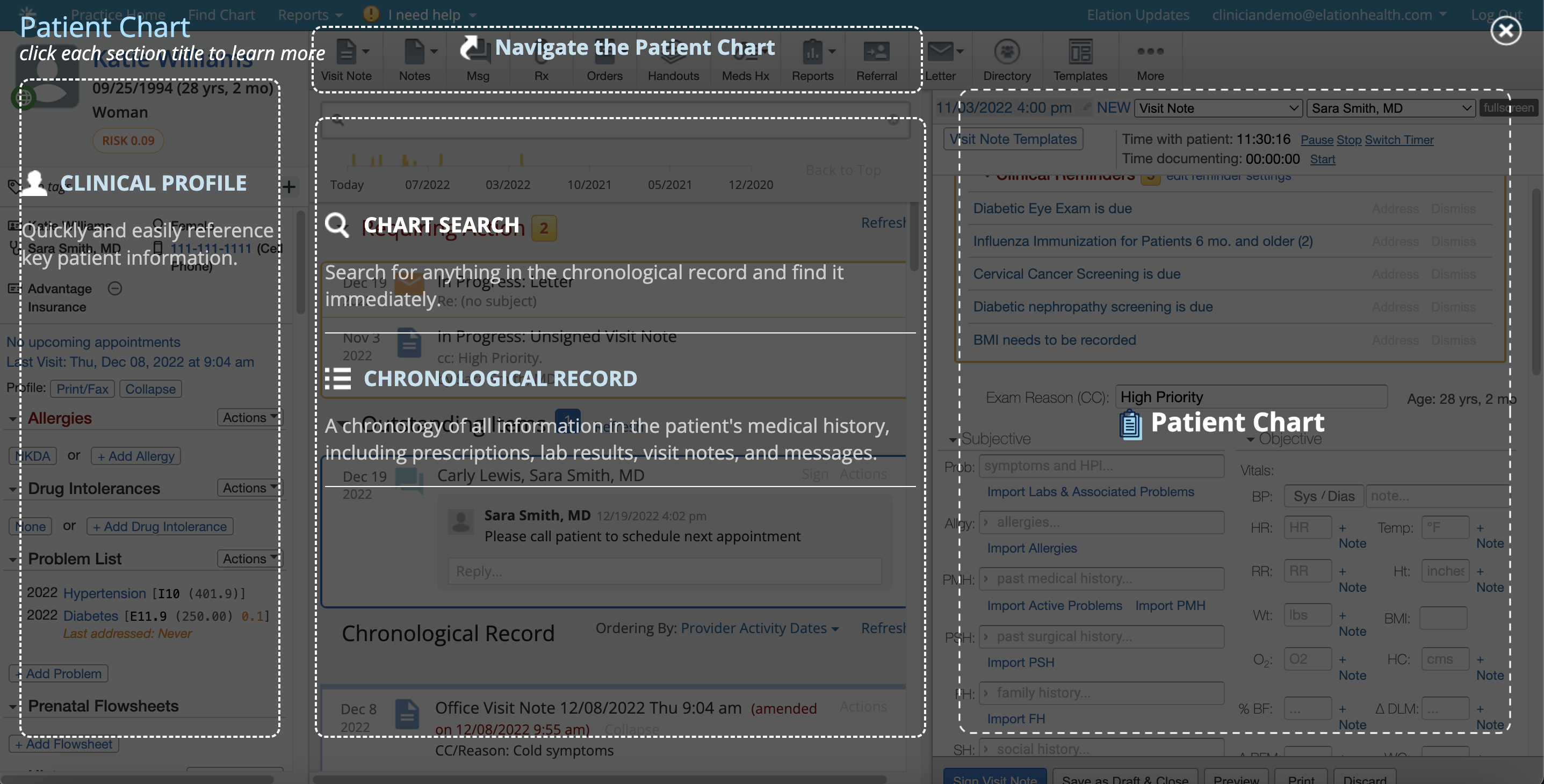
Clinical Profile
The Clinical Profile is the left-hand panel that appears in every patient’s chart. It is home to important patient details including their allergies, problems, history and medications. The Clinical Profile is also used for documenting vaccines, growth charts and storing legal and confidential notes. For more information on the Clinical Profile, please reference the Clinical Profile Guide- A snapshot of the patient’s health status .Patient Demographics
The Patient Demographics feature allows you to store all patient identifying information in one place. For more information on how to best utilize the Patient Demographics, please reference the Patient Demographics Guide .Patient Overview
Below the demographics is the part of the Clinical Profile that provides an overview of the patient’s history and a snapshot of other aspects of their health record.Chart Navigation Bar
The chart navigation bar is the gray tool bar located at the top of every patient’s chart. The chart navigation bar allows you to quickly access all the clinical features and forms you need to care for your patient. You can use the navigation bar to complete a majority of the key clinical, patient workflows without leaving the patient’s chart and without jumping into different areas of the patient’s chart. For more information on the chart navigation bar, please reference the Patient Chart Guide- Chart navigation bar .Chronological Record
All of the patient’s records, such as visit notes, orders, letters, referrals and messages, are stored in one single place - the Chronological Record. The Chronological Record places “To Do’s” and reminders at the very top as Requiring Action or Outstanding Items so that these items are addressed first. Everything else is listed in chronological order with the most recent items at the top of the chart. You can also search through the patient’s chart using the Chronological Record Search. For an overview of the Chronological Record, please reference the Chronological Record Introduction- A timeline of your patient’s records .Chronological Record Search / Timeline
The Chronological Record Search and Timeline are tools in your patient’s chart that allow you to search for specific types of records or records tied to specific clinical data and dates. The Chronological Record contains all of the patient’s clinical care history and the search tool allows you to pull up specific records without having to dig through the entire chart. The Timeline allows you to navigate to a certain date of the chart to view records from that time. You can click on the spot on the timeline to navigate to that spot in the Chronological Record. For more information on how to best utilize the Chronological Record Search and Timeline, please reference the Chronological Record Guide- Searching for records in the patient’s chart .
Requiring Action
Requiring Action items are open items that are assigned to ‘you’. The most recently dated item will come first. We recommend always addressing Requiring Actions items in a timely manner. If the item no longer requires your attention, you should take the appropriate actions to remove it from Requiring Action.Outstanding Items
Outstanding Items are open items in the patient’s chart that are either assigned to someone else for ‘next steps’ or if you are using our Post Date feature, the time to address the item has not arrived yet.Frequently Asked Questions
Why are parts of my chart hidden?
Please ensure you are using Elation on a device that has at least a 13 inch screen so that you can see all aspects of the chart and they appear as designed. Using a screen that is less than 13 inches can affect the configuration of the display.Why do I only see the Requiring Actions / Outstanding Items section when I search for something in the Chronological Record Search?
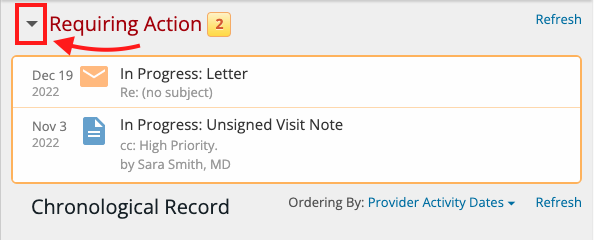
If you have multiple items in the Requiring Actions / Outstanding Items sections of a patient’s chart, you will need to minimize those sections or scroll down the Chronological Record to see your search results. You can minimize the Requiring Actions / Outstanding Items sections by clicking the down arrow shown below.