Why should I add historical vitals to the patient’s chart?
Adding historical vitals allows you to trend vitals information over a period of time especially when you first start using Elation. If patients are keeping track of their blood pressure at home on their own, you can record those readings in the patient’s chart using this feature to trend their results. Once the vitals information is stored in the patient’s chart, you can use the Chronological Record search to pull up a table of vitals information.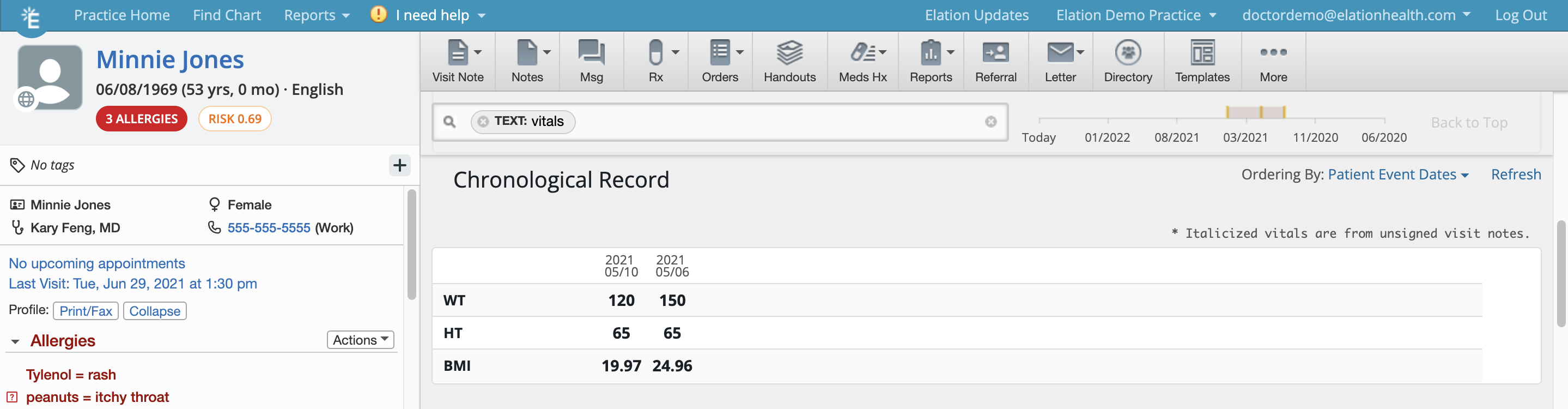
Adding historical vitals
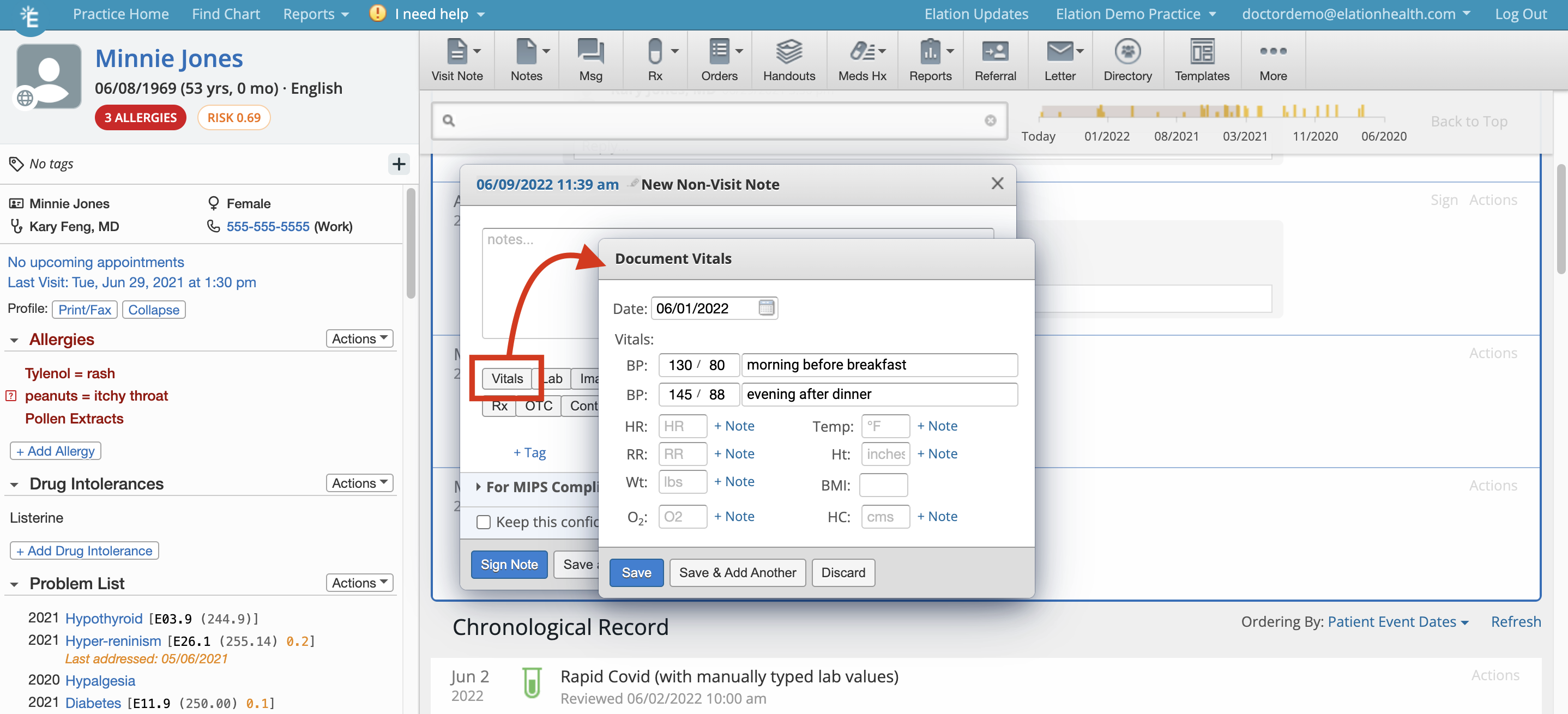
To add historical vitals:- Click Notes >> Non-Visit Note.
- Click Vitals to prompt the Document Vitals box to appear
- Enter vitals information as needed for the patient and make sure you update the date of the vitals records.
- Click Save or Save and Add Another to keep adding more
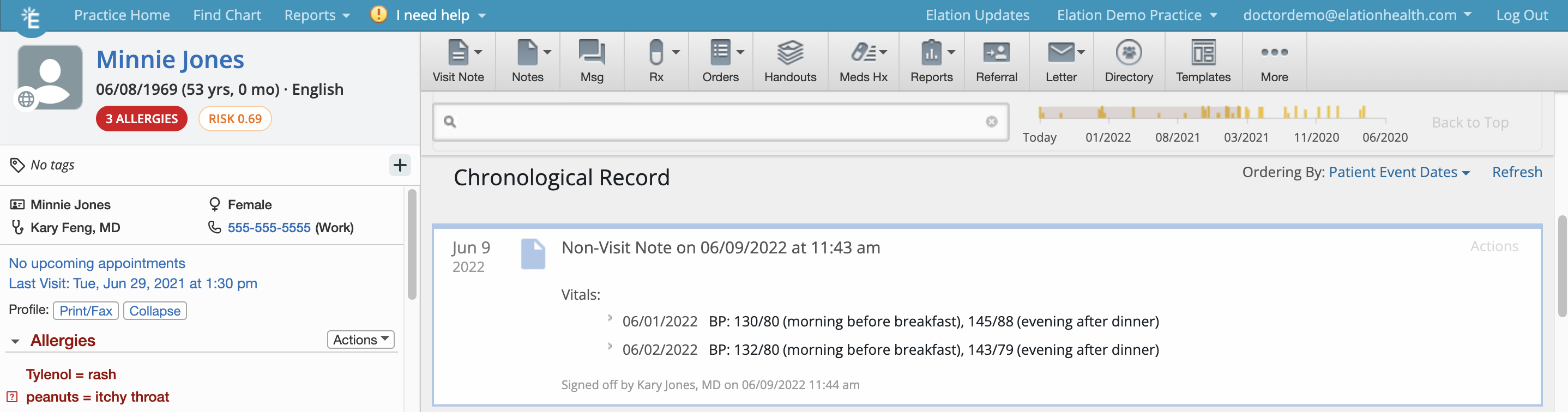
- Click Sign Note to save the Non-Visit Note containing the historical vitals