
Overview
What is Requiring Action?
The Requiring Action queue appears at the top of every patient chart and in the Practice Home. It collects all open items assigned to you that require your review or sign-off before they can be moved to the Chronological Record, including failed faxes, failed ePrescriptions, CancelRx items, unread patient letters, provider letters awaiting sign-off, and unfinished notes. Items remain in Requiring Action until the appropriate user takes the required action to clear them.Requiring Action queues in the Practice Home
The Requiring Action queues in your Practice Home centralizes all of the items that require your attention in a single view, and continue to show your pending items even when you switch between linked practices or workspaces. Queues with items will have a yellow number label and will display the number of items that require your attention within that queue. You can use the queues to:- Be the To Do lists for yourself or another office team member.
- Send reminders to yourself or another office team member.
- Manage your team and check for productivity by viewing their queues.
To change who can sign off on items in these queues (for example, granting or revoking staff delegate privileges), an Admin Level User must make those changes in Settings → Admin Managed Delegates. If you do not see Admin Managed Delegates under Settings, you are either not an Admin or your practice does not have access to the Premium EHR features. Contact a practice manager with Admin privileges to request changes.
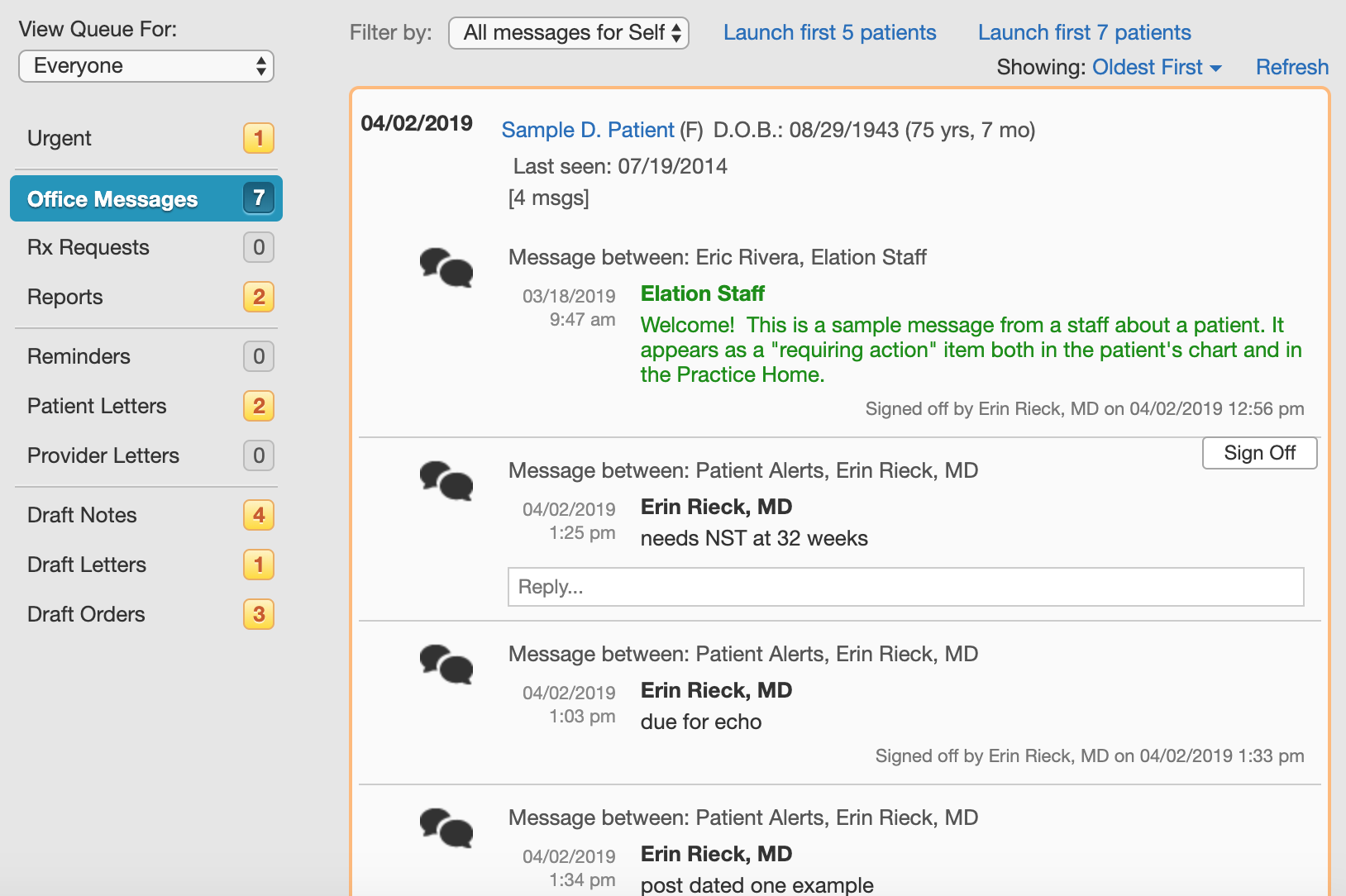
What items typically appear in the Requiring Action queue and who can clear them?
Who can clear an item depends on both the item type and the user’s account level:- Provider Level Users can sign off on most clinical items by default.
- Staff Level Users can clear certain items (such as letters and some office messages) and can sign off on others only when a provider has granted them delegate permissions.
- Authorized Delegates are Staff Level Users explicitly configured by a provider to sign on their behalf for specific item types.
If you do not see a Sign Off button on an item, your user type or delegate permissions may not include sign-off access for that item type. See the Requiring Action & Open Items Queues article for troubleshooting steps.
Quick Reference Table
This table summarizes common requiring action items, where to find them, who can clear them, and how they are resolved. All items below also appear in the Requiring Action section at the top of the patient’s chart (for Office Messages, also in Outstanding Items).Reports (lab results, imaging reports, faxed documents)
Reports (lab results, imaging reports, faxed documents)
Click the item’s title to open a preview of the report with a Sign Off button — clicking the patient’s name instead opens the full patient chart, not the item.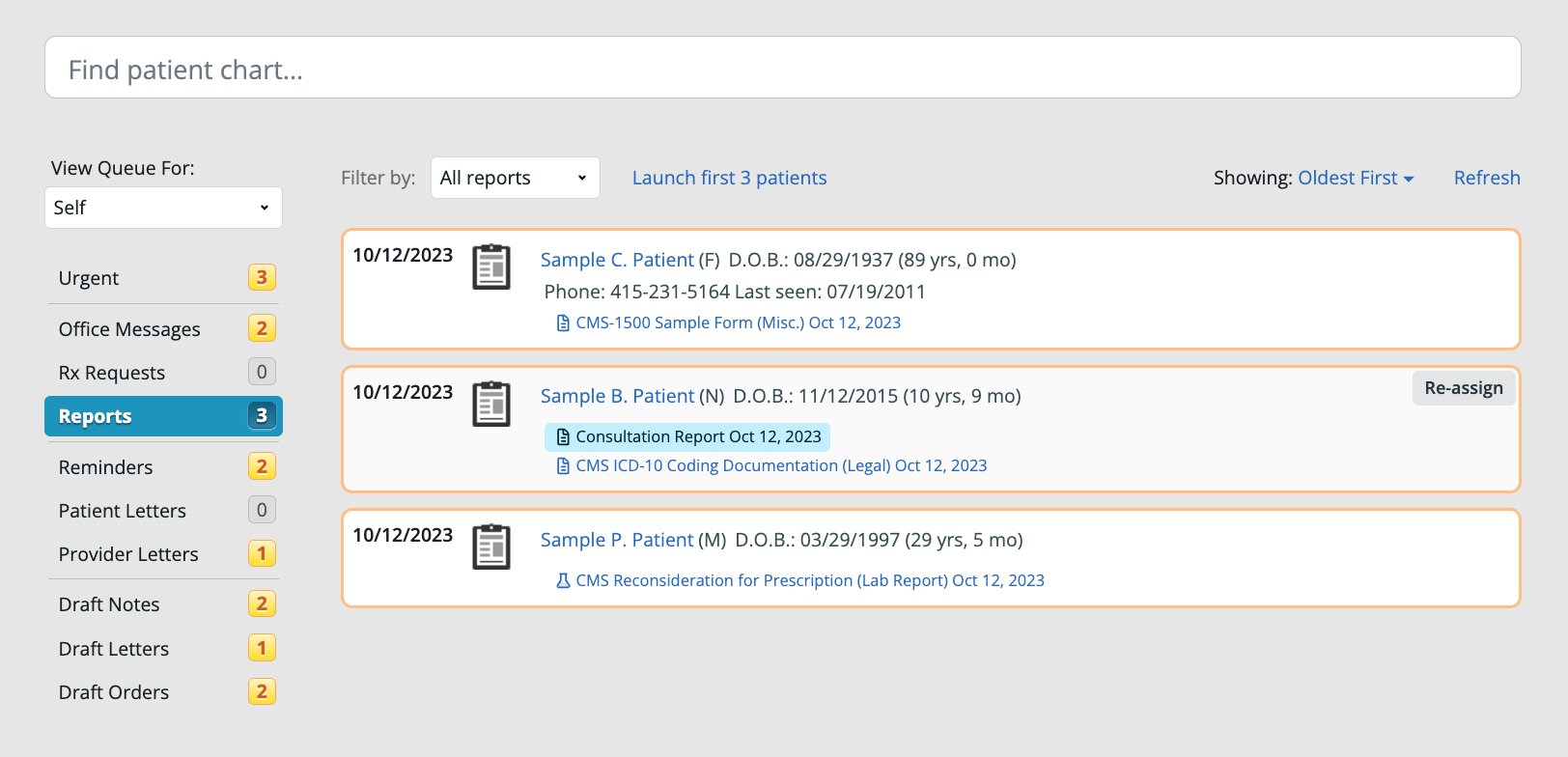
- Who can clear: Provider Level Users can sign off, even if assigned to a different provider. Staff Level Users can sign off if delegated by a provider. For faxed documents, Provider Level Users can only sign off if they’re the assigned provider.
- Required action: Click Sign Off (Provider Level Users) or Sign Off on Behalf of Provider (delegated Staff Level Users).
- Optional action: For lab results and imaging reports, click Sign Off & Send to Patient or Sign Off & Send to Provider to attach the report to a Patient Letter or Provider Letter.
If a faxed document was filed with File on Behalf of Provider checked, it needs no sign-off and goes directly to the Chronological Record.
Office Messages
Office Messages
- Who can clear: Provider Level Users can sign any thread, even if not a recipient. Staff Level Users can clear with Mark Complete only if no Provider Level User is on the thread. Premium EHR practices can configure Staff Level Users as Office Message Delegates to sign on a provider’s behalf.
- Required action: Provider Level Users and delegated Staff Level Users click Sign Off. Staff Level Users with no providers on the thread click Mark Complete. Recipients of a thread a provider already signed click Acknowledge.
Rx Requests
Rx Requests
- Who can clear: Provider Level Users can address non-controlled and controlled substance requests. Rx Delegates can address non-controlled substance requests only.
- Required action: Approve, Deny, or Renew.
Only providers with active EPCS credentials can address controlled substance refill requests. Rx Delegates cannot approve or renew controlled substance prescriptions.
Draft Notes
Draft Notes
- Who can clear: Provider Level Users can sign visit notes and other notes (phone, non-visit, email). Staff Level Users can sign other notes (phone, non-visit, email).
- Required action: Sign or Sign & Close.
Draft Orders
Draft Orders
- Who can clear: Provider Level Users can sign orders and referrals. Rx/Orders/Referrals Delegates can sign on a provider’s behalf.
- Required action: Sign or Sign & Close.
Draft Letters
Draft Letters
- Who can clear: Any user.
- Required action: Sign & Send.
Patient Letters and Provider Letters
Patient Letters and Provider Letters
- Who can clear: Provider; Staff Delegate for referrals.
- Required action: Reply, Sign, or Acknowledge.
- Optional action: Click End Conversation to close the thread.
Workflow Instructions
Using quick actions at the top of your Practice Home
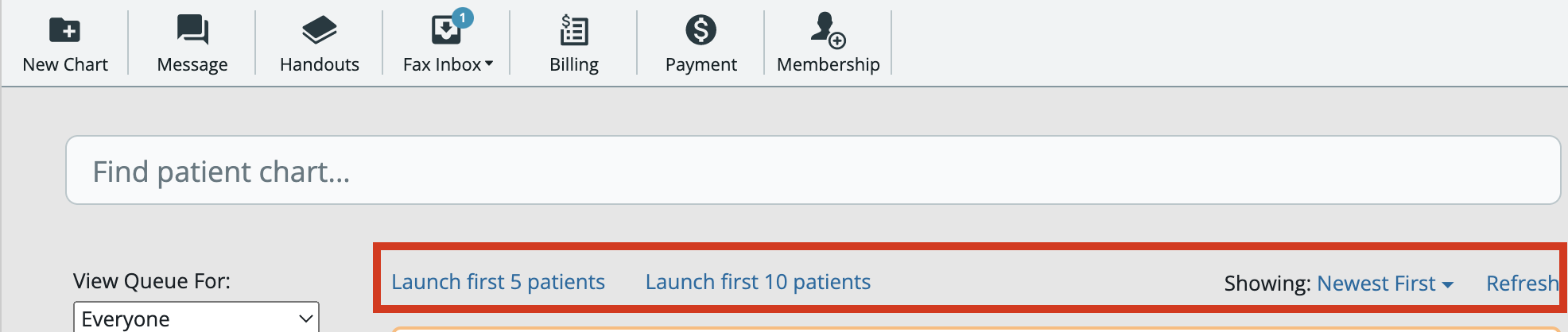
Checking for new items in the Practice Home
Click the Refresh button to update your queue/inboxes to see if there are any new items you need to address without leaving the Practice Home page.Launching multiple patient charts at once from Practice Home
Open up to 10 patient charts from each inbox at once by clicking Launch first … patients. A new browser tab will open for each patient chart so you can review items that need your attention.If new tabs do not open, it’s most likely due to a pop-up blocker. In Chrome, click the pop-up blocked icon in the address bar and select Always allow pop-ups and redirects from app.elationemr.com. In Firefox, click the pop-up blocked notification in the address bar and select Allow pop-ups for app.elationemr.com.
Setting your Practice Home display order preference
Set your preference on whether you want to see the newest or oldest items first in each inbox by selecting from the Showing dropdown. Your preference will be saved as you navigate across the inboxes, and it will be saved each time you open the Practice Home page on the same web browser.Specifying inbox/queue options
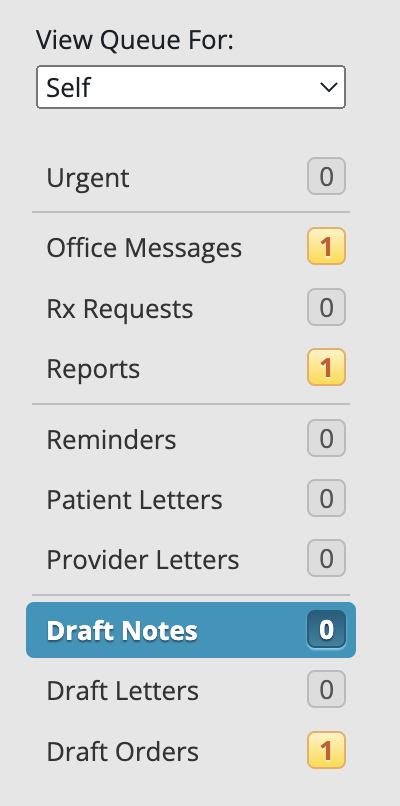
Changing your inbox/queue view
Check for requiring action items in other office members’ queues by clicking the View Queue For: dropdown men, finding the member you would like to view queue for and clicking on their name. You also have the option to view the queue for:- Everyone
- All Physicians
- All Staff
Checking for items that require your attention in the inboxes
This table describes the items that may appear in the various Practice Home inboxes. Certain item types can be addressed from the Practice Home directly while others will require you to click on the patient’s name to open the patient’s chart to view the requiring action item.Finding unsigned or draft notes
Unsigned visit notes and other draft notes (phone, non-visit, and email notes) assigned to you appear in the Draft Notes inbox in your Practice Home. They also appear as an Unsigned Note in the Requiring Action queue at the top of the patient’s chart. To clear them, open the note and click Sign or Sign & Close. Provider Level Users can sign visit notes and other notes; Staff Level Users can sign other notes (phone, non-visit, email).Clearing requiring action items
To clear requiring action items, review the item and take the appropriate action needed to complete or address the item. Certain item types can be addressed from the Practice Home directly while others will require you to click on the patient’s name to open the patient’s chart to view the requiring action item. See the Quick Reference Chart at the top of this article for details about how to clear certain requiring action items. Next Step Check your Practice Home for outstanding Requiring Action items!Related Articles
- Requiring Action – How to Clear Items and Who Can Sign Off (by Item Type)
- Lab Reports- Viewing results from lab interfaces
- Importing Documents via the Fax Inbox
- Office Message Feature Guide
- User Groups for Office Messages Guide
- Post Date a Message Guide- Reminders & Task Follow Up
- Requiring Action & Open Items Queues- Managing open action items for your patients