
Contents
- Overview
- Workflow Instructions
- Frequently Asked Questions
Overview
Elation partners with Surescripts to enable the electronic exchange of prescriptions between your EHR and pharmacies. The following features are available:- Receive electronic refill requests from pharmacies.
- Send electronic prescriptions to pharmacies.
- Receive fill status notifications for sent prescriptions.
- Receive prescription change requests.
Workflow Instructions
Receiving & addressing prescription refill requests from pharmacies
Electronic refill requests are sent from the pharmacy to the patient’s chart, where they’re assigned to a Provider. The request will appear in the Requiring Action section of the patient’s chart and in the Rx Requests inbox on the Provider’s Practice Home page. Requests older than 30 days are automatically archived. To action on an electronic refill request for non-controlled substance medications, follow the steps below. Click here for instructions on how to address controlled substance medication refill requests.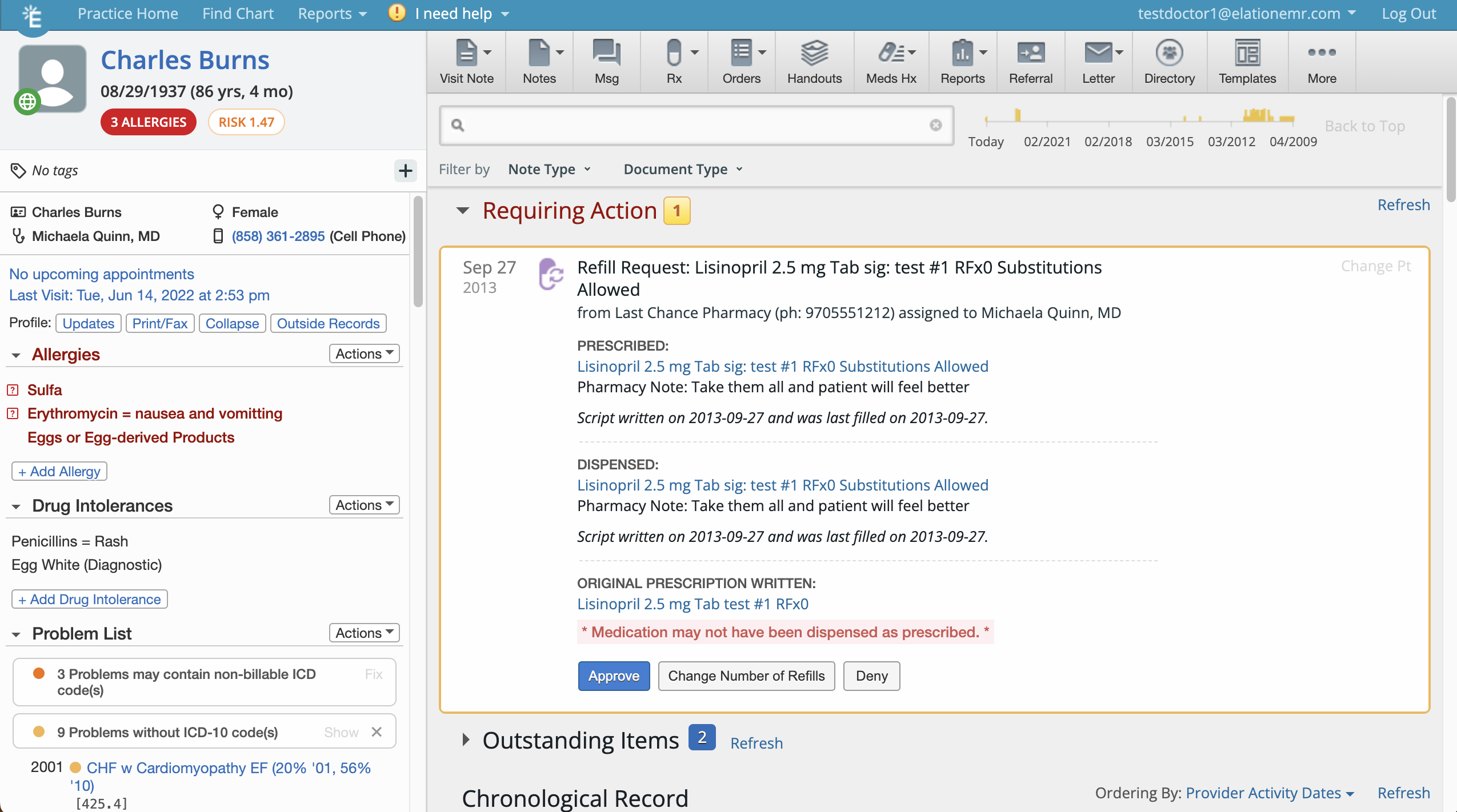
By default, electronic refill requests will be assigned to the Provider Level User whom the pharmacy is requesting a response from. Typically the assigned Provider or their Rx Delegates would address the electronic refill request. If needed, another Provider Level User (or their own Rx Delegates) can also respond to the assigned Provider’s refill request as long as the Provider Level User is not an Rx Delegate for another Provider Level User. You can also reassign the renewal request to a different eligible provider.
Reassigning an eRx renewal request to a different provider
When a renewal request is attributed to a provider who has left the practice, is deactivated, or should not authorize the renewal, you can reassign it to another eligible provider. The response is then transmitted to the pharmacy under the newly assigned provider, and the feed shows Reassigned from Dr. A → Dr. B. Provider Level Users and their Authorized Rx Delegates can reassign renewal requests from the Rx Requests inbox or the Requiring Action section of the patient’s chart. Eligible reassignment targets:- Provider Level Users with an ePrescribing account and an active Surescripts enrollment
- For controlled substance renewals, the target must also be EPCS-capable
1
Locate the renewal request in the Rx Requests inbox on Practice Home or in the Requiring Action section of the patient’s chart.
2
Click Reassign to Provider.
3
Search for and select an eligible provider.
4
Confirm the reassignment. The request moves to the newly assigned provider’s queue, and the feed shows Reassigned from [original provider] → [new provider].
Exception: Prescription change requests cannot be reassigned. Only eRx renewal (refill) requests support Reassign to Provider.
Managing electronic prescriptions sent to pharmacies
Once a prescription is sent to the pharmacy, the following can happen:- Pharmacies may notify you of the fill status of the prescription.
- Pharmacies may send you prescription change requests.
- You can send a cancellation request to the pharmacy if you no longer want them to fill the prescription.
Receiving fill status notifications from pharmacies
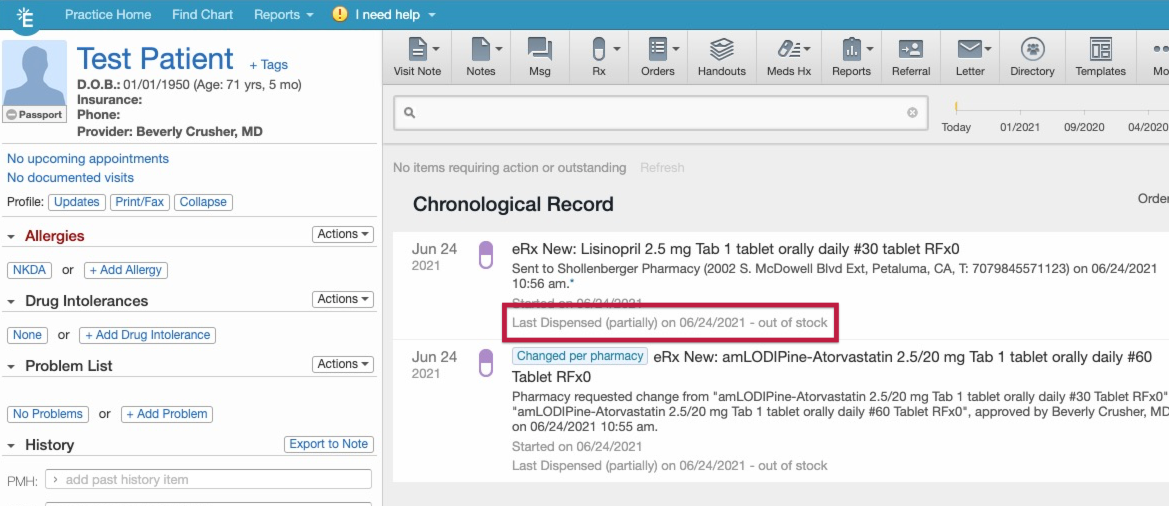
Pharmacies can choose to electronically update you on the fill status of a prescription. The type of fill statuses that pharmacies can send include:- dispensed
- partially dispensed
- not dispensed
- transferred (to another pharmacy)
Receiving prescription change requests from pharmacies
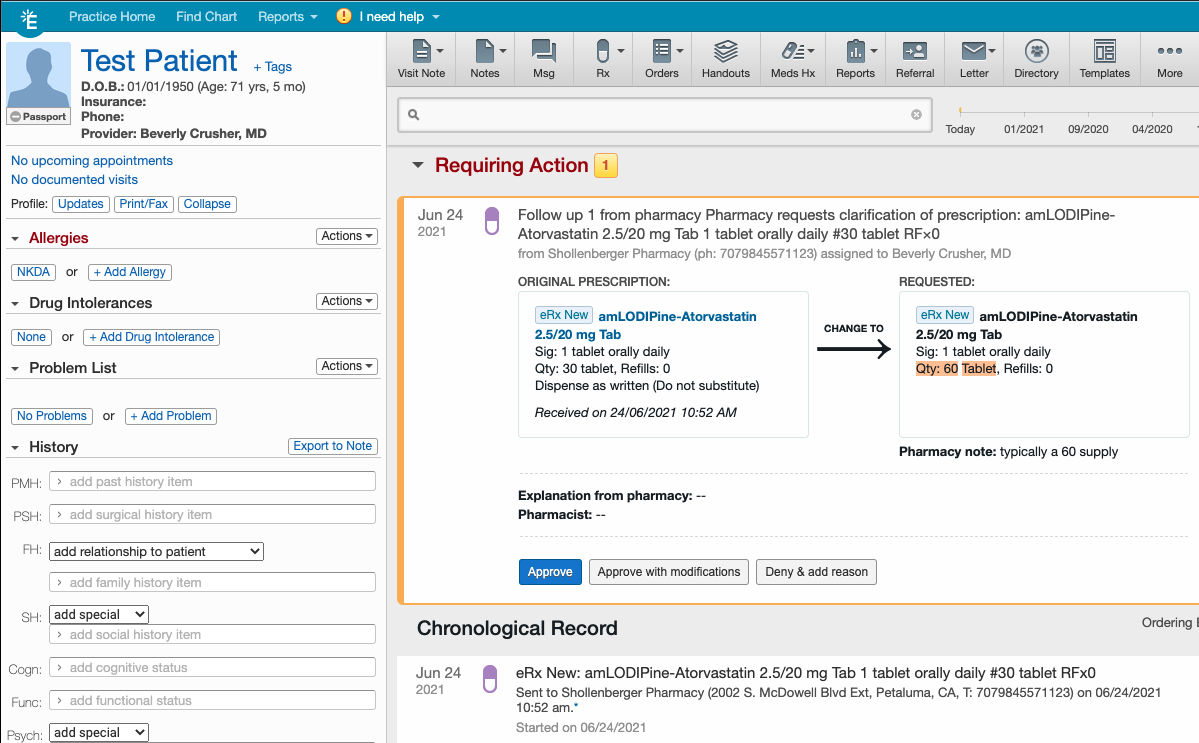
Pharmacies can send you prescription change requests electronically. Pharmacies most commonly send prescription change requests:- if the patient requests a generic substitution at the pharmacy.
- for script clarification.
- in the event that the prescription is out of stock.
We recommend that providers respond to a prescription change request within 48 hours or the pharmacy will call or fax the provider to prevent delays in patient care.
Sending prescription cancelation requests to pharmacies
A Provider Level User or authorized Prescription delegate can request to cancel any prescription sent electronically to a pharmacy by clicking Actions -> Cancel this eRx order.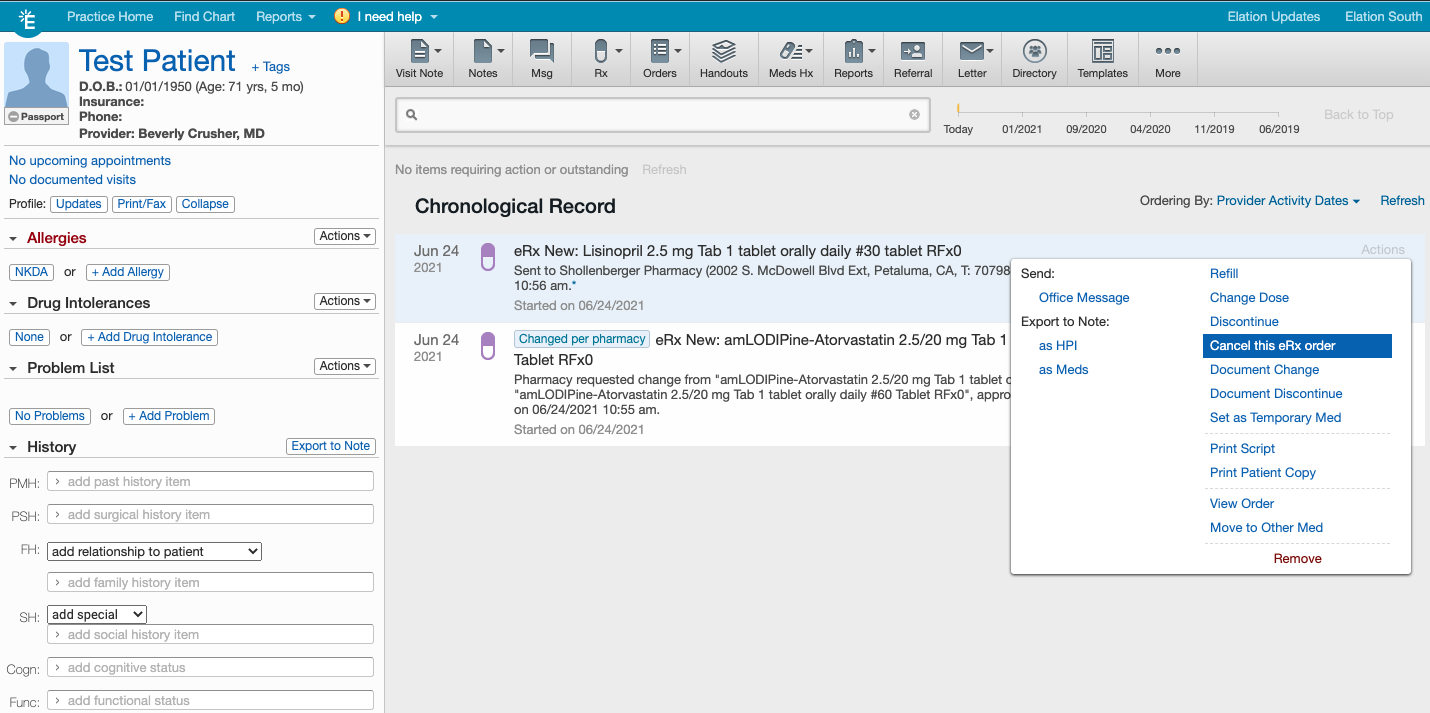
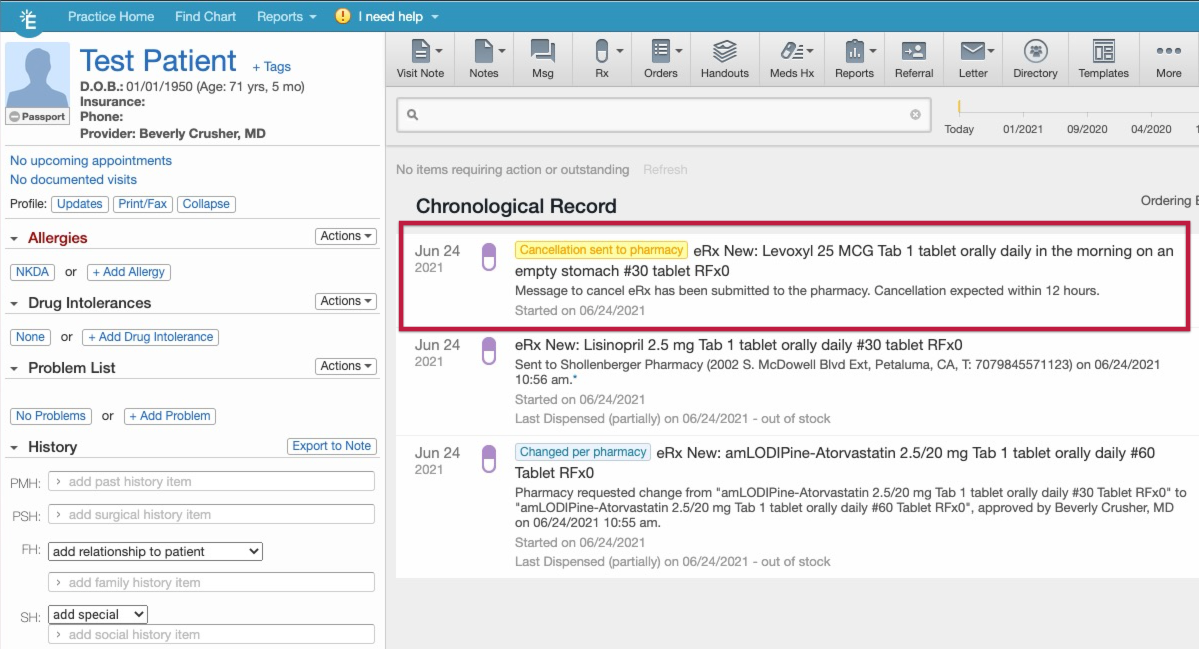
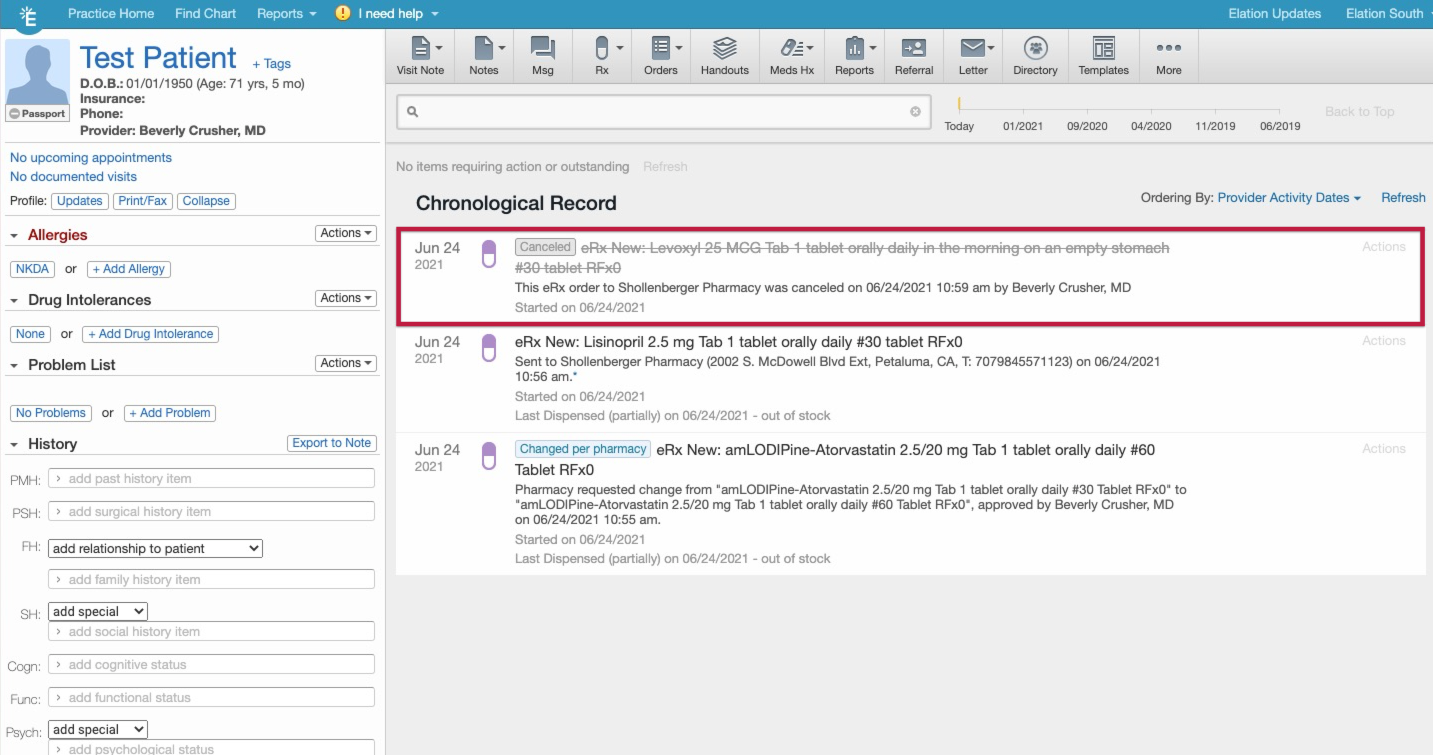
Pharmacies should respond to cancellation requests within 12 hours, but pharmacies are not obligated to keep to this timeframe. If you do not receive a response from the pharmacy to the cancellation request within 24 hours, we recommend directly contacting the pharmacy.If you would like to reverse an in-progress cancellation request, you must contact the pharmacy directly to suspend the request.
CancelRx notifications in the Practice Home
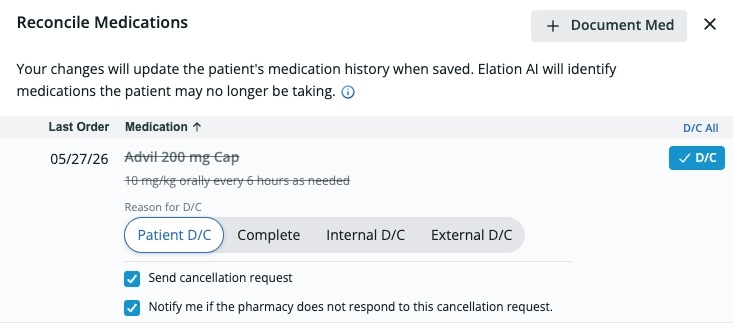
Practice Home notifications for cancellation requests use descriptive labels so you can quickly tell what happened to a prescription and triage your queue. The label tells you whether:- The original ePrescription failed to send to the pharmacy.
- The pharmacy rejected (denied) the cancellation request.
- The pharmacy has not yet responded to the cancellation request.
- Enable the option if you want a notification in your Practice Home when the pharmacy does not respond within the expected timeframe.
- Leave the option unselected for prescriptions where no follow-up is needed, and you will not receive an unanswered-CancelRx notification for that request.
Frequently Asked Questions (FAQ)
Will I still see CancelRx items and failed ePrescriptions if I switch between linked practices or workspaces?
Yes, CancelRx items and failed ePrescriptions appear in your Practice Home queues even if you switch between linked practices or workspaces.Can staff manage electronic prescriptions on a provider’s behalf?
Yes, Provider Level Users can allow Staff Level Users to execute prescription orders on their behalf by assigning individuals as Authorized Rx Delegates. Authorized Rx Delegates can perform the duties listed below. Learn more about how to assign Authorized Rx Delegates in the User Accounts Guide- Utilizing authorized staff delegates article.- Transcribe prescription orders in the EMR and send a new prescription electronically to the pharmacy on provider’s behalf.
- Transcribe verbal approval or denial of a prescription refill or change request received from a pharmacy and send that approval or denial electronically to the pharmacy on provider’s behalf.
- Reassign an eRx renewal request to a different eligible provider.
- Transcribe provider’s order to discontinue a medication in the EMR for documentation purposes
- Transcribe provider’s order to cancel a medication sent to a pharmacy
Exception: Authorized Rx Delegates will not be allowed to ePrescribe controlled substance medications or address controlled substance medication refill requests on a provider’s behalf due to DEA regulations.