
Recommended Readings
What are Prescription (Rx) Templates?
Prescription (Rx) Templates allow you to easily save frequently used medications and its specifications (Sig, Qty, Unit, Refills,Days Supply,Packaging (NDC)) as a set of information to use and reuse at a later time. Rx Templates are available for use in the Prescription Form and will always appear at the very top of the medication search drop down menu. Templates created by your practice will have the label Rx Template next to them in the drop down menu.Why are Prescription (Rx) Templates useful?
Prescription (Rx) Templates allows you to save time when prescribing medications because the specifications of the medication will be pre-entered for you depending on the Rx Template you saved and selected. This also reduces room for error and ensures consistency in your Prescriptions you write for your patients.Creating Prescription (Rx) Templates
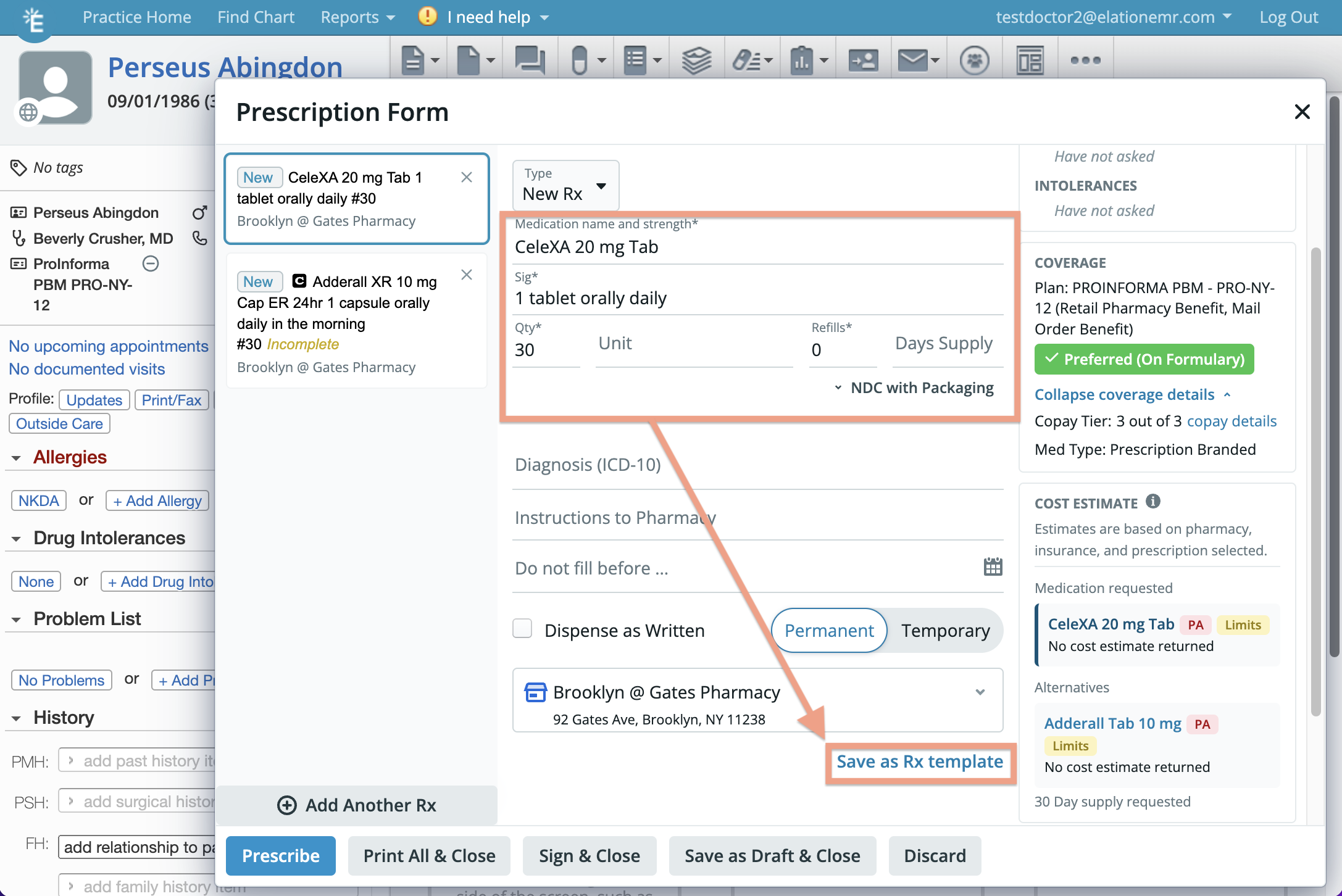
To create a Prescription (Rx) template from the Prescription Form:- Click on the Rx button in the gray navigation bar at the top of a patient’s chart
- Select Prescription Form (Rx/OTC/CS)
- Fill in the following fields
- Medication name & strength
- Sig
- Qty
- Unit
- Refills
- Days Supply
- Packing (NDC)
- Click Save as Rx template
- Click Save
Prescriptions Settings Page
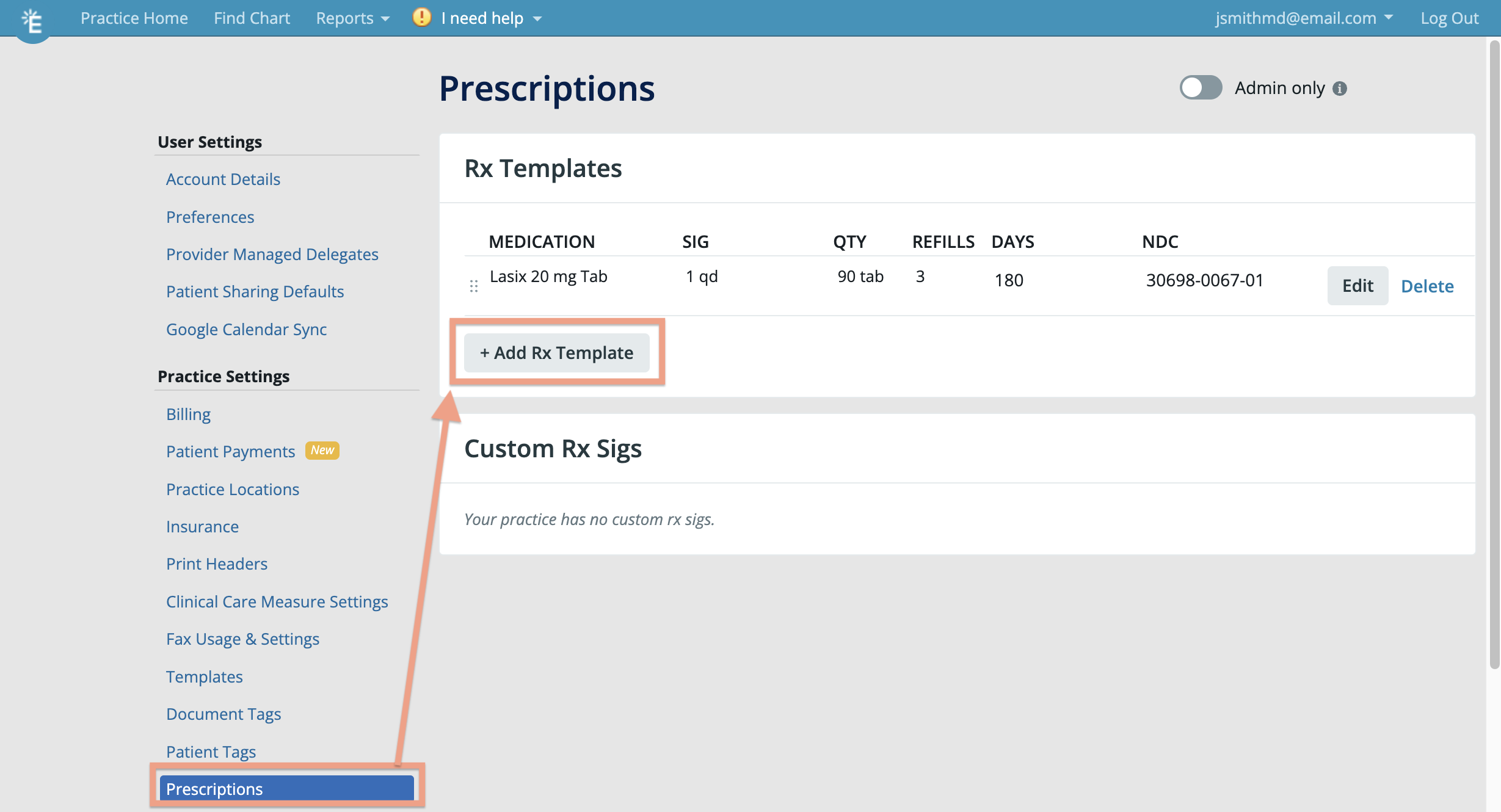
The Prescriptions Settings page organizes your saved data into two separate paginated lists — one for Rx Templates and one for Custom Rx Sigs. Each list has its own search bar and pagination controls, and entries within each list are shown in alphabetical order.- Click on your email at the top right corner of Elation
- Click Settings
- Click Prescriptions under Practice Settings
- In the Rx Templates section, use the search bar to confirm the medication isn’t already saved, then click + Add Rx Template
- Fill in the following fields
- Medication name & strength
- Sig
- Qty
- Unit
- Refills
- Days Supply
- Packing (NDC)
- Click Save
Applying Prescription (Rx) Templates
When prescribing medications, begin searching for the medication in the Medication Name & Strength field and you will find Rx Templates for those medications at the very top of the search drop down menu with the label **Rx Template ** next to the medication name. Select an Rx Template and Elation will automatically fill in any Sig, Qty, Unit, Refills,Days Supply and Packaging (NDC) associated with the template.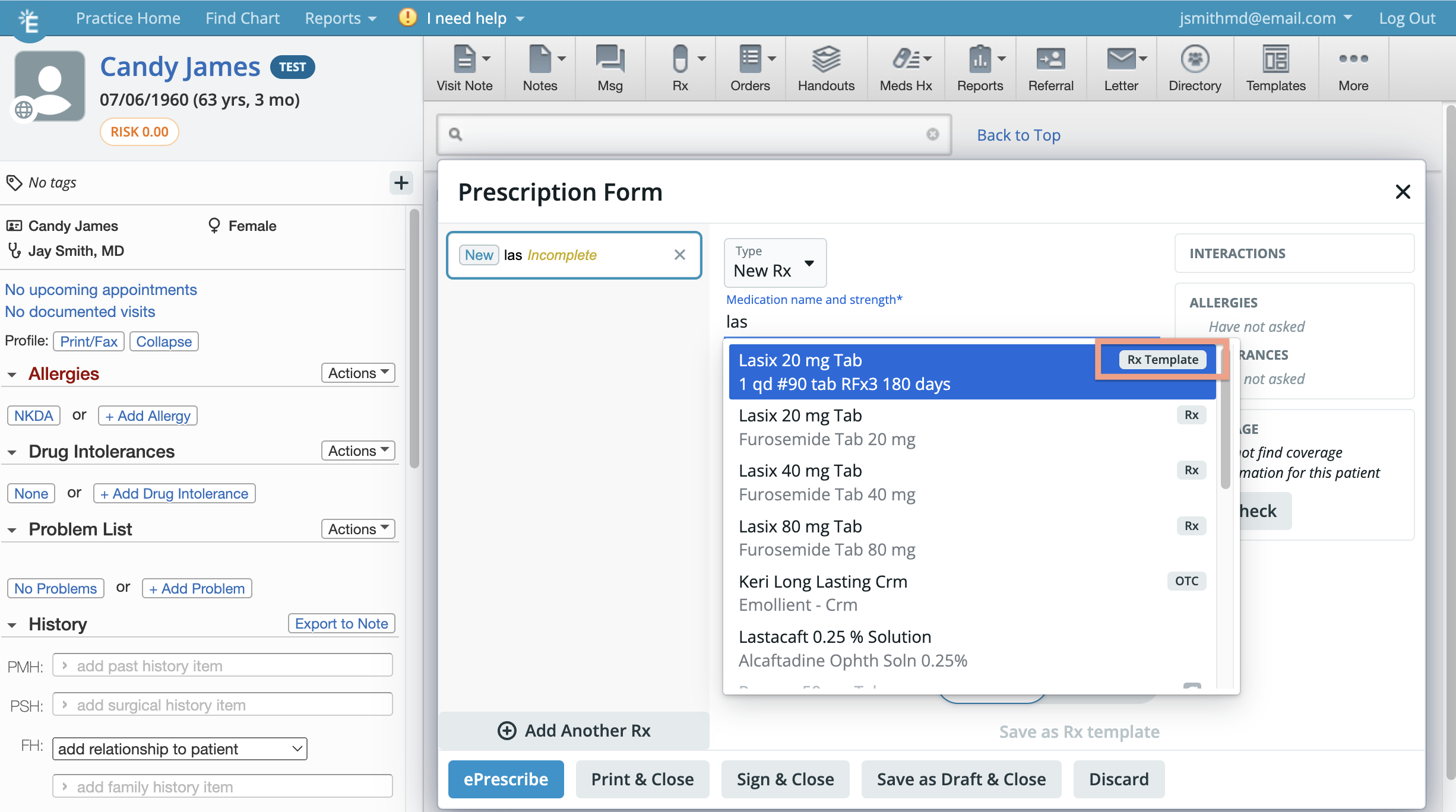
Managing Prescription (Rx) Templates
The Prescriptions Settings page in Elation is dedicated towards managing prescription templates and custom Sigs. You can add new templates, edit existing templates or delete templates you no longer need from this page. The page organizes your saved data into two separate lists — Rx Templates and Custom Rx Sigs. Each list is paginated, searchable, and alphabetized, so you can browse and search within each list independently rather than loading everything at once.- Click on your email at the top right corner of Elation
- Click Settings
- Click Prescriptions under Practice Settings
Searching for a Rx Template or Custom Rx Sig
To find an existing Rx Template or Custom Rx Sig:- Click on your email at the top right corner of Elation
- Click Settings
- Click Prescriptions under Practice Settings
- Use the search bar within either the Rx Templates section or the Custom Rx Sigs section to filter that list by name
- If a list has many entries, use the pagination controls at the bottom of that section to browse through additional pages
Updating a template that has a discontinued or off-the-market medication
When a medication is discontinued by the manufacturer and/or taken off the market, its NDC code will be made obsolete and you will not be able to prescribe the medication or retrieve formulary or coverage information for that medication. If one of your prescription templates has a discontinued or off-the-market medication, you will run into an error when applying the template to a Prescription Form. To avoid running into this error:- update the prescription template with an active medication
- delete the prescription template if it’s no longer needed