
Beta feature: The feature described in this article is part of a beta release and is only available to a select number of practices.
Overview
What is the Document Injected Medication form?
Elation’s injection form allows users to fully document a medication that was injected for a patient, including how and when the injection was administered, the details of the medication, and all appropriate procedure and diagnosis codes. Practices can document injections newly administered by the practice and historical injections reported by the patient, another provider, or another source.What are the benefits of the Document Injected Medication form?
The Document Injected Medication form allows you to record the action of administering an injected medication and the details surrounding the medication itself, such as the NDC number, Lot number, expiration date, and manufacturer. These injected medications, like the other medications the patient is actively taking, will remain part of the patient’s medication list for ongoing reference.Workflow Instructions
Documenting an injection
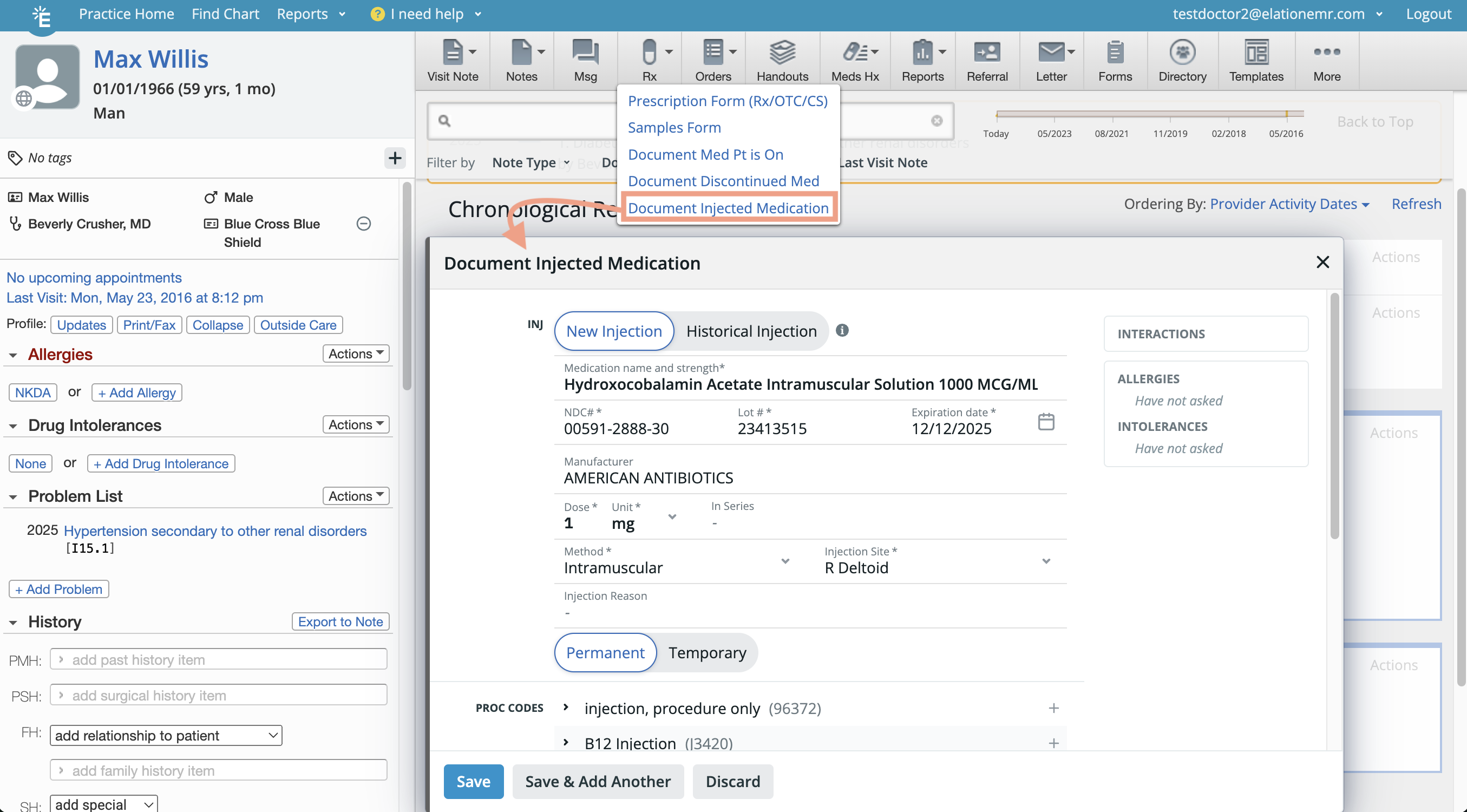
- Use any of the three methods below to open the Document Injected Medication form:
- Rx button at the top of the patient’s chart.
- Injected Medications button within a visit note draft.
- Actions menu within the Clinical Profile’s Permanent Rx Meds, Permanent OTC Meds, or Scripts Since Last 6 Visits.
- At the top of the injection form, use the toggle to select whether this is a New Injection that you’ve just administered or a Historical Injection that was performed in the past. The form’s required fields (i.e. fields with an asterisk *) will update according to your selection.
- Fill out the required fields (*) and any optional fields regarding the injected medication. For clarification:
- Medication name and strength: Start typing the name of the medication to search through Elation’s database. If you’re unable to find a match, you can create a custom medication.
- NDC#: If a medication is selected from our database, the NDC # will auto-populate from our database.
- Unit: mL is the default unit but the following units are accepted: dL, g, kg, kL, L, mCi, mg, mL, ug, and uL.
- Use the toggle to indicate whether this injection is Permanent or Temporary.
- If Permanent is selected, this injection will appear under the Permanent Med List in the patient’s Clinical Profile.
- If Temporary is selected, this injection will only appear if you open the patient’s full Medication History.
- In the Proc Codes field, specify the procedure code(s) related to the injection. Then, in the Dx For All field, specify the diagnosis code(s) you wish to associate with all the listed procedure code(s).
- If you are using the Premium EHR Injection Coding Automation feature, the codes may be automatically populated once you select a coded medication.
- At this time, the Procedure and Diagnoses codes will not transfer to any other parts of the chart**.**
- You must select the Ordered by and Given by user from your practice’s list of active users for new injections. For historical injections, these fields are optional and do not have to be members of your practice.
- The Reaction field will default to No Reaction. Click on the dropdown to select other reactions as needed and to describe the reaction.
- Click Save to complete.
Creating a custom medication for the injection form
If you cannot find a medication within Elation’s database, simply add it by following these steps:- Type out the name of the medication in the Medication name and strength field of the Document Injected Medication form then select Add a new med… at the bottom of the dropdown.
- Verify the Name of the new medication, and optionally fill out the Strength.
- Select whether it is a Prescription, OTC, or Controlled medication type.
- Click Create Medication & Continue. You will be brought back to the injection form to continue the workflow.
Viewing recorded injections
The workflow that was used to document an injection will determine where Elation saves it in the patient’s chart.- If the injection was documented while a visit note draft was open, it will appear within the Plan of the note.
- If the injection was documented while a visit note draft was not open, it will appear as a standalone item in the Chronological Record.
- If the injection was marked as Permanent, the injection will appear under the Permanent Med List in the patient’s Clinical Profile and the patient’s full Medication History list.
- If the injection was marked as Temporary, the injection will only appear in the patient’s full Medication History list.