
Overview
What is the medication reconciliation feature?
The Medication Reconciliation feature displays all active medications for a patient and provides a streamlined workflow to document adherence and discontinue inactive medications. AI-powered algorithms analyze patient, medication, and fill data to identify drugs that are likely no longer being taken. The data referenced by AI includes:- Patient’s problem list
- Patient risk factors (e.g. age)
- Prescription/dispensing history
What are the benefits of the medication reconciliation feature?
The Medication Reconciliation feature streamlines the process of reviewing and updating a patient’s active medication list by consolidating all current medications into a single, easy-to-navigate workflow allowing you to make real-time updates during patient encounters, including discontinuing medications in bulk. AI-powered suggestions highlight medications that the patient may no longer be taking based on prescription fill patterns and clinical history, allowing you to make faster, more informed decisions. This improves the accuracy of the patient’s chart, supports safer prescribing, and enhances the overall quality of care.Workflow Instructions
Reconciling active medications
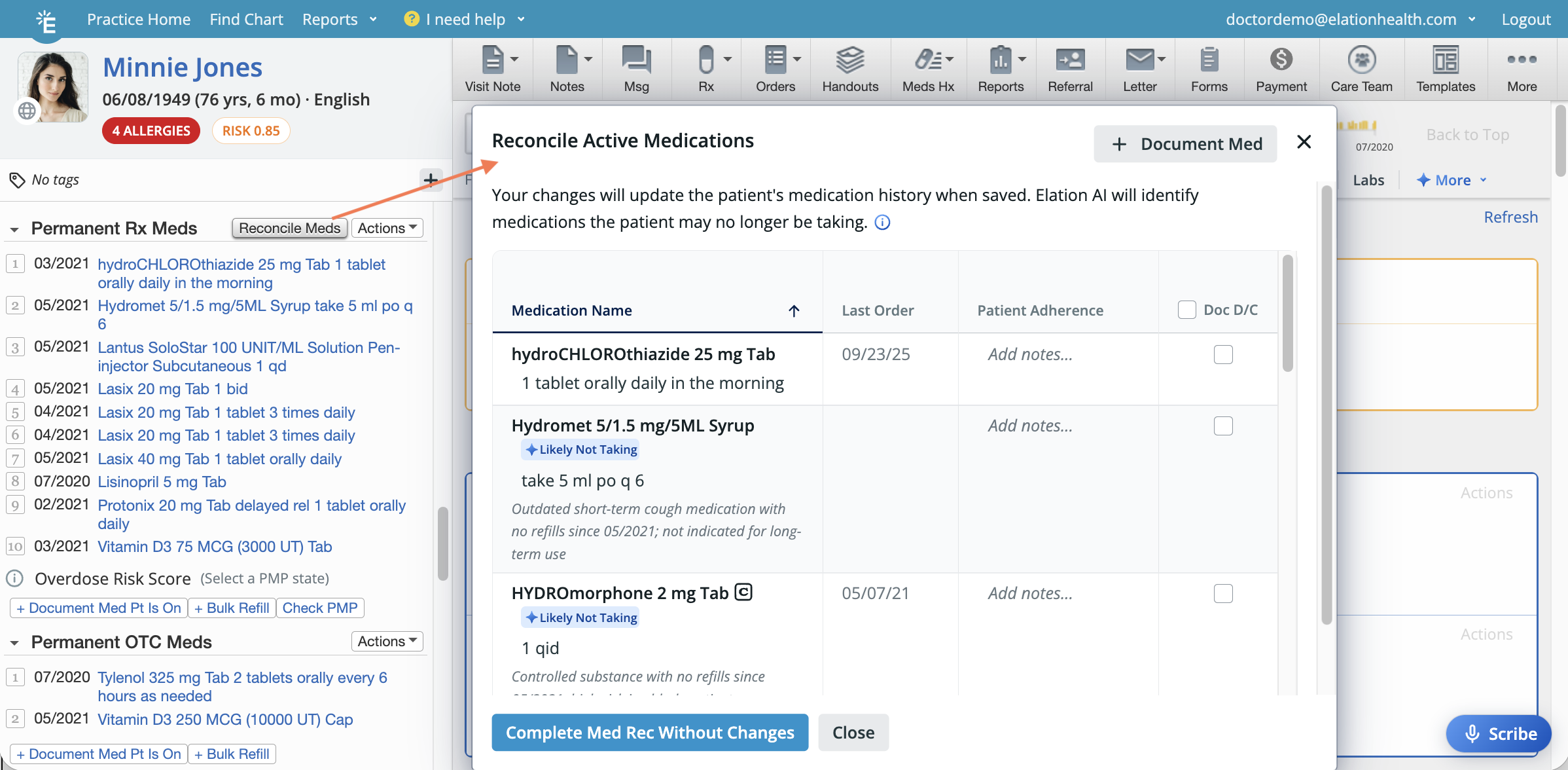
| 1 | Open the medication reconciliation window using one of these workflows: Click Reconcile Meds at the top of the Permanent Rx Meds section of the Clinical Profile. • Click MedsHx -> Reconcile Medications. • Click MedsHx -> Medication History -> Reconcile Active Medications. • Open a legacy visit note and click Reconcile Meds. • Open an Elation Note and click the Medication Reconciliation icon in the Reconciled Medications block. |
|---|---|
| 2 | Elation AI will quickly analyze the patient’s chart to identify medications the patient may no longer be taking. Any such medications will be flagged with a Likely Not Taking label, accompanied by context or notes explaining why the medication was flagged. If you would like to share your feedback about the AI suggestions with Elation, click on the rating scale at the bottom of the form and provide any additional context as needed. |
| 3 | Add patient adherence notes to the Patient Adherence column as needed. |
| 4 | Click on the Sig to add, edit or remove the sig as needed. This option will not be available if the Cancel Request box is checked. |
| 5 | To add additional medications to the medication list, click **+ Document Med ** at the top of the window. |
| 6 | To discontinue inactive medications, check the Document Discontinue box for each medication you want to continue. You can also check the box at the top of the Doc D/C column to select/unselect all medications at once. Select the reason for discontinuing the medication in the Discontinue Reason dropdown that appears. • Check the Cancel Request box if you want to send a cancellation request to the pharmacy — this option is only available when the following is true: |
| 7 | Click the Complete Med Rec.. button to proceed with your changes OR Complete Med Rec Without Changes if no changes are needed. |
| 8 | A Last Reconciled date will display at the top of the Medication History section to indicate when the medication list was last reviewed and updated.  |
What happens after completing medication reconciliation?
When you click Complete Med Rec, all changes you made during reconciliation are applied immediately to the patient’s permanent medication list:- Sig edits update the corresponding medication in the permanent medication list right away.
- New medications added via + Document Med appear in the Permanent Rx Meds or Permanent OTC Meds section of the Clinical Profile.
- Discontinued medications move to the Discontinued section of the Medication History with the reason you selected. Discontinuing a medication discontinues the entire medication thread, which includes all medications in that thread — including any records later documented for that same medication.
- The Last Reconciled date updates at the top of the Medication History section, showing when the list was last reviewed.
- If you complete medication reconciliation while a visit note is open, the MIPS toggle to confirm a patient’s active medications are documented is toggled On.