Beta feature: The feature described in this article is part of a beta release and is only available to a select number of practices.

Overview

The Injected Medication Templates and Vaccines Templates features automatically adds predefined administration and drug codes to your bill when corresponding injected medications or vaccines are documented in the patient’s chart. You can also associate specific diagnosis codes with injected medications or vaccines as part of this feature.

Workflow Instructions

Creating Injected Medication Templates

Assign CPT and diagnosis codes to specific injected medications to trigger an Injected Medication Template. To create an Injected Medication Template:
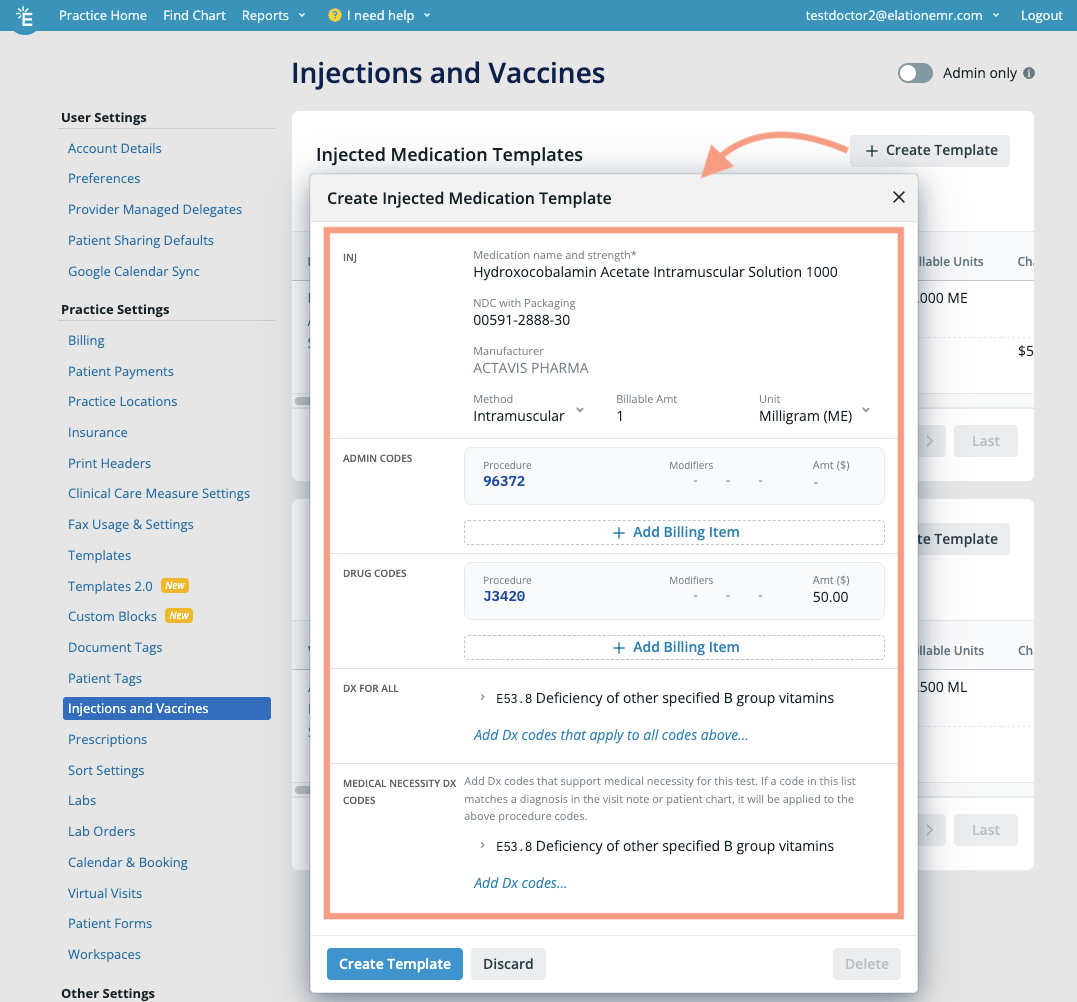
1Go to Settings -> Injections and Vaccines .
2Click + Create Template in the Injected Medication Templates section.
3Fill in the following details around the injected medication in the INJ field: Medication name and strength* • NDC with packaging - Ensure the selected default NDC is accurate. Click NDC with packaging to see and select an alternative NDC for the medication as needed. • Manufacturer - Lists the manufacturer tied to medication in the Elation database and cannot be edited. • Method - Select the default injection method of the medication. • Billable Amt - Enter the billable amount for the injected medication. • Unit - Select the most appropriate billable unit for the injected medication.
4Select the associated administration CPT codes in the Admin Codes section.
5Select the associated drug CPT codes in the Drug Codes section.
6Click Add Dx codes that apply to all code above… in the Dx for All section to add ICD 10 codes to all listed CPT codes when the coding template is applied.
7Click Add Dx codes… in the Medical Necessity Dx Codes section to automatically add listed ICD 10 codes to the bill when the ICD 10 code matches an ICD 10 code in the visit note draft or patient chart.
8Click Create Template .

Viewing Injected Medication Templates

To view all Injected Medication Templates, go to Settings -> Injections and Vaccines. The following details will be displayed under Injected Medication Templates:
  • Injection Name - The name of the injected medication.
  • Manufacturer - The manufacturer tied to medication in the Elation database.
  • NDC - The NDC Code of the injected medication.
  • Codes - The first row is the Admin Codes and the second row is the Drug Codes. Associated** Dx for All** will display directly underneath the CPT codes.
  • Billable Units - The billable unit for the injected medication.
  • Charge Amt - The charge amount associated with the injected medication.
  • Medical Necessity Codes - Associated medical necessity diagnosis codes will be displayed here.
A maximum of 20 Injected Medication Templates will be displayed per page.

Editing/Deleting Injected Medication Templates

To edit or delete Injected Medication Templates:
1Go to Settings -> Injections and Vaccines .
2Click on the name of the coded medication you want to edit in the Injected Medicine Templates section.
3Make your edits as needed. The Medication Name, NDC with Packaging, and Manufacturer fields cannot be edited as these details are linked together in the database.
4Click Save Changes to save your changes or Delete to delete the Injected Medication Template.

Creating Vaccine Templates

Assign CPT and diagnosis codes to specific vaccines to trigger a Vaccine Template. To create a Vaccine Template:
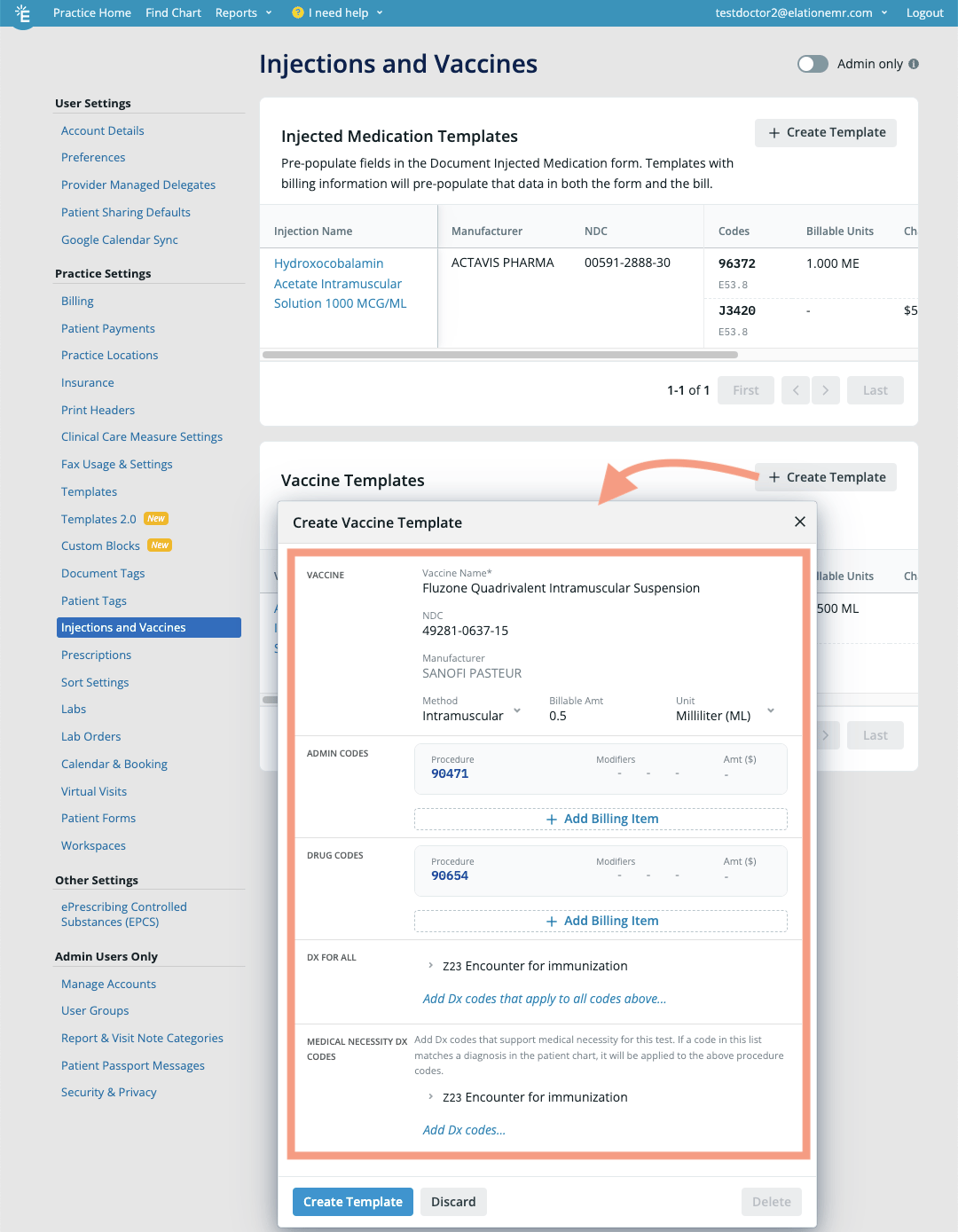
1Go to Settings -> Injections and Vaccines .
2Click + Create Template in the Vaccine Templates section.
3Fill in the following details around the vaccine in the Vaccine field: Vaccine Name* • NDC- Ensure the selected default NDC is accurate. Click NDC to see and select an alternative NDC for the vaccine as needed. • Manufacturer - Lists the manufacturer tied to vaccine in the Elation database and cannot be edited.. • Method - Select the default injection method of the vaccine. • Billable Amt - Enter the billable unit for the vaccine. • Unit - Select the most appropriate billable unit for the vaccine.
4Select the associated administration CPT codes in the Admin Codes section.
5Select the associated drug CPT codes in the Drug Codes section.
6Click Add Dx codes that apply to all code above… in the Dx for All section to add ICD 10 codes to all listed CPT codes when the Vaccine Template is applied.
7Click Add Dx codes… in the Medical Necessity Dx Codes section to automatically add listed ICD 10 codes to the bill when the ICD 10 code matches an ICD 10 code in the visit note draft or patient chart.
8Click Create Template .

Viewing coded vaccines

To view all Vaccine Templates, go to Settings -> Injections and Vaccines. The following details will be displayed under Vaccine Templates:
  • Vaccine Name - The name of the vaccine.
  • Manufacturer - The manufacturer tied to the vaccine in the Elation database.
  • NDC - The NDC Code of the vaccine.
  • Codes - The first row is the Admin Codes and the second row is the Drug Codes. Associated** Dx for All** will display directly underneath the CPT codes.
  • Billable Units - The billable unit for the vaccine.
  • Charge Amt - The charge amount associated with the vaccine.
  • Medical Necessity Codes - Associated medical necessity diagnosis codes will be displayed here.
A maximum of 20 Vaccine Templates will be displayed per page.

Editing/Deleting Vaccine Templates

To edit or delete Vaccine Templates:
1Go to Settings -> Injections and Vaccines .
2Click on the name of the coded vaccine you want to edit in the Vaccine Templates section.
3Make your edits as needed. The Medication Name, NDC with Packaging, and Manufacturer fields cannot be edited as these details are linked together in the database.
4Click Save Changes to save your changes or Delete to delete the Vaccine Template.

Applying Coding Templates to workflows

Applying Injected Medication Templates when administering an injected medication during an encounter

To apply CPT code(s) and related diagnoses codes to your visit notes when you administer an injected medication during an encounter:
1Open a visit note draft in the patient’s chart with the date of service that matches the date of the injected medication - create a new visit note if needed.
2Click + Add Billing Information if there is no billing information in the visit note draft yet. Confirm the Rendering Provider matches the name of the Provider that will administer the injected medication. • Select the Service Location that will match the Location selected in the Document Injected Medication form. • Confirm thePlace of Service code matches the Place of Service code of the Location selected in the Document Injected Medication Form. • Click Save.
3Document an injected medication using the Document Injected Medication form. Select one of the coded injected medication as appropriate. • Make sure the Date of the injected medication matches the date of service of your visit note draft. • Make sure the Provider listed in the Ordered by field matches the Rendering Provider listed in the visit note draft. • Select the same Service Location as the Service Location of the visit note draft. • Save the documentation.
4You will see the codes associated with the selected injected medication in the billing section of your visit note draft.
Admin Codes and Drug Codes can be billed multiple times per date of service. The quantity billed is indicated by the Qty field in the bill.
To see how Injected Medication Templates applies to other workflows, see the Coding Template rules table below.

Applying Vaccine Templates when administering a vaccine during an encounter

To apply CPT code(s) and related diagnoses codes to your visit notes when you administer a vaccine during an encounter:
1Open a visit note draft in the patient’s chart with the date of service that matches the date of the vaccine - create a new visit note if needed.
2Click + Add Billing Information if there is no billing information in the visit note draft yet. Confirm the Rendering Provider matches the name of the Provider that ordered the vaccine. • Select the Service Location that will match the Location selected in the Vaccination Form. • Confirm the Place of Service code matches the Place of Service code of the Location selected in the Vaccination Form. • Click Save.
3Document a vaccine using the Vaccination Form. Select one of the coded vaccines as appropriate. • Make sure the Given On date of the vaccine matches the date of service of your visit note draft. • Select the same Service Location as the Service Location of the visit note draft. • Make sure the Provider listed in the Ordered By field matches the Rendering Provider listed in the visit note draft. • Save the vaccine.
4You will see the codes associated with the selected vaccine in the billing section of your visit note draft.
Admin Codes and Drug Codes can be billed multiple times per date of service. The quantity billed is indicated by the Qty field in the bill.
To see how Vaccine Templates applies to other workflows, see the Coding Templates rules table below.

Coding Templates rules

The following chart explains when Coding Templates will be applied to an existing visit note draft versus when a new visit note will be created.
ConditionTrueFalseTip
The visit note draft has an existing associated bill (i.e. the billing section is not blank).CPT code(s) and related diagnoses applied to existing visit note draftCPT code(s) and related diagnoses applied to a new ‘Staff Procedure Note’ category visit note.Click + Add Billing Information to create a bill.
For customers with a PMS integration: The bill has not been pushed to the PMS.Enable Delayed Billing if you wish to sign your visit note while applying Coding Templates at a later time.
The Service Location of the documented injected medication or vaccine matches the Service Location listed in the existing visit note draft.
The Rendering Provider listed in the billing section of the visit note draft matches the ordering provider of the documented injected medication or vaccine.If someone other than the rendering provider is documenting the injection or vaccine, make sure they select the rendering provider’s name in the Ordered By field of the Document Injected Medication Form or Vaccination Form.
The Place of Service listed in the billing section of the visit note draft matches the Place of Service listed in the Service Location of the documented injected medication or vaccine.The Place of Service codes should automatically match when the exact Service Locations are selected in both the visit note draft and Document Injected Medication Form or Vaccination Form.

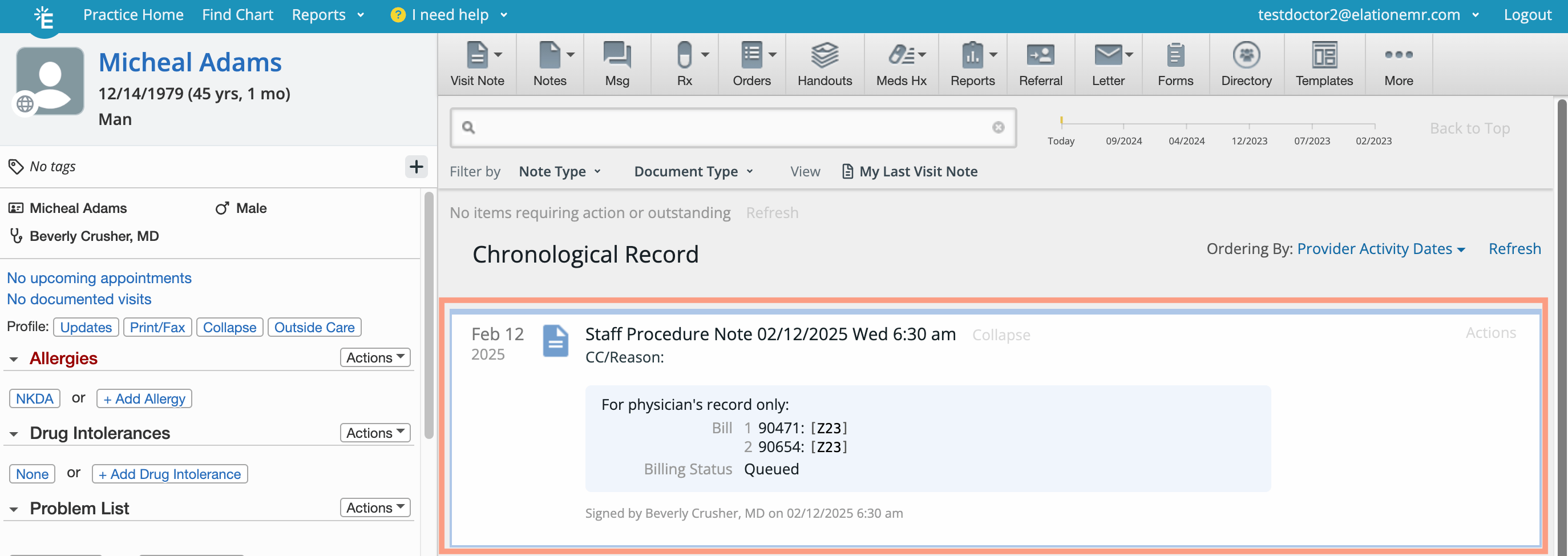
Sample of ‘Staff Procedure Note’

This is what a ‘Staff Procedure Note’ created by the Injected Medication Templates and Vaccines Templates look like:
Frequently Asked Questions

If I administer more than one injection or vaccine, will more than one administration code appear in my bill?
If multiple injections or vaccines are administered on the same date of service, the administration code will appear one time and the Qty field will indicate how many injections or vaccines were administered.
I documented an injected medication or vaccination but the Coding Templates feature created a new Staff Procedure Note instead of putting the billing codes into the visit note draft I have open. Why did this happen?
Injected Medication Templates and Vaccines Templates will input codes into a visit note draft only if specific criteria are met. Review the Coding Templates rules above for more details.
I set up a Coding Template for a medication or vaccine, but it does not consistently trigger. Why?
Here are a few reasons why the Coding Template may not trigger:
  • The** Ordered by** Provider’s name does not match the name of the Rendering Provider in the bill.
  • The** Date** of the documentation does not match the date of service of the visit note.
If the reasons above do not apply to your situation, review the Coding Templates rules above for more details.
Can I add a new medication to the database when creating an Injected Medication Template?
Yes, you can add a new medication to the database when creating an Injected Medication Template. Simply follow these steps:
1Type in the name of the medication you wish to add to the database in the Medication name and strength field.
2Click the + Add a new med… button that appears once you click into the Create Injected Medication Template form.
3Type in the Strength of this new medication.
4Select whether it is a Prescription , OTC, or Controlled medication type.
5Click Create Medication & Continue .
I want to create a Vaccine Template for a new Vaccine that’s not in the database yet but I cannot add the new Vaccine name. What should I do?
You can only create Vaccine Templates for Vaccines that are part of the Elation database at this time.