
Beta feature: The feature described in this article is part of a beta release and is only available to a select number of practices.
Overview
The Lab Coding Templates feature automatically adds predefined specimen collection and lab processing CPT codes to your bill when corresponding lab tests are detected in a signed, in-house specimen collection Lab Order. You can also associate specific diagnosis codes with specific lab tests as part of this feature.Workflow Instructions
Enabling Lab Coding Templates for specific Lab Vendors
Coding Templates must be enabled at the Lab Vendor level for the Coding Templates to automatically populate in bills when ordering coded tests from specific Lab Vendors.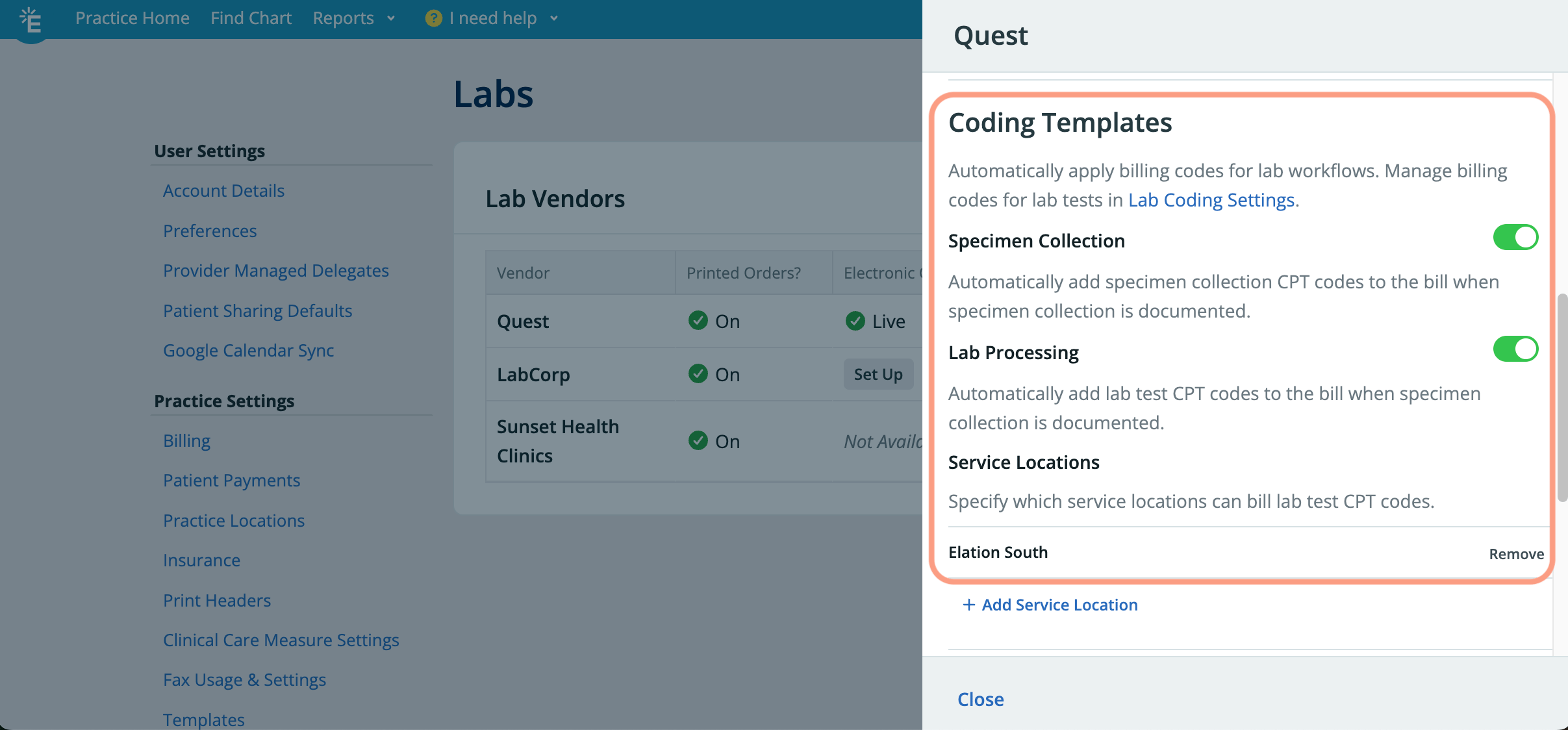
1
Go to Settings -> Labs in Elation.
2
Click Details next to the name of the Lab Vendor. If you need to add a new Lab Vendor, follow the instructions in this article.
3
Specimen Collection - Automatically apply specimen collection CPT code templates to the bill when specimen collection is documented.
4
Lab Processing - Automatically apply lab test CPT code templates to the bill when specimen collection is documented. If your practice has more than one Service Location, click +Add Service Location and choose the location(s) that can bill for lab processing.
Creating Lab Coding Templates
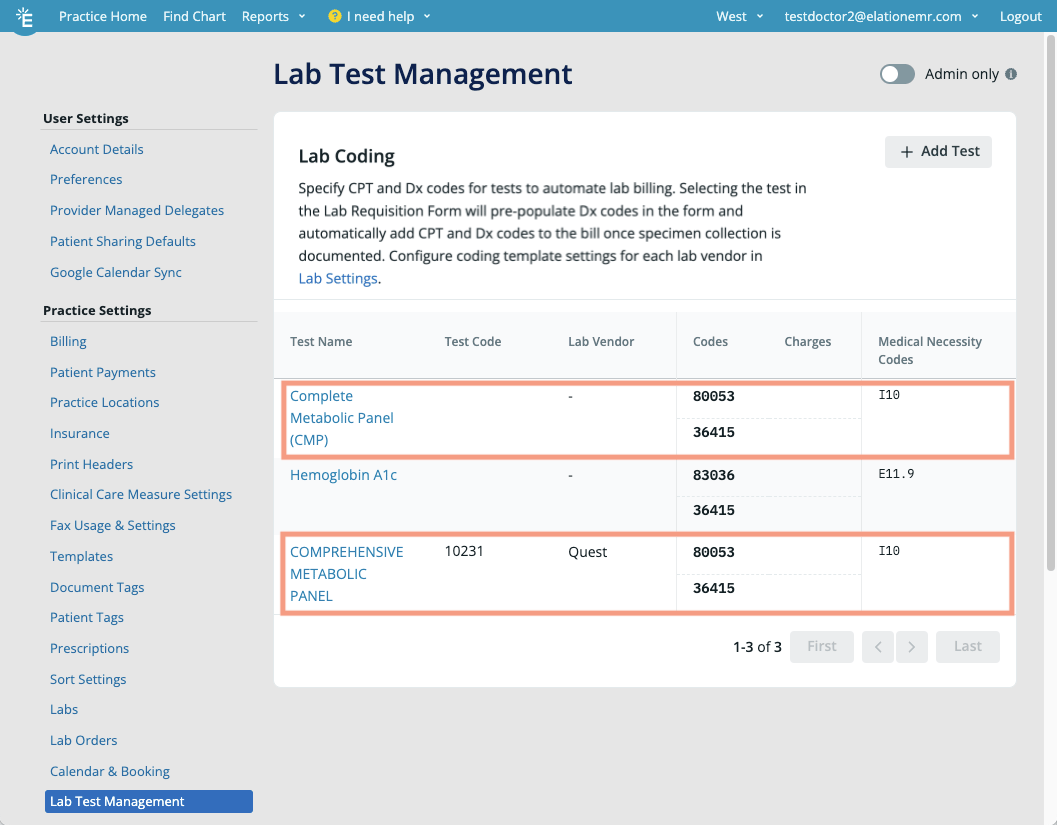
Once Coding Templates are enabled for the desired Lab Vendors, you must create Coding Templates for each Lab Vendor.- Non-eOrdering Lab Vendors do not have vendor-specific compendia, meaning they share a common test database. As a result, any Coding Templates with generic tests can be used for all non-eOrdering Lab Vendors. These vendors will be represented by a dash (-) in the Lab Vendors column when adding lab coding.
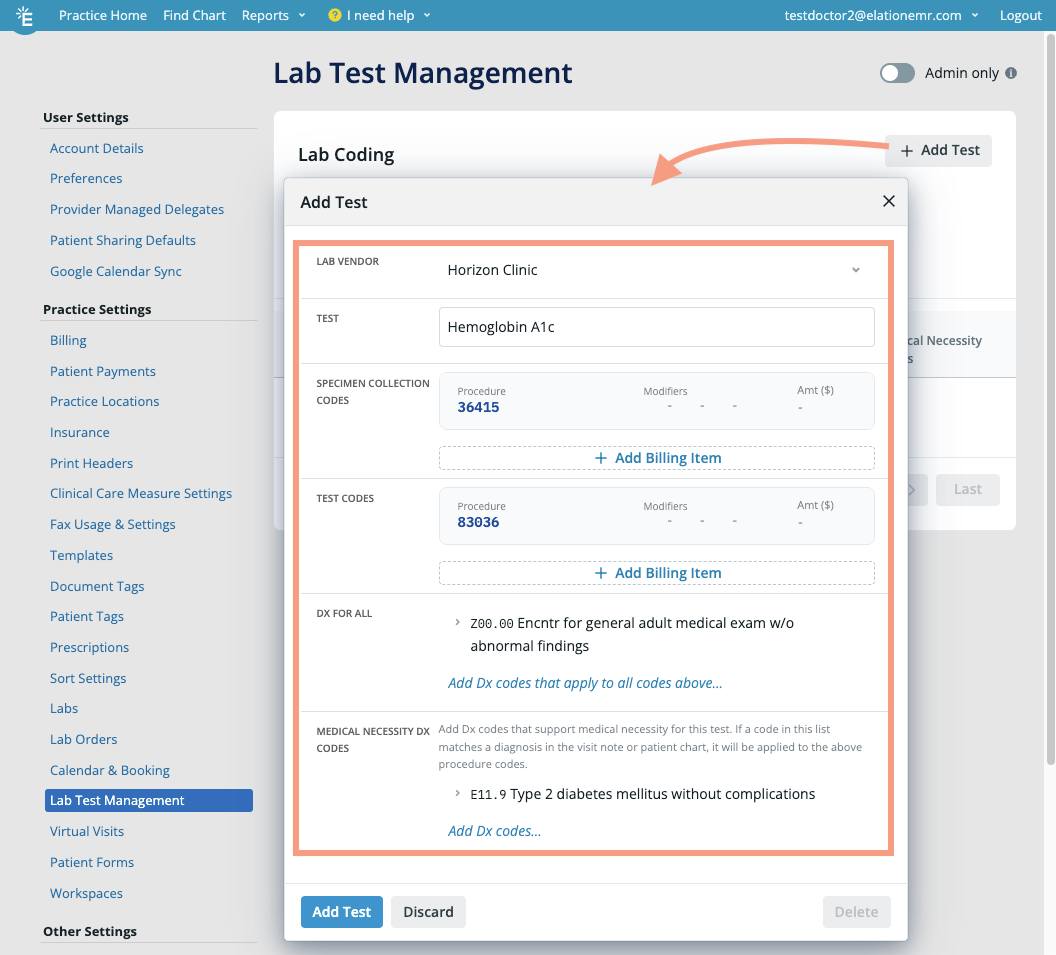
1
Go to Settings -> Lab Test Management.
2
Click + Add Test.
3
Click Select a lab to choose a Lab Vendor. Only Lab Vendors with Coding Templates enabled will be available for selection.
4
Click into the Test field to search for tests to code for.
5
Click + Add Billing Item in the Specimen Collection Codes section to add the specimen collection CPT codes for the selected test. The Specimen Collection coding templates must be enabled for the selected Lab Vendor in order for you to edit specimen collection codes.
- Select a CPT code from your Popular CPT Code list or free text any CPT code of your choice.
- Duplicate codes cannot be added.
6
Click + Add Billing Item in the Test Codes section to add the associated test processing CPT code for the selected test. The Lab Processing coding templates must be enabled for the selected Lab Vendor in order for you to edit test codes.
- Select a CPT code from your Popular CPT Code list or free text any CPT code of your choice.
- Duplicate codes cannot be added.
7
Click Add Dx codes that apply to all code above… in the Dx for All section to add ICD 10 codes to all listed CPT codes when a coding template is applied.
8
Click Add Dx codes… in the Medical Necessity Dx Codes section to automatically add listed ICD 10 codes to the bill when the ICD 10 code matches an ICD 10 code in the visit note draft or patient chart.
9
Click Add Test. You can only associate one coding template per lab test and will receive an alert if you attempt to create a coding template for a lab test that already has it.
- If a Lab Vendor has their own compendium for a test (e.g., Comprehensive Metabolic Panel for Quest vs. ‘CMP’ for Labcorp), you will need to create a coding template for the same lab test across different Lab Vendors.
Viewing Lab Coding Templates
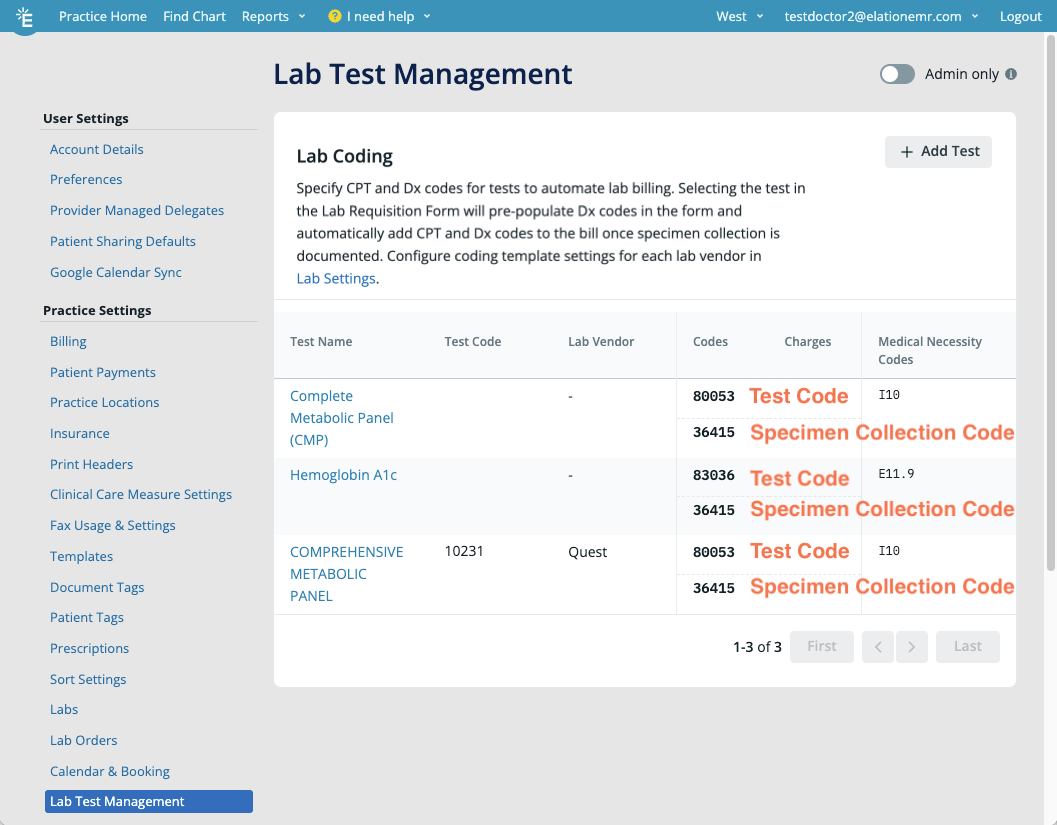
To view all the lab tests that have lab coding templates enabled, go to Settings -> Lab Test Management. The following details will be displayed:- Test Name - The name of the lab test.
- Test Code - The test code as specified by the Lab Vendor (only available for Lab Vendors with their own compendia, e.g. Quest Diagnostics).
- Lab Vendor - The name of the Lab Vendor the lab test is associated with. If the Lab Vendor is a dash - then the associated lab test is associated with all Lab Vendors that do not have their own compendium.
- Codes - The first row is the Test Codes (lab test processing codes) and the second row is the Specimen Collection Codes.
- Charges - Charges associated with the Codes will display here.
- Medical Necessity Codes - Associated medical necessity diagnosis codes will be displayed here.
Applying Lab Coding Templates to workflows
When a Lab Order is signed off with documented specimen collection and ordered coded tests, the lab coding templates are automatically applied to the visit note. Depending on the circumstances, the Coding Template can either apply the codes to a draft visit note or create a new Staff Procedure Note.Applying Lab Coding Templates to in-house labs completed ‘Today’
To apply CPT code(s) and related diagnoses codes to your visit notes for in-house labs completed today:1
Open a visit note draft in the patient’s chart with today’s Date of Service - create a new visit note if needed.
2
Click + Add Billing Information if there is no billing information in the visit note draft yet. Confirm the Rendering Provider matches the name of the Provider that will sign the Lab Order.
- Select the Service Location that will match the Service Location of the Lab Order.
- Confirm the Place of Service code matches the Place of Service code of the Service Location of the Lab Order.
- Click Save & Close.
3
Create a Lab Order. Select any of the coded lab tests as appropriate.
- Enter in the specimen collection date of Today.
- Select the same Service Location as the Service Location of the visit note draft.
- Sign the Lab Order.
4
You will see the codes associated with the selected tests in the billing section of your visit note draft.
Applying Lab Coding Templates to on-hold lab orders
If a lab order is placed on hold, Lab Coding Templates will not be applied until the specimen collection date is recorded in the held order. If you want the automatic coding to appear in a specific visit note draft, make sure the specimen collection date matches the date of service of that visit note draft. Review the following two rules below for more details:Specimen collection Coding Template rules
The following chart explains when specimen collection Coding Templates will be applied to an existing visit note draft versus when a new visit note will be created.Lab test processing Coding Template rules
The following chart explains when lab test processing Coding Templates will be applied to an existing visit note draft versus when a new visit note will be created.Sample of ‘Staff Procedure Note’
This is what a ‘Staff Procedure Note’ created by a Lab Coding Template looks like: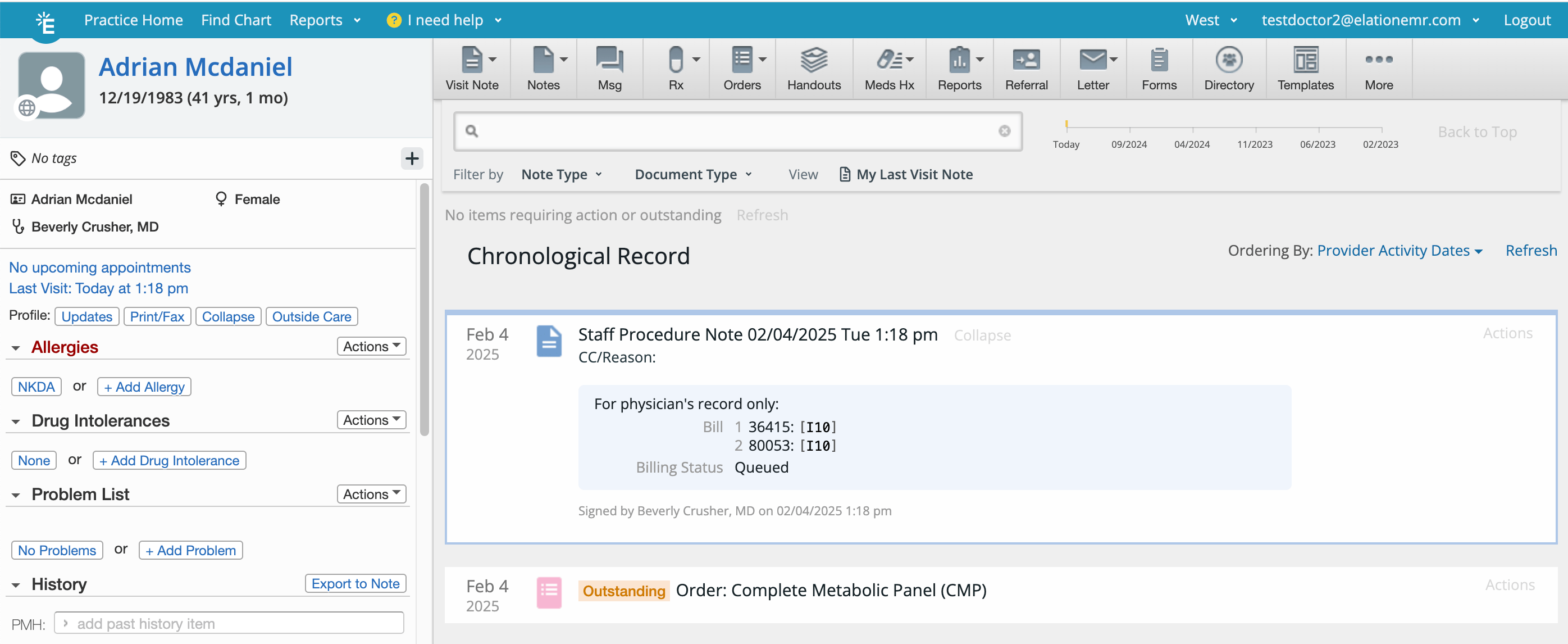
Frequently Asked Questions
If I collect multiple specimens for a patient, will more than one specimen collection code appear in my bill?
If multiple lab tests share the same specimen collection CPT code, only one unit of the code will appear per date of service. Each specimen collection type can only be billed once per date of service and patient.I signed off on an in-house Lab Order after recording specimen collection but the Lab Coding Template feature created a new Staff Procedure Note instead of putting the billing codes into the visit note draft I have open. Why did this happen?
Lab Coding Templates will input codes into a visit note draft only if specific criteria are met. Review the following two rules below for more details:If I record a specimen collection date on a held order, will the Lab Coding Template feature input codes into my signed visit note with the same date of service?
Lab Coding Templates cannot apply codes to a signed visit note when you are using a held Lab Order. Lab Coding Templates will only be applied when the specimen collection date is documented in the held order.I created a Lab Coding Template for a lab test, but it does not consistently trigger. Why?
Here are a few reasons why the Lab Coding Template may not trigger:- The** Lab Vendor** does not match the Lab Vendor specified in the Coding Template for that lab test.
- You did not select In-house draw in your Lab Order.
- You did not enter a Specimen Collection date in your Lab Order.