
Overview
Use this article to learn how to create and transmit lab orders for the following lab interface scenarios:- Lab vendors without an interface.
- Lab Vendors with a live or pending results-only interface.
- Lab Vendors with a pending bidirectional lab interface.
- Print & Close
- Sign & Close
- (if applicable) Sign & Hold
BIDIRECTIONAL LAB INTERFACES Click here for instructions on how to complete lab orders if you have a live bidirectional lab interface with the vendor .
Workflow Instructions
Creating a lab order
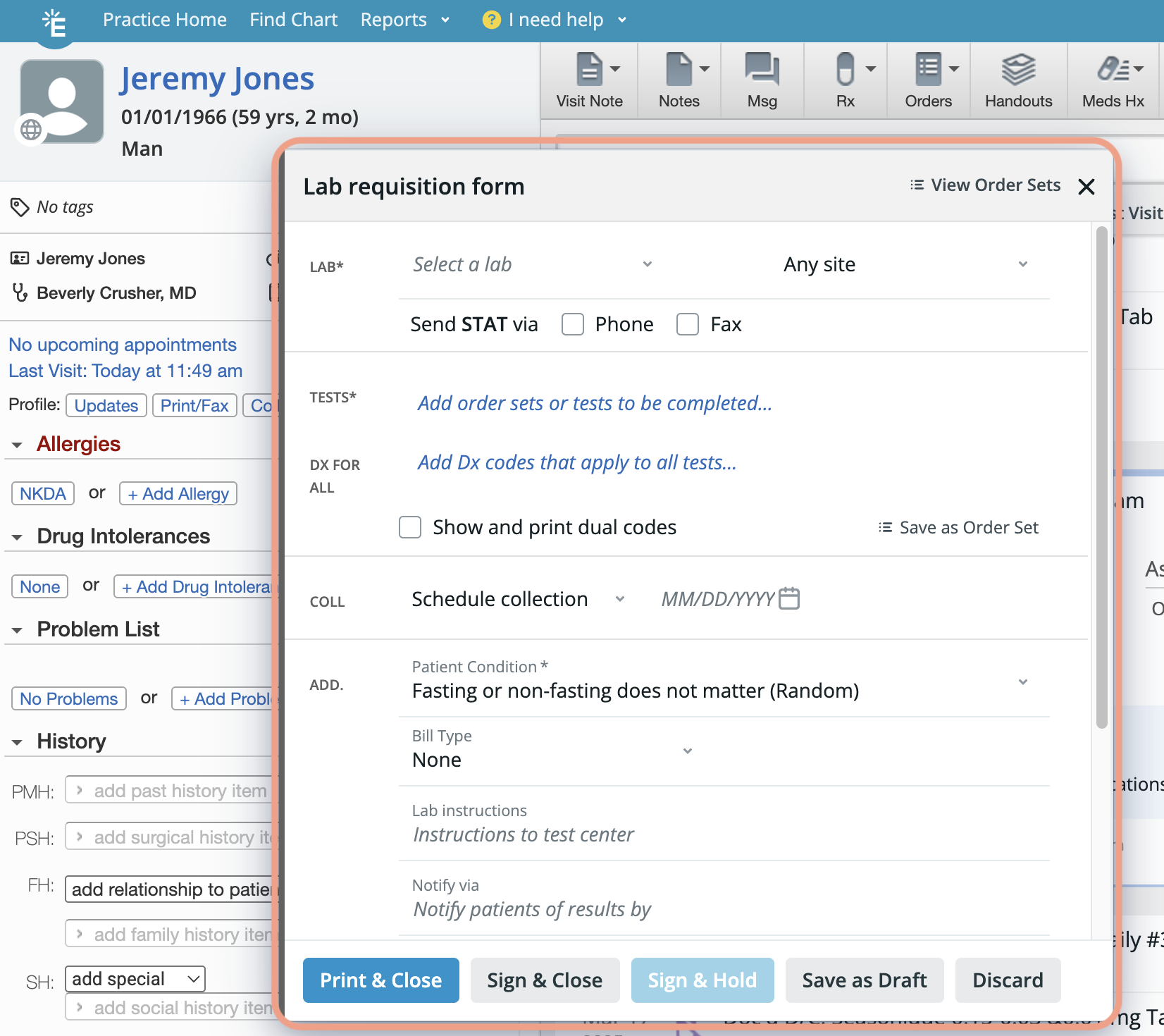
1 Create a lab order use any of the the following options:- At the top of the patient’s chart, click Orders -> Lab Order.
- In any visit note or non-visit note draft, click Lab.
- In an existing signed Lab Order, click Actions -> Reorder to re-order the same tests as the signed Lab Order.
- Use the Labs Settings page to add additional vendors if needed.
- Additional location details can be set on the Labs Settings page, if needed.
- Go to Settings -> Lab Orders.
- Go to the Lab Order Settings section.
- Use the Default Bill Type dropdown to select the default bill type. Your selection will be automatically saved.
- Use the Labs Settings page to add additional vendors if needed.
- Additional location details can be set on the Labs Settings page, if needed.
- Go to Settings -> Lab Orders.
- Go to the Lab Order Settings section.
- Use the Default Bill Type dropdown to select the default bill type. Your selection will be automatically saved.
- Print & Close
- Sign & Close
- Sign & Hold
Transmitting the lab order
Transmitting the lab order to the lab vendor via Elation fax
Attach a signed lab order to a Provider Letter to fax the lab order to the lab vendor. Click here for full instructions.Transmitting the lab order to a patient
Attach a signed lab order to a Patient Letter to send a copy of the lab order to the patient via Patient Passport. Click here for full instructions.Printing specimen labels
To print specimen labels for the lab order:- Locate the order in the Chronological Record or under the Reports -> Lab Reports tab.
- Click Actions
- To print labels with a Dymo printer, select Print DYMO Specimen Labels.
- To print labels at the bottom of a regular sheet of paper (compatible with Labcorp forms), select Print Specimen Labels.
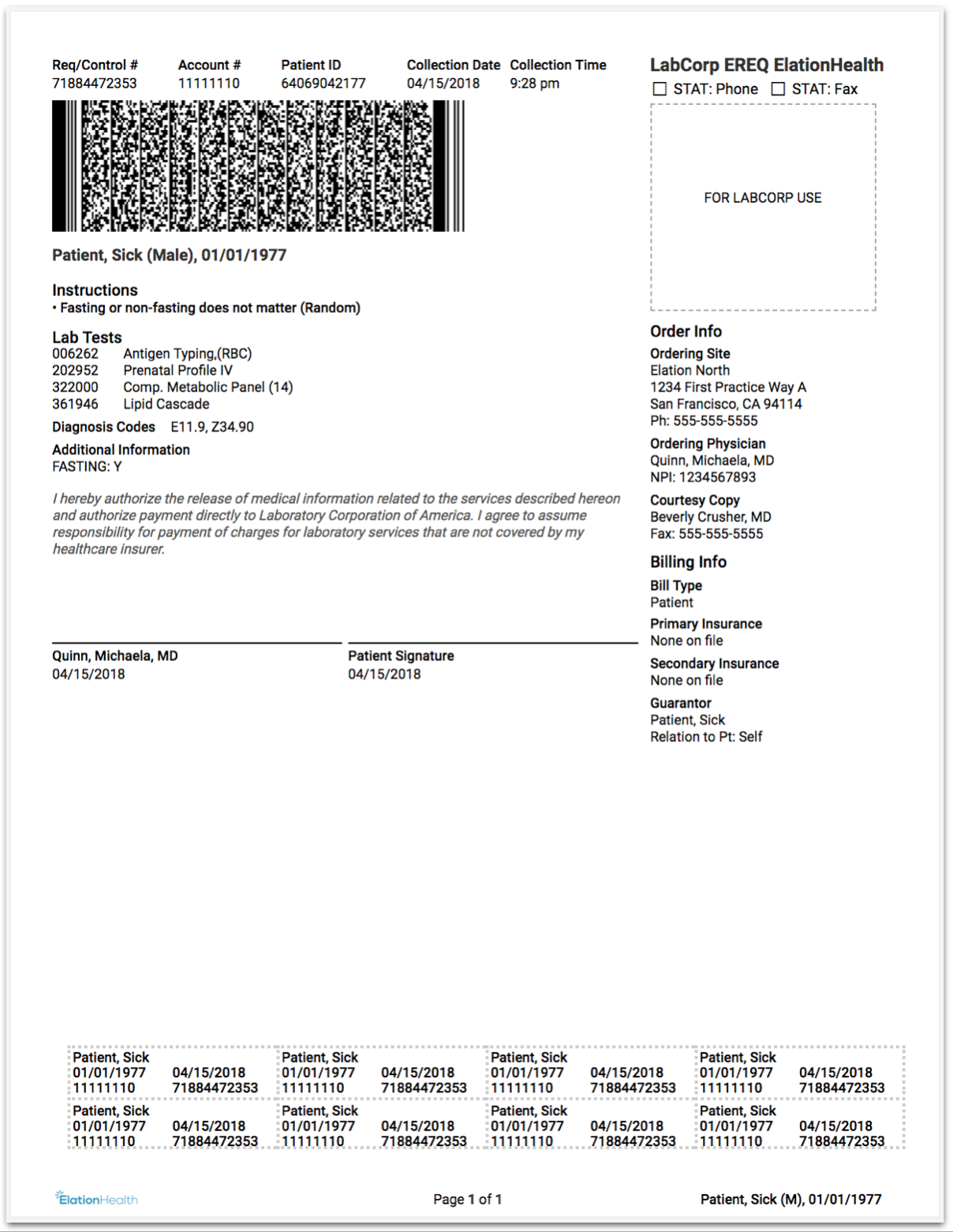
Printing a lab order
To print a lab order (without specimen labels):- Locate the order in the Chronological Record or under the Reports -> Lab Reports tab.
- Click Actions -> Print.
Resources
Glossary of Lab Order Form fields and buttons
Field / Button Explanation View Order Sets View and apply commonly used Lab Order Sets to the lab order. Send STAT via Phone Check this box if you want to instruct the lab to share results with you urgently by phone. Send STAT via Fax Check this box if you want to instruct the lab to share results with you urgently by fax. Show and print dual codes Show both ICD-9 and ICD-10 codes for selected diagnoses. Save as Order Set Save the tests, test-level diagnosis codes and order-level diagnosis codes listed as a new Order Set. Lab Instructions List any additional notes or instructions you want to share with the lab here. Notify via Add an internal note about how your practice should notify the patient about their lab results. Send a copy of test results to…REMINDER Labs are not obligated to share the results with the providers listed. This instruction is a courtesy request.
Frequently Asked Questions
How many lab tests can I add to a single lab order?
You can add up to 40 lab tests per lab order.How many diagnosis codes can I add to a single lab order?
You can add up to 120 unique diagnosis codes per lab order.Do I need to add a test-level diagnosis code to every test in the lab order?
No, adding a test-level diagnosis code to every test in the lab order is not required. Tests without a test-level diagnosis code will automatically be linked to the order-level diagnosis codes.Do I need to add order-level diagnosis codes to a lab order if it already has test-level diagnosis codes?
No, order-level diagnosis codes are not required if each test has an associated test-level diagnosis code. However, if any test lacks a test-level diagnosis code, you must either assign a test-level diagnosis code to that test or add an order-level diagnosis code.How does the lab interpret test-level diagnosis codes versus order-level diagnosis codes?
Test-level diagnosis codes precede order-level diagnosis codes. See the example below: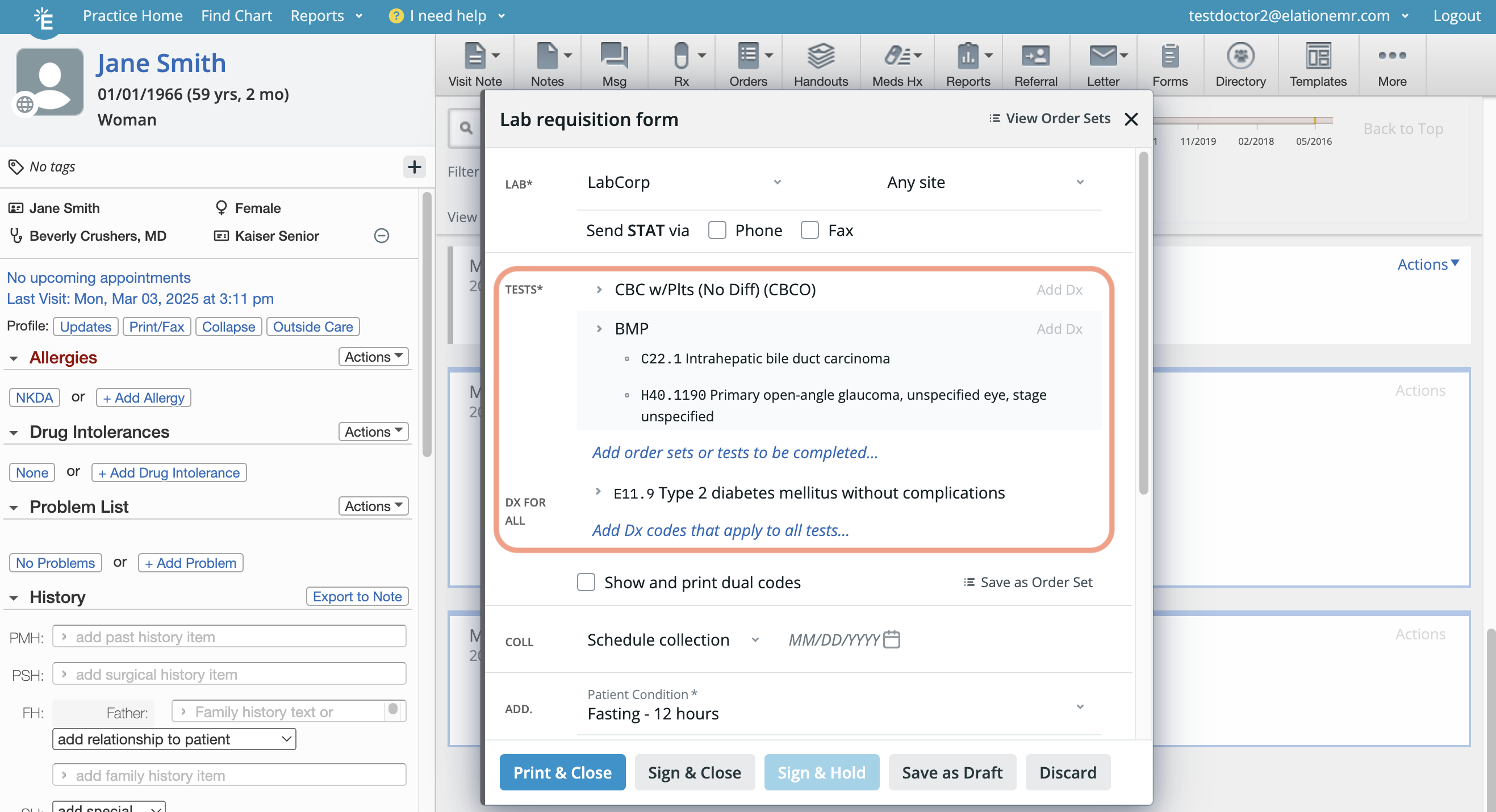
- The CBC test was not assigned any test-level diagnosis codes, so it will be linked only to the order-level diagnosis code E11.9, which will be treated as the primary diagnosis code for the CBC test.
- The BMP test was assigned two test-level diagnosis codes and is also linked to the order-level diagnosis code E11.9:
- C22.1 will be treated as the primary diagnosis code since it is the first test-level diagnosis code.
- H40.1190 will be treated as the secondary diagnosis code as it is the second test-level diagnosis code.
- E11.9 will be treated as the tertiary diagnosis code because it is associated at the order-level.
Can I move a diagnosis code from the test-level to the order-level or vice versa?
Diagnosis codes cannot be dragged-and-dropped to relocate them. To change their placement, delete the code from the current location and re-add it to the desired one.What do the different Bill Types mean?
- Third Party = Bill the Patient’s insurance information on file
- Patient = Bill the Patient directly
- Client = Bill my practice
- Worker’s Comp = Bill the patient’s workers’ compensation payer
- Special Billing = Allows you to designate that you have a special code that you would like to associate with this order.
How can I create a lab order for patients without insurance?
If you choose Patient as the Bill Type then you do not have to enter insurance information for the patient. The patient would then be expected to pay at the lab center.How do I create a standing order for a patient that needs to get the same tests done on a periodic basis?
To specify a standing order for a patient requiring periodic testing, create the lab order as usual. Be sure to complete the St. Order fields to indicate the desired testing frequency and, if applicable, specify an End date for the order.REMINDER Some lab vendors may still require you to send a new lab order for each recurring test. If a new lab order will be needed, use the Post-Date Office Message feature to set a reminder for yourself to generate the order at the appropriate time.
Can staff members help me create lab orders?
Yes! Staff Level Users can draft lab orders for any patient. Once they are done drafting an order, Staff Level Users can click Save as Draft & Close to keep the lab order in the Requiring Action section of the patient’s chart for providers to complete and sign off. When Staff Level Users draft lab orders, the orders are always assigned to the Provider Assigned in Practice that’s designated in the patient’s demographics. If you would like to allow staff members to sign lab orders on your behalf, you can assign them as a delegate. Click here to learn more about staff delegates. Once assigned, the staff member will see the Ordering on behalf of field on the Lab Order Form. The order records the provider shown in this field as the ordering provider.- If the staff member is a delegate for a single provider, that provider is shown in the Ordering on behalf of field and is used automatically.
- If the staff member is a delegate for multiple providers, the Ordering on behalf of field is a dropdown. Providers are listed alphabetically by last name. If the patient’s assigned primary physician is one of the staff member’s providers, that physician is selected by default; otherwise the field is left blank and the staff member must select a provider before signing.
Does Elation have any integrations with lab centers?
Yes, Elation has integrations with many lab centers to receive electronic lab results. For a subset of these lab vendors, we can also send orders electronically from the Lab Order Form. You can always view the latest list of integrated partners and their integration type on our Partners page. To request an integration with one of our integrated partners, click the I need help -> Contact Elation Support button at the top of your Elation account and send the following information to our Support Team:- Name of the lab center
- Full name of your lab center representative
- Email and phone number of your lab center representative