
Overview
What are Order Forms?
Order forms allow providers to specify to patients and testing centers what medical tests they would like a patient to complete in a structured way. Order forms have clearly labeled fields to store essential information needed to satisfy testing requirements and allows providers to document testing instructions.Why are Order Forms useful?
Medical testing assists with detecting, diagnosing, or monitoring for diseases/conditions, disease/condition processes, susceptibility, or determining a course of treatment. Order forms allow providers to record their specifications for following up on patient health conditions, provide patients with a direction for a plan of care and dictate clear testing instructions for testing facilities.Order form types
Elation offers five structured order forms; all of which are accessible from the Orders button at the top of the patient’s chart.
Workflow Instructions
Sharing orders with patients
The best method of sharing orders with patients is via Patient Passport as it is a secure and HIPAA-compliant portal and patients will always have access to the lab order. To share a order with a patient via Patient Passport: 1 Find the signed order in the Chronological Record or in the Reports tab and click Actions -> Send Patient Letter. 2 A new Patient Letter draft will open up with the order attached. 3 Complete the remaining fields of the Patient Letter as needed. 4 Click Sign & Send to send the order to the patient’s Passport account. The patient will receive a notification that new information was shared with them via their Passport account and the patient can sign in to their Passport account at any time to view and print the order. Alternatively, you can always print an order and hand the order to the patient if the patient is in the office with you. To print a order, find the signed order in the Chronological Record or in the Reports tab and click Actions -> Print .Sending orders to testing facilities
After you create and sign an Order Form in Elation, you can electronically fax it to a vendor via Elation’s Letter to Provider feature.| 1 | Find the signed order in the Chronological Record or in the Reports tab and click Actions -> Send Provider Letter. 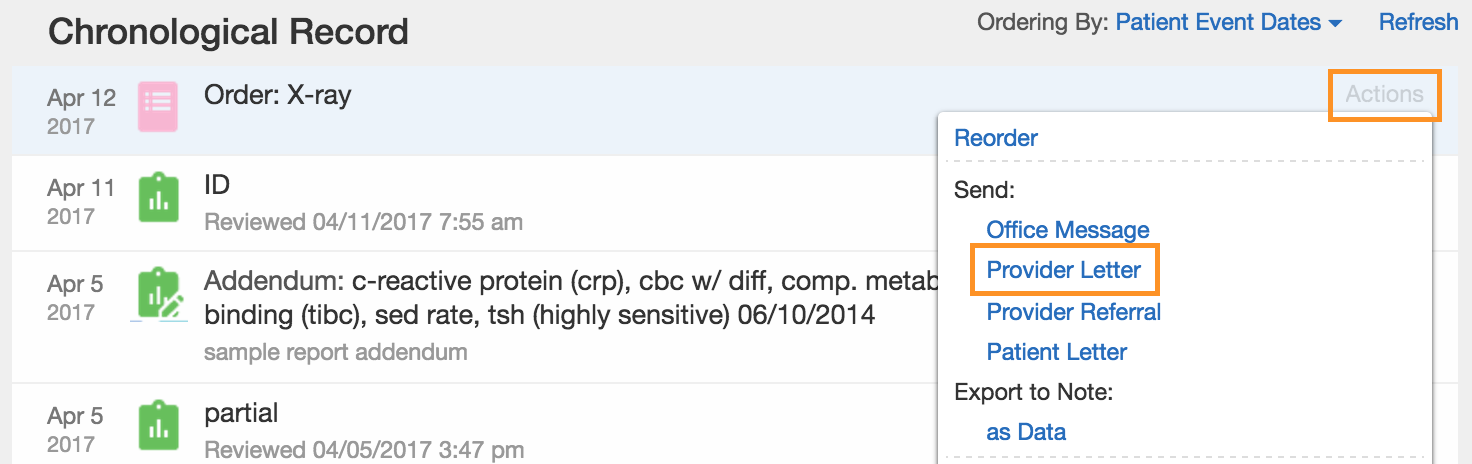 |
|---|---|
| 2 | In the To field, type the fax number of the vendor. If a search result appears in the Provider Directory dropdown, click on the result to select an existing contact. If this is the first time you are faxing to the vendor and you are unable to find them in your directory, press the TAB key on your keyboard and a dialogue window will appear prompting you to save the fax number to a new contact. Select Organization, type the name of the vendor, and click Save. This will allow you to search for the vendor by their name moving forward. 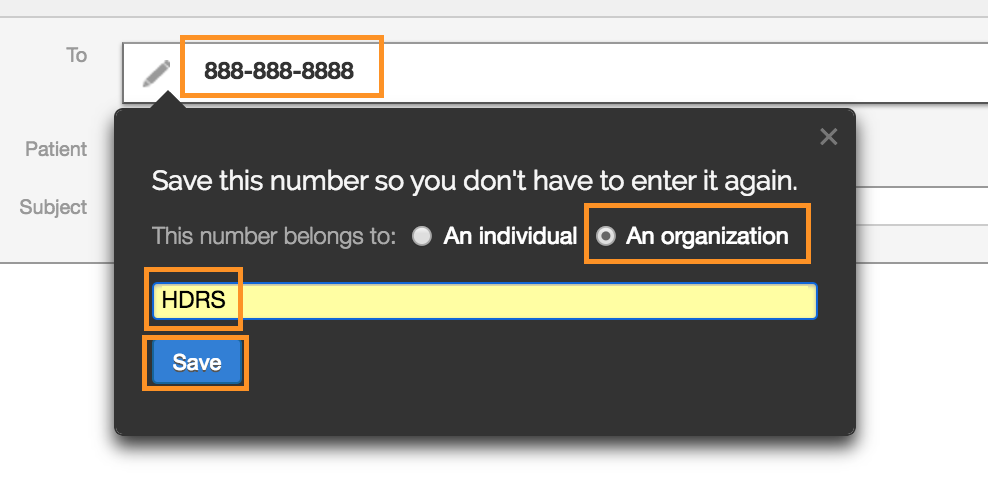 |
| 3 | Type a subject and message to the vendor as needed. |
| 4 | Next, click on Select Chart Items to Attach . |
| 5 | Check the checkbox for Patient Demographics and click Attach Items . |
| 6 | At the bottom of the letter, check the checkbox for Also fax copies of attachments . |
| 7 | Click Sign & Send to fax the order to the vendor. 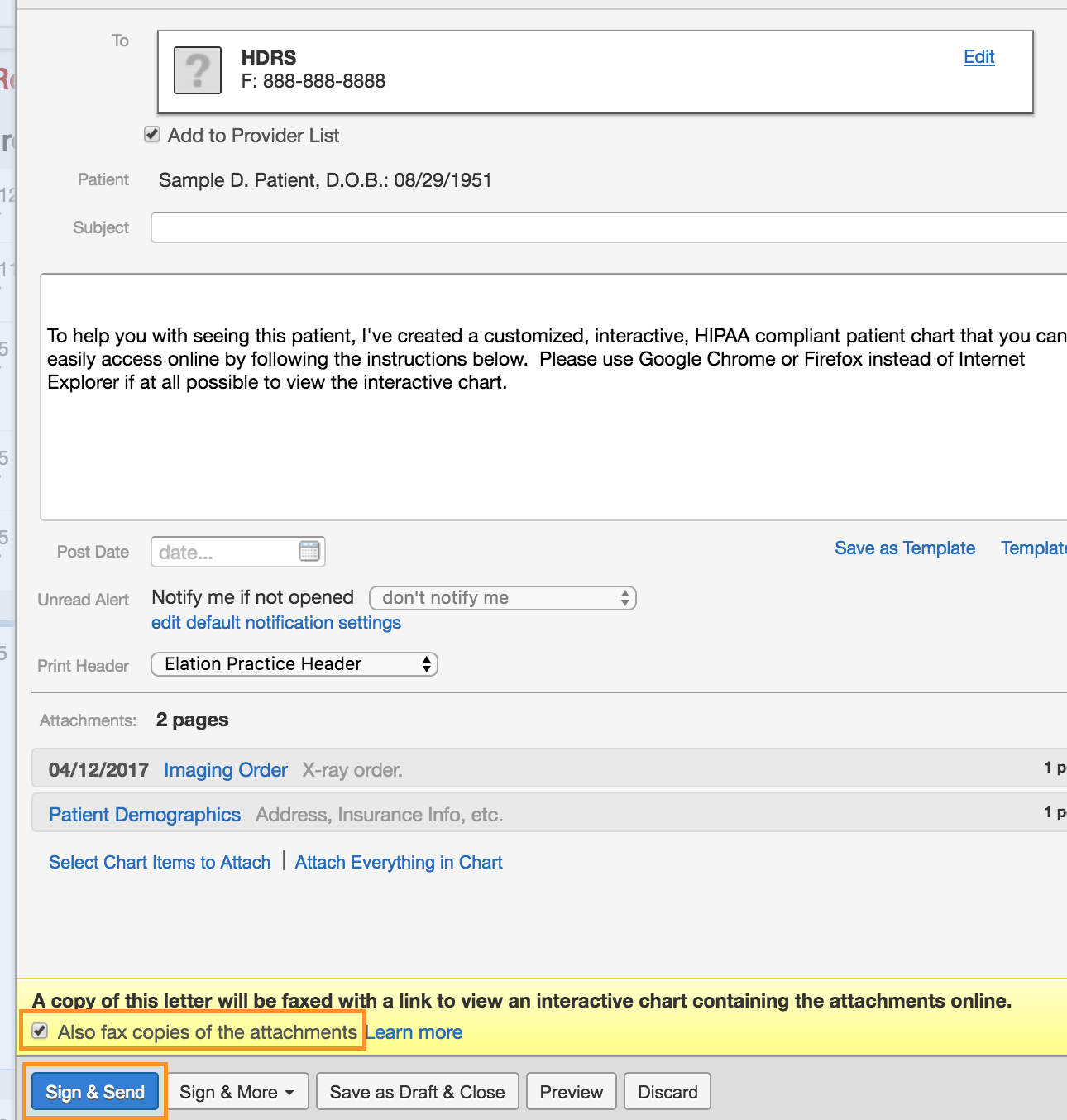 |
To fax the Order outside of Elation with your physical fax machine, you can print a copy of the Order by clicking Actions >> Print and then use your fax machine.
Close-the-Loop
Overview
Close-the-Loop is a feature that helps practices perform the necessary follow-up on a patient’s referrals and orders so that care is not delayed. The feature- Adds a status of Outstanding to referrals and orders until the applicable consult note or test results are received in the chart and allows a user to update the status to Fulfilled.
- Allows you to schedule a reminder notification to appear in your Practice Home Reminders inbox if an order is not marked as Fulfilled by a specific date.
Set-up
Click I need help -> Contact Elation Support and send Elation one of the following requests to enable the Close-the-Loop feature. This feature gives you the option to list all of a patient’s outstanding referrals and orders together under the Outstanding Items chart section for easy access. Alternatively, you can choose to only see the Close-the-Loop status when you scroll to each referral and order in the Chronological Record. More details about this distinction can be found in the Workflow Guide below. When requesting the Close-the-Loop feature, specify whether you would like to see outstanding referrals and orders in the Outstanding Items section of patient charts.- **Option 1:**Please enable the Close-the-Loop feature. I want outstanding orders & referrals to always appear in the Outstanding Items section of my patient charts.
- **Option 2:**Please enable the Close-the-Loop feature. I do not want outstanding orders & referrals to always appear in the Outstanding Items section of my patient charts.
Workflow Guides
Click here for instructions on how to use the Close-the-Loop feature.Frequently Asked Questions
How can I order tests that do not fit into the existing form categories?
We recommend using the Referral form to order other testing that does not fit into our existing form types. Learn more about the Referrals feature here.Can staff members help me create orders?
Yes! Staff members can draft orders for any patient. Once they are done drafting an order, staff members can click Save as Draft & Close to keep the order in the Requiring Action section of the patient’s chart for providers to complete and sign off. If staff members need to sign and submit orders on your behalf: A Provider Level User must assign them as an Authorized Order Delegate. This allows staff to sign and electronically send lab, imaging, cardiac, pulmonary, and sleep orders on the provider’s behalf. To set up an Order Delegate:
Once configured, the staff member will see Sign on behalf of physician options in the order form.
Learn more about staff delegates in the User Accounts Guide - Utilizing authorized staff delegates article.
Related Articles
- Order Forms Guide- Ordering lab tests with the Lab Order Form
- Order Forms Guide- Ordering imaging (radiology) tests with the Imaging Order Form
- Order Forms Guide- Ordering cardiology tests using the Cardiac Order Form
- Order Forms Guide- Ordering pulmonary tests using the Pulmonary Order Form
- Order Forms Guide- Ordering sleep tests using the Sleep Order Form
- Elation Patient Passport Guide
- Letters & Referrals Guide- Faxing lab, radiology or other orders to vendors
- Letters & Referrals Guide- Managing & searching the provider directory
- Orders Guide- Following up on outstanding lab, radiology or other orders
- Letters & Referrals Introduction- Sharing clinical data outside of Elation
- Staff Permissions / Staff Delegates