
What are Imaging Order Forms?
The Imaging Order Form allows you order testing using different forms of energy to examine different parts of the patients’ body to assist with diagnosing and monitoring diseases/conditions/disorders. Common forms of imaging tests are:- X-rays
- CT scans
- MRIs
- Mammograms
- Ultrasounds
- Fluoroscopies
- PET scans
Creating an Imaging Order
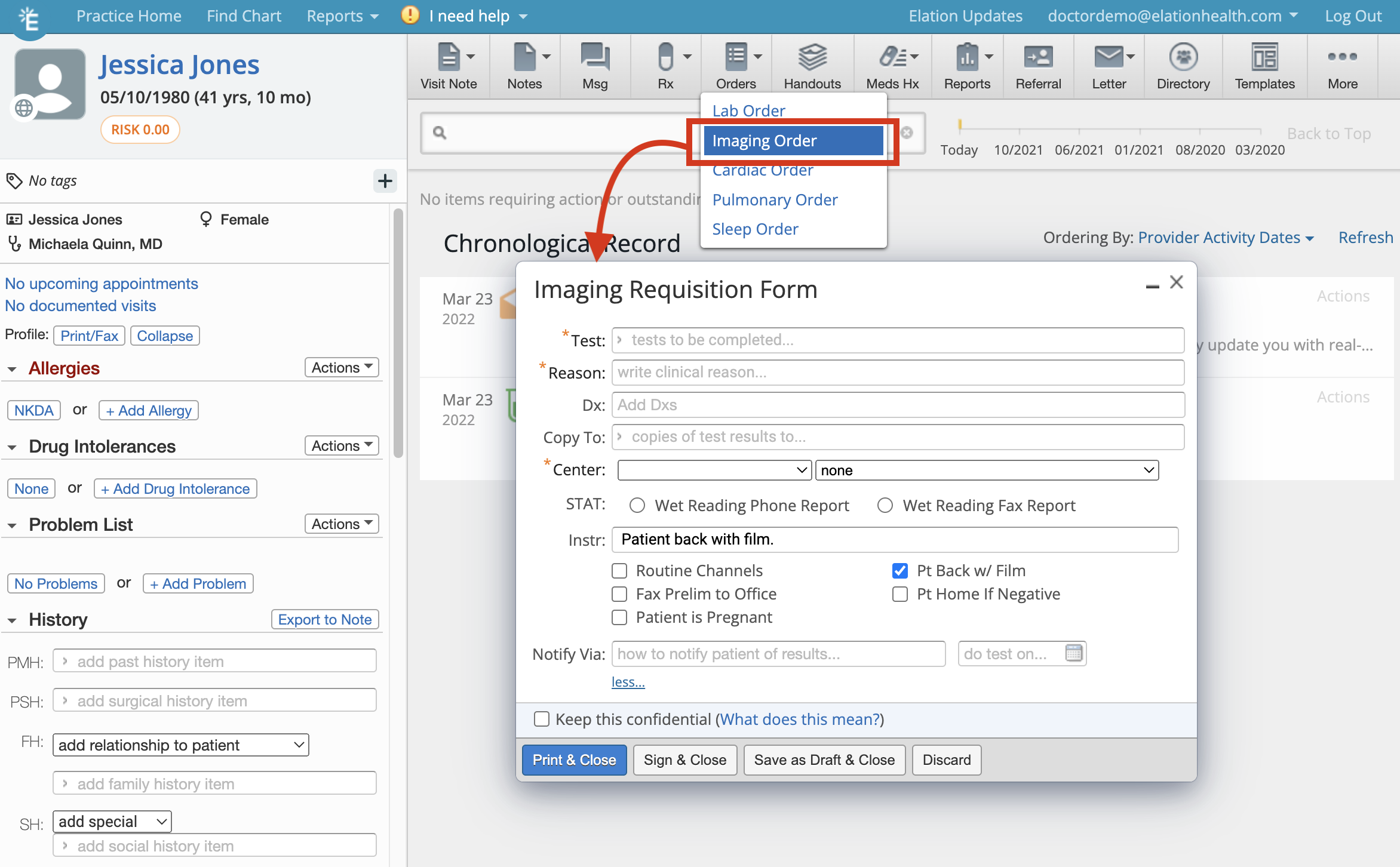
There are a few ways to initiate Imaging Orders in Elation:- Clicking on the Orders >> Imaging Order button at the top of the patient’s chart
- Clicking on the Imaging button in any visit note or note
- Using an existing Imaging Order and re-ordering the same tests
- *Test(s)- which test(s) you want the patient to complete. See below for more information about this field
- *Reason- the reason the patient needs the testing
- Dx- which health condition is related to the test(s)
- Copy To- which provider do you want to also send a copy of results to
- *Center - which test center you recommend the patient goes to
- Under the more… section
- STAT Wet Reading Phone Report- check this box if you want results urgently by phone
- STAT Wet Reading Fax Report- check this box if you want results urgently by fax
- Instruction- any special instructions for the test center. You can also use our special instruction checkboxes to quickly add standardized instructions.
- Notify Via- how the patient should be notified of their results
- Do test on- when you want the patient to complete the test(s)
- Keep as confidential- use this checkbox to mark the order as a confidential record.
Managing imaging tests
When you begin typing in the Tests field you will begin to see a dropdown of tests that are part of your imaging test database. If there is a test you want to order that does not appear in the imaging test database, you can add the test to your database by typing in your own test name in the test field and completing an order. The new test will then appear in your imaging test database the next time you or anyone in your practice uses the Imaging Order Form for any patientTake caution when adding new tests to your test database. You will not be able to edit or remove test names after adding the test to your test database.
Re-ordering, changing or canceling imaging orders
Previous imaging orders can be easily re-ordered by hovering over the signed order in the Chronological Record or in the Reports tab and clicking Actions >> Reorder.Sharing imaging orders with patients
The best method of sharing imaging orders with patients is via Patient Passport as it is a secure and HIPAA-compliant portal and patients will always have access to the imaging order. To share a imaging order with a patient via Patient Passport:- Find the signed imaging order in the Chronological Record or in the Reports tab and click Actions >> Send Patient Letter
- A new Patient Letter draft will open up with the imaging order attached
- Complete the remaining fields of the Patient Letter as needed
- Click Sign & Send to send the order to the patient’s Passport account
Sending imaging orders to testing facilities
After you create and sign an imaging order, you can electronically fax it to a vendor via Elation’s Letter to Provider feature.- Find the signed imaging order in the Chronological Record or in the Reports tab and click Actions >> Send Provider Letter
- In the To field, type the fax number of the vendor. If a search result appears in the Provider Directory dropdown, click on the result to select an existing contact.
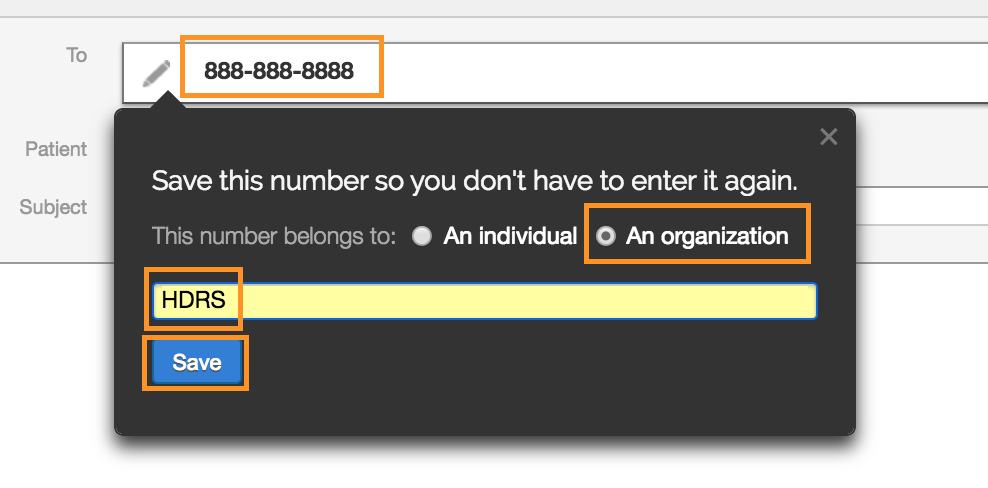
- If this is the first time you are faxing to the vendor and you are unable to find them in your directory, press the TAB key on your keyboard and a dialogue window will appear prompting you to save the fax number to a new contact. Select Organization, type the name of the vendor, and click Save. This will allow you to search for the vendor by their name moving forward.
- Type a subject and message to the vendor as needed.
- Next, click on Select Chart Items to Attach.
- Check the checkbox for Patient Demographics and click Attach Items.
- At the bottom of the letter, check the checkbox for Also fax copies of attachments.
- Click Sign & Send to fax the order to the vendor.
To fax the imaging order outside of Elation with your physical fax machine, you can print a copy of the imaging order by clicking Actions >> Print and then use your fax machine.
Receiving test results
Once a patient completes an imaging order and the results are finalized, the imaging vendor will send you the test results:- directly through Elation if you have a results interface set up
- For more information about receiving electronic test results, see the Patient Reports Guide- Receiving imaging (radiology) results from imaging interfaces article.
- For a complete list of imaging vendors that can send results electronically via Elation, go to our Integrations page and filter by Radiology/Imaging Centers
- via fax (if a fax number was shared with them)
- If you disclosed your Elation fax number in your practice header or you set up fax forwarding to your Elation Fax Inbox, then the fax will appear in your Fax Inbox. You can then file the report into the patient’s chart from the Fax Inbox.
Close-the-loop feature
Being aware of outstanding orders is vital to prioritizing patient outreach efforts and informing future care plans, which is why we have incorporated an optional set of features that will help your practice keep track of outstanding orders. Learn more about the **Close-the-Loop ** experience and how to request access in the Orders Guide- Following up on outstanding lab, radiology or other orders article.Frequently Asked Questions (FAQ)
Can staff members help me create imaging orders?
Yes! Staff Level Users can draft sleep orders for any patient. Once they are done drafting an order, Staff Level Users can click Save as Draft & Close to keep the imaging order in the Requiring Action section of the patient’s chart for providers to complete and sign off. When Staff Level Users draft imaging orders, the orders are always assigned to the Provider Assigned in Practice as noted in the patient’s demographics. If you would like staff members to sign imaging orders on your behalf, you can assign them as a delegate. Learn more about staff delegates here .Can I send imaging orders electronically to imaging centers?
You cannot send imaging orders electronically to imaging centers directly from the Imaging Order Form. You can create an imaging order and then send the signed order via fax to imaging centers. Learn more about faxing to imaging centers in the Sending imaging orders to testing facilities section.Does Elation have any integrations with imaging testing centers?
Yes, Elation does have any integrations with certain imaging centers and we can receive electronic imaging results from these centers. You can always view the most up to date list of integrated partners in our Partners page. To request an integration with one of our integrated partners, click the I need help -> Contact Elation Support button at the top of your Elation account and send the following information to our Support Team:- Name of the imaging center
- Full name of your imaging center representative
- Email and phone number of your imaging center representative
Related Articles
- Lab Orders & Results — Managing labs and centers
- Order Forms Introduction- Ordering medical tests for your patients
- Elation Patient Passport Guide
- Letters & Referrals Guide- Sending messages to patients & corresponding with third party professionals
- Letters & Referrals Guide- Managing & searching the provider directory
- Patient Reports Guide- Receiving imaging (radiology) results from imaging interfaces
- Orders Guide- Following up on outstanding lab, radiology or other orders
- Staff Permissions / Staff Delegates
- Problem List Guide