
Overview
What does Close-the-Loop mean?
Close-the-Loop is a feature that helps your practice follow-up on a patient’s orders and referrals.- Orders and referrals are marked as ‘Outstanding’ until someone updates them to ‘Fulfilled’ when the test results or consult notes are added to the chart.
- You can also set a reminder to appear in your Practice Home Reminders inbox if an order hasn’t been marked as ‘Fulfilled’ by the date you choose.
What are the benefits of the Close-the-Loop feature?
The Close-the-Loop feature marks unfulfilled orders and referrals as ‘Outstanding’ so you can easily see which ones need follow-up. You can also attach test results or consult notes to these items to keep everything organized and ensure care moves forward smoothly.Exception: Reminders are not available for outstanding referrals at this time. If users need a follow-up reminder, they can use the Post-Date feature in Office Messages. Click here for more information about the Post-Date feature .
Set Up
There are two versions of the Close-the-loop experience that you can request. One option lists all of a patient’s outstanding referrals and orders together under the Outstanding Items chart section for easy access. The second option only shows the Close-the-Loop status when you scroll to each order and referral in the Chronological Record or Reports dialog. More details about this distinction can be found in the workflow instructions below. To request the Close-the-Loop feature, click I need help -> Contact Elation Support and specify which version of the feature you prefer.- **Option 1:**Please enable the Close-the-Loop feature. I want outstanding orders & referrals to always appear in the Outstanding Items section of my patient charts.
- **Option 2:**Please enable the Close-the-Loop feature. I do not want outstanding orders & referrals to always appear in the Outstanding Items section of my patient charts.
Workflow Instructions
Viewing outstanding orders and referrals
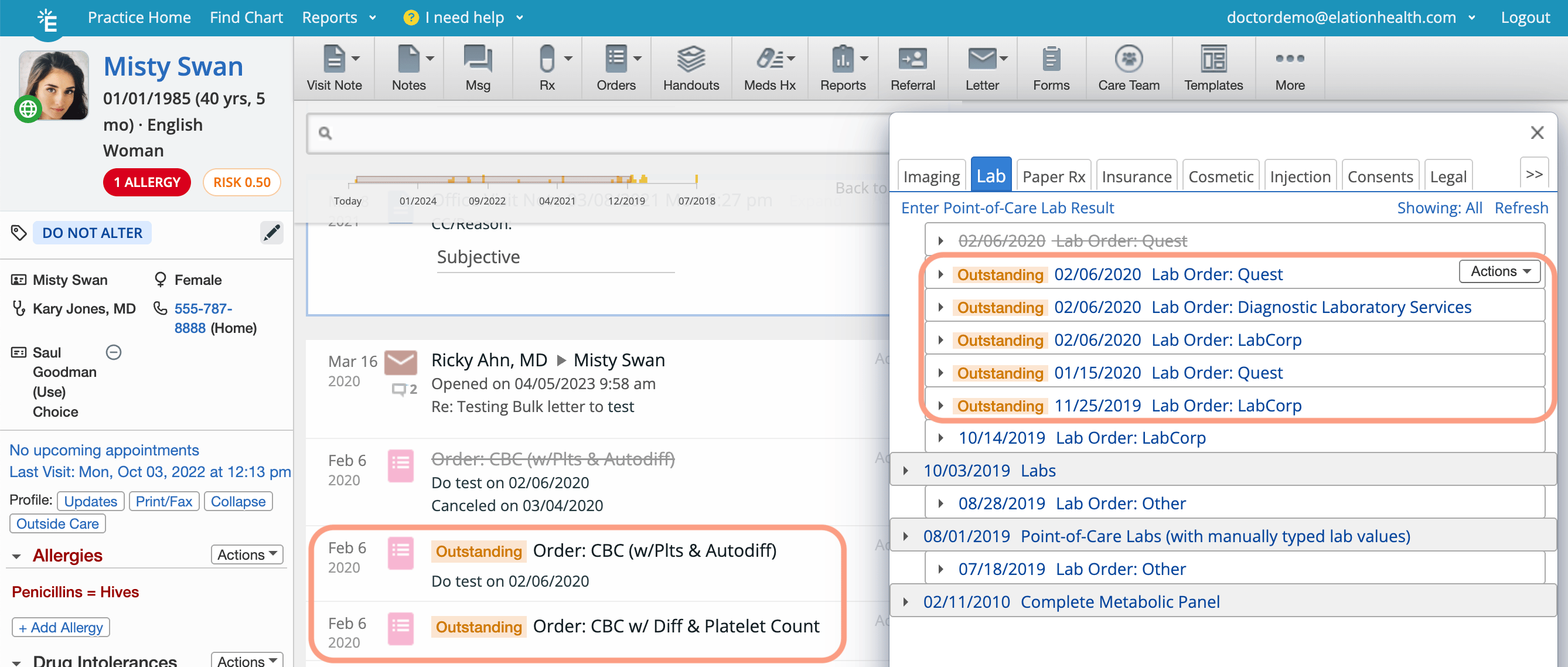
Using reminders for outstanding orders
Exception: Reminders are not available for outstanding referrals at this time. If you need a follow-up reminder, use the Post-Date feature in Office Messages. Click here for more information about the Post-Date feature .
Setting reminders to follow up on outstanding orders
To set a reminder to follow up on an outstanding order:Viewing a reminder
Reminders will appear in the assignees Practice Home Reminders inbox if an order isn’t marked as ‘Fulfilled’ by the reminder date. Additionally, assignees can view reminders in the Requiring Actions section of the patient’s chart.If results come in before the reminder date, the reminder will be marked as complete and won’t appear in the assignee’s inbox.
Updating a reminder before it’s delivered
To update a reminder before it’s delivered:Postponing a reminder after it’s delivered
To postpone a reminder after it’s delivered,Marking orders or referrals as fulfilled
Automatically associating electronic lab results with electronic lab orders
If your practice eOrders lab tests, we’re able to automatically update the status to fulfilled when the results arrive in the patient’s chart. If your practice faxes lab orders, use the instructions below to manually mark the lab order as fulfilled once you receive the results.Manually associating a faxed or uploaded report/result with outstanding orders and referrals
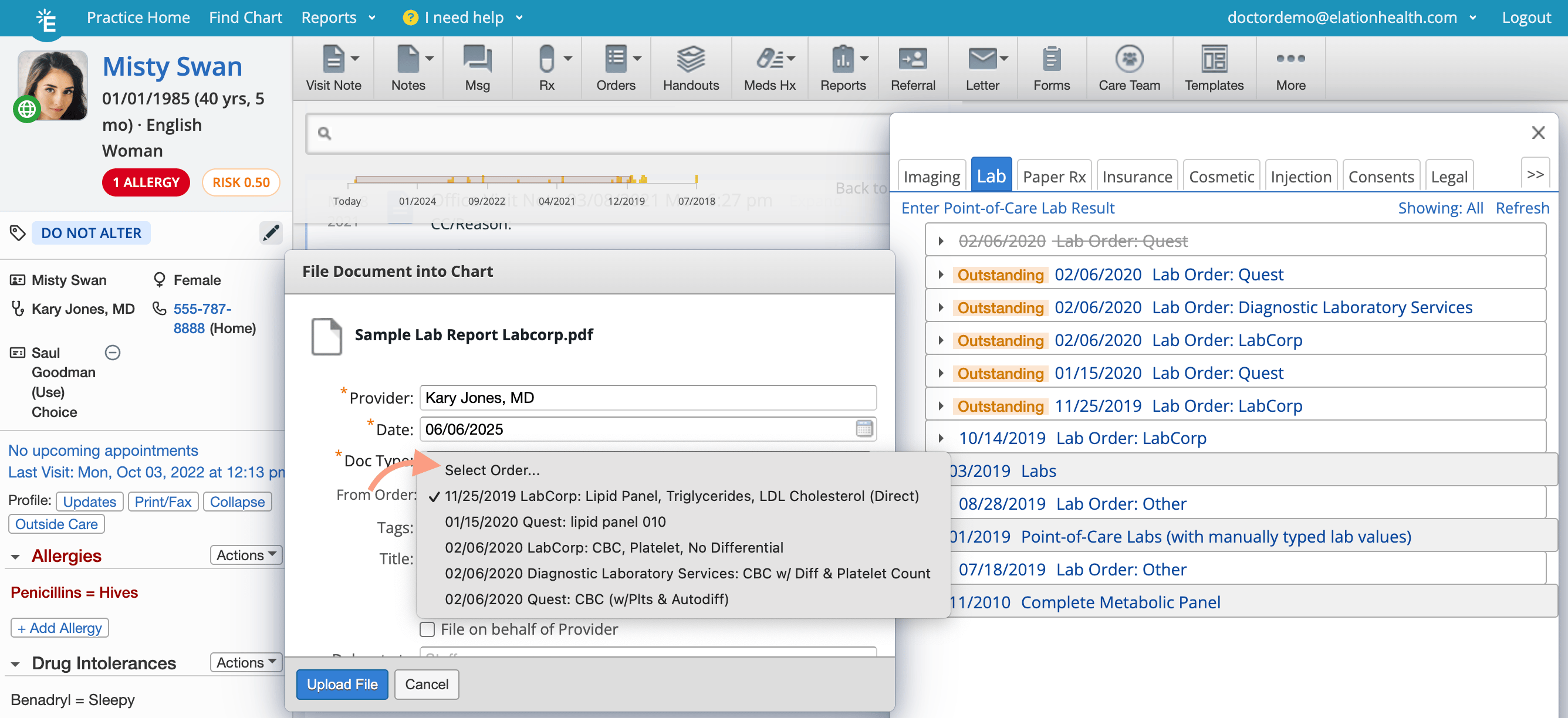
Linking a report that was already filed to the chart
To link a report that was already filed into the chart to an outstanding order or referral:Marking orders or referrals as canceled
To mark an order or referral as canceled when they’re no longer valid:Searching for patients with outstanding orders or referrals
Use the Patient List report to identify which patients have at least one outstanding order or referral in their chart:Exception: The Order Status (Close-the-Loop) filter only appears in the Patient List report once your practice has enabled Close-the-Loop. If you don’t see this filter, request the feature using the steps in the Set Up section above.
Use this report to:
- Check the Order Status and Next Appointment columns to find patients who need to schedule a follow-up.
- Review any outstanding orders or referrals and follow up as needed.
Frequently Asked Questions
What happens if a report was linked to the wrong order or referral?
If a report was linked to the wrong order or referral:An order or referral was canceled but the patient still completed it. What happened?
Canceling an order or referral doesn’t automatically notify the facility or patient. If you need them to know it’s canceled, please contact them directly. Update a canceled order or referral to fulfilled by following these steps:How do I update the reminder preferences after signing an order?
To update a reminder before it’s delivered:What types of records can be used to fulfill an order or referral?
Any report category can be attached to an order to fulfill the order. The following documents can be attached to a referral to fulfill the referral:- From the Fax Inbox, attach any report category, including Consult Reports.
- From within the patient’s chart, attach any report category, visit notes, non-visit notes, direct messages, letters, or letter receipts.
Related Articles
- Lab Orders & Results Introduction
- Lab Orders & Results - Using the electronic Lab Order Form
- Lab Orders & Results - Managing electronic lab results
- Letters & Referrals Introduction- Sharing clinical data outside of Elation
- Fax Inbox Guide- Managing inbound electronic faxes and uploading documents
- Patient Chart Guide- Uploading documents directly within the patient’s chart
- Report Category Guide- Categorizing patient documents
- Patient List Report Guide- Searching your patient panel