
Overview
What is Direct messaging?
Direct messaging is a secure, HIPAA-compliant, and encrypted method for electronically exchanging health information between Elation and other EHR systems. Each Provider-Level User is assigned a Direct Address associated with Elation to allow them to send and receive Direct messages within the Elation EHR.What are the benefits of Direct messaging?
Direct messaging offers the following benefits:- Ensure secure and HIPAA-compliant communication – Use Direct Messaging to encrypt and securely transmit Protected Health Information (PHI) while complying with HIPAA and other privacy regulations.
- Exchange patient data seamlessly – Share clinical documents, such as Continuity of Care Documents (CCD/CCDA), lab results, and referrals electronically, eliminating the need for faxing or mailing.
- Improve care coordination and interoperability – Facilitate seamless communication among providers, specialists, hospitals, and healthcare organizations across different EHRs to ensure continuity of care.
How do I enable Direct messaging?
Direct messaging is automatically enabled for Provider Level Users during the account set up process.Prerequisites for sending a Direct message
To send a Direct message,- You must be a Provider Level User on Elation AND
- The recipient must meet both conditions:
- Have a Direct Address with their non-Elation EHR
- Be saved as a contact in your Elation Directory, with their Direct Address included in their contact details.
- Contacts in the Elation Directory database may already have a Direct Address in their contact details, sourced from Surescripts. You can update a contact’s Direct Address as needed.
PREMIUM EHR ONLY If you are a Premium EHR user, go to the Premium EHR features section below to learn more about allowing Staff Level Users to send Direct messages on a Provider Level User’s behalf.
How do I find my Direct Address?
To view your Direct Address, go to Settings -> Account Details->Direct Address. The Direct Address is in the following format: firstname.lastname@practiceID#.direct.elationemr.com.- For example: john.smith@12345.direct.elationemr.com
What happens when you send a Direct message?
When you send a Direct message, the message, a CCDA file of the patient’s data, and any attachments you add are sent to the recipient’s EHR. Once received, the actions that the recipient can take to view and import the data will depend on their own EHR.What can you send via Direct message?
Any patient records that can be attached to a Letter or Referral can be sent via Direct message as long as the record is in one of the following formats:- .jpeg
- .png
- .tiff
- .xml (also known as CCD/CCDA files)
What can you receive via Direct message?
The chart below lists the file types supported by Elation for received Direct messages and explains how the data appears in the patient’s chart. Unsupported file types will not appear in the patient’s chart.Enabling Premium EHR Features
Premium EHR users can request a feature that would allow Staff Level Users to send Direct messages on behalf of a Provider Level User. Staff Level Users would use the same workflow as Provider Levels Users to send Direct messages via a Provider Letter or Referral. This feature would not allow Staff Level Users to receive Direct messages.PREMIUM EHR ONLY This feature is part of Elation’s Premium EHR offering. If you are already a Premium EHR user and you are interested in using this feature, click the I need help -> Contact Elation Support button to notify Elation and a member of the Elation Team will activate the feature for you.If you are interested in upgrading to Premium EHR to use this feature, click the** I need help** -> Contact Elation Support button and a member of the Elation team will assist you.
Workflow Instructions
Editing a Contact’s Direct Address
If a contact has a Direct Address, you will see their Direct Address in their Contact details. To add or edit a Contact’s Direct Address:Sending a Direct message
To send a Direct message:| 1 | Create a new Provider Letter or Referral . |
|---|---|
| 2 | Type the recipient’s name in the To field and then select a match from the search results.Check if they have a Direct Address on file and add one if needed. |
| 3 | Fill out the remaining fields of the Provider Letter or Referral. Click here for a detailed breakdown of the different fields. Subject: Provide a brief overview or context to explain the purpose of the correspondence.Body: Type the main content of your correspondence. Use Wordsmith, our generative AI tool, to help you draft your correspondence if needed. (Referral only) Referral details: Auth For: Document any authorization details (i.e. the approved service or procedure or number of encounters) as needed.Auth #: Record the authorization number supplied by the patient’s insurance if applicable.Add Dxs: Enter the ICD-10 codes that validate the medical necessity of the referral. Settings Post Date: Select a future date to send the Provider Letter or Referral.Unread Alert: (Elation EHR & Connect recipients only) Alert yourself if the Letter/Referral has not been read by the recipient by a specific timeframe.Print Header: Select the Print Header you want to appear on this Letter/Referral. |
| 4 | Adjust/Add attachments as needed. Click here for a detailed breakdown of the attachment options. Default behavior If you initiated the letter or referral from a patient record, the record will automatically be included as an attachment. If you are creating a referral, the patient’s demographics and Clinical Profile will automatically be included as attachments. Options for attaching records: Select Chart Items to Attach: Use this option to pick and choose individual patient records to attach to the letter or referral. Attach Everything in Chart: Use this option to attach all attachable records, referenced below, to the letter or referral. Records available as attachments include: Patient demographicsClinical ProfileImmunization HistoryMedication ListMedication HistorySigned Visit Notes & NotesSigned ReportsSigned OrdersCompleted office messagesOther signed letters or referralsGrowth Charts |
| 5 | Look for a yellow banner that says “This letter and attachments will be sent via direct message into the recipient’s EMR account.” to confirm it’s being sent as a Direct message*. 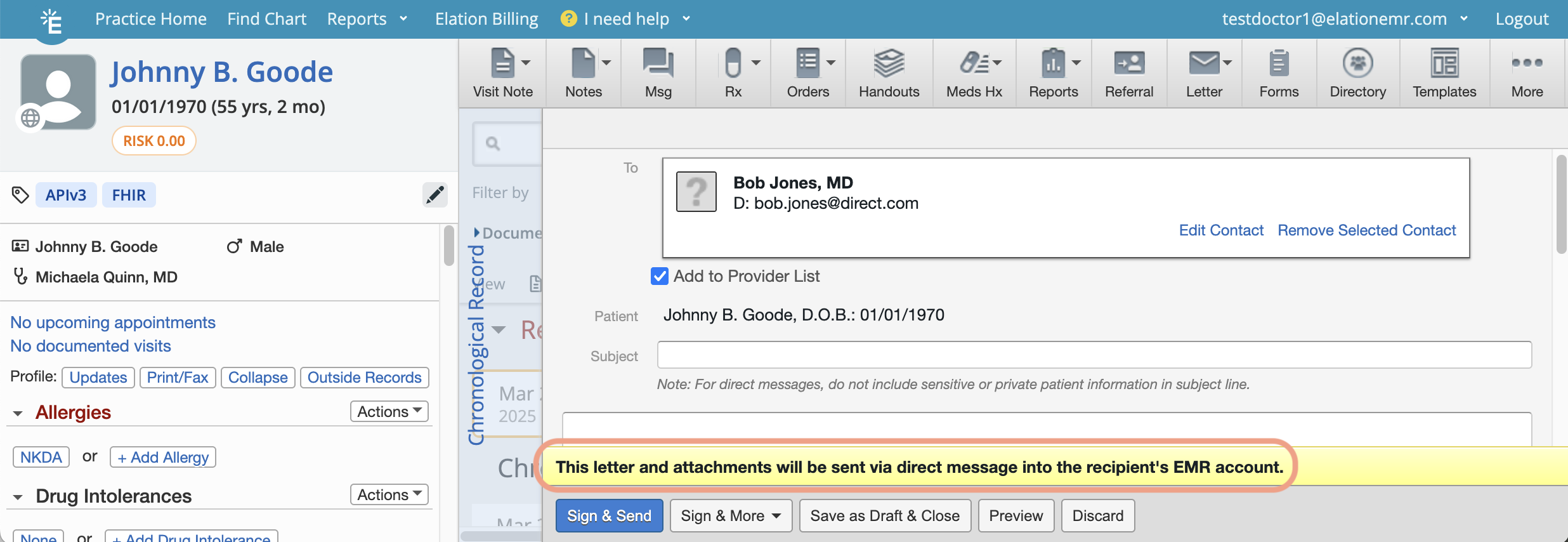 |
| 6 | Sign & Send the correspondence. Click here for a detailed breakdown of the different Send options. Sign & Send: Signs the correspondence and sends it to the recipient using the delivery method specified in the yellow banner. Sign, Send & Print Pt Copy: Signs the correspondence, sends it using the delivery method specified in the yellow banner and prints the body of the correspondence without attachments.Sign & Print w/attachments: Signs the correspondence and prints the entire correspondence and its attachments.Sign, Send & Create Follow-up Letter: Signs the correspondence, sends it to the recipient using the delivery method specified in the yellow banner and then creates a new correspondence draft for the same recipient. |
Exception: If the Contact is an Elation EHR User or an Elation Connect User , the message will be sent as a regular Provider Letter or Referral instead of a Direct message (even if the Contact has a Direct message address on file) as this routing method is more immediate and secure.
Viewing sent Direct messages
Check the Provider Letter or Referral in the Chronological Record to confirm that the Direct message was sent.- A successfully transmitted Direct message displays the confirmation message Direct Message Sent in the signed Letter or Referral.
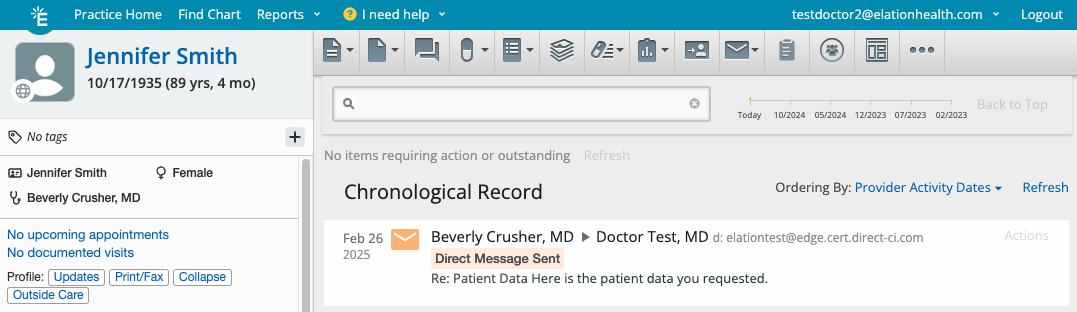
Receiving Direct messages
To receive Direct messages in Elation: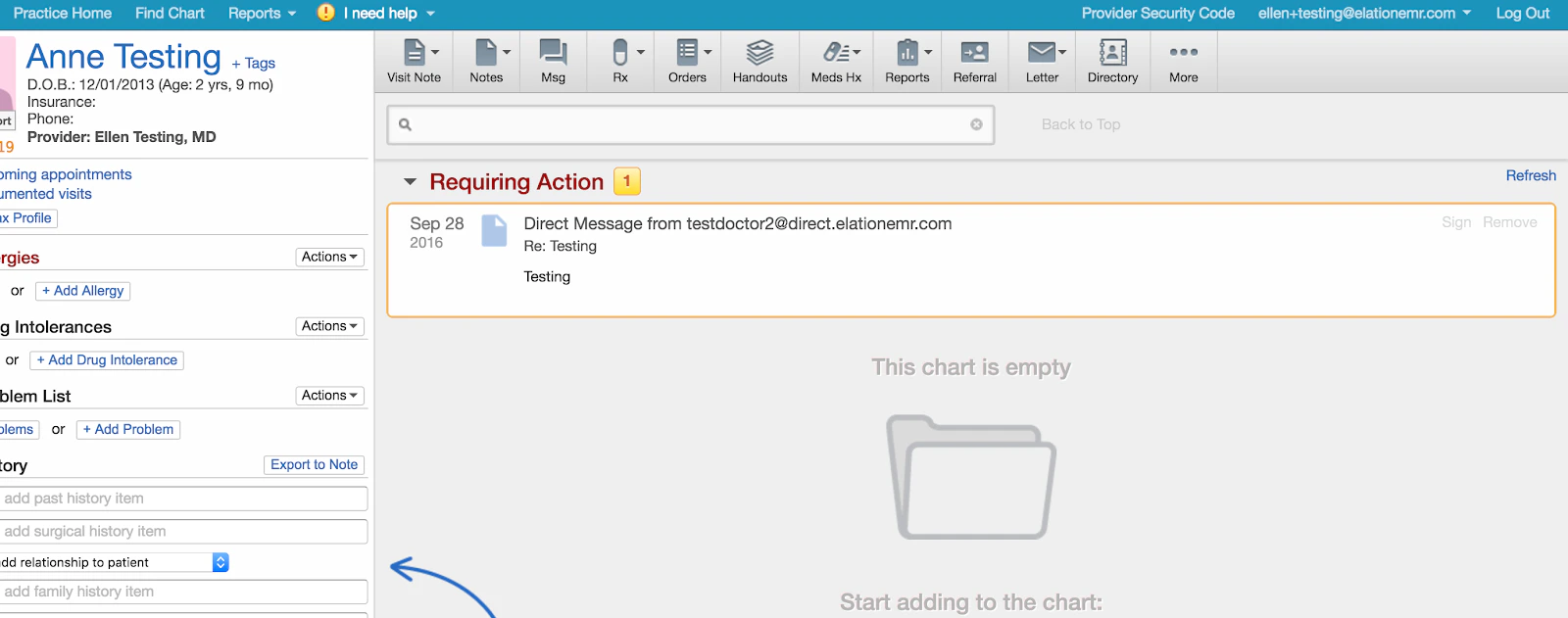
Frequently Asked Questions
How do I find another provider’s Direct address?
To look up a provider’s Direct address before sending them a Direct message:- Create a new Provider Letter or Referral.
- Type the recipient’s name in the To field and select a match from the search results.
- Click Edit Contact next to their name.
- Click Edit under their main details to view their Direct message address, if one is on file.
Can I file a received Direct message’s attachment into a specific report category, like Old Medical Records?
Not directly from Requiring Action. Click Sign to file the Direct message and its attachments into the patient’s Chronological Record first. Then open the filed document from the Reports section of the patient’s chart, click Actions > Edit Details, and change the Report Category to the one you want (for example, Old Medical Records).What information is sent in the CCDA file that is automatically` included in a Direct message?
Click here to learn more about what information is included in Elation’s CCDA files.
How are Direct messages routed if I work in multiple Elation accounts?
If you work in multiple Elation accounts, the Direct message is routed to the first Provider Level User account you registered with Elation.Can Staff Level Users send or receive Direct messages in Elation?
For Standard EHR subscribers, Staff-Level Users cannot send or receive Direct messages in Elation for Standard EHR Users. However, for Premium EHR subscribers, Staff-Level Users can be delegated to send Direct messages.How do I update a Direct Address for a contact when I work in multiple Elation instances?
If you work in multiple Elation instances, update the Direct Address of a contact in each instance separately, as changes in one instance do not automatically apply to others. How do I stop receiving Direct messages? It is not possible to block specific Direct messages from reaching your inbox. You must either receive all Direct messages that are sent to you or remove the Direct message feature completely to stop receiving Direct messages. Removing the Direct message feature will also prevent you from sending Direct messages. Click I need help -> Contact Elation Support if you want Elation to disable all Direct message functionalities within your account.Related Articles
- Letter & Referral Introduction
- Letter & Referral Guide - Auto-drafting letters and referrals with Wordsmith
- Letter & Referral Guide - Sending correspondences to other Elation EHR Users
- Letter & Referral Guide - Sending a fax
- Letter & Referral Guide - Sending correspondences via a secure Provider Portal
- Letter & Referral Guide - Managing & searching the provider directory
- Support Guide - Whitelisting Elation’s web domain for email communications