What are CCD and CCDA files?
CCD stands for Continuity of Care Document. CCDA stands for Consolidated-Clinical Data Architecture and it is used to create documents and standardize the content and structure for clinical care summaries and can include CCD files. CCD and CCDA files are means to securely transfer medical records between EHR systems. All Certified EHR systems, like Elation, are required to allow providers to import and export CCD and CCDA files into and out of the EHR. CCDA files may contain the following information for patients:- CCD
- demographic information
- allergies
- problems
- family and social history
- immunizations
- medications
- lab results
- progress notes
- imaging reports
- discharge summaries
What are the benefits of CCD and CCDA files?
CCD and CCDA files allow providers and patients to securely transfer clinical information between different electronic health record systems when patients move between providers or institutions that use different electronic health record systems. You can share data C-CDA (CCDA) files with a patient directly to share with a provider on another EHR system or you can use C-CDA (CCDA) files to report data to registries or health information exchanges (HIEs) for quality reporting. Learn more about this feature in the Patient Chart Guide- Sharing clinical care summaries with collaborating providers using C-CDA (CCDA) format article. Some systems, like Elation, even support importing data from CCD or CCDA files as structured data to assist with quicker and more accurate documentation. Learn more about this feature in the Importing data from a CCD or CCDA file into a patient’s chart section of this article. Workflow InstructionsImporting CCD or CCDA files into Elation in bulk
If you are coming from another electronic health record system to Elation and the other electronic health record system can provide you with an export of all of your patients’ information as CCD or CCDA files, Elation can import those CCD or CCDA files for you in bulk. Practices that are new to Elation may receive this bulk import free of charge as part of their Elation implementation. Please notify your implementation manager if you would like a bulk CCD or CCDA import to discuss this in more detail. You can also reach out to the Support Team using the I need help -> Contact Elation Support button or this contact form. Once the CCD or CCDA files are imported to corresponding patient charts, you will see the data within these files transcribed into a Patient Summary report in the Outstanding Items section of each patient’s chart. You can also import specific data from the CCD or CCDA file into corresponding sections of the patient’s chart as structured data if desired.Elation can only import CCD or CCDA files generated by a Certified EHR system as the CCD or CCDA files must follow regulated requirements that Elation also adheres by.Additional CCD or CCDA imports will come with additional fees. If you are interested in another CCD or CCDA import, notify Support using the I need help -> Contact Elation Support button at the top of your Elation account.
Manually importing CCD and CCDA files into Elation
If any patient share a CCD or CCDA file with you in office, you can manually import that CCD or CCDA file from your computer into a patient’s chart. Afterwards you can import specific data from the CCD or CCDA file into corresponding sections of the patient’s chart as structured data if desired.Elation can only import CCD or CCDA files generated by a Certified EHR system as the CCD or CCDA files must follow regulated requirements that Elation also adheres by.
| 1 | Store the CCD or CCDA file on your computer. |
|---|---|
| 2 | Open the patient’s chart in Elation. |
| 3 | Locate the CCD or CCDA file on your computer. |
| 4 | Click on the file with your mouse cursor and drag-and-drop the file over the patient’s chart in Elation. 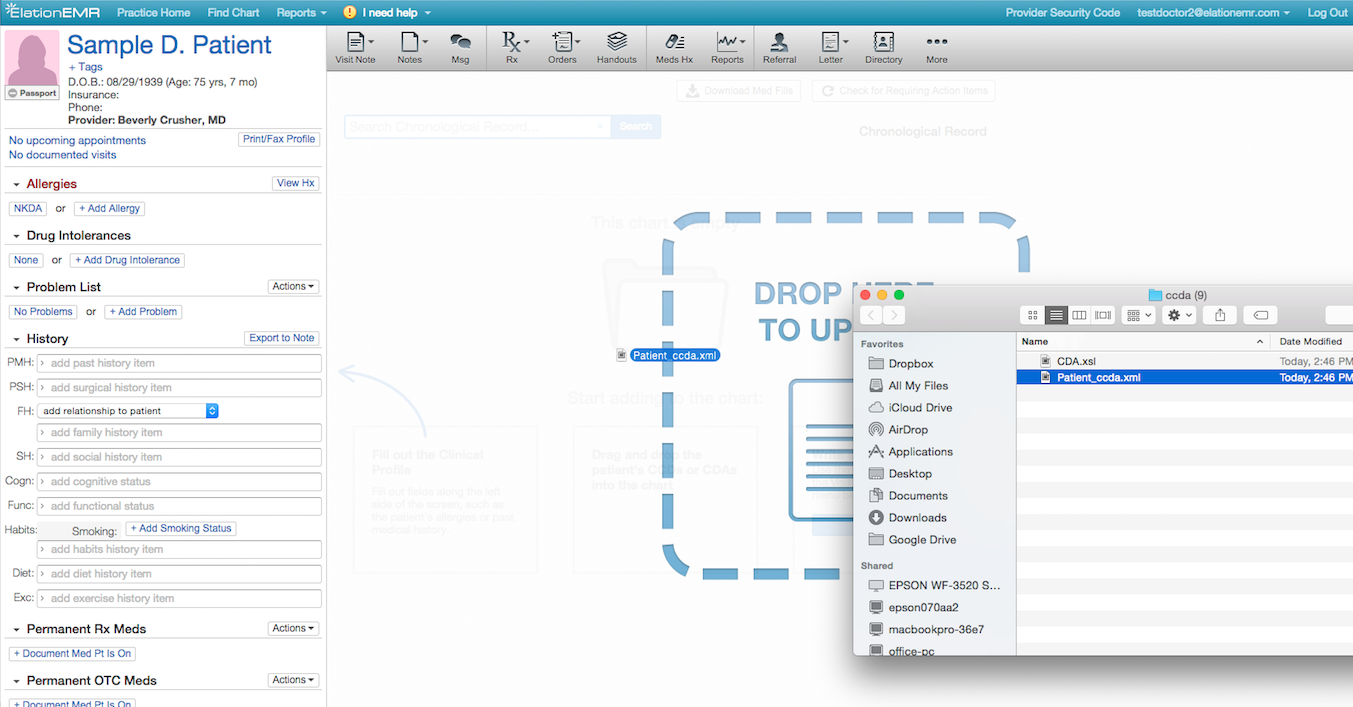 |
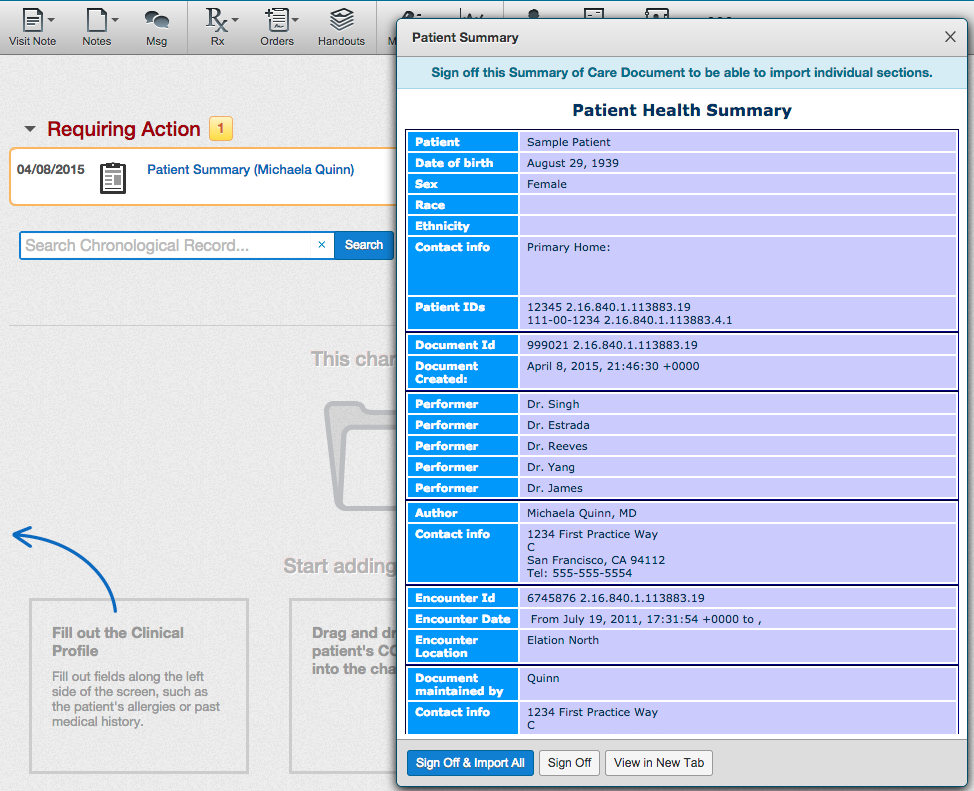
| 5 | Wait for the CCD or CCDA file to turn into a Patient Summary. Once the file is done processing, you will see a new Patient Summary report in the Requiring Action section of the patient’s chart. |
Importing data from CCD or CCDA files into a patient’s chart
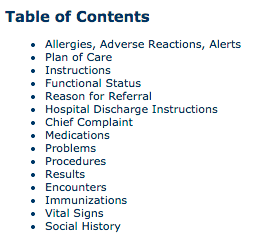
Users can import and integrate demographics, allergies, problems, immunizations and medications data from CCD or CCDA files into patients’ charts as structured data. Due to the nature of how the remaining available data is structured, you will not be able to export the remaining data into the patient’s chart as structure data. However, all data from CCD and CCDA files will remain in the Patient Summary report and can be viewed and referenced as any time.If you only view a CCDA but do not import sections, those external records remain as a Patient Summary attachment and are not merged into the structured chart.
Importing all sections
Any user can sign off (only) on a Patient Summary report or sign off and import demographics, allergies, problems, immunizations and medications data from a Patient Summary into a patient’s chart. For multi-provider practices, if a staff user signs off on a Patient Summary report, they must specify which provider they are signing on behalf of. If you would like to import all the demographics, allergies, problems, immunizations and medications data from the Patient Summary after initially only clicking Sign Off, click on the All button at the top of the Patient Summary to import all the compatible sections again.Importing specific sections
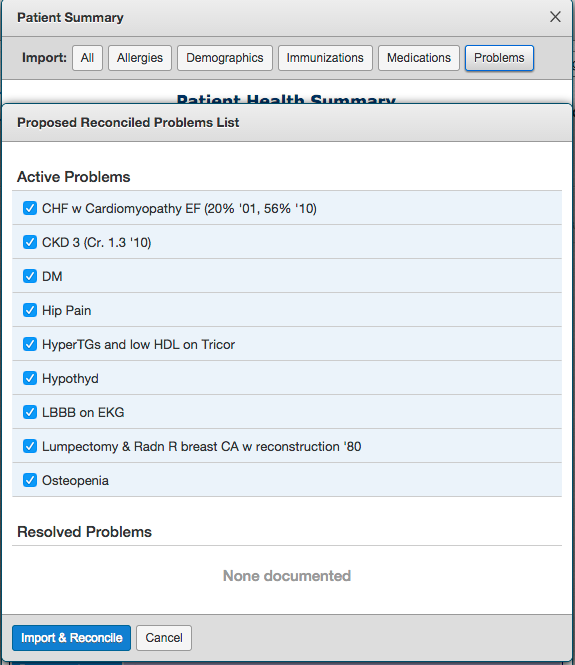
You can choose to import data from specific sections of a Patient Summary if you do not want to import all compatible sections. You can also select the records you want from each section and click Import & Reconcile to import those records to the corresponding sections of the patient’s chart. If the record was already imported to the patient’s chart, you will not be able to import it again. For example, the image below shows how you can choose specific problems to import when you choose to import only Problems: