
This feature is not available to all practices. If you do not see the Restore a deleted chart option described below, contact Elation Support to ask about enabling it for your practice.
How to access
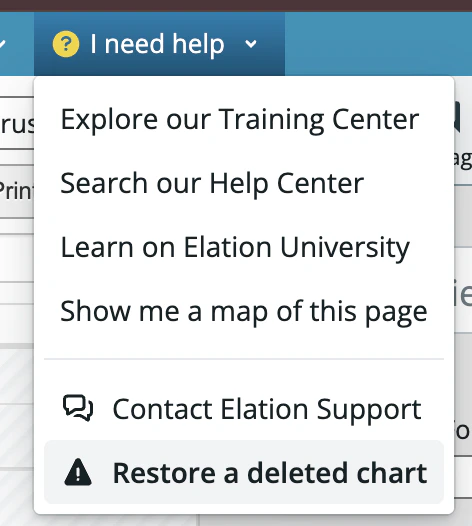
- From the Practice Home page, click I need help in the top navigation bar.
- Select Restore a deleted chart from the dropdown menu.
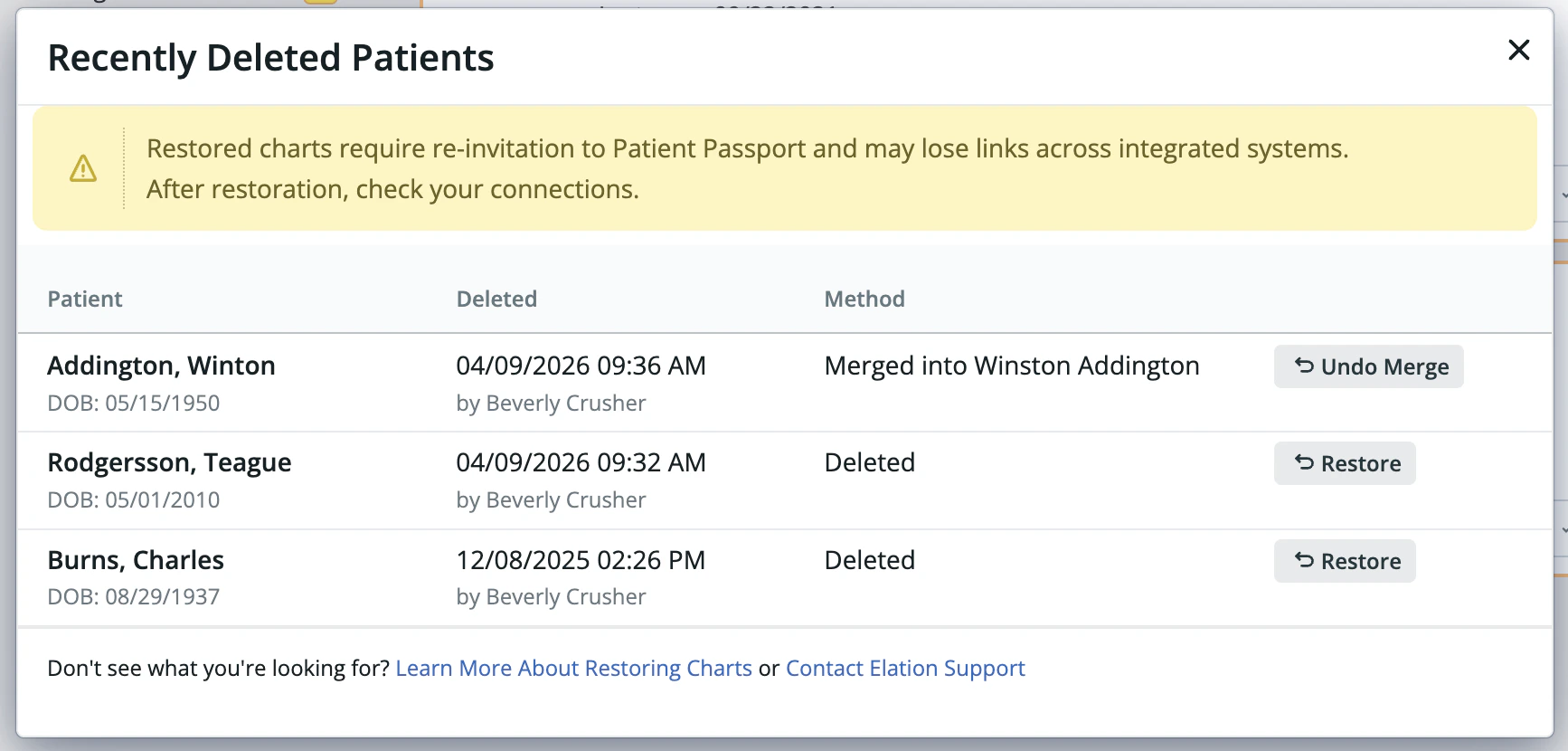
- A dialog opens showing recently deleted patients in your practice.
Who can see what
- Practice administrators can see all recently deleted charts in the practice, regardless of who deleted them.
- Other staff members can only see charts they personally deleted.
What the dialog shows
A warning at the top of the dialog reminds you that restored charts will require you to:- Send an invitation to patients with Patient Passport for the patient to restore access to their account.
- Check any integrations you have to make sure the charts are reconnected.
- Patient name and date of birth
- Date and time of deletion, and the name of the staff member who deleted the chart
- Method — how the chart was removed:
- Deleted — the chart was directly deleted
- Merged into [Patient Name] — the chart was removed as part of a chart merge
Restoring a chart
- Find the patient in the list and click Restore (for deleted charts) or Undo Merge (for merged charts).
- A Before you restore… dialog appears asking why the chart was accidentally deleted. The feedback field is optional — you can leave it blank.
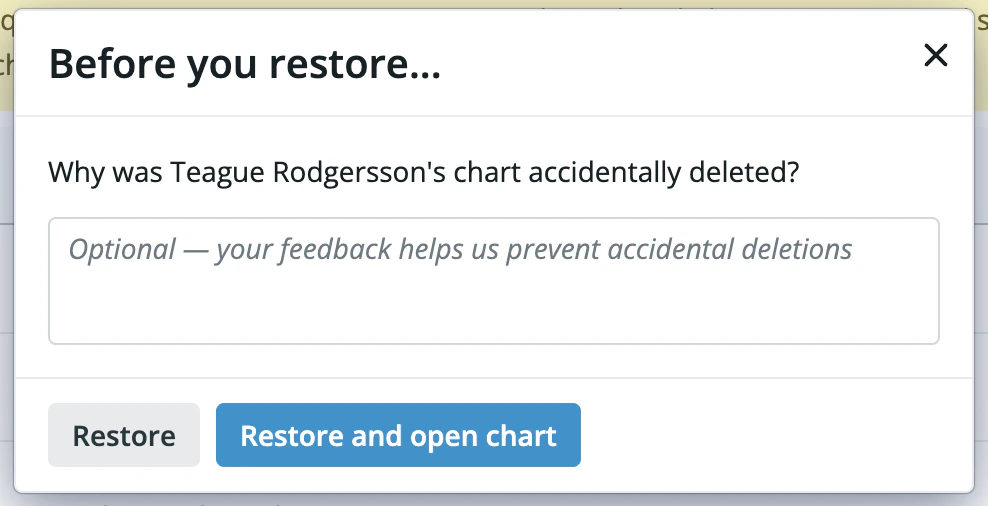
- Click Restore to restore the chart, or Restore and open chart to restore it and navigate directly to the patient’s chart in a new tab.
Caveats and limitations
Patient Passport
After restoring a chart, the patient will need to be re-invited to Patient Passport. Their previous Patient Passport connection is not automatically restored.Integrations and connected systems
Restoring a chart may break or disconnect links in systems integrated with Elation — for example, external lab systems, scheduling tools, or billing platforms. After restoring a chart, check your integrations to make sure everything is linked correctly. If you’re unsure which connections need to be re-established, contact Elation Support.Undoing a chart merge
When two charts have been merged, undoing the merge moves all clinical data (notes, medications, allergies, etc.) back to the original chart. However:- The patient’s Patient Passport connection is not automatically restored and will need to be set up again.
- Any integrations/external system connections (such as lab vendors or billing integrations) that were updated as part of the merge may not be fully reversed and should be reviewed manually.
- Changes made to the winning chart (the chart you kept) after a merge cannot be automatically attributed to the correct chart and will require careful review. If extensive changes have been made since the merge, unmerging may result in errors when opening or viewing elements of the chart. Contact Elation Support in this situation.
What isn’t restored
Restoring a deleted chart brings back the patient record and their clinical data, but a small number of things are not automatically restored:- External system identifiers assigned by integrated vendor systems (e.g. lab vendor IDs)
- Patient Passport enrollment (see above)