
Search Options
There are two options for searching for patient charts in Elation after a chart is created :- The Search box at the top of the Practice Home
- The Find Chart button in the blue bar at the top of any page in Elation
Practice Home Search box
The image below shows you what the Search box at the top of the Practice Home looks like: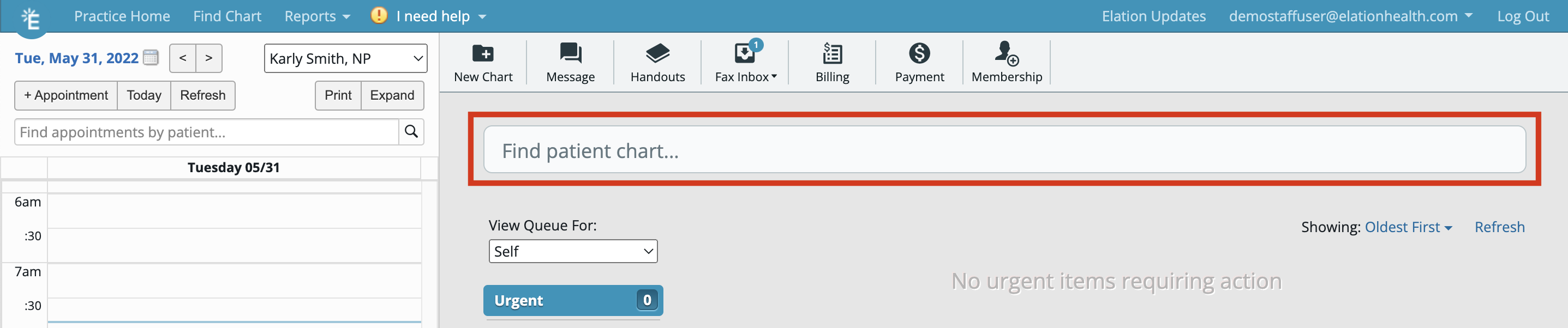
“Find Chart” button
The image below shows you what the Find Chart button looks like in Elation: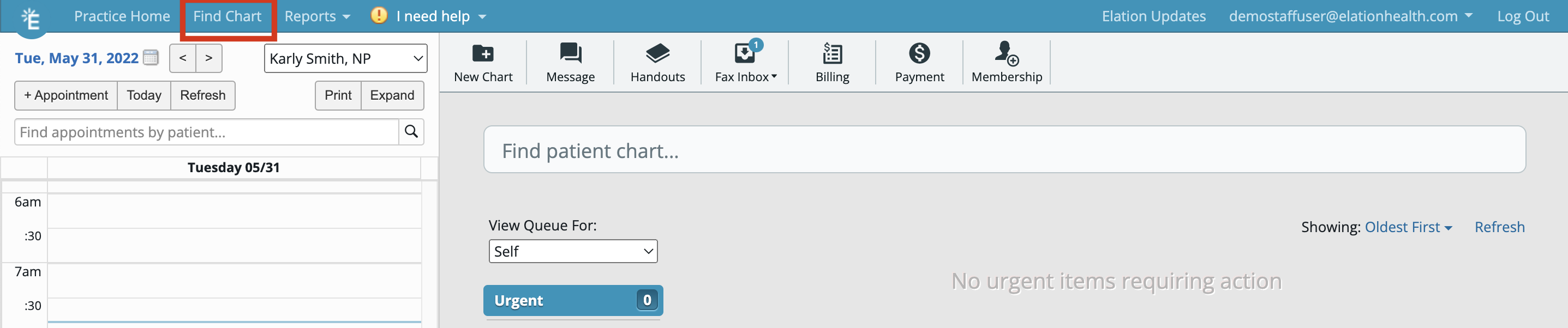
Tips for searching for patients
There are a few ways to search for patients using one of the two search options listed above:
- You can use any combination of letters for the patient’s legal name or full name and you can type the first and last name in any order
- You can type in a patient’s phone number as stored in their chart (search works for both primary and secondary phone numbers):
- with or without the area code; however including the area code will yield more accurate results
- with or without dashes
- You can type in a patient’s Date of Birth in the MMDDYYYY format (with or without dashes)
- You can type in a patient’s Elation patient chart ID number