
What is a patient chart?
All records in the Elation EHR must be tied to specific patient. A Patient Chart is the feature that stores all of these records in one place. The Patient Chart can be divided into the following sections:Creating a new patient chart
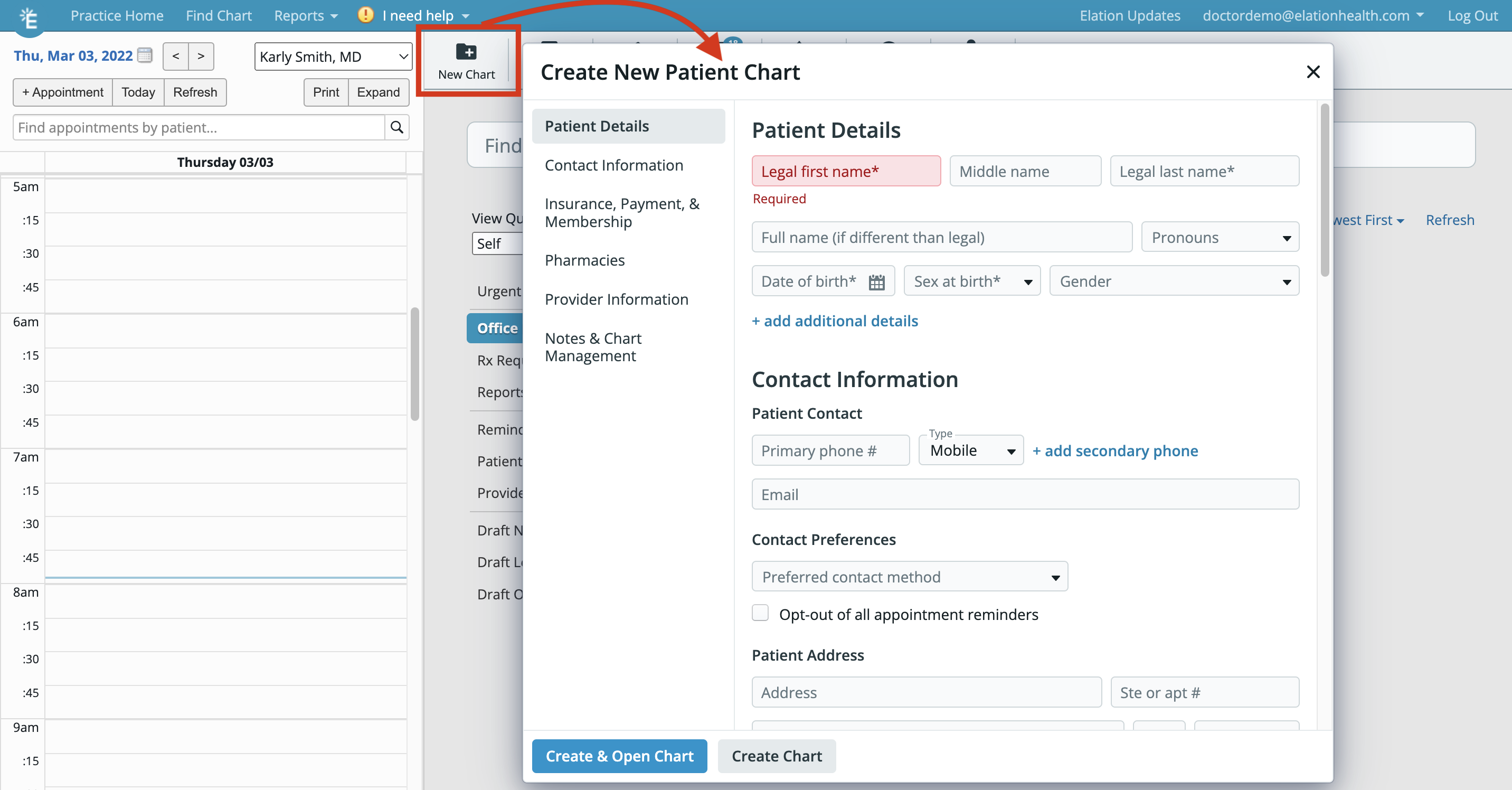
To create a new patient chart:- Go to the Practice Home page and click on the New Chart button in the gray navigation bar.
- Fill in the patient’s demographics details- especially the required fields of legal first name, legal last name, date of birth, sex at birth and Provider assigned in practice
- Review the Patient Demographics Guide to learn more about the various demographics fields. The Patient Demographics Guide also has a guided video.
- Click Create & Open Chart or Create Chart when done.
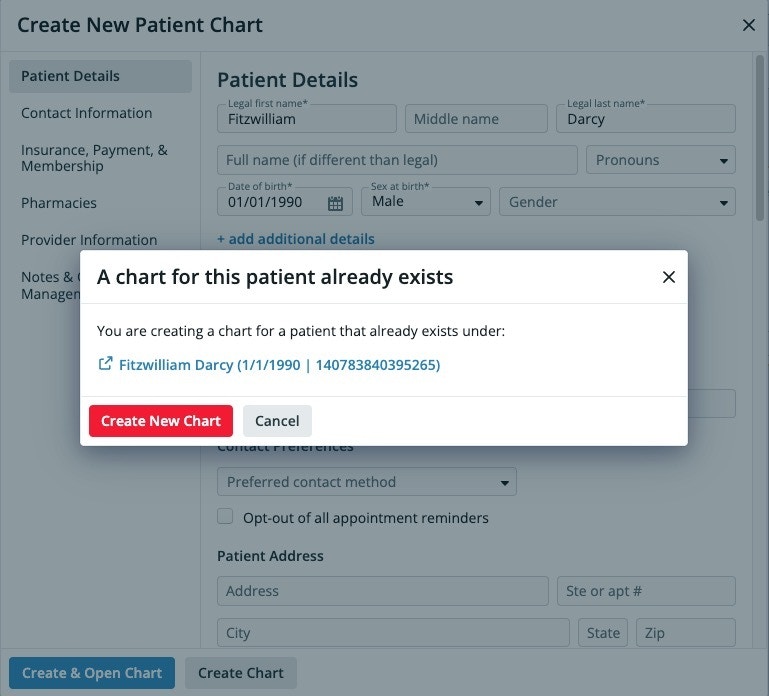
If you click one of the Create Chart options for a new chart that has the same first name, last name, date of birth, and sex at birth as another patient at your practice, you will receive an alert indicating that you could be creating a duplicate chart. You can open a new tab to review the potential duplicate by clicking into the blue text of the name in the alert.
Frequently Asked Questions (FAQ)
Can I block certain users from creating charts?
You cannot block certain users from creating charts in Elation. All users can create charts.Can I see who created a patient chart?
You can use the Audit Log feature to look up who created a patient chart. However, you must know the approximate date it was created. To use the Audit Log feature:- Open the patient’s chart
- Click the More button at the top of the patient’s chart
- Click Data Exchange >> Audit Logs
- Once the Audit Log window opens, set the Start date and End date of the timeframe you wish to search
- Look for the Action “add” and the Record Type “Patient”
- Once you find the record, look under the Performed By column to see who performed the action.