
Overview
What are C-CDA (CCDA) files?
CCDA stands for Consolidated Clinical Data Architecture and it is used to create documents and standardize the content and structure of clinical care summaries. CCDA files allow you to securely transfer medical records between EHR systems. All Certified EHR systems, like Elation, are required to allow providers to import and export CCDA files into and out of the EHR. CCDA files generated by Elation will contain the following information:- Reason for Referral
- Allergies, adverse reactions, alerts
- History of medication use
- Problem List
- Encounters
- Immunizations
- Vital Signs
- Social History
- History of Procedures
- Implantable Devices
- Relevant diagnostic tests and/or laboratory data
- All structured lab test values in signed lab results.
- Functional Status
- Mental Status
- Assessments
- All data included in the main bullet points of the Assessments section in signed visit notes.
- Plan of Care
- All data included in the main bullet points of the Care Plan section in signed visit notes.
- Goals
- All data included in the sub-bullet points of the Care Plan section in signed visit notes.
- Health Concerns
What are the benefits of C-CDA (CCDA) files?
C-CDA (CCDA) files allow providers and patients to securely transfer clinical information between different electronic health record systems when patients move between providers or institutions that use different electronic health record systems. You can share data C-CDA (CCDA) files with a patient directly to share with a provider on another EHR system or you can use C-CDA (CCDA) files to report data to registries or health information exchanges (HIEs) for quality reporting. Some systems, like Elation, can even support importing data from CCDA files as structured data to assist with quicker and more accurate documentation. Review our Patient Chart Guide- Importing patient information from another EHR (CCD/CCDA Format) article for information about importing CCDA files received from other providers or institutions.Workflow Instructions
Exporting C-CDA (CCDA) files for multiple patients
ADMIN ONLY In order to bulk export C-CDAs (CCDAs), you must have Admin level privileges. To become an Admin, you must ask an existing Admin level user in your practice (most likely a primary provider level account holder) to grant you privileges via the Manage Accounts Settings page. Click here for more information about administrative privileges .
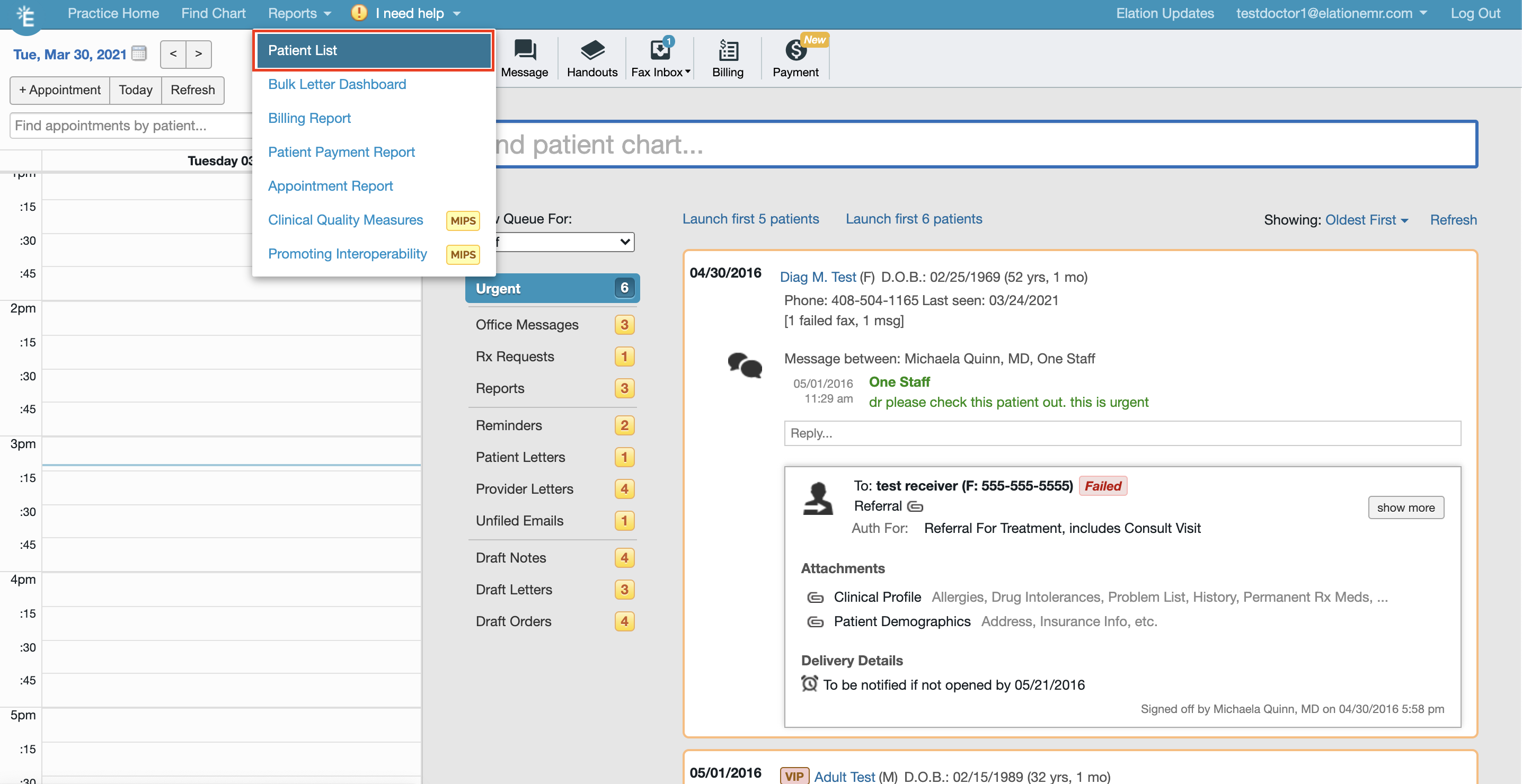
- From the Reports menu in the blue navigation bar, click Patient List.
- Click Generate List to view a list of all patient charts for your practice. You can also use filters to narrow down the list of patients. Review the Patient List Report Guide to learn more about filtering if needed.
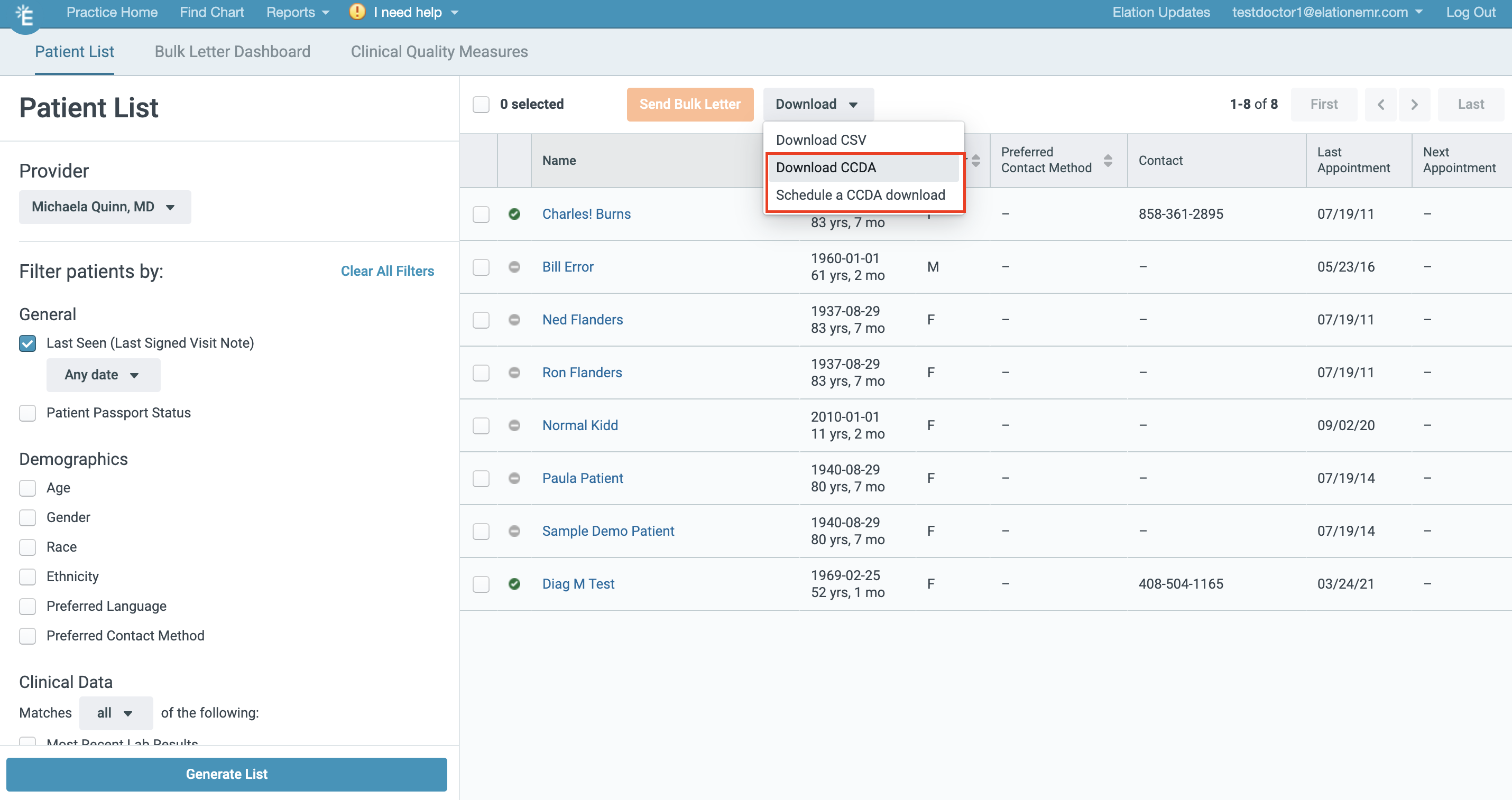
- Click Download -> Download CCDA.
- Create and enter a password (twice) to protect the patients information contained in the .ZIP file that will be created from this export. You will need to securely share this password with the recipient of the C-CDA (CCDA) files if applicable.
- Once you enter a password, the bulk C-CDA (CCDA) file will be generated and available to download.
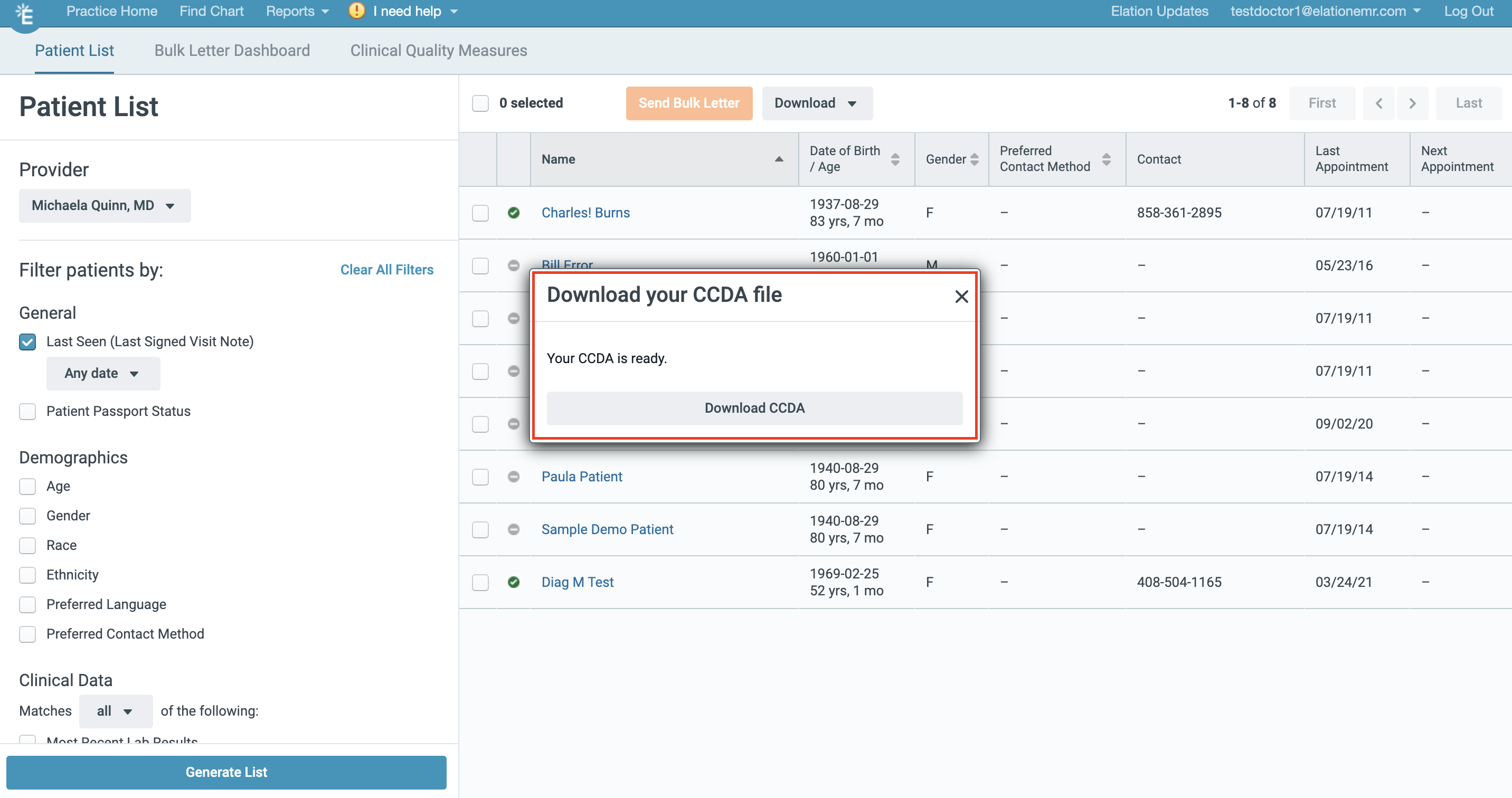
If there are a lot of patient charts or a lot of clinical information in your patients’ charts, it may take more than a few minutes for the bulk C-CDA file to be generated. Keep the Patient List Report window open until you see the download prompt.
Scheduling a CCDA download
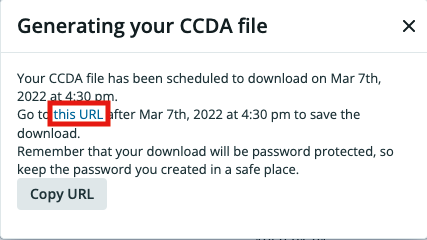
To manage time efficiently and minimize interruption to your workflow, use the Schedule a CCDA download option to schedule a CCDA download during off-work hours. You can choose a specific date and time for the download or schedule the download for a specific number of days into the future.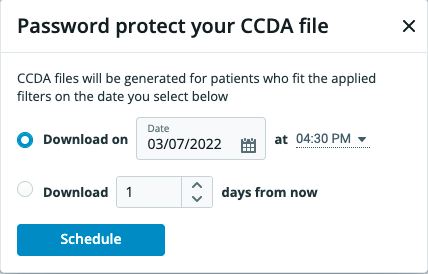
Exporting a C-CDA (CCDA) file for a specific patient
You can generate and export C-CDA (CCDA) files for specific patients directly from the patient’s chart in Elation. You will have the following options for export: If you are using the Elation Note, only data from corresponding standard blocks will be included in the export.- Custom blocks must be nested inside standard blocks to ensure ensure that custom block data is included in the parent block’s data class for USCDI/CCDA. For example, a custom block nested in allergies will have its results included in the allergies data class for the CCDA export.
Initiating an export from the patient’s chart
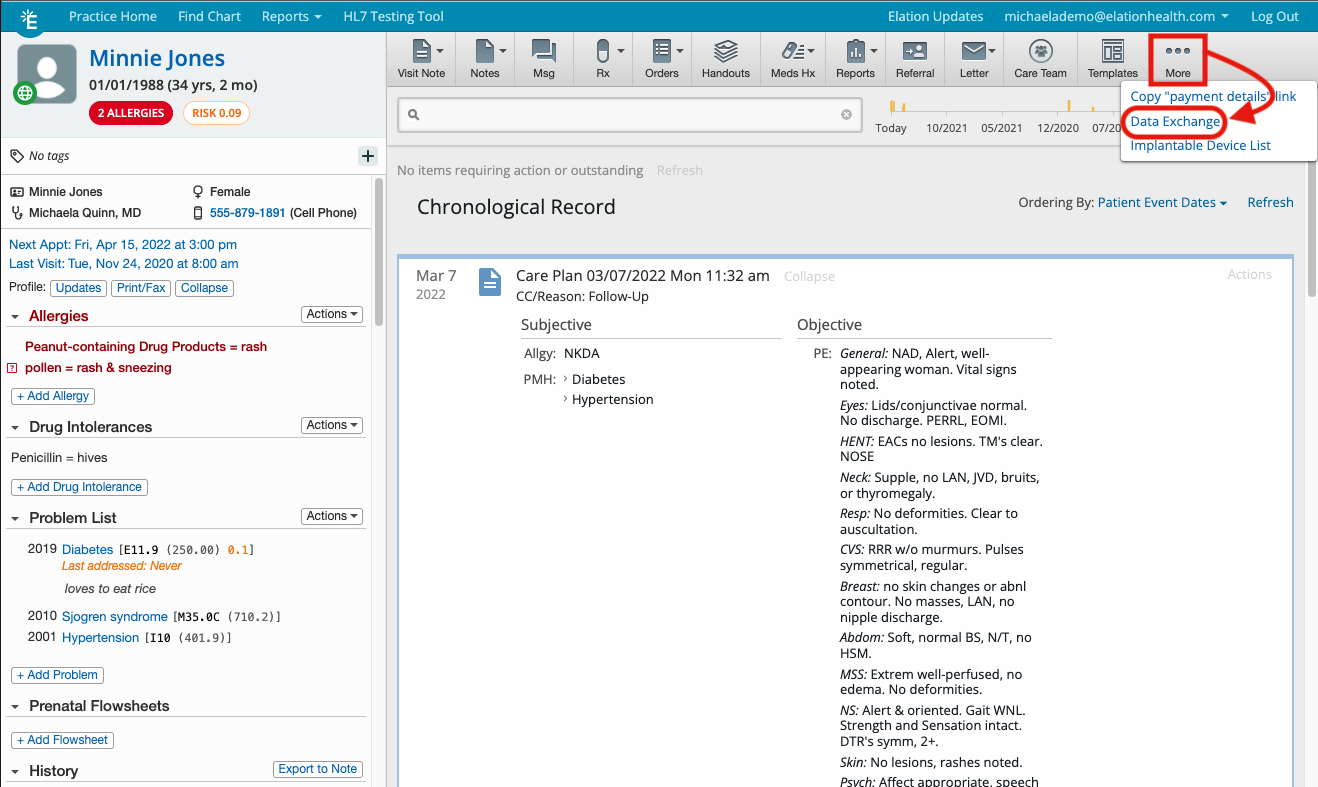
- From the patient’s chart, use the gray navigation bar to select More -> Data Exchange.
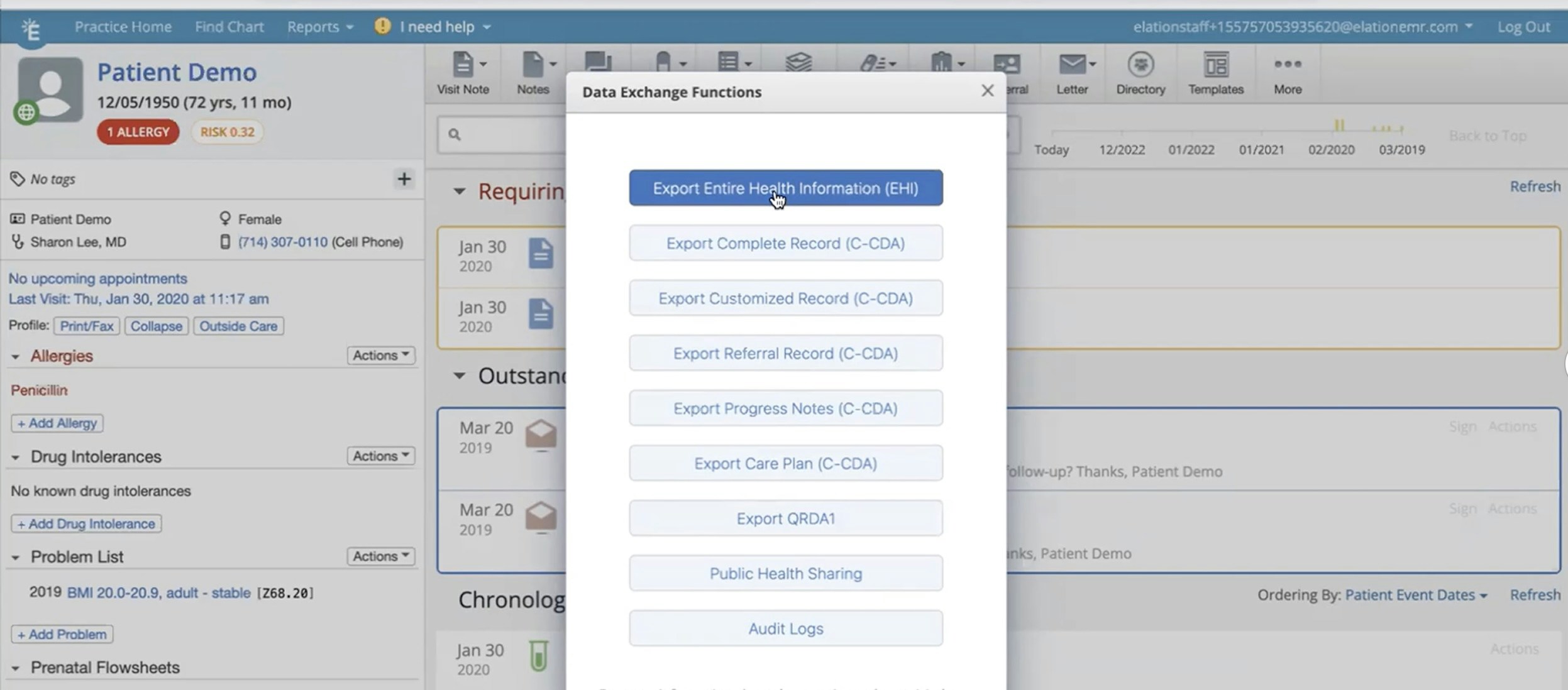
- Select one of the Export … (C-CDA) options (see below) and wait for .ZIP file for the patient to download to your computer/laptop.
- You will find C-CDA file saved to the downloads location as specified by your web browser (usually it is a Downloads folder or the Desktop).
Export Entire Health Information (EHI)
The Entire Health Information (EHI) export is aligned to the regulatory criteria that requires all patient health information stored at time of export to be exported at the time of request by a patient. At this time, all data pertaining to the patient, excluding the sections outlined below, will be exported for single patient exports. Please view Elation’s Designated Record Set here for more information on the data included in EHI Exports. Data that is excluded from EHI exports:- Files in Elation that can be tagged as ‘Keep this Confidential’ (e.g., orders and visit notes) or Mark Confidential (e.g., reports).
- Free text in the Confidential section of the Clinical Profile.
- Free text in the Notes and Chart Management section in the Demographic Dialog.
- Free text in the Notes section of our Elation Billing product.
Exception: The Entire Health Information (EHI) export has a different workflow than the other exports. After you click Export Entire Health Information (EHI) , a confirmation box will appear. Click Export Patient EHI in the confirmation box to request an export. Afterwards, you will receive two emails at the email listed in the confirmation box. The emails will have the subject line ACTION REQUIRED: Elation Data Export. One email will contain a download link for the export and the other email will contain the password to unlock the file after you download it. You will have 6 days to download the file before the download link expires. You can optionally choose to email a copy of the export to the patient by checking off the Also share with patient box. We recommend verifying the patient’s email address before sending them the export.
Complete Record export
The Complete Record export will automatically include the following information as long as it is available in the patient’s chart (and as long as the record is not marked as Confidential).- Reason for Referral
- Allergies, adverse reactions, alerts
- History of medication use
- Problem List
- Encounters
- Immunizations
- Vital Signs
- Social History
- History of Procedures
- Implantable Devices
- Relevant diagnostic tests and/or laboratory data
- Functional Status
- Mental Status
- Assessments
- Plan of Care
- Goals
- Health Concerns
Customized Record export
The **Customized Record ** export will allow you to manually select which sections of the chart you would share (as long as the record is not marked as Confidential). The specific sections available are:- Practice’s contact information
- Assigned provider’s name
- Demographics
- Allergies/Intolerances
- Problems
- Cognitive/Functional Statuses
- Smoking Status
- Medications
- Immunizations
- Lab Results
- Chief Complaint
- Encounter Diagnoses
- Care Plan
- Instructions
- Procedures
- Vitals
- Insurance
Referral Record export
The Referral Record export shares all relevant information needed when referring a patient to another provider or institution (as long as the information is not marked as Confidential). The information included in the export are:- Practice’s contact information
- Assigned provider’s name
- Recipient’s full name
- Reason for Referral
- Allergies, adverse reactions, alerts
- History of medication use
- Problem List
- Encounters
- Immunizations
- Vital Signs
- Social History
- History of Procedures
- Implantable Devices
- Relevant diagnostic tests and/or laboratory data
- Functional Status
- Mental Status
- Assessments
- Plan of Care
- Goals
- Health Concerns
Progress Notes export
The Progress Notes export will export all signed visit notes (that are not marked as Confidential). The information included in the export are:- Practice’s contact information
- Assigned provider’s name
- Demographics
- Assessments
- Plan of Care
- Review of Systems
- Chief Complaint
- Objective
- Subjective
- History of medication use
- Vital Signs
- Problem List
- Physical Findings
- Allergies, adverse reactions, alerts
- Custom blocks must be nested inside standard blocks to ensure ensure that custom block data is included in the parent block’s data class for USCDI/CCDA. For example, a custom block nested in allergies will have its results included in the allergies data class for the CCDA export.
Care Plan export
The Care Plan export will export all care plan data within signed visit notes (that are not marked as Confidential). The information included in the export is:- Practice’s contact information
- Assigned provider’s name
- Goals (goals) - the Care Plan section of any visit note that also has the Visit Note Category called Care Plan selected.
- Health Concerns (problems) - any visit note
- Interventions (care plan) - any visit note that also has the Visit Note Category called Care Plan selected.
- Health Status Evaluations/Outcomes (assessments) - the Assessments section of any visit note that also has the Visit Note Category called Care Plan selected.
- Custom blocks must be nested inside standard blocks to ensure ensure that custom block data is included in the parent block’s data class for USCDI/CCDA. For example, a custom block nested in allergies will have its results included in the allergies data class for the CCDA export.
Related Articles
- Letters & Referrals Guide- Sharing clinical data outside of Elation
- Letters & Referrals Guide- Sending messages to patients & corresponding with third party professionals
- Patient Chart Guide- Importing patient information from another EHR (CCD/CCDA Format)
- Electronic Health Information (EHI) Export Criteria