
Overview
How do I share my legacy EHR document files with Elation?
You will use a file transfer application called CyberDuck to share your legacy EHR document files with Elation. CyberDuck is a free and easy to use application. Follow the workflow instructions below to connect to CyberDuck and share your files with Elation.Workflow Instructions
1. Downloading the CyberDuck application
Select the appropriate download link for your operating system below to download the CyberDuck application. Afterwards install the application to your computer/laptop.2. Connecting to your designated server using CyberDuck
To connect to your unique S3 server as designated by Elation:- Open up the CyberDuck application.
- Right-Click (Windows) or Two-Finger Click (Mac OS) and select New Bookmark
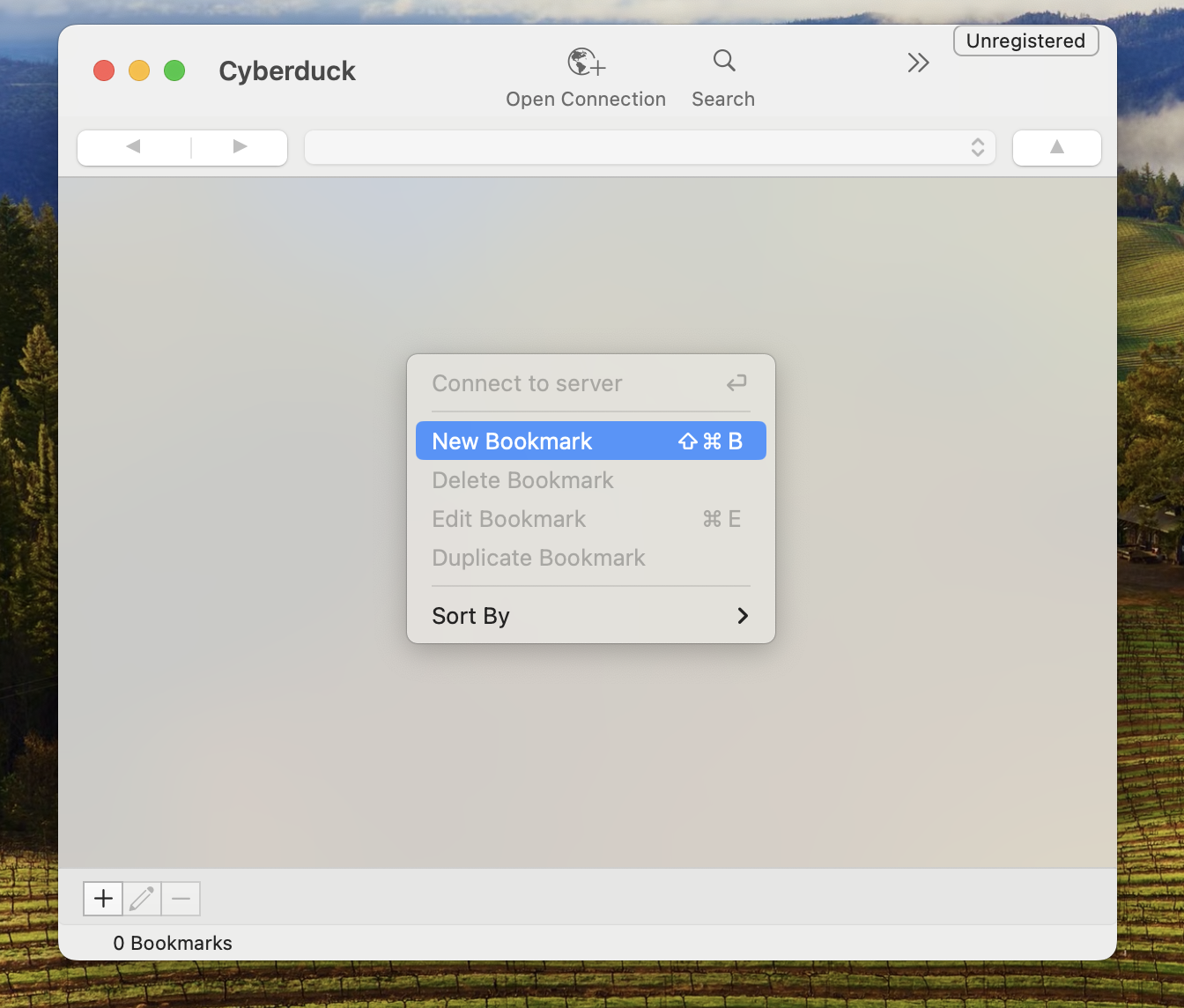
- A dialog box will open within CyberDuck. Input the following information:
- Set the connection type to Amazon S3.
- Expand ‘More Options’ and paste the information as provided in the .ZIP file sent from support@elationhealth.com.
- Server Information
- Access Key ID
- Secret Access Key
- Path (including the forward slash)
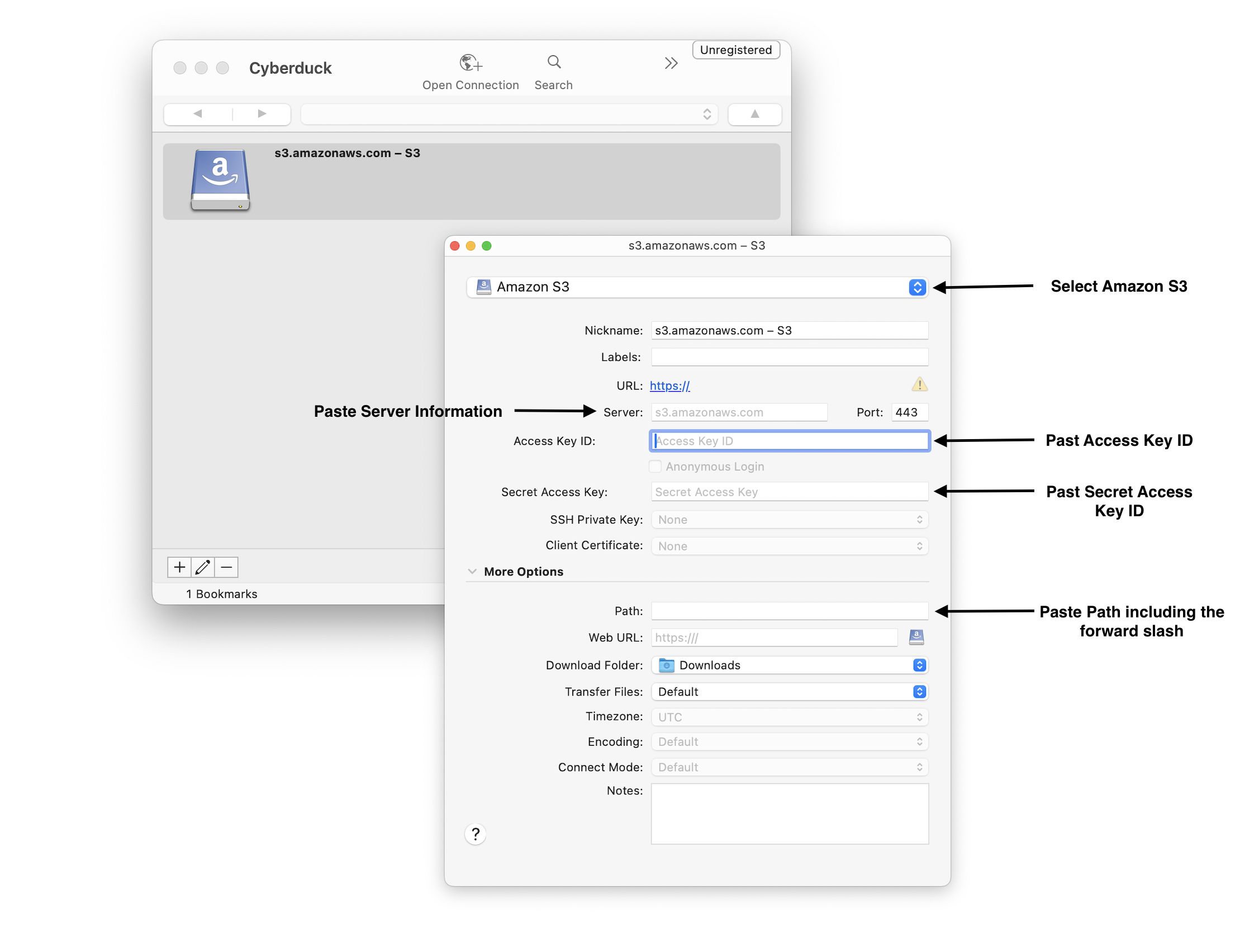
- Close the dialog box once all the above fields have been filled out. You have not established a server connection via this bookmark and you are ready to share your legacy EHR files with Elation.
3. Sharing a copy of legacy EHR files with Elation
To share your legacy EHR files with Elation, upload a copy of the files to the designated folder on your server using CyberDuck.- Double-click the newly created bookmark (from instruction above). This bookmark will open a connection to Elation’s file storage site for your practice.
- Within a few seconds, you will see a folder in CyberDuck.
- Drag and drop your data files into the folder.
- The amount of time it takes to upload your files will depend on the size of your data set. Allow the upload to complete prior to closing CyberDuck.
- CyberDuck will only store a copy of your data. You will continue to have the copy that was originally on your computer/laptop.
- Once you have uploaded all your files to this folder in CyberDuck, send an email to your Data Services Manager and let them know your files are ready to be imported by Elation.
If your practice has opted into the Enhanced Bulk Document Import, let your Data Services Manager know when you notify them that your files are ready. With this paid add-on, Elation uses OCR and AI to parse the text of your uploaded documents so they are keyword-searchable in the Chronological Record and available to Clinical Insights. Contact your Onboarding Manager or Customer Success Manager for pricing and eligibility details.