
Overview
What is Elation Analyst?
Elation Analyst is a self-service, AI-powered chat app that uses natural language to generate analytical reporting within your Hosted Database account. You can explore your data, ask analytical questions, and view generated reports directly within Snowflake.What are the benefits of using Elation Analyst?
Elation Analyst gives you access to advanced analytics without the need for custom reports or a dedicated data analyst. It’s built to help you work more efficiently, improve patient outcomes, and move beyond basic reporting. Whether you’re in a small practice or a larger organization, you’ll get advanced analytics at your fingertips - no custom reports or extra development required.What kinds of data can I explore with Elation Analyst?
While you can explore all your Hosted Database data, we’ve fine-tuned Elation Analyst to be especially smart at analyzing these types of information:- Appointment
- Billing Codes
- Diagnoses
- Medications
- Orders
- Vitals
- Patient Tags
Setup
Beta feature: The feature described in this article is part of a beta release and is only available to a select number of practices using Elation’s Hosted Database.
Do you need to install Elation Analyst?
That depends on the type of Snowflake account you use for your Hosted Database. Most practices use an Elation-provided reader account, where Elation Analyst is already installed and no setup is required.Installing Elation Analyst in a standalone Snowflake account
A standalone Snowflake account is your own Snowflake account — one your organization purchased directly from Snowflake and manages itself. These steps apply only to standalone accounts. The script uses the ACCOUNTADMIN role to create a database and install the app, so it returns an error in an Elation-provided reader account. If Elation sent you your Snowflake login, skip this section and go to Asking questions. To install the Elation Analyst App:
Elation updates the script when:
- A new semantic model is added.
- An existing semantic model changes.
- The listing name changes.
Workflow Instructions
Asking questions
| 1 | Open Snowflake. |
|---|---|
| 2 | Click Catalog -> Apps . |
| 3 | In the Installed Apps section, click the Elation Analyst (Beta) App. 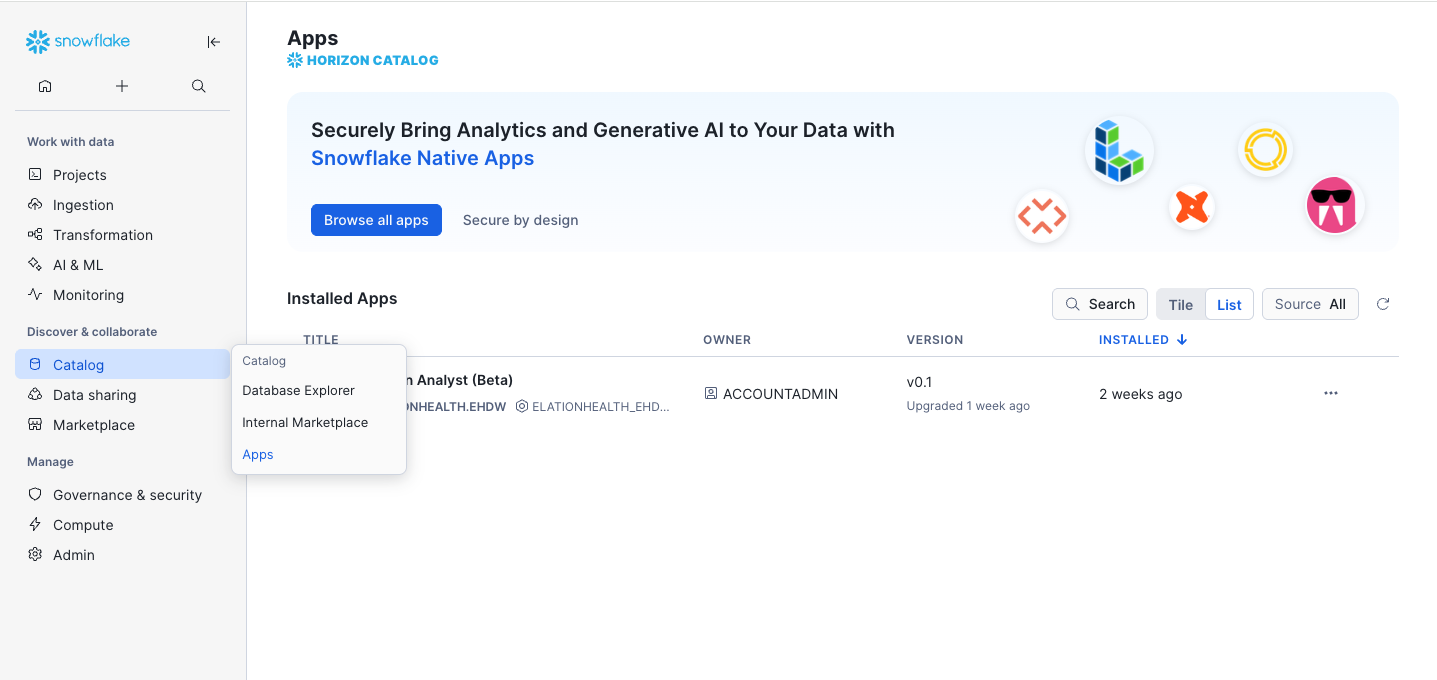 |
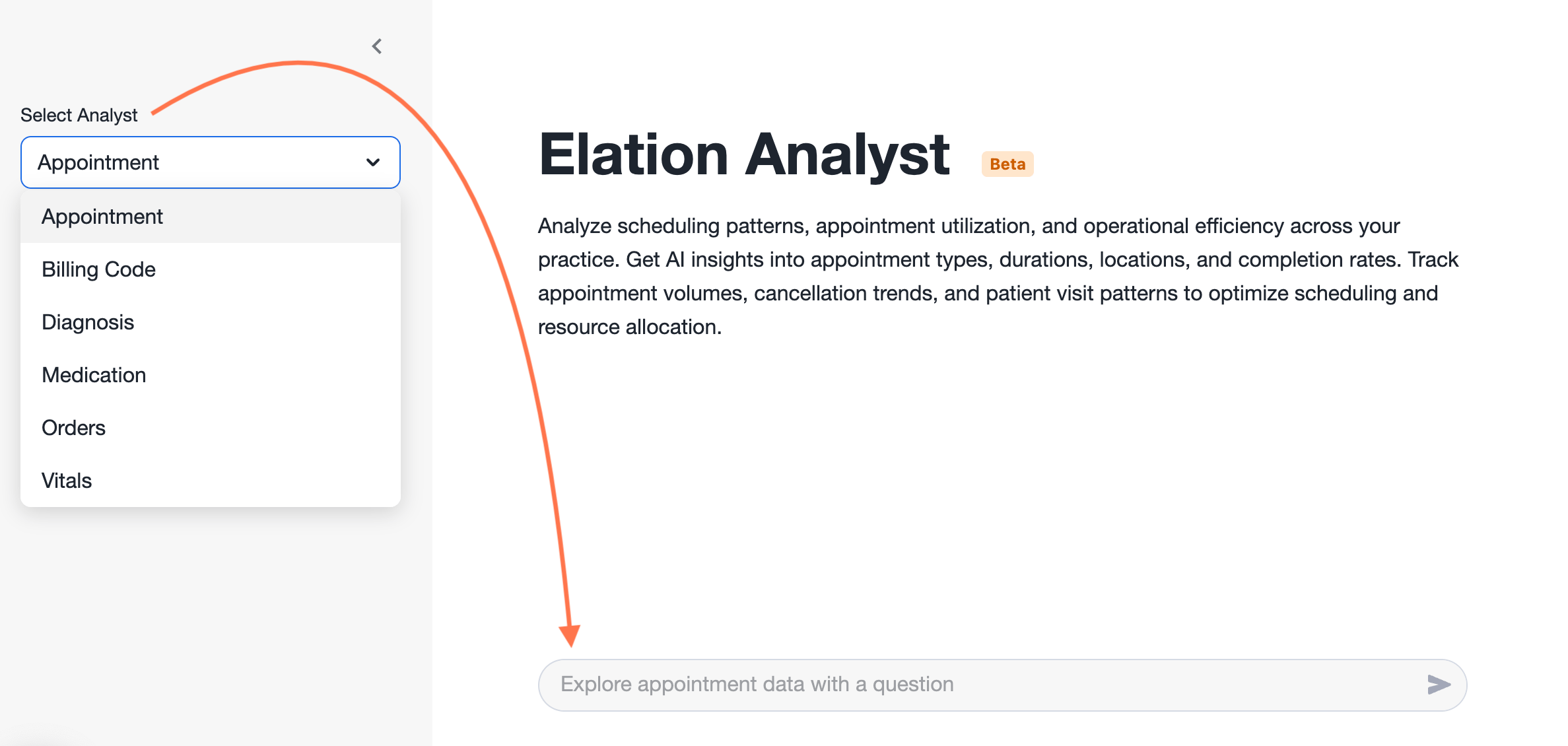
| 4 | Select the type of Analyst you want to use from the dropdown. |
| 5 | Type a question and then click the > icon or Return/Enter key on your keyboard to submit the question. Your questions should be clear and specific. If the response isn’t quite right, try rewording your prompt slightly or adding additional context to the question. • Click here for a list of sample questions you can ask. |
Viewing results
The answer to your question (i.e. the results after analyzing your data) will appear below the question in the App. You will first see the SQL query used to generate the results followed by the Results table.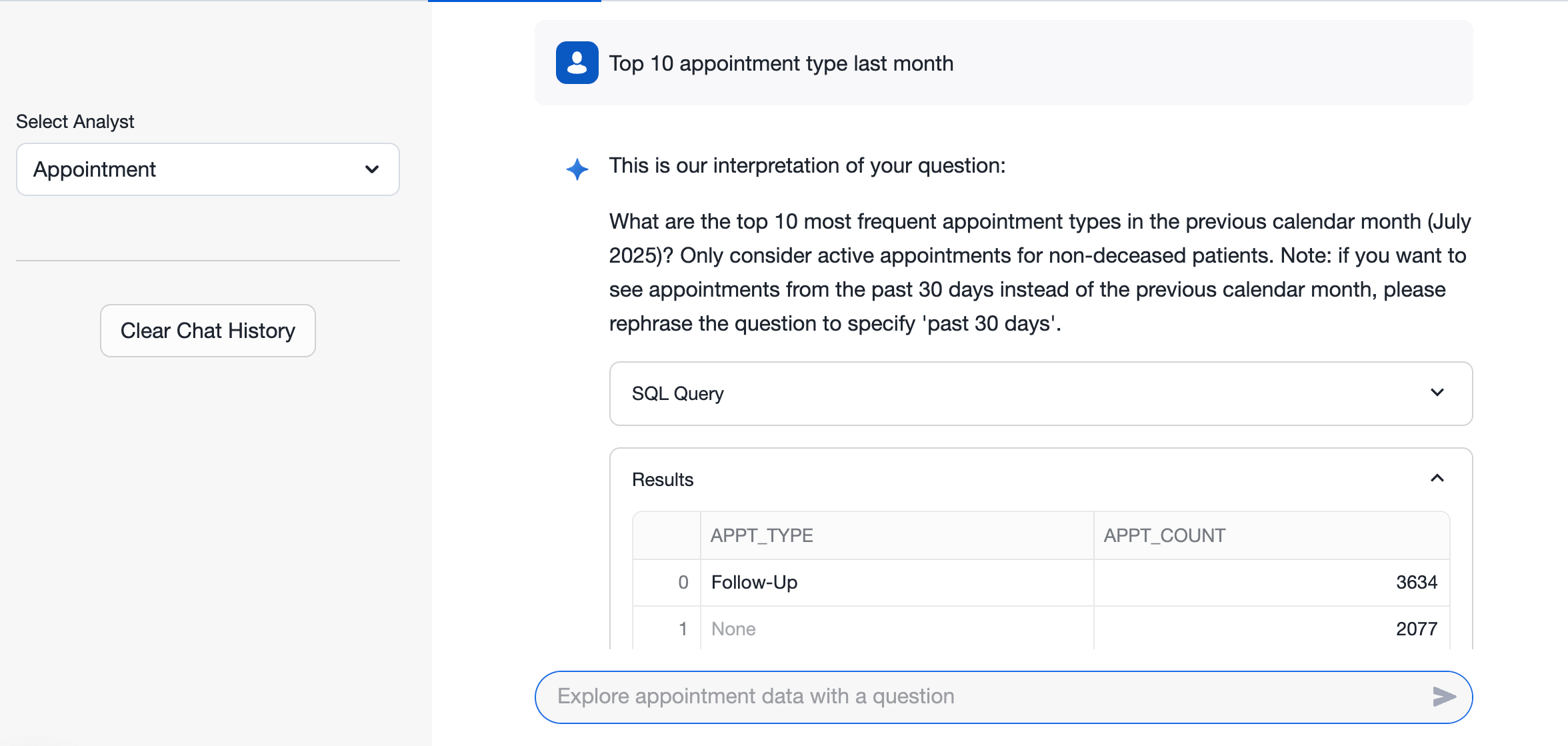
Providing feedback about the results
If the results are inaccurate, send us the feedback so that we can continue improving on the App’s skills.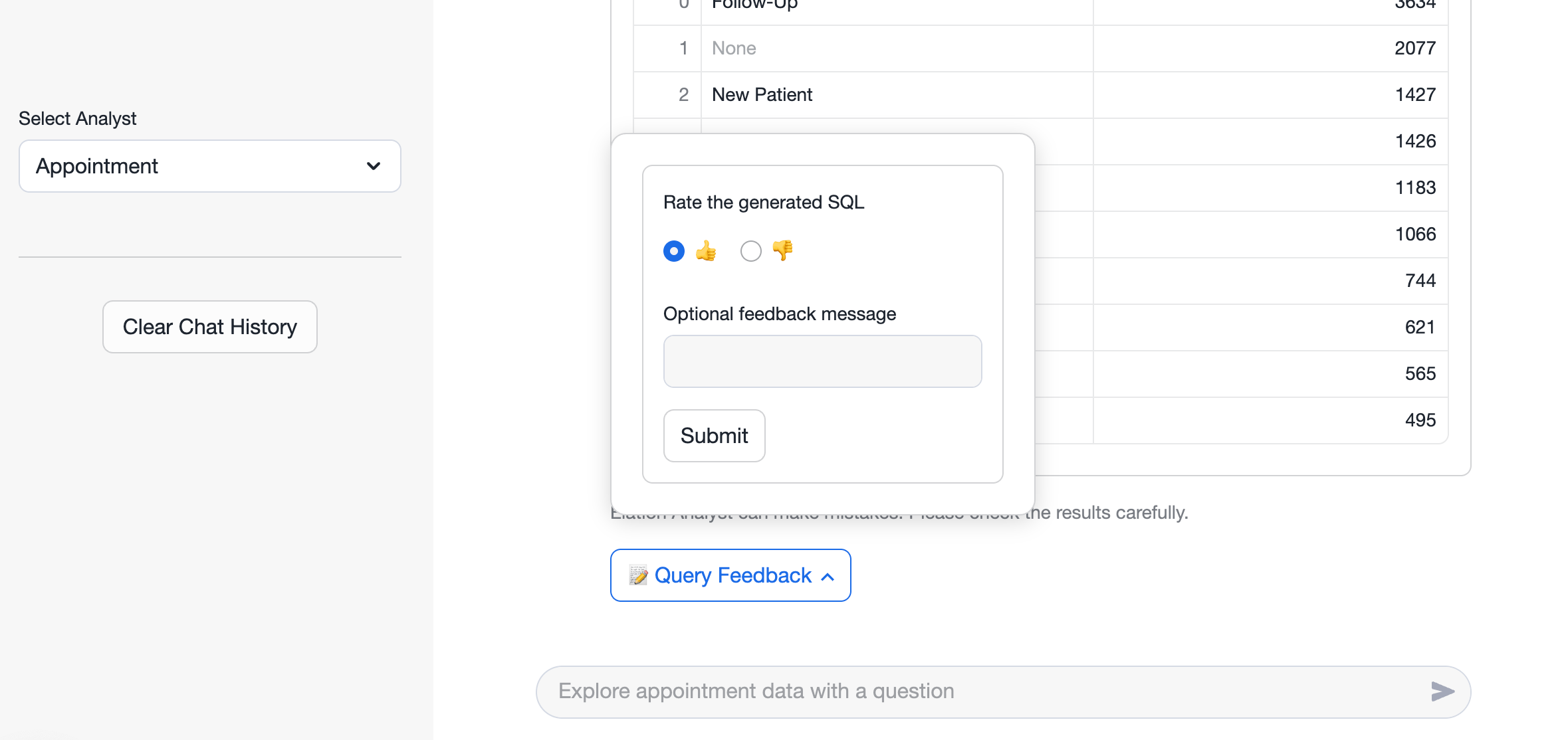
Downloading results
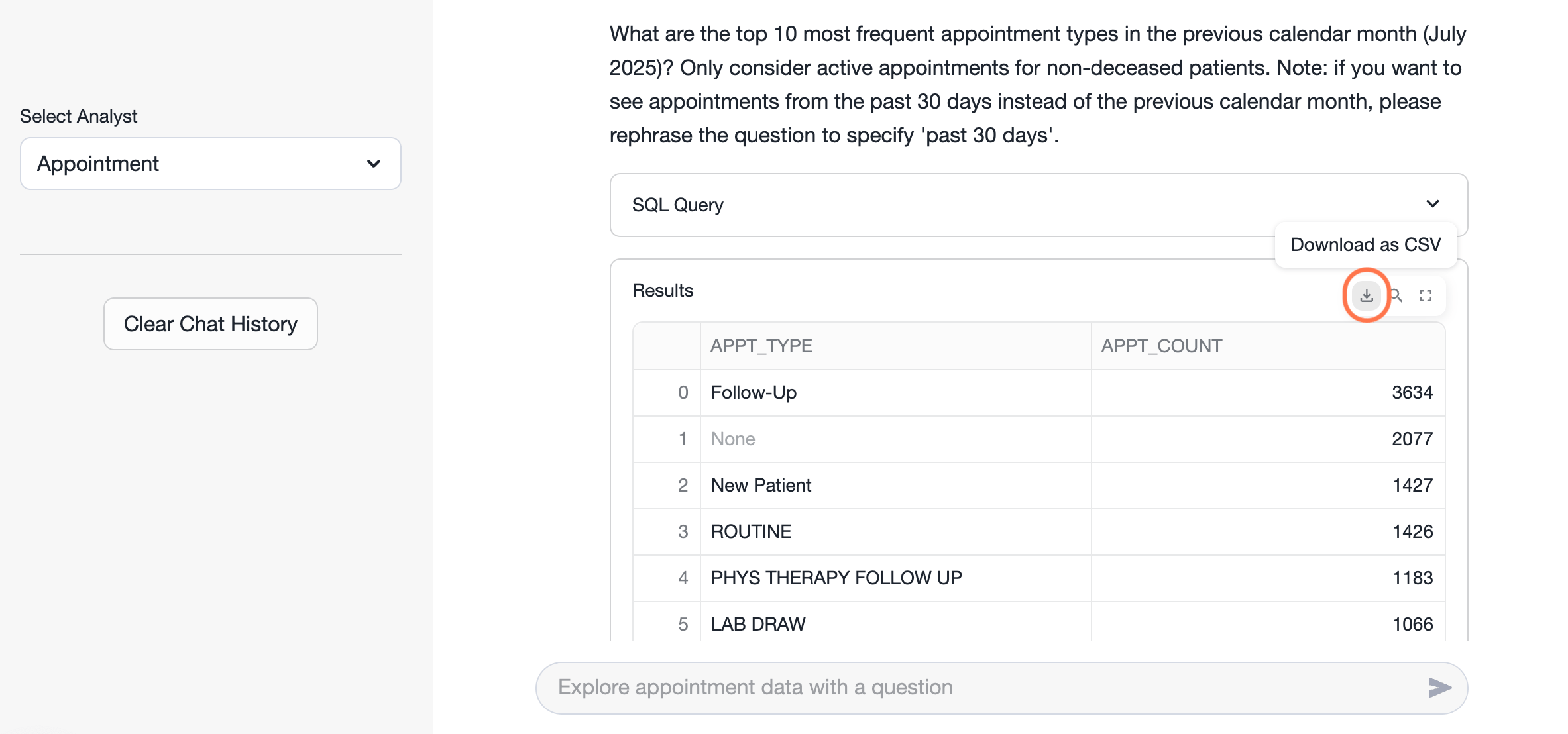
Copying the SQL Query
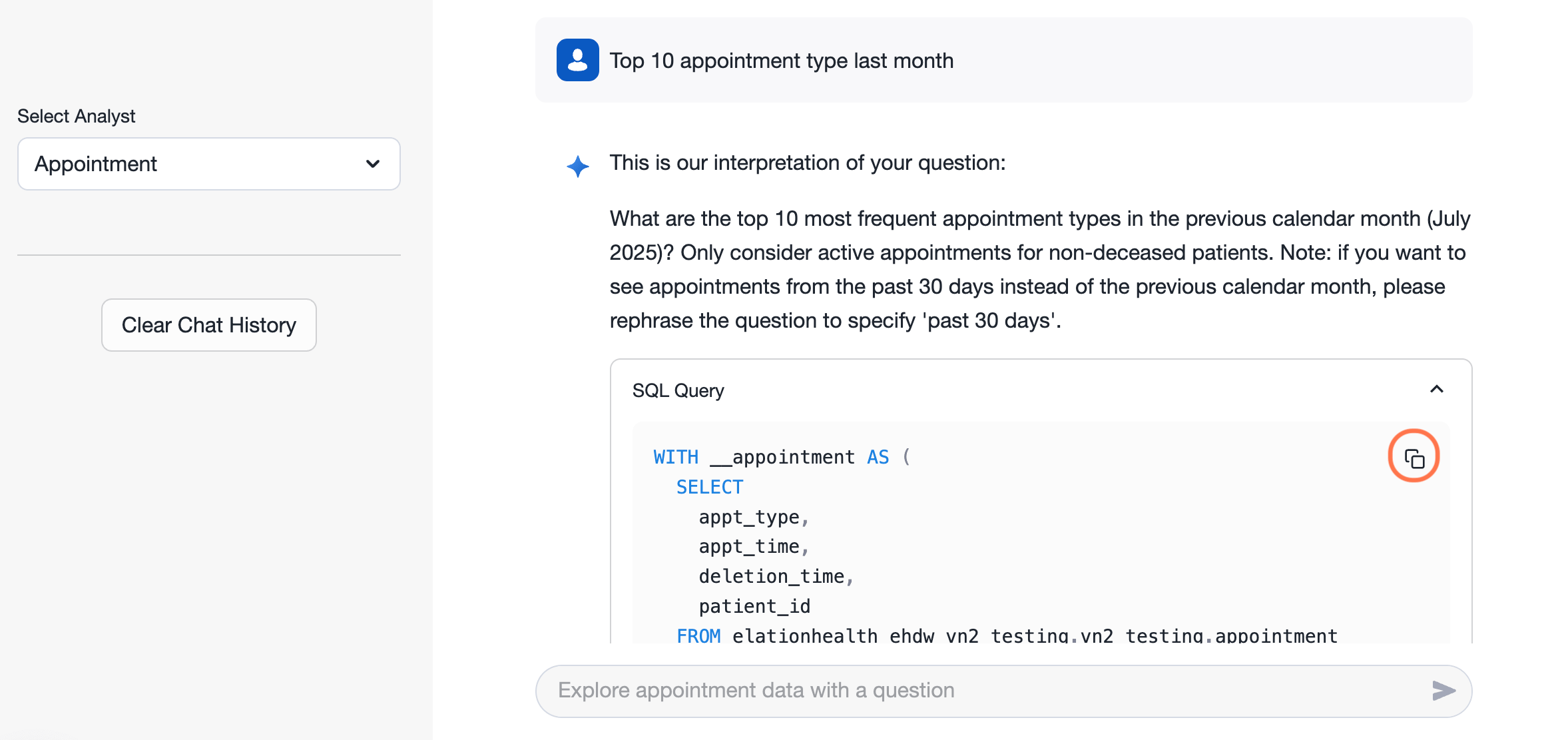
Leveraging the results data
Building your analytics library
Keep track of the searches that give you the answers you need, and easily update them as your priorities change. Over time, you’ll build a go-to set of insights that grow with your practice—always just a click away.| 1 | Expand the SQL Query . |
|---|---|
| 2 | Place your cursor over the query to surface the copy icon & then click on it to copy the query. |
| 3 | Go to Projects -> Worksheets . |
| 4 | Click the plus + icon to open a new SQL Worksheet. 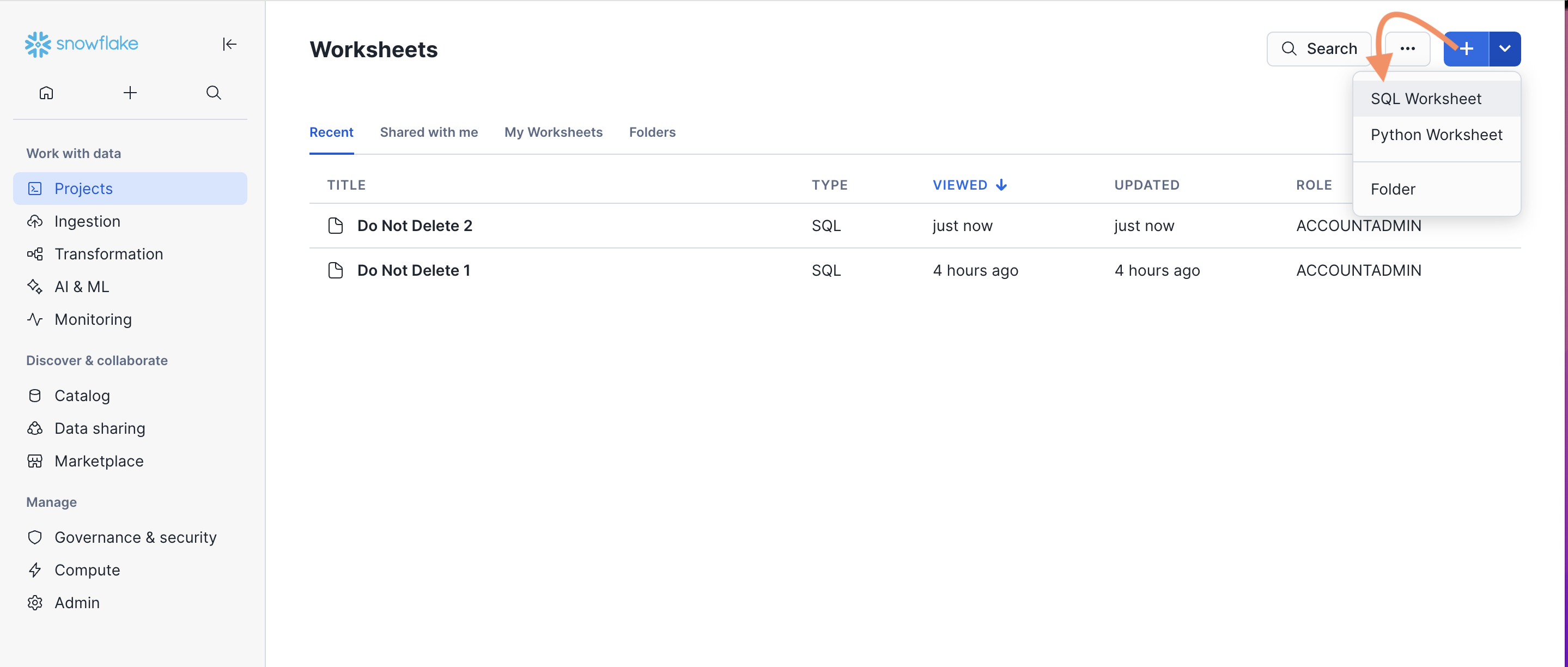 |
| 5 | Paste the SQL Query into the worksheet & then click the run icon. |
| 6 | The query is now saved to your Worksheets and can be accessed any time. |
| 7 | Double click the name of the query to rename it as needed. |
Creating a dashboard from a query
Quickly create a dashboard to keep an eye on what matters most to your practice—all in one place. Whether it’s appointments, prescriptions, conditions, or patients, you can track it all in just a few clicks.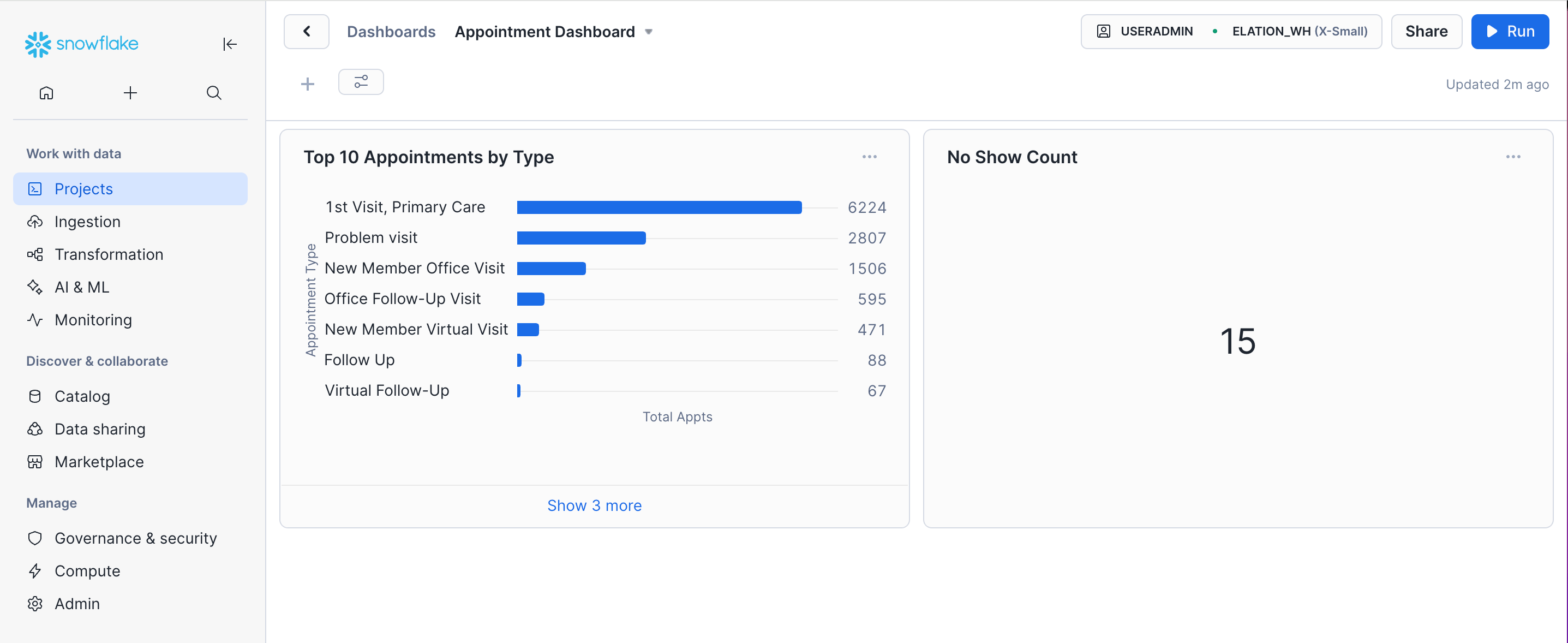
Resources
Sample questions for Elation Analyst
Appointment Analyst
- Who has missed their appointments this year?
- List of appointments by type most to least in 2025
- List of patients who canceled appointments
- Show me appointment data from last month
- Total appointments created vs Patient seen
Billing Code Analyst
- What is the distribution of billing statuses for all bills created year to date?
- I want a list of patients who have not had a flu vaccine in 2025, include contact info and dob, exclude anyone under age 10
- What are the top 5 most frequently billed CPT per month for the last 3 months
- I want to know what is unbilled this year
- How many AWV have we billed this year?
Diagnosis Codes Analyst
- I want to find patients by Diagnosis X (e.i.Diabetes)
- I want to see patients diagnosed with 46635009 (SNOMED Code)
- I want to see patients diagnosed with E08 (CPT for Diabetes mellitus due to an underlying condition)
- I want to find patients with Risk Scores between 2-5. Above 5.
- What is the average risk score, for provider X? For practice Z?
Medications Analyst
- I want to see all open med orders, include patient info and medication details
- I want to see total open med orders by provider, most to least
- How many medications were discontinued last month? By Provider. By Practice.
- I want to know who is on medication X
- I want to know who is on depression meds and group by age, most to least
Orders Analyst
- I want to see open orders grouped by provider and type, include a count
- I want to know how many open referrals there are and the patients associated to them
- I want to know how many open [Imaging, Cardiac, Colonoscopy, Lab, Pulmonary, Mammogram, Sleep] Orders there are and the patients associated to them
- Show me patients and their tests and results that show abnormal cardiac conditions
- I want to find patients with an A1C result above 9. Between 5-6
Vitals Analyst
- I want to know the last vitals for patient X
- I want to know who has a blood pressure reading of 130/80 mm Hg or higher and what diagnosis they have, include medication list
- I want to see all patients with a bmi between 30 and 35. Above 30.
- I want to know average patient BMI for patients over 65
- I want to see patients with an oxygen level below 90 percent, include oxygen level, grouped by provider
Patient Tags Analyst
- I want to create a list of all patients with X tag.
- I want to find all patients who have X tag but not Y tag.
- I want to count the number of patients who have X tag.