
Fax Configuration
What is my electronic fax number with Elation?
To locate the electronic fax number assigned to you by Elation, log in to your Elation EHR account and then click on the Fax Inbox at the top of the Practice Home page. The 10 digit number you see is your electronic fax number with Elation. Faxes to this fax number will automatically appear as images in your Fax Inbox. Click here to learn more about the Fax Inbox.Do I need to have an electronic fax number with Elation in order to send faxes from the patient’s chart?
No, you do not need to have an electronic fax number with Elation in order to send faxes from the patient’s chart. Outbound faxes use fax numbers that are different from your Elation electronic fax number. Elation’s outbound fax numbers start with the 650 area code.Do the faxes I send out of Elation come from my Elation electronic fax number?
No, outbound faxes do not come from your Elation fax number. Elation’s outbound fax numbers start with the 650 area code.Can I customize the fax cover page sent with my Letters and Referrals?
No, the cover page is automatically generated by Elation and cannot currently be customized or removed on a per-practice basis. It includes basic fax cover information and, for larger record sets, standard language about viewing shared clinical information securely online.Drafting Letters and Referrals
What is the difference between a Letter to Provider, a Letter to Patient, and a Referral?
The Referral form, available via the Referral button at the top of a patient’s chart, has additional fields for information normally required for a patient referral — reason for referral, diagnosis codes, and prior authorization. Only Provider Level Users and their Referral Delegates can sign referrals. The Letter to Provider, available via Letter → To Provider, is used for more generic correspondence such as sharing patient records between care settings. Any user can sign letters. The Letter to Patient, available via Letter → To Patient, is used to communicate with patients who have active Patient Passport accounts. Any user can sign letters. Learn more in our Elation Patient Passport Guide.How do I send information to a patient?
Patients must register for Patient Passport in order to see your message. Learn more about the Patient Passport feature in our Elation Patient Passport Guide and FAQ .
How do I send a fax to another office?
Use the Letter → To Provider option at the top of the patient’s chart to fax patient information to another office or facility. In the Letter, type the recipient’s fax number in the To: field. You can optionally save the number as a new contact for future use. Learn more about faxing patient information here.If I send a Direct message or Elation Connect letter, can the recipient see my entire chart?
No, they only see the specific note, report, or attachments you chose to send.How do I send an email to another provider or office?
The recipient will receive a generic email from Elation, but they’ll be required to log into a secure portal to see your message. Learn more about securely sending patient information by email here .
How do I send a Referral to another provider?
Use the Referral option at the top of the patient’s chart to send a referral to another provider. Learn more about the Referral feature here.How can an outside practice send me a referral for a patient who does not yet have a chart in Elation?
The best option depends on whether the referring practice’s EHR supports Direct messaging:- Direct messaging (recommended, if available): Share your Elation Direct Address. When the referring practice sends a Direct message with a CCD/CCDA attached for a patient who doesn’t yet have a chart, Elation automatically creates a new chart and imports the clinical data.
- Fax: Share your Elation electronic fax number. Since faxed referrals must be associated with a patient chart, consider creating a generic chart (e.g. “Office Fax Only”) to receive faxes that aren’t yet tied to an existing patient, then create a proper chart once you review the referral.
- Carequality and Elation Connect are not appropriate for this scenario: Carequality only exchanges data for patients who already have a chart in your Elation panel, and Elation Connect invitations are only sent as part of an outbound Provider Letter or Referral, so there’s no way to invite an outside provider to Connect before a chart exists.
Can I save the Subject & Body of my Letter/Referral and use it again for future Letters/Referrals?
Yes, to save the Subject and Body/Reason as a template for future use: The template will be accessible to all users in your practice when drafting letters or referrals.- Click Save as Template at the bottom of the Body field in a Letter or Reason field of a Referral.
- Give the template a name.
- Click Save.
How do I apply a template to my Letter/Referral?
Click on the Templates button and then click on the name of the template you want to add to your letter or referral.Can I schedule a future delivery date for the Letter/Referral I am drafting?
Yes, you can use the Post Date field to schedule the Letter/Referral to be sent on a specific date in the future. The message will be delivered at 12:00 am Pacific on the date you specify. For example, if you select June 1, 2023 as the post date then your message will be delivered on June 1, 2023 at 12:00 am.Can a Letter/Referral template automatically pull in the patient’s name, DOB, or address?
No, Letter/Referral templates only save the Subject and Body/Reason text — there’s no way to insert variables that automatically pull in patient-specific details like name, date of birth, or address. The patient’s name and mailing address that appear on a printed or mailed Letter come directly from the patient’s Demographics and render automatically; they aren’t edited within the template or Print Header itself.Can I choose which Print Header is used for Letters and Referrals?
Yes, by default, Elation will apply the header that you chose under the Print Headers Settings as your preferred header. You can also change the Print Header for specific letters or referrals by selecting a different Print Header from the Print Header listed in the letter or referral. Click here to learn more about customizing Print Headers for your practice.What is the Unread Alert setting used for?
The Unread Alert setting in letters or referrals is only applicable if the recipient is an Elation EHR provider, Provider Portal user, or Patient Passport user. Elation will alert you at the timeframe you specify if the recipient has not opened your Letter/Referral in their own account. This allows you to follow up with the recipient to make sure they receive your communication.- Elation EHR providers have a logo next to their name.
- Elation Provider Portal users have a or (P) logo next to their name.
How do I preview a Letter/Referral before sending it?
Click on the Preview button at the bottom of the letter or referral to see what it looks like before sending it to the recipient.Can I add multiple recipients to the same letter/referral?
No, only one recipient can be added to each letter or referral. If you need to send a letter or referral to more than one person, please create additional letters or referrals.How do I send a fax that is not specific to a patient?
Because outbound faxes need to be associated with a patient chart, you can create a fake chart with the first name Outbound and last name Faxes and create Letters within this chart.Can I send a Letter/Referral to a provider’s Direct Address?
Yes, Elation allows you to send Direct Messages through Referral and Provider Letters. Learn more about the Direct Messaging feature in our Direct Messaging Guide. To create a generic Letter that you want to print out for a patient (such as permission for a leave of absence or a clearance for physical activity), simply put To Whom It May Concern in the To: field of the Letter and proceed with drafting the Letter. Then you can click one of the Print options to print a copy for the patient to take with them.I signed off on the wrong Letter by accident. Can I un-sign or amend it?
No, Elation does not currently support un-signing or amending a signed Letter or Referral. If you’re not sure which patient a signed Letter belongs to, an Admin Level User can check the User Activity Log and filter by the signing user, the Sign action, and the Letter record type to find it. To flag the Letter to a colleague, open it and click Actions → Office Message to send a note that references it directly.Contact Record
When should I create a contact vs. not?
When sending patient information to an external provider or medical organization, we recommend choosing from providers and/or organizations in the Elation Provider Directory and using the contact information in the database to send them patient records. Read this Provider Directory Guide for more details on how to use contacts from the Provider Directory. You can also create your own contacts for those who are not providers or medical organizations but you frequently interact with them, such as a regulatory or government agency you fax documentation to. Reference the Adding New Contacts for Letters and Referrals article for instructions on how to create your own contacts For recipients who you do not frequently contact, you can enter any 10 digit national fax number in the To: field to send a fax. However, if your fax has more than 40 pages of attachments then you must create a contact for them in order to send the fax.How do I create a patient contact?
The Letter to Provider and Referral features are not intended to be used to communicate with patients. Instead, use the Letter → To Patient feature to communicate with a patient via the Patient Passport feature. The patient will be automatically assigned as the contact when a Patient Letter is created. Learn more about the Patient Passport feature in our Elation Patient Passport Guide.How do I create a provider or organization contact?
Follow the instructions in this article to learn how to create a contact for providers or organizations. There is a video that walks you through the process as well.What are the different contact types?
- Elation EHR contacts have a logo next to their name. When you use this contact in a letter/referral, Elation will send letters/referrals and attachments to their Elation EHR account
- Elation Provider Portal contacts have ’ a or (P) logo next to their name. When you use this contact in a letter/referral, Elation will send letter/referral and attachments to their Provider Portal account
- Providers in the Elation Provider Directory have a logo next to their name. When you use this contact in a letter/referral, Elation will send letters/referral and attachments to the Direct Address on file for them (if available) or send the letter/referral and attachments as a fax to the fax number tied to their contact.
- Contacts with a blue ‘Custom Contact’ label next to their name are custom contacts created by your practice. When you use this contact in a letter/referral, Elation will send the letter/referral and attachments based on the contact information you saved for the contact. Learn more about how the contact information is used here.
How do I edit contact information for a contact?
You will not be able to edit contact information for Providers from Elation’s Provider Directory. Use the use a different address”, use a different phone or use a different fax buttons to add preferred contact information for Providers from Elation’s Provider Directory. Elation will use the fax number you stored in the Preferred Fax number field to send your faxes to that contact.
How do I delete a contact?
Contacts that are part of Elation’s Provider Directory (you will see a ,
,  , or
, or  logo next to their name) cannot be deleted from the Provider Directory database. Custom contacts that you create (you will see a ‘Custom Contact’
  label next to their name) can be deleted. To delete a custom contact from your practice’s private database:
- Open a Letter → To Provider.
- Go to the To: field and search for the name of the custom contact you want to delete and then select their name.
- Click on the Edit button next to the contact’s name.
- Click the Delete Profile button at the top of Profile Details.
Attachments
How do I attach patient records to a Letter/Referral?
You cannot attach records that are still in Requiring Action or Outstanding Items .
- Click the Select Chart Items to Attach button.
- The Most Recent records you can attach will be displayed first. You can also choose specific records from the chart to attach by selecting a record category in the left column.
- Check off records you want to attach & then click Attach Items.
- Patient Demographics
- Clinical Profile
- Immunization History
- Medication List (permanent medications only)
- Medication History (includes temporary and discontinued medications)
- Growth Charts
- Signed visit notes
- Signed non-visit notes
- Flowsheets (for customers using the Prenatal Flowsheets feature only)
- Signed reports (such as lab reports, imaging reports, etc)
- Signed Referrals
- Signed Lab, Imaging, Cardiac, Pulmonary & Sleep Orders
- Patient Handouts (Patient Letters only)
- Signed (closed) office message threads
- Signed Provider Letters or Patient Letters
Can I attach a superbill directly to a Letter or Referral?
No, a superbill isn’t a standalone chart item you can select in Select Chart Items to Attach, since it’s billing data embedded in the visit note rather than a separate attachable document. To share it, print or download the superbill (Actions > Print > Claims Invoice (ICD-10)) from the visit note, upload the resulting file into the patient’s chart, and then attach it to the Letter or Referral from there.Are patient demographics notes shared on letters and referrals?
It depends on the recipient and your practice setting:- Patient-facing letters never include the demographics Notes field (from the Notes & Chart Management section).
- Provider-facing letters and referrals that include a demographics page include the Notes field unless your practice has turned off Share demographics notes with providers in Security & Privacy Settings. Letters and referrals without a demographics page attachment are unaffected.
How do I download the patient’s full chart or export the patient’s full chart?
You can download your patient’s full chart by using the Letter → To Provider feature. Learn more about the workflow on our Patient Chart Guide page.How do I share or download patient records from a specific date range?
When adding attachments to a Letter/Referral draft, you will not be able to filter for records by a specific time frame. We recommend scanning through the Attachments window to manually select each item that is relevant. View the Attachments section of the Letter/Referral to see what records are attached to the Letter/Referral draft.How do I remove attachments from a Letter/Referral?
To remove an attachment from a Letter/Referral draft, click on the X button next to the name of the attachment in the Attachments section of the Letter/Referral.How do I know how many pages are attached to a Letter/Referral?
There is a page counter at the top of the list of attachments that tells you how many pages of records are attached to a Letter/Referral draft.How many pages can be faxed from my Elation account per Letter or Referral?
Up to 40 pages of documents can be faxed per Letter to Provider or Referral. If you are sharing more than 40 pages of documents with recipients, you can:- Break up the attachments into multiple Letters or Referrals.
- Ask the recipient to retrieve the attachments via the secure online Provider Portal.
Are the cover page and body of the Letter/Referral included in the 40 page attachment count?
No, the cover page and body of the Letter/Referral are not included in the 40 page count for drafted Letters/Referrals. All other attachments will be counted towards the 40 page limit.Why does Elation limit faxing to 40 pages?
The reason we limit faxes to 40 pages in a single fax is because faxing via voice-over-IP fails more often when the fax transmission is too large. We do apologize for the inconvenience but this is not a feature we plan to change. If you have a letter with 40 or more attachments, the recipient will only receive 2 pages; a cover page and a page with instructions on how to retrieve the documents online. Please reference this help center article for more details on how the recipient can view the records online. If you need to fax more than 40 pages, you must break up the documents into multiple faxes. Limiting your faxes will also help you save money since each Standard Provider User is only allotted 1,500 free pages in combined inbound and outbound faxes each month. Any additional pages used per month will be charged at $0.07 per page. Elation processes fax overage charges on the first business day of each month for last month’s fax usage. Here is a helpful article about fax usage that you can use for reference.How do I remove the interactive chart automation so that recipients can only receive my attachments as fax?
The interactive chart automation can only be removed if you send the fax to a plain 10 digit fax number (in other words, the To: field only has the fax number, ex. 555-394-1298). This workflow will only support up to 40 pages of attachments for a single fax transmission. If you need to fax more than 40 pages of attachments, you must break up the attachments into multiple Letters or Referrals or create a contact.I am trying to attach a recent report/visit note but I cannot find it in the attachments list. Why?
Only signed records can be attached to Letters and Referrals. Please have the provider sign any documents or notes in Requiring Action or Outstanding Items if you need to attach them to Letters or Referrals.I am trying to send a fax to an ‘Organization’ contact but the Send buttons are grayed out. Why?
If your Letter or Referral has more than 40 pages attached, you can only send the Letter or Referral to an Individual type contact. Edit the contact’s information and select Individual instead of an Organization and then you will be able to send the Letter or Referral.Referral Form
What is the Referral form used for?
The Referral form is specifically used for patient referrals to other care settings and does not require a subject line. Use the Reason field to provide context for the referral. Certain referrals, depending on the patient’s insurance company’s requirements, require you to disclose the reason for the referral — Elation provides a list of common referral reasons for ease of documentation. The Auth. # field allows you to store the Prior Authorization Number provided by the insurance company for pre-approved referrals. By default, the Clinical Profile and Patient Demographics is automatically attached to Referral drafts. This setting cannot be adjusted.How do I complete a Referral?
You have 5 options for completing your Referral:- Sign, Send & Print Pt Copy — Sends the Referral & prints a copy of the Referral with attachments.
- Sign & More → Sign & Send — Sends the Referral.
- Sign & More → Sign & Print Referral Only (Pt Copy) — Signs the Referral & prints the Referral without attachments.
- Sign & More → Sign & Print Referral & Attachments — Signs the Referral & prints the entire Referral with attachments.
- Sign & More → Sign, Send & Create Follow-up Letter — Sends the Referral & starts a new draft for the same recipient to assist with follow up.
Can I allow my staff to sign off on referrals for me?
As best practice, only select Staff Level Users as delegates. If a Provider Level User selects another Provider Level User as a delegate, the selected Provider Level User will not be able to assign their own delegate permissions.
The Sign buttons are grayed out on the Referral form. Why?
Only Provider Level Users can sign Referrals. Staff Level Users cannot sign Referrals unless they are an authorized Referrals delegate. If you are a Staff Level User, the Sign buttons will be grayed out and you can only draft Referrals for providers to sign. If you need permission to sign Referrals on behalf of a provider, ask the provider to make you a Referrals delegate by following the instructions in this article: User Accounts Guide- Utilizing authorized staff delegates. To reuse the Reason of an old Referral for a new Referral for the same patient, find the old Referral in the patient’s chart and click Actions → Reorder. A new Referral draft will open up with the Reason prefilled for your convenience.Is there a report that lists all of my practice’s Referrals?
Not currently. There isn’t a built-in report to generate a list of Referrals across your patient panel.Signing, Sending & Printing Provider Letters
How do I complete a Provider Letter?
You have 4 options for completing your Provider Letter:- Sign & Send — Sends the Provider Letter.
- Sign & More → Sign, Send & Print Pt Copy — Sends the Provider Letter & prints the body of the Letter without attachments.
- Sign & More → Sign & Print w/attachments — Sends the Provider Letter & prints the entire Provider Letter; body of the Letter with attachments.
- Sign & More → Sign, Send & Create Follow-up Letter — Sends the Provider Letter & starts a new draft for the same recipient to assist with follow up.
Fax Failures
How will I know if a fax fails to send?
The sender is defined as the following: For Referrals = The Provider Level User that sent the fax. If the Referral was sent by a staff delegate then the Letter will appear in the delegating Provider Level User’s inbox.For Letters to Providers = The user that sent the fax, regardless of their user level.

What should I do when my fax fails to send?
When your fax fails to send, the sender will automatically receive a notification in their Urgent inbox in their Practice Home page. The notification will include the error message we received from our fax provider and an expandable details section that provides additional details about the error along with troubleshooting instructions. Click the Tell Me More button at the top of the notification to see the context about why the fax failed. Follow the troubleshooting instructions to resend the fax by clicking Actions -> Refax or reach out to Elation Support for assistance. If you do not wish to resend the fax, click the Acknowledge button to dismiss the notification.
How many fax attempts will Elation make before marking the fax as failed?
Elation will attempt to resend the fax up to 5 times in a 30 second period. If Elation is unable to successfully complete the transmission, the fax will be marked as Failed and will appear in the sending provider’s Urgent inbox in the Practice Home — including for faxes that have exhausted all automatic retries.After I send a Letter or Referral, how long will it take for the Sent/Failed status to display in the patient’s chart?
It can take up to 20 minutes for the Sent/Failed status to appear in the patient’s chart. This is due to the latency time between the various communication attempts between Elation and our fax provider.How do I resend a failed fax to the same fax number?
Anyone can click the Resend button on a failed fax to attempt to fax it again.How do I resend a failed fax to a different fax number?
You must create a new Letter or Referral with the new fax number in order to send the information you want to send to the new fax number. You will not be able to edit the fax number of previous fax transmissions, even if it failed to send.My fax keeps failing but the recipient’s fax number is correct. What should I do?
Elation uses Voice Over IP for faxing, which is the method of faxing documents using internet connection. Voice Over IP faxing breaks down the fax into packets of data, and sends them out in chunks. If the transmission is interrupted (which commonly occurs regardless of faxing method), it only takes a few consecutive interrupted packets to reach the failure threshold and this will cause the fax to fail. If the receiving line is busy receiving other faxes at the same time your fax is sent, this will increase the likelihood of the transmission failing which is why you may need to retry a few times. If the recipient has a functioning fax number but faxing to them occasionally fails, we recommend trying the following:- Call the number to confirm a proper fax tone right before you attempt to send the fax.
- A healthy fax tone is clear, high pitched and devoid of static.
- A healthy fax tone may ring like a normal telephone 2-3 times prior to the fax tone.
- If you don’t hear a fax tone at all — for example, if the failure notification mentions the receiving line not picking up — the destination number isn’t currently set up to receive faxes. Ask the recipient’s office to check their fax equipment or provide a working fax number, then create a new Letter or Referral with the corrected number to resend.
- If the fax continues to fail even though you have verified a healthy fax tone, we recommend:
- Asking the recipient if they can adjust the settings on their fax machine to allow for longer fax transmissions.
- Asking the recipient if they are having issues receiving faxes in general (i.e. line issues, jams, out of ink).
The status of my fax in the patient’s chart says ‘Sent’ but the recipient said they never received it. Why?
The Sent status displays when our Fax Provider notifies us that the fax transmission was successfully completed (100% with no interruptions). This means the fax has reached the intended fax number on file. Usually if the recipient says they did not receive the fax it is because they misplaced it or they did not recognize the communication is from your office. We recommend asking the recipient to check their fax inbox for a fax that looks like this:Why do I see an ‘Opened’ or ‘Unopened’ status next to my Letter/Referral instead of the Fax Sent status?
The Opened and Unopened statuses appear instead of the Fax Sent status if the recipient is an Elation EHR provider or Provider Portal user. This means the recipient has access to a secure account (such as the Elation EHR or the Provider Portal) to view records you sent them. For this reason, we tell you if the recipient has opened the communication in their account.- Elation EHR providers have a logo next to their name.
- Elation Provider Portal users have a or (P) logo next to their name.
- Patient Letter sent to a patient.
- Referral or Provider Letter sent to an Elation EHR provider (they have a logo next to their name).
- Referral or Provider Letter sent to an Elation Provider Portal user (they have a or (P) logo next to their name).
Recipient Assistance
Where can I find the Provider Security Code for a Letter or Referral that I sent to a contact’s email?
To locate the Provider Security Code that Contacts with email addresses need, click on your email at the top of your Elation account and then click Provider Security Code.Where do I find the Reference Code for a Letter or Referral I sent to a contact’s fax number?
The reference code that is sent to Contacts with a fax number is generated via an automation and senders will not be able to see the code. Only the recipient can see the reference code in the Cover Page of the fax and in the Body Page of the Letter/Referral: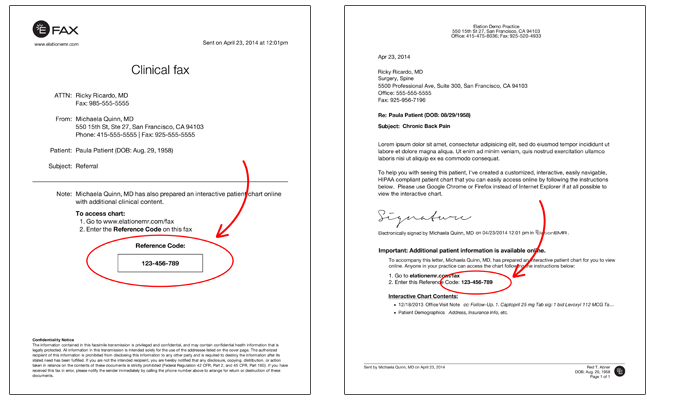
Where can a recipient go to retrieve documents online?
- Recipients with a Reference Code can go to https://www.app.elationemr.com/efax/ to retrieve the specific fax and attachments tied to the code.
- Recipients with Provider Portal accounts can log in via https://app.elationemr.com using their login email and password and view all records ever sent to them.
What does the recipient see when they receive my Letter or Referral?
This article speaks from the recipient’s point-of-view: How to access patient information securely faxed or emailed by an Elation EHR user. You can share the article with the recipient to guide them on accessing shared records as needed.Patient Letters
Can I send a Letter to any patient?
Yes, you can use the Letter -> To Patient feature to send a Letter to any patient as long as they have an email address and mobile phone number on file. The email address and phone number on file will allow a patient to create a Patient Passport account to view any Letters you send them via the secure patient portal. Learn more about the Patient Passport feature in our Elation Patient Passport Guide.What is the For MIPS Compliance section used for?
You can disregard this portion of the Patient Letter. The Patient Reminder used to be a MIPS requirement but is no longer measured by the program.Can I attach chart items when I reply to a patient message?
Yes. When replying to a Patient Letter, you can include existing chart items — such as lab reports, visit notes, and handouts — directly in your response using the Attach Chart Item button in the reply form. The items you select will appear in a list below the reply box, where you can remove any before sending. This is different from attaching items to the initial letter draft. Reply attachments let you share additional records with the patient as the conversation continues, without starting a new letter.Only existing chart items can be attached to a reply. If the record you want to share has not yet been documented, add it to the chart first, then come back and include it in your reply.
What does the “Do not allow patient to respond to this letter” checkbox do?
The Do not allow patient to respond to this letter checkbox prevents patients from responding to the Letter you sent them.How do I prevent my patient from replying to an old message thread?
To prevent a patient from replying to a message thread in a Patient Letter, find the Patient Letter in their chart and click the button that is labeled with End Conversation.How do I complete a Patient Letter?
You have 3 options for completing your Patient Letter:- Sign & Send — Sends the Patient Letter.
- Sign & More → Sign & Print — Sends the Patient Letter & prints the body of the Letter with attachments.
- Sign & More → Sign, Send & Create Follow-up Letter — Sends the Patient Letter & starts a new draft to assist with follow up.
How can I send a Letter to all of my patients in bulk?
You can use the Bulk Letter feature to send a message to all patients who have an active Patient Passport account or who are eligible to create one. Learn more about the Bulk Letter feature here .Related Articles
- Letters & Referrals Introduction- Sharing clinical data outside of Elation
- Letters & Referrals Guide- Sending messages to patients & corresponding with third party professionals
- Letters & Referrals Guide- Managing & searching the provider directory
- Letters & Referrals Guide- Sharing documents with other Elation EHR Users
- Letters & Referrals Guide- Creating New Contacts
- Patient Chart Guide- How to share a patient’s entire chart
- Elation Patient Passport Guide
- Direct Messaging Guide- Secure clinical direct messaging in Elation
- User Accounts Guide- Utilizing authorized staff delegates