If the Lab Vendor you are working with accepts electronic lab orders, simply click eOrder from the Lab Order Form - you do not need to fax the lab order to them. Click here for more information about eOrdering.The workflow outlined in this article is an example of a way you can share test orders with testing facilities. Adjust the workflow (e.g. what you attach) as needed.
Faxing orders to test vendors
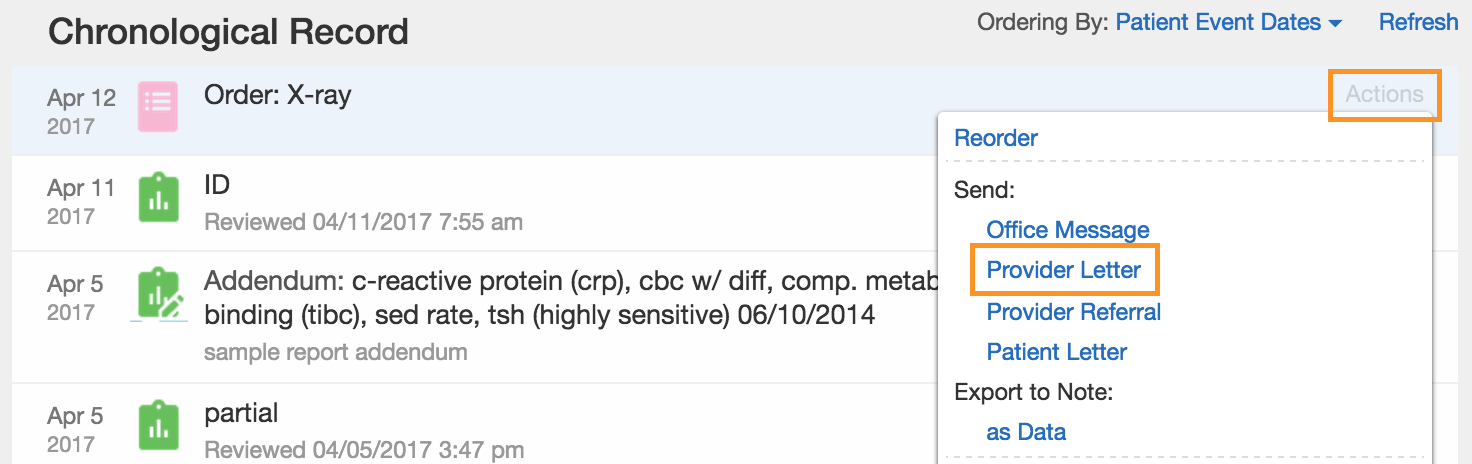
After you create and sign any lab, radiology (imaging) or other test orders in Elation, you can electronically fax it to a test vendor via the Letter to Provider feature.- Locate the order that you’d like to send in your patient’s chart. Hover over the order, and click Actions -> Provider Letter.
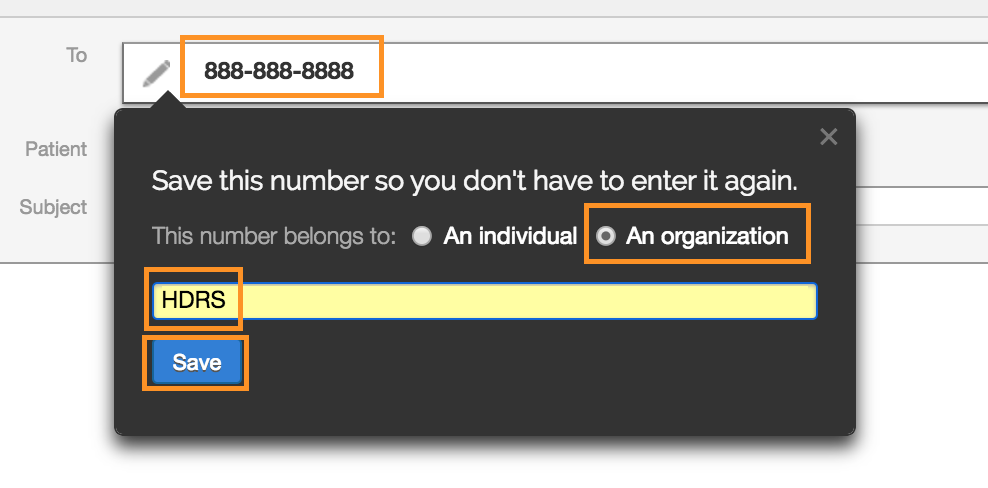
- In the To field, type the fax number of the vendor. If a search result appears in the Provider Directory dropdown, click on the result to select an existing contact.
- If no results are found, press the TAB key on your keyboard and a dialogue window will appear prompting you to save the fax number to a new contact. Select Organization, type the name of the vendor, and click Save.
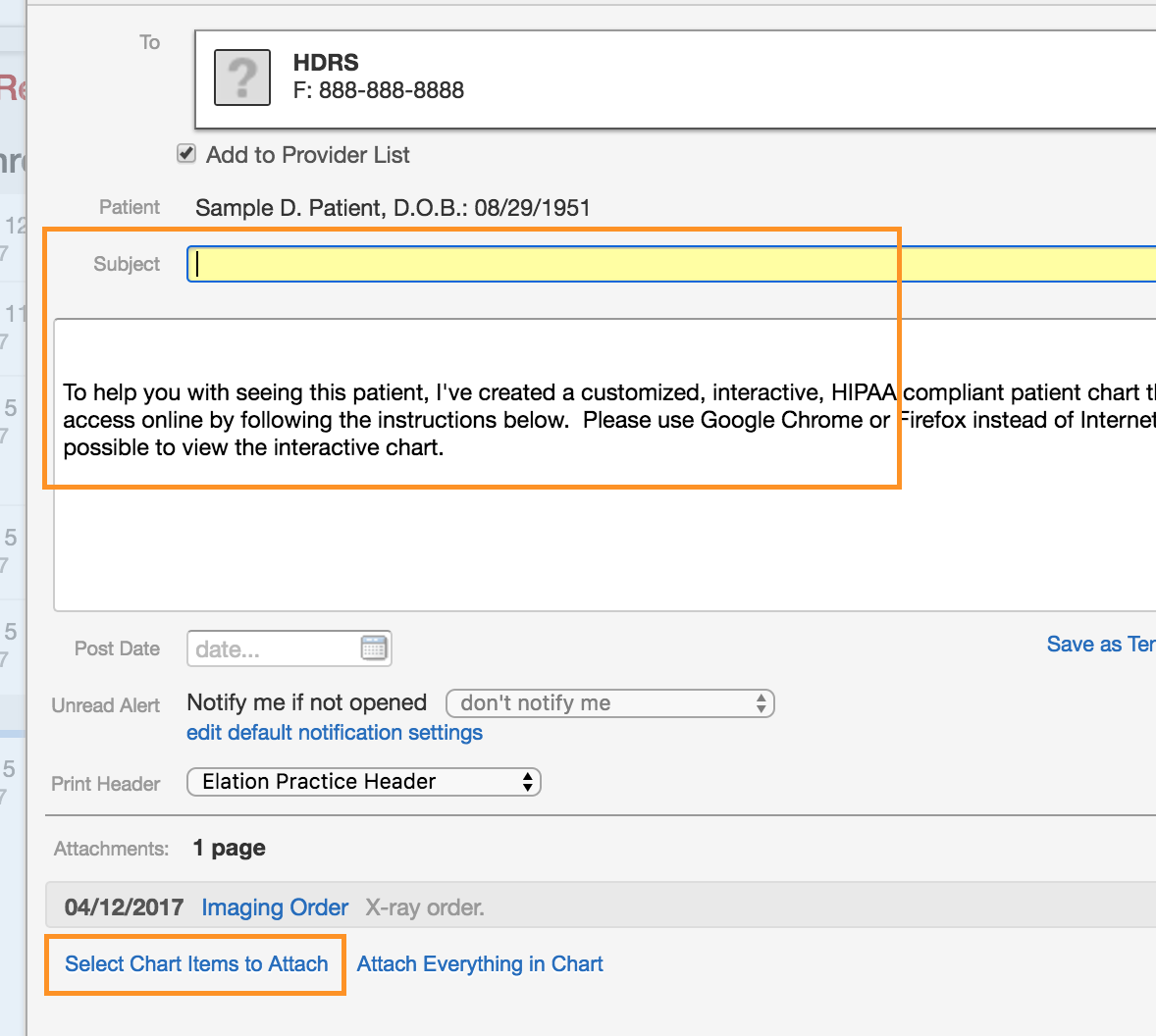
- Type a subject and message to the vendor as needed.
- Next, click Select Chart Items to Attach.
- Check off the box for Patient Demographics and click Attach Items.
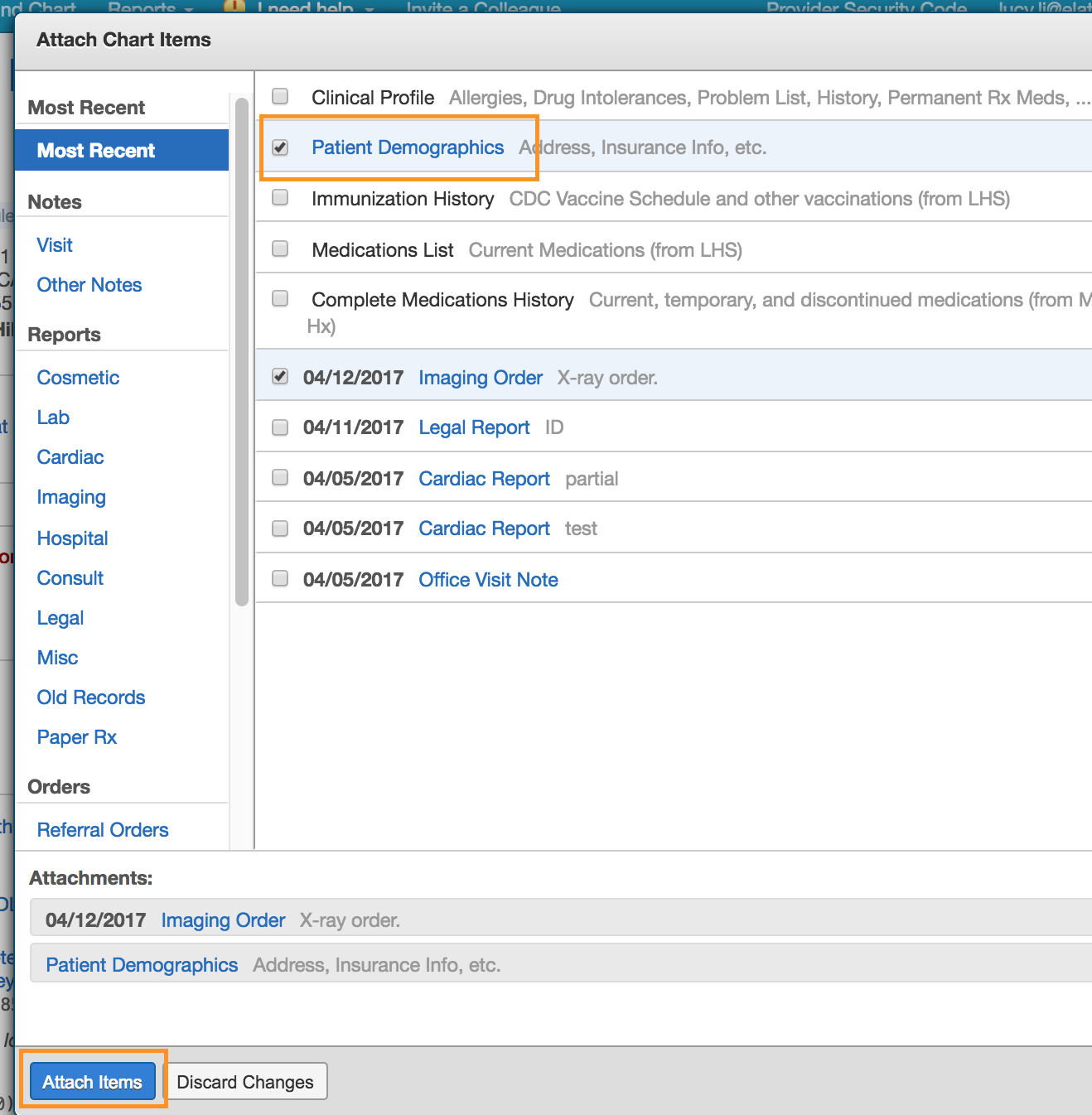
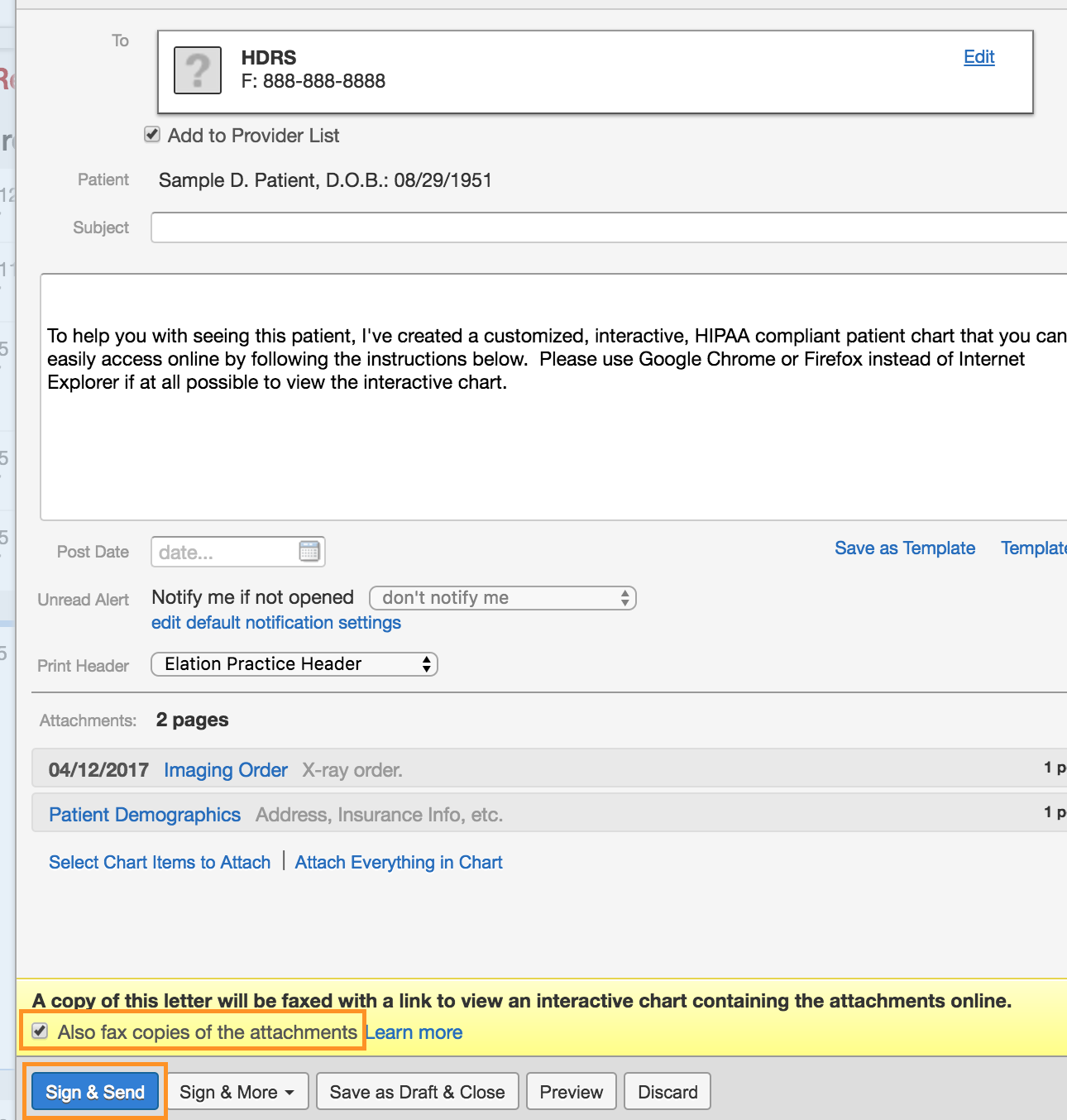
- At the bottom of the letter, check off the box for Also fax copies of attachments.
- Click Sign & Send to fax the order to the vendor.