- What is the Office Message feature?
- Using Office Messages for reminders
- Viewing Office Message reminders before the scheduled delivery date
- Viewing Office Message reminders on the scheduled delivery date
- Frequently Asked Questions (FAQ)
What is the Office Message feature?
Elation’s Office Message feature allows you to send messages about specific patients to anyone who has a user account for your EHR. Recipients of Office Messages can easily track and reply to messages on their Elation Practice Home page. Another great use case for the Office Message feature is you can set reminders for yourself, your colleagues and/or your staff to follow up on action items. Some common use cases for reminders include:- keeping track of patient due dates for specific exams or procedures (ex. annual wellness exams, well women’s exams, etc)
- keeping track of patient care plan follow up (ex. checking on blood pressure readings taken at home, checking on status of sutures, etc)
- keeping track of office tasks and responsibilities
Using Office Messages for reminders
Entering a date in the Pd box will allow you to send the message at a later date. The message will be sent at 12:00am on the date selected.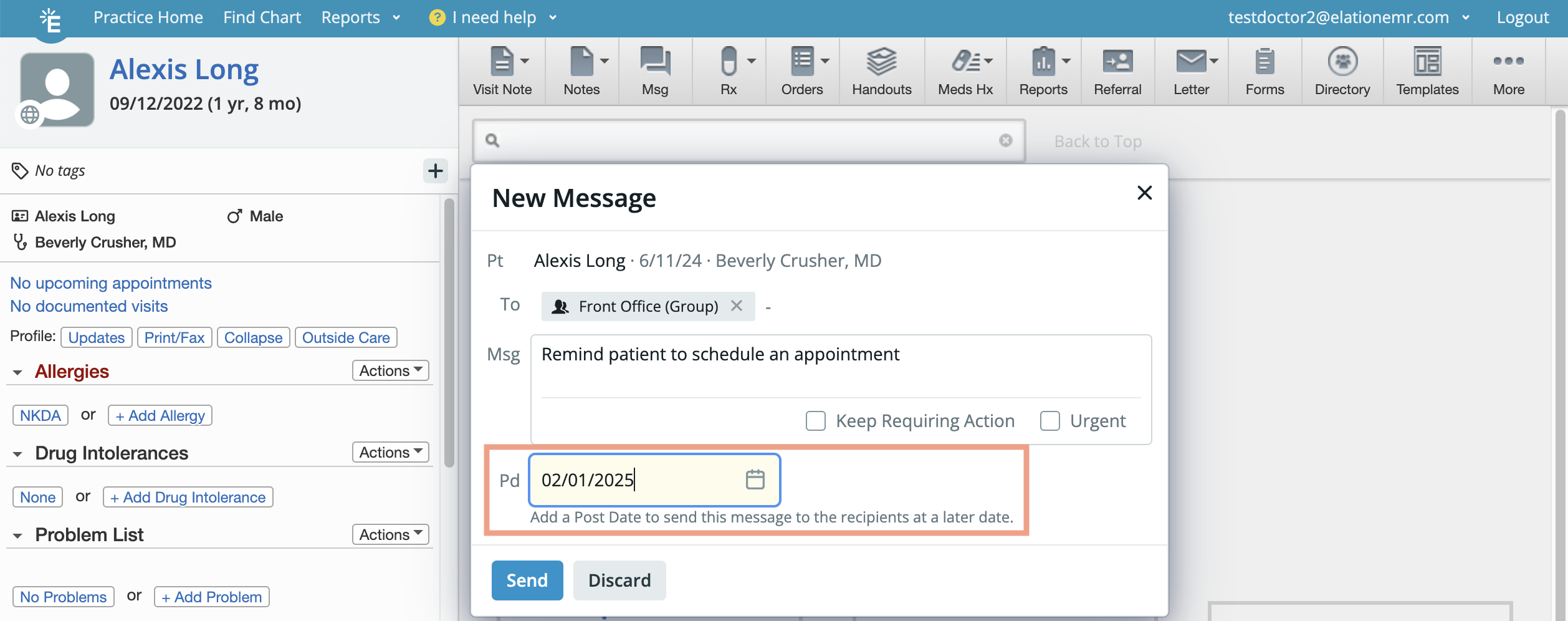
Viewing Office Message reminders before the scheduled delivery date
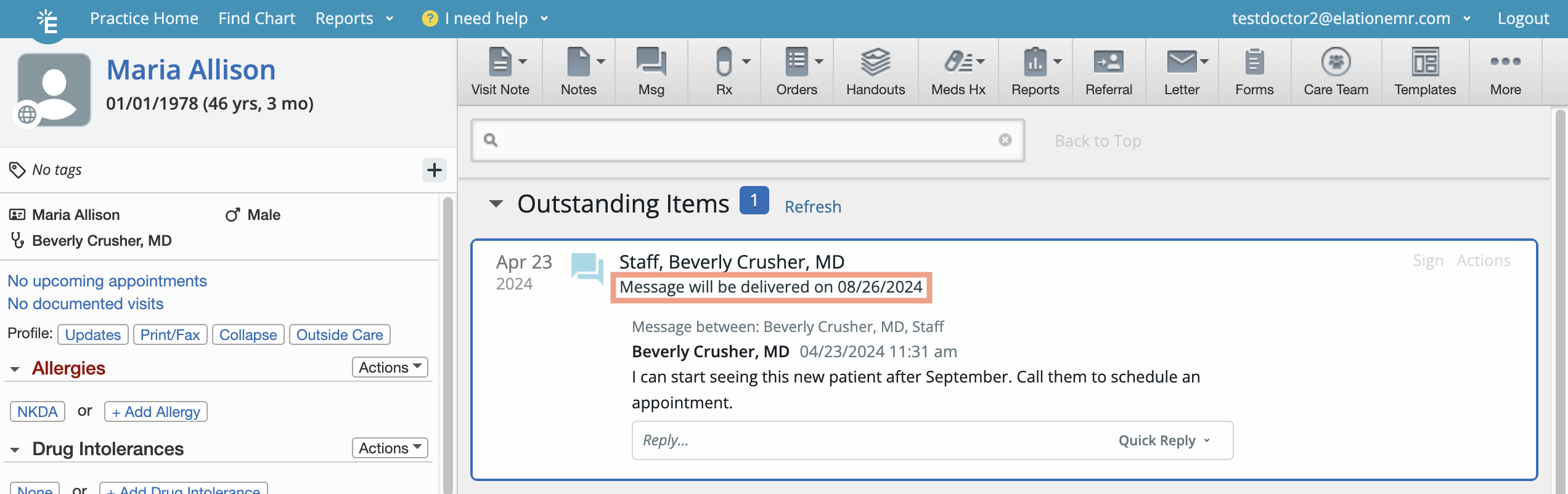
Office Messages that are scheduled to be delivered on a future date will sit at the top of the patient’s chart in the ‘Outstanding Items’ section until the set date. You will see the date of delivery at the top of the Office Message.