
Who is DYMO®?
DYMO® is a major printer manufacturer. The DYMO printers we will focus on in this article are the printers used to print specimen labels. DYMO printers are known to be the preferred printer of Quest Diagnostics but many other laboratories’ customers also use DYMO printers.How does Elation support DYMO specimen labels?
Elation built an interface with DYMO’s DYMO Connect software to allow customers to print their lab specimen labels directly from the patient’s chart using DYMO label printers. This feature is ideal for customers who collect specimens in-house and use any DYMO label printer released since 2016.- 30252 (3-1/2” x 1-1/8”)
- 30336 (2-1/8” x 1”)
- 30578 (3/4” x 2”)
- 30334 (2-1/4” x 1-1/4”)
How do I get started?
To use the DYMO printer interface, simply have the DYMO Connect software installed on the same computer device you use to create lab orders in Elation. Included in the installation is both the DYMO Connect software (printer drivers) and the appropriate web service.- Windows users
- DYMO Connect Web Service must be running on your computer or laptop device in order to print specimen labels from the EHR.
- MacOS users
- DYMO Connect WebApi Service must be running on your computer or laptop device in order to print specimen labels from the EHR.
-
MacOS requires a Security Certificate to be set up on your MacOS device before DYMO Connect Service can properly communicate with Elation. If you have not installed the DYMO Connect software on your MacOS device yet, see the Installing the DYMO Connect software on a MacOS device section below to learn more about installing DYMO Connect Service on a MacOS device and setting up your Security Certificate.If you already installed your MacOS device and run into printing issues, you may need to uninstall the DYMO Connect software and reinstall it to set up your Security Certificate. See the Troubleshooting the DYMO Connect Software on my MacOS device after running into print issues with Elation section below for more details.
Printing DYMO specimen labels via Elation lab orders
Once you have the DYMO Connect software installed on the same device you use to create lab orders in Elation, follow these steps to print your specimen labels:- Click Actions —> Print DYMO® Specimen Labs from any signed Lab Order.
- The Print DYMO specimen label dialogwill open up with the following information:
- Label preview - this contains the following information:
- Client #: Laboratory account number (e.g. Quest account number) associated with the laboratory order.
- Lab Ref #: Laboratory order requisition number.
- Pat Name: Patient’s name in the format LastName, FirstName.
- DOB: Patient’s date of birth in the format MM/DD/YYYY.
- If this is your first time printing with DYMO, Elation will automatically detect if your DYMO Connect service is running and preselect a connected printer for you. If you have multiple printers connected, click on the Printer list to select the printer you wish to print with.
- For subsequent print jobs, the last used printer will be saved to your computer’s local storage and prefilled for you. This means the last used preferences will be based on the history from the computer you are using and is not tied to a specific Elation user account.
- Click on the Label size dropdown to select the size of your labels. For subsequent print jobs, the last label size used will be saved to your computer’s local storage and prefilled for you. This means the last used preferences will be based on the history from the computer you are using and is not tied to a specific Elation user account.
- Elation currently supports the following four DYMO label types. Elation does not recommend any specific brand of labels. Reference DYMO documentation about recommended label types to use with your DYMO printer.
- 30252 (3-1/2” x 1-1/8”)
- 30336 (2-1/8” x 1”)
- 30578 (3/4” x 2”)
- 30334 (2-1/4” x 1-1/4”)
- Choose the number of Copies you want to print. The default copy amount is 1 and the last used copy quantity will not pre-populate in subsequent print jobs.
- Click Print & Close to continue printing.
- Elation will detect if the DYMO Connect service is running. Before the service is detected, the dialog will be momentarily locked.
- Once the DYMO connect service is detected, the label(s) will print via the selected printer. If your printer is not connected then the print job will go to your computer’s print queue.
Common Troubleshooting Tips
Installing the DYMO Connect software on a MacOS device
Follow these instructions to install the DYMO Connect For Desktop software on your MacOS device.-
When installing the DYMO Connect For Desktop software on your MacOS device make sure you also install the DYMO Security Certificate that is part of the installation package or else you will not be able to use the DYMO printer interface with Elation. Follow the instructions below to ensure you install all the essential components.
- Download the DYMO Connect For Desktop software for the MacOS Operating System from DYMO’s Software Download Center. Select the most up to date version of the software.
- Select the Operating System that matches your device and then click Download.
Your MacOS device must be running MacOS 11 Big Sur or newer in order to use the DYMO Connect for Desktop software. To see which operating system you are using:
- You should find the Installer Package with a name starting with ‘DCDMac..’ in your Downloads folder after downloading the package. Double click on the Installer Package to install the software.
- Your MacOS installer will open. Click Continue to begin installation.
- Read through the Software License Agreement and then click Continue.
- Click Agree to agree with the terms of the Software License Agreement.
- Click Install to continue installing the software. You may be prompted to enter your Password or Touch ID to approve the installation.
- The installation will then begin and the Installer window will display the progress.
- The important and crucial final step will be to set up the DYMO Security Certificate. Even though the Installer window will say that the installation is complete, installation is not complete until the Security Certificate is set up through the Terminal window that is opened by the installer (sometimes it might take a few seconds for the Terminal window to open automatically).
- To set up the Security Certificate:
- Allow the installer to access your Terminal.
- In the open Terminal window you will see a prompt to input your password. You will not see a cursor in the terminal and the cursor will not move as you type your password.
- Proceed with typing your password as usual and then click Enter/Return on your keyboard to submit your password.
- If the password is entered incorrectly, the Terminal window will prompt you to enter it again.
- When your password is correct you will see a security window pop up. Enter your password or Touch ID to approve the changes to your device’s System Certificate Trust Settings.
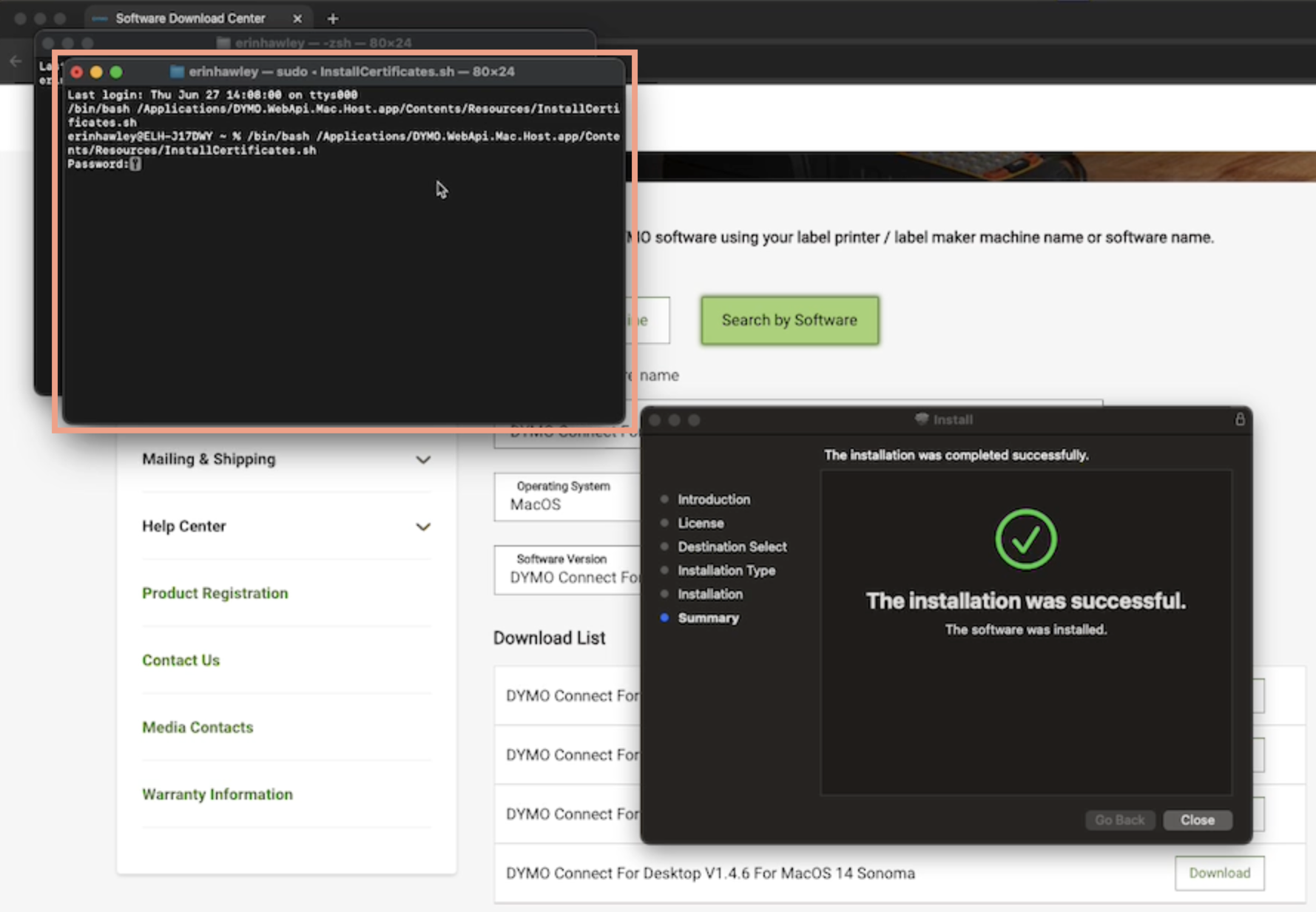
- Close the Terminal window and then close the installer. You will be prompted about moving the Installer Package to your Trash. You can keep the Installer Package or move it to trash.
- The software is now properly installed on your MacOS device and ready for use with Elation.
Troubleshooting the DYMO Connect Software on my MacOS device after running into print issues with Elation
If you are unable to print your DYMO specimen labels via the EHR, first follow these steps to troubleshoot the issue:- Click on the DYMO icon at the top of your MacOS device
- Click Diagnose…
- If the error is Error:SecureChannelFailure, the issue is likely that the Certificate for DYMO was not set up properly on your MacOS device. The easiest solution is to uninstall the software and then reinstall the software to set up the Certificate property during installation. Follow the instructions below to uninstall the software.
- Download the DYMO Connect For Desktop software for the MacOS Operating System from DYMO’s Software Download Center. Select the most recent version of the software.
- Select the Operating System that matches your device and then click Download.
Your MacOS device must be running MacOS 11 Big Sur or newer in order to use the DYMO Connect for Desktop software. To see which operating system you are using:
- You should find the Installer Package with a name starting with ‘DCDMac..’ in your Downloads folder after downloading the package. Double click on the Installer Package to install the software.
- Your MacOS installer will open. Click Continue to begin installation.
- Read through the Software License Agreement and then click Continue.
- Click Agree to agree with the terms of the Software License Agreement.
- Click Customize when you see the Standard install on Macintosh HD step
- Check off the DYMO Connect Uninstall package and then click Install to uninstall the software. You may be prompted to enter your Password or Touch ID to approve the installation.
- The uninstallation will then begin and the Installer window will display the progress.
- Click Close once the uninstallation is complete.
- Reinstall the software following these installation instructions above.
DYMO label service is unavailable: the DYMO Connect Service is either not installed or running. Install or start the service then refresh the page
The DYMO Connect software must be installed and the service must be running in order to print specimen labels.- Click here to download and install the software on your device.
- You can follow these steps from above to install the software on a MacOS device.
- If the software is installed, click the DYMO Connect icon on your device to confirm the service is running. Click Start service if you see this option to run the Dymo Connect software.
- Make sure you are running the latest version of the software by checking your Applications folder in your MacOS device or Programs folder of your Windows device.
DYMO label service is unavailable: No printers found
If there are no printers installed on the computer, the Print DYMO specimen label dialog will show an error to indicate no printers are found. If a printer is installed on the computer, the printer will be available for selection, even if the printer is offline or not currently working. Follow your operating system’s instructions on how to set up a printer.DYMO label service is unavailable: DYMO Label Plugin is not installed
When the DYMO Connect software is not running, the Print DYMO specimen label dialog will indicate that the Plugin is not installed. To fix this:- Enable the DYMO Connect software on your device.
- Refresh the patient chart.
- Click Actions —> Print DYMO® Specimen Labs from any signed Lab Order.
Specimen label print job is stuck in the print queue
After the specimen labels are printed from Elation, the print job will be sent to the selected printer. If the selected printer is not online, not connected to the computer, or not working correctly, the printer may not receive the print job successfully and the print job will remain in the print queue. Fix your printer and then open the print queue on your computer and release the print job from the queue to print the labels. Here are some common printer issues. For all other issues, utilize DYMO resources or Support for assistance.- DYMO printers are connected to your device through an Ethernet or USB cable. Ensure the appropriate cable is plugged in or try unplugging and plugging in the printer, if needed.
- DYMO 550 series printers will only print using label paper manufactured by DYMO and can detect if the label paper was manufactured by DYMO. If the DYMO printer indicates the wrong label paper is loaded in the printer, ensure the correct label paper is loaded and then restart the printer. If the incorrect label paper error still appears and the correct paper is loaded, turn the printer off and then press the power button 10 times before turning the power button back on.
Frequently Asked Questions
What should I do if the DYMO Connect service is not working?
First, ensure that the DYMO Connect Service software (DYMO WebApi app) is running and the icon is showing in either the application tray on Windows (it may be hidden) or in the top menu bar on MacOS. Click the DYMO connect icon to see a menu and use the Diagnose option to check the status of the service and see any helpful messages in the event something went wrong. In general, restarting the DYMO Connect software will resolve most general issues. For additional assistance, we recommend utilizing DYMO’s online resources such as DYMO’s Help Center or contact DYMO directly.How do I add a new type of DYMO label?
Elation supports the most common types of DYMO labels:- 30252 (3-1/2” x 1-1/8”)
- 30336 (2-1/8” x 1”)
- 30578 (3/4” x 2”)
- 30334 (2-1/4” x 1-1/4”)
What should I do if the printer is offline or not working?
The DYMO specimen label dialog is only checking if the DYMO Connect software is running on your computer and a printer is set up on your computer. If a printer is set up on your computer but the printer is not working or is offline, the specimen label print job will appear in the computer’s print queue after printing. You can then start the print job once the printer is connected again.Can I change the content printed on the label?
No, you cannot change the content printed on the label. Elation shows a label preview in the Print DYMO specimen label dialog and will always print the account number, requisition number, patient name, and date of birth.Can the printer name displayed in the dialog be changed?
Elation is displaying the name of the printer in the dialog as the printer name is set up on the computer. Typically, you set up the printer on the computer the printer name is specified. DYMO printer names default to the manufacturer’s printer name (e.g. “DYMO LabelWriter 550 Turbo”). You can follow your device’s operating system’s instructions to change the printer name as needed.- Here are instructions from the Microsoft customer forums on how to change the printer name.
- Here are instructions from Apple Support on how to change a printer’s name on Mac.