
Overview
For in-house drawn labs, there may be situations where you need to sign off on a lab order but cannot document specimen collection because the specimens have not yet been collected from the patient. The lab order holding workflow allows you to sign off on the Lab Order and place it on hold until the specimens are collected and a specimen collection is documented.Workflow Instructions
Placing signed Lab Orders on hold
Placing signed Lab Orders on hold when specimen collection date is not yet known
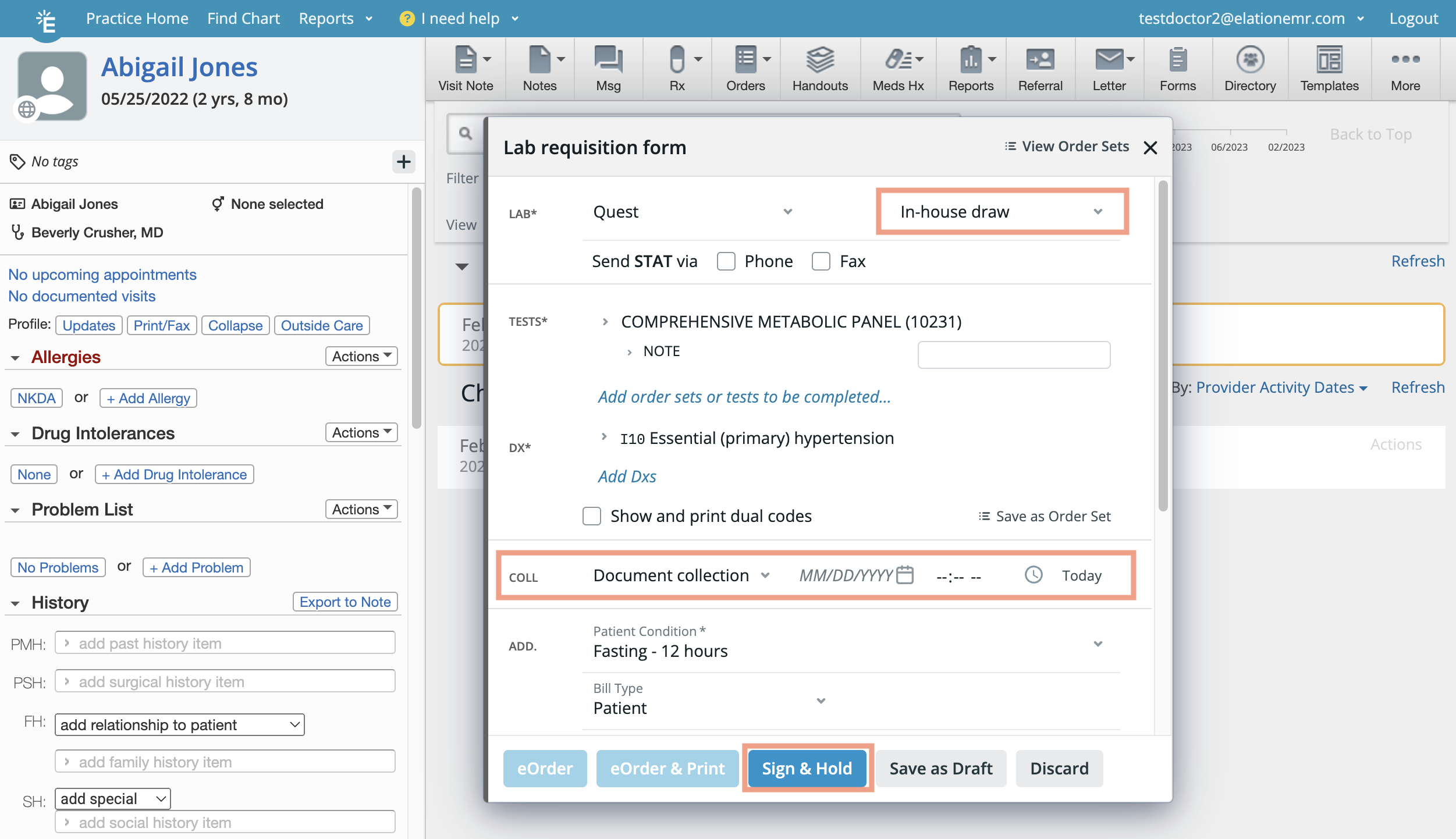
- Create a new Lab Order.
- Select In-house draw under the Site field.
- Complete the remainder of the Lab Order while leaving the collection (COLL) fields empty.
- Click Sign & Hold.
- Find the held Lab Order in the Outstanding Items, Chronological Record, or Lab Reports section of the patient’s chart when you are ready to input the specimen collection date. The Lab Order will have an On hold label in the title.
- The Lab Order will remain on hold until either one of the following actions are taken:
- A specimen collection date is documented.
- The Lab Order is canceled.

Placing signed Lab Orders on hold with a specified specimen collection date
To place a Lab Order on hold while you wait for specimens to be collected on a specified date:- Create a new Lab Order.
- Select In-house draw under the Site field.
- Select Schedule collection and then enter a date in the subsequent field.
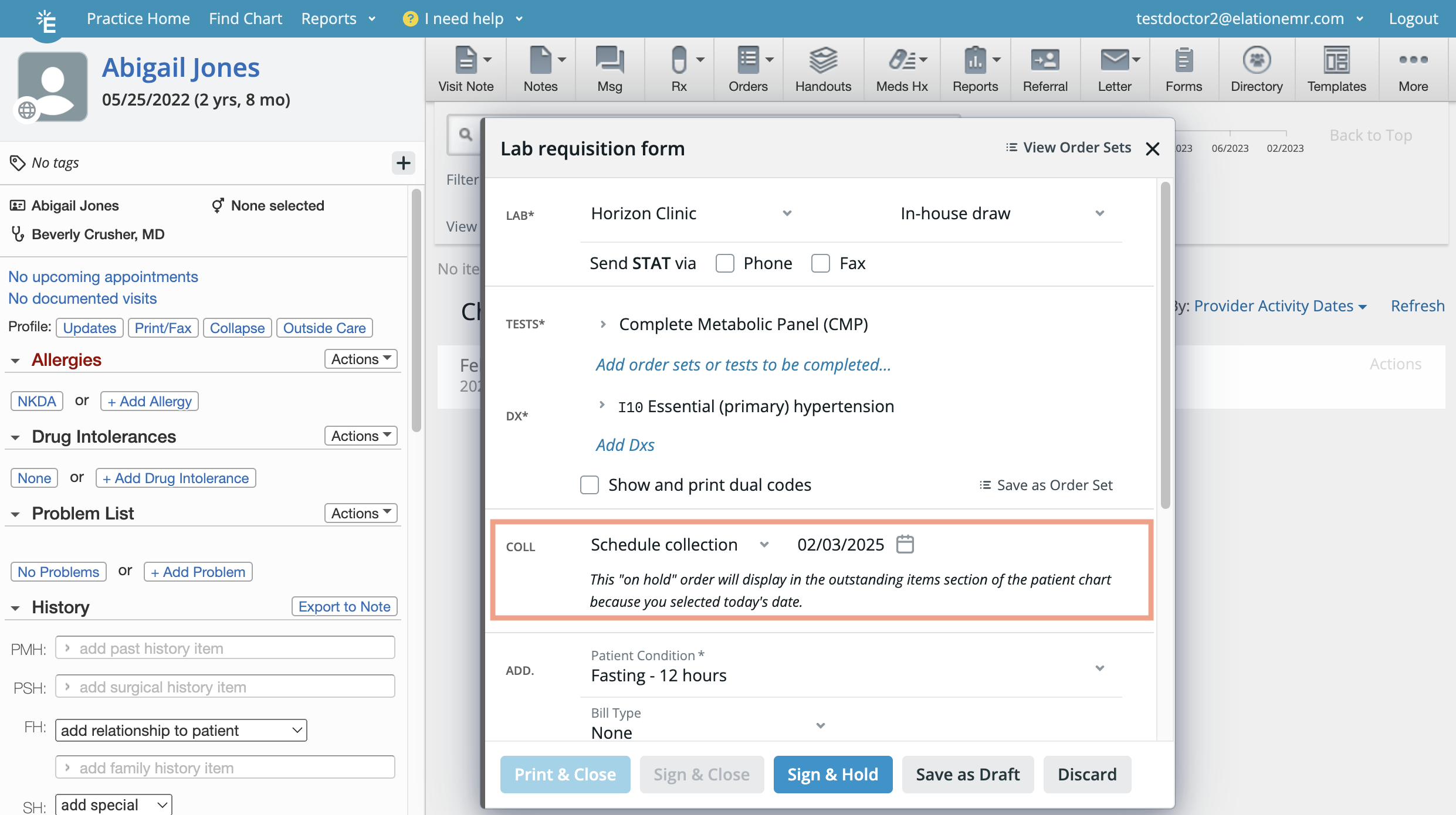
- Complete the remainder of the Lab Order.
- Click Sign & Hold.
- The scheduled collection is Today or prior to ‘Today’ - Find the held Lab Order in the Outstanding Items or Lab Reports section of the patient’s chart. The Lab Order will have an On hold for specimen collection due label in the title.
- The scheduled collection is after Today - Find the held Lab Order in the Chronological Record or Reports sections of the patient’s chart. The Lab Order will have an On hold label in the title.
- Once the scheduled collection date arrives, the Lab Order will appear in the Outstanding Items section of the patient’s chart. The Lab Order will have an On hold for specimen collection due label in the title.
- Electronic Orders: Electronic Orders will be held in the patients chart and NOT be sent to the lab until a specimen collection date is entered in the held order.
Managing specimen collection dates of held Lab Orders
Documenting specimen collection for a held Lab Order
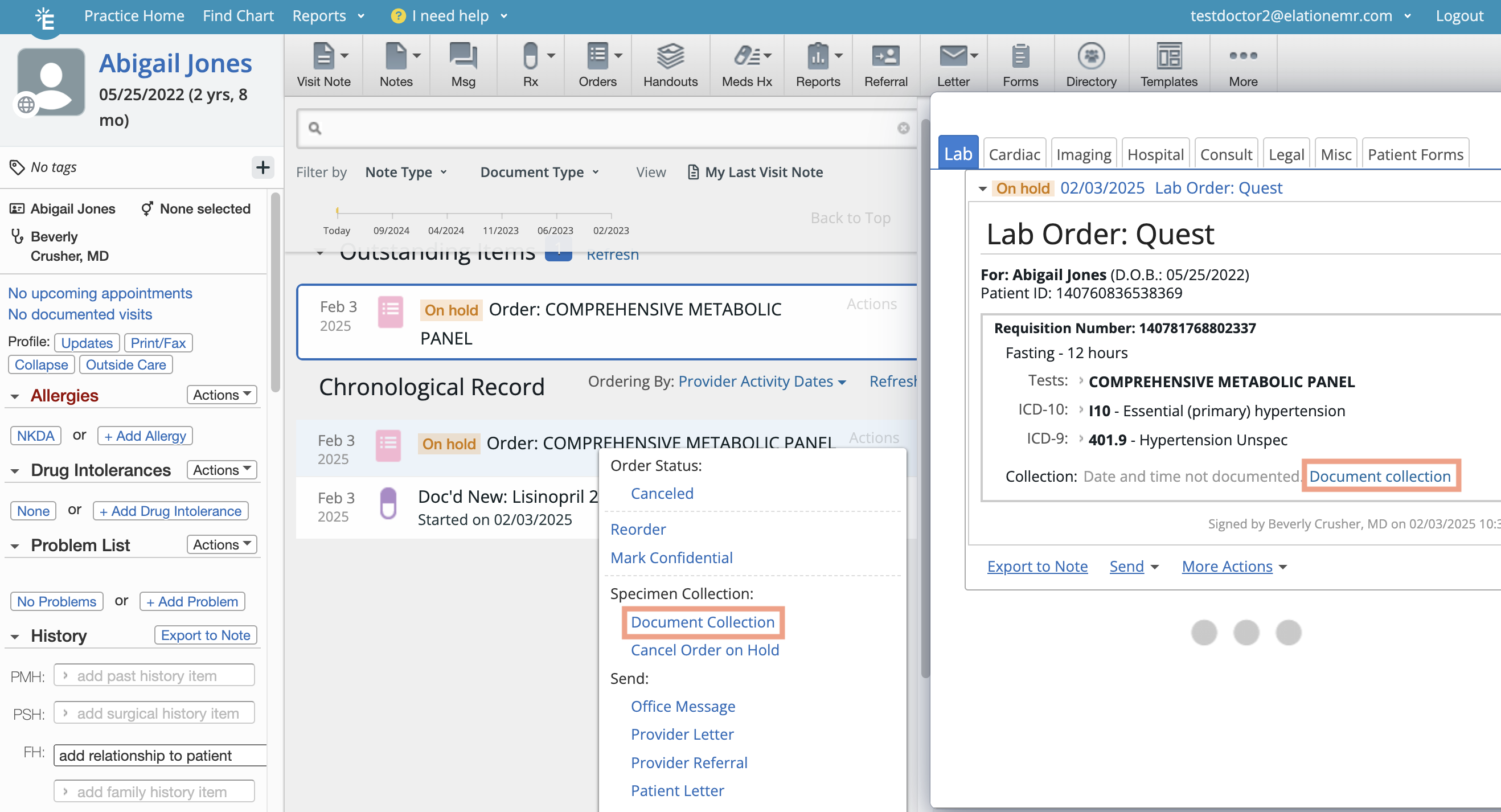
- Click Document collection in one of the following areas:
- The Report view of the Lab Order.
- Under Actions from the lab order in the Reports view, Outstanding Items section, or Chronological Record.
- Enter in the document collection Date and Time in the Document Collection dialog.
- Click Document Collection.
- Electronic orders will be sent to the lab immediately. Non-electronic orders can be printed.
Editing the specimen collection date of a held, non-electronic Lab Order
To edit the specimen collection date of a non-electronic Lab Order that was previously put on hold:- Locate the non-electronic Lab Order with the specimen collection date you want to edit.
- Click Actions -> Edit Collection.
- Edit the document collection Date and Time in the Document Collection dialog.
- Click Save Edits.
Removing the specimen collection date from a held, non-electronic Lab Order
To remove the specimen collection date from a non-electronic Lab Order that was previously put on hold:- Locate the non-electronic Lab Order with the specimen collection date you want to remove.
- Click Actions -> Remove Collection.
- Click Remove to remove the collection date and time tied to the order.
Canceling a held Lab Order
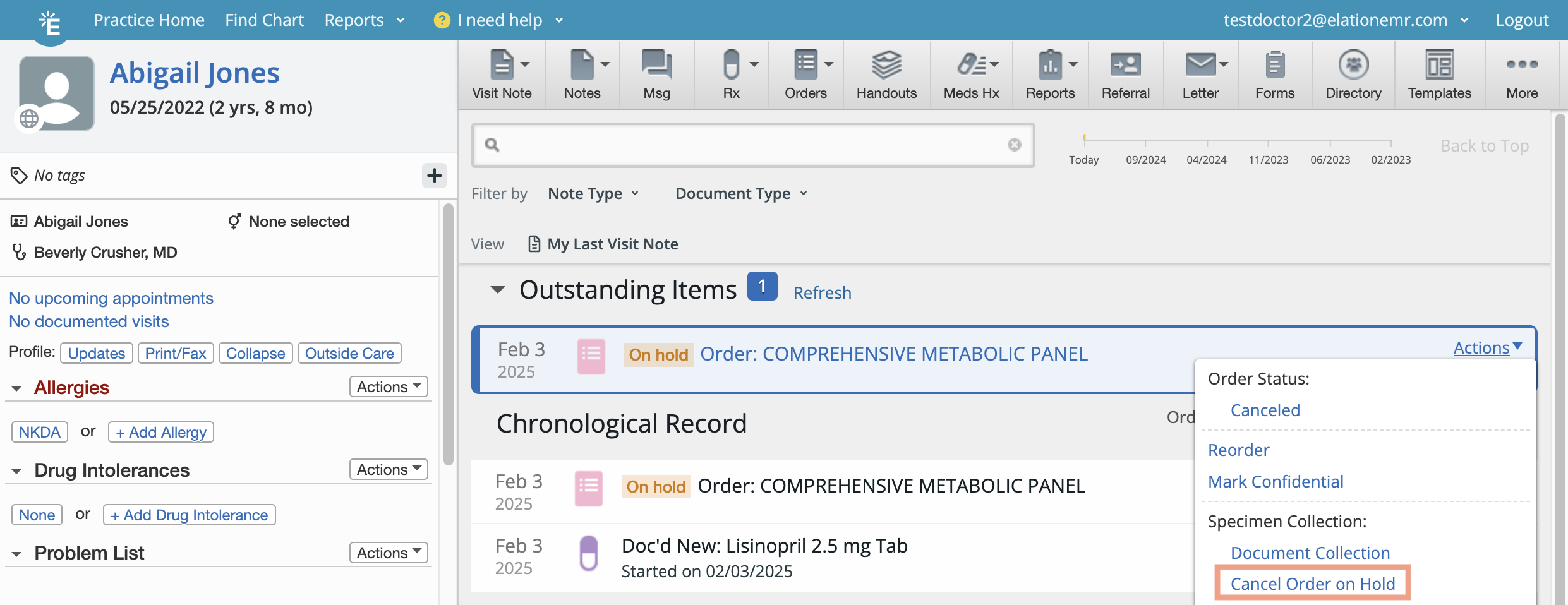
- Find the held Lab Order in the Outstanding Items or Lab Reports section of the patient’s chart.
- Click Actions -> Cancel Order on Hold.
- (Optional) Specify a cancellation reason as needed.
- Click Cancel Order.
- The cancellation date and reason will display in the Reports and Chronological Record view of the canceled Lab Order.