
Overview
What is the DX Code Navigator?
By default, all ICD-10 fields (e.g. in the Lab Order Form, Problem List, Referral, Visit Note) include built-in search functionality for ICD-10-CM codes, allowing users to quickly look up and select the appropriate codes. As users type search terms, matching results appear automatically to simplify selection. To narrow the results, users can add more specific search terms. When a diagnosis involves a code combination, selecting it will automatically add all related codes to the entry. Premium EHR users can utilize the Dx Code Navigator, a tool that streamlines the process of searching for and applying ICD-10 codes and code combinations. Users start by entering a broad search term for a diagnosis category, then refine their results using suggested modifiers to identify more specific or secondary codes.- Premium EHR users can also request an optional setting that separates code combinations into individual line items within the Assessment section of visit notes, improving organization and clarity.
- This setting does not separate code combinations into individual line items in the Problem List.
What are the benefits of the Dx Code Navigator?
The Dx Code Navigator allows you to quickly search for and apply specific, detailed, and accurate diagnosis codes directly to your documentation. This is particularly valuable for practices participating in quality programs that calculate a patient’s Risk Adjustment Factor (RAF), as it enables thorough documentation of chronic conditions, comorbidities, and illness severity—leading to more accurate risk scores, equitable reimbursement, and a more accurate representation of the patient population’s clinical complexity.Which features support the Dx Code Navigator?
Dx Code Navigator can be used to document Assessments in the visit note and problems in the Problem List.Setup
The Dx Code Navigator feature is part of Elation’s Premium EHR offering. To request the feature, click I need help-> Contact Elation Support and specify which version of the feature you prefer.- Option 1: Please enable the Dx Code Navigator feature. I want code combinations to appear as a single line item in theAssessmentsection of my visit notes.
- Option 2: Please enable the Dx Code Navigator feature. I want code combinations to appear as separate line items in theAssessmentsection of my visit notes.
Workflow Instructions
Using the DX Code Navigator in the Assessment section of visit notes
Elation’s Dx Code Navigator is available in any visit note format that includes structured Assessment fields, including the 1-column, 2-column, and Pre-Op formats.| 1 | Go to the Assessment section of your visit note and enter a keyword to search for the diagnosis code you need. |
|---|---|
| 2 | Matching code categories will appear at the top of the search results. Click on the closest match to open the Dx Code Navigator. 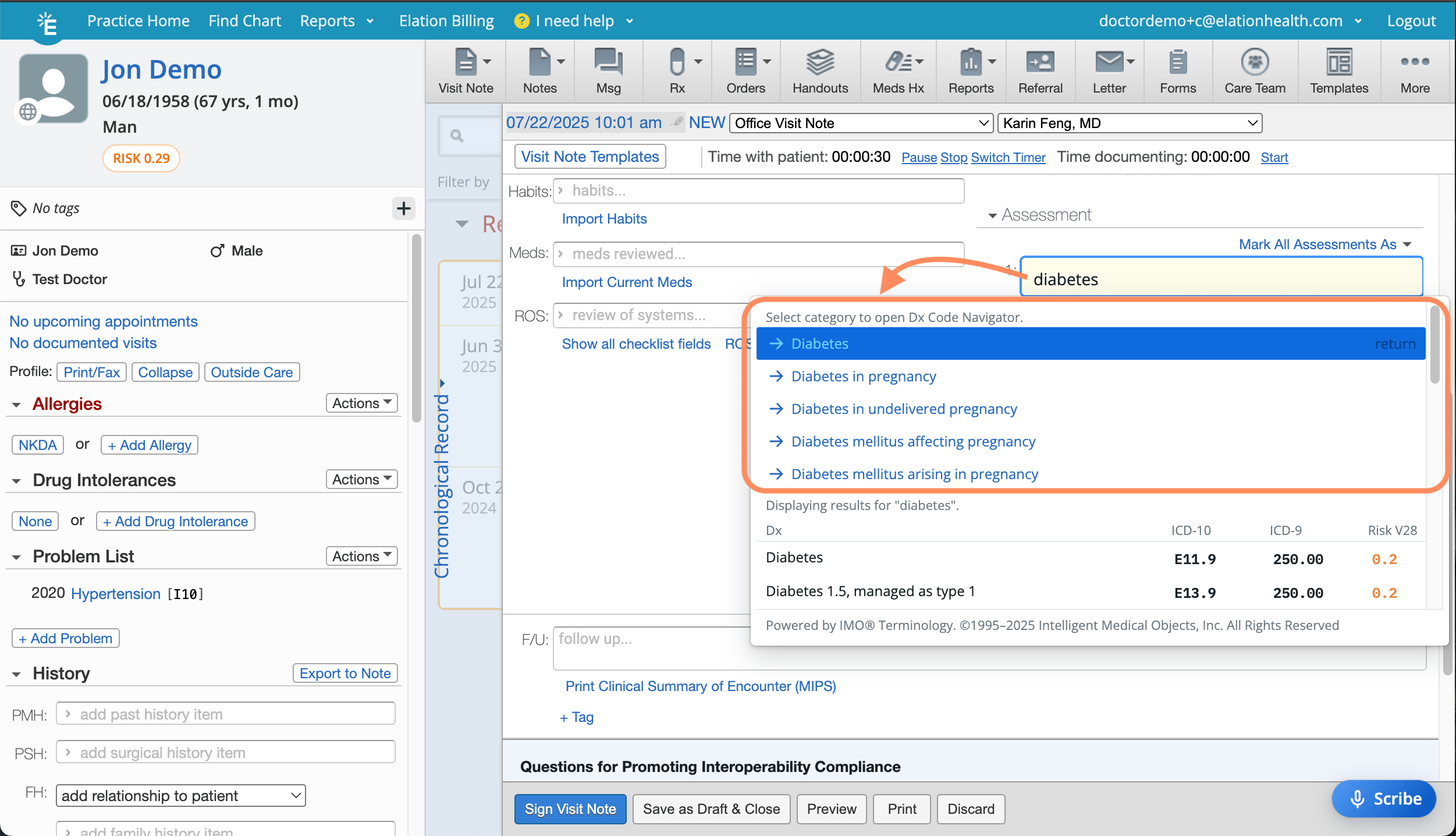 If the code already appears in the basic search results, simply click on it as usual. If the code already appears in the basic search results, simply click on it as usual. |
| 3 | Narrow your search by selecting a matching modifier using the radio buttons or by typing additional keywords into the search box.  As you refine your search, the diagnosis codes listed at the bottom of the Dx Code Navigator automatically narrow to show the most relevant matches. Specific modifiers can also be accessed quickly by selecting options in the left-hand column. As you refine your search, the diagnosis codes listed at the bottom of the Dx Code Navigator automatically narrow to show the most relevant matches. Specific modifiers can also be accessed quickly by selecting options in the left-hand column. |
| 4 | Click on the desired codes in the Dx Code Navigator to add them to the visit note. To preview the diagnosis codes that will be added to the note, hover over the ICD-10 code in the search results. A plus sign (+) at the end of an ICD-10 code indicates that it’s part of a code combination and must be used with additional related codes.  You’ll also see the associated CMS-HCC risk adjustment weight, shown in orange. You’ll also see the associated CMS-HCC risk adjustment weight, shown in orange. |
| 5 | The selected code(s) will appear as a single line item in the Assessment section, unless you are using the feature that separates primary and secondary codes into individual line items. Click Add Problem to add any relevant problems to the Problem List. |