What is built-in productivity reporting in the EHR?
Premium EHR users have access to built-in reporting around appointments and visit notes in Elation EHR. With four new dashboards and reports, you will be able to see the performance metrics for patient appointments and visit notes for certain periods of time. The new reporting options are as follows:- Appointment Dashboard
- Appointment List
- Visit Notes Dashboard
- Visit Notes List
What are the benefits of built-in productivity reporting?
The built-in reporting options around your appointments and visit notes data allows you to- Track the performance and productivity of your practice.
- Easily scan your data to assist with administrative workflows such as ensuring data is complete for appointments and patient demographics.
- Visualize your performance and measure efficiency.
How to access built-in productivity reports
Premium EHR users can access the Appointment Dashboard, Appointment List, Visit Note Dashboard and Visit Note List by clicking the Reports button in the blue navigation bar at the top of any page in Elation EHR and then clicking on the name of the dashboard or report to open it in a new tab in your browser.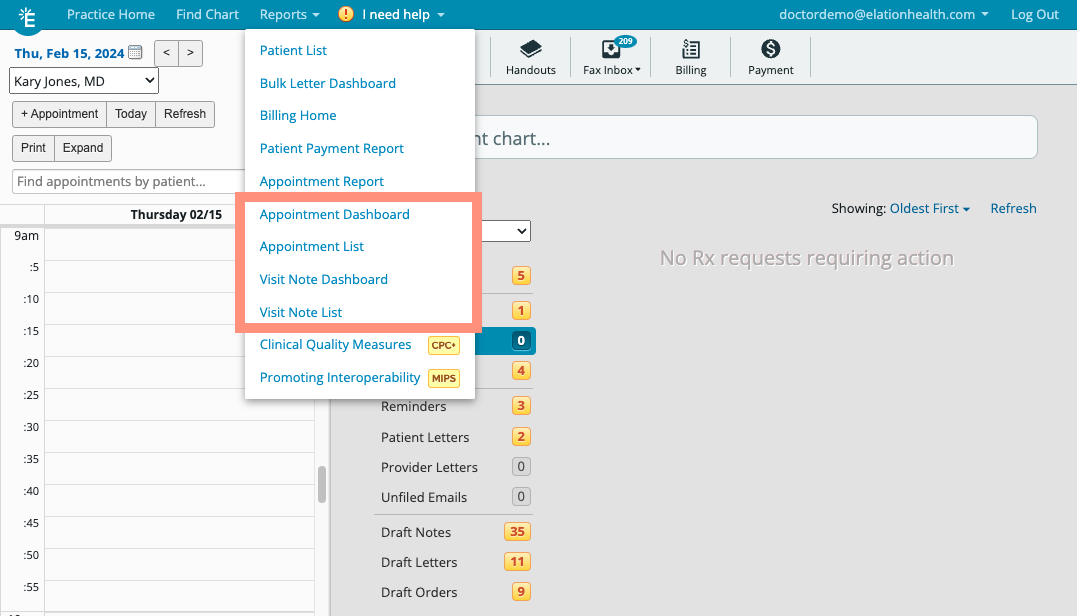
If you are interested in upgrading to the Premium EHR subscription to use this feature, click the I need help button to notify Elation and a member of the Elation Team will reach out to assist you.
Appointment Dashboard
Appointment Dashboard Overview
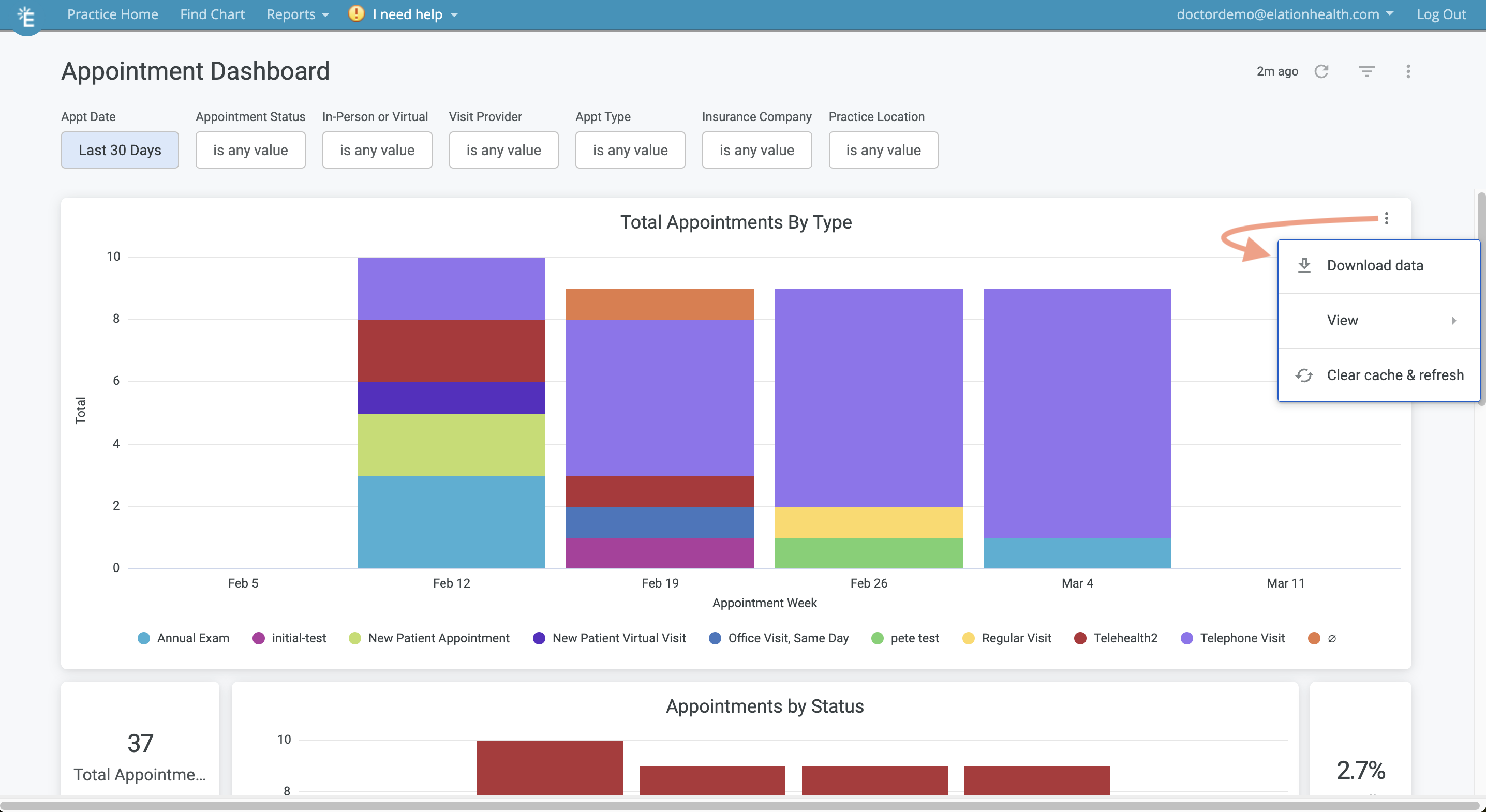
The Appointment Dashboard is divided into 3 main sections:- (Top) A graph of ‘Total Appointments by Type’ (Appointment Type)
- (Center) A graph of Appointments by Status along with a quick view count of
- Total Appointments
- Canceled Appointments
- No Show Appointments
- Canceled Ratio
- No-Show Ratio
- (Bottom) Quick-view tables that show:
- Scheduled Appointments by Patient Status
- Scheduled Appointments by Note Type
- Past Appointment Statuses
The time to sign calculation begins when the visit note is created.
How to use the Appointment Dashboard
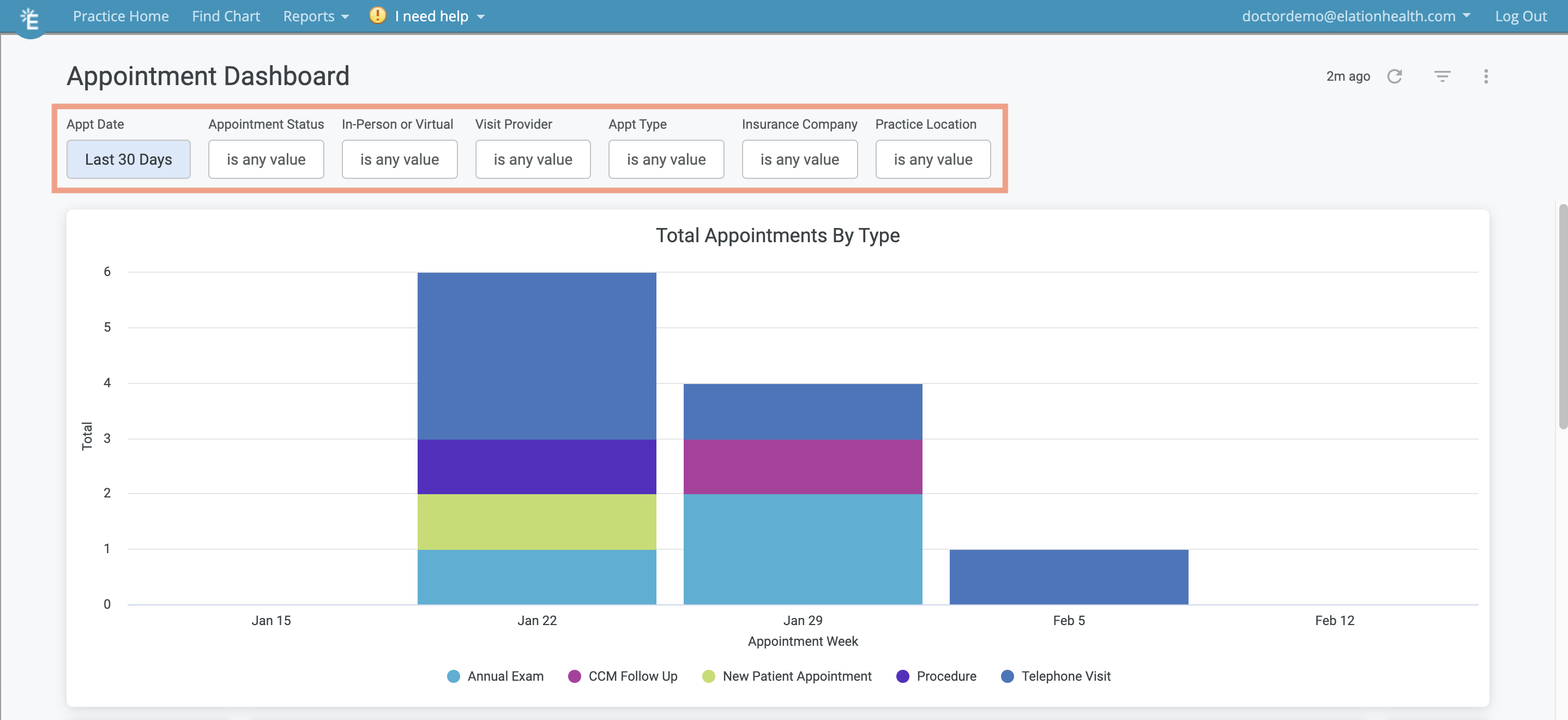

- Appointment Date
- Filter by the date of the appointment. By default, the Dashboard will show you Appointment data for the last 30 calendar days.
- Appointment Status
- In-person or Virtual
- Visit Provider
- Appointment Type
- Insurance Company
- Practice Location
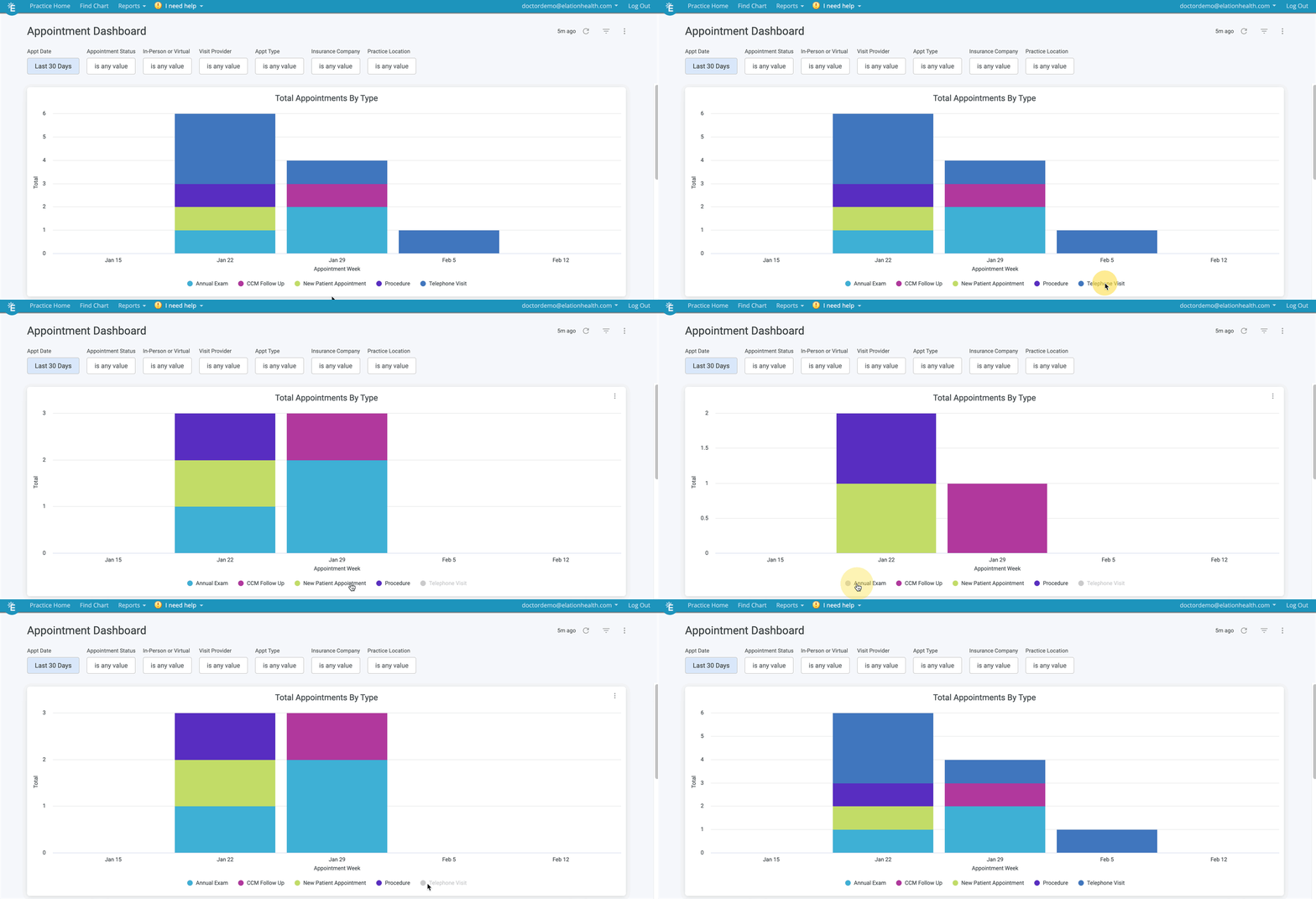

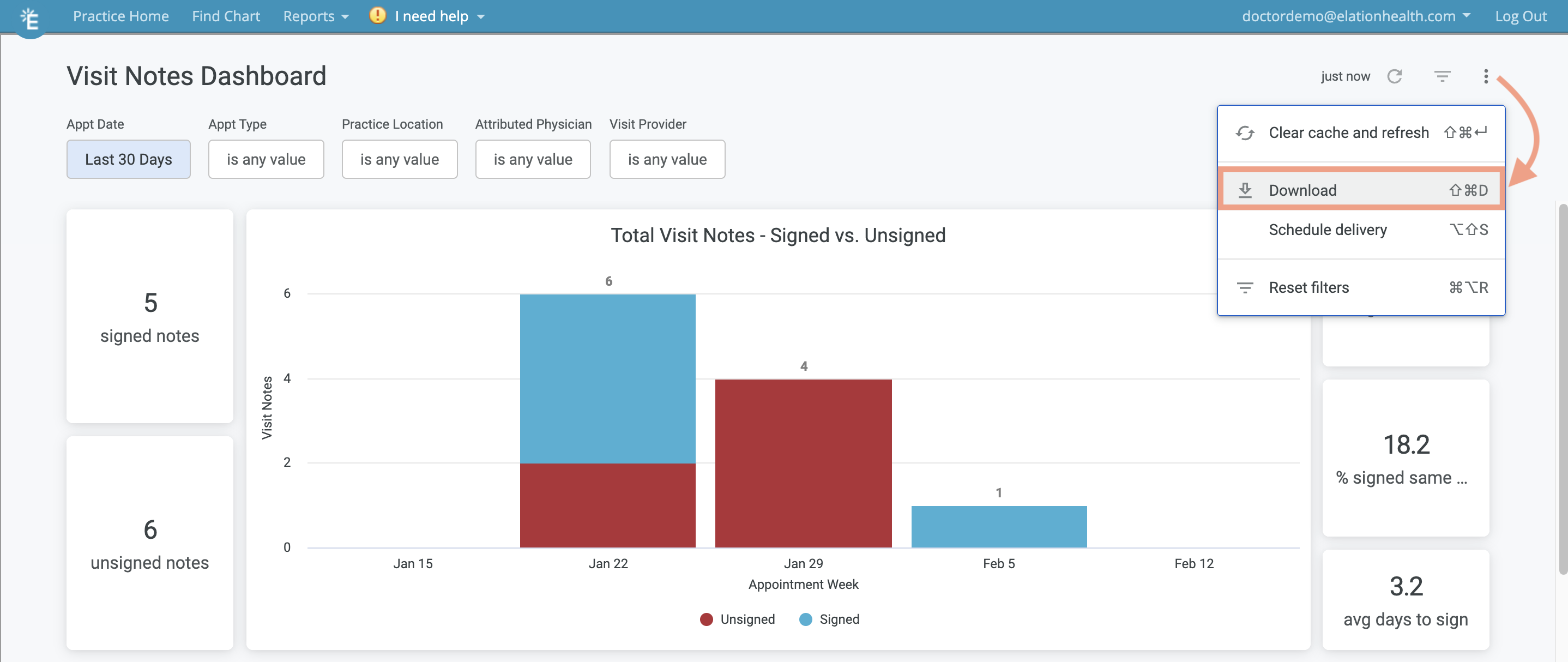
- Download the data
- Expand the visuals
- Refresh the data
Appointment List
Appointment List Overview
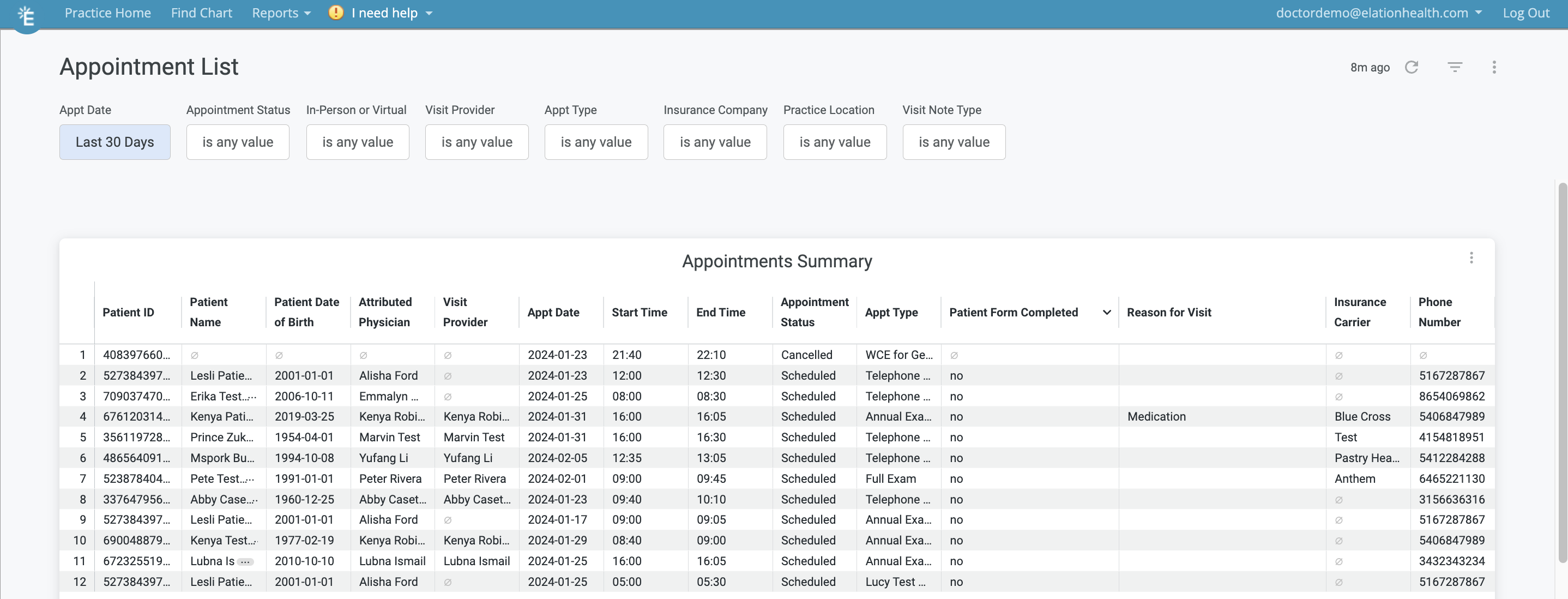
- Patient ID
- Patient Name
- Patient Date of Birth
- Attribute Physician (Provider Assigned in Practice)
- Visit Provider
- Appointment Date
- Appointment Start Time
- Appointment End Time
- Appointment Status
- Appointment Type
- Patient Form Completed
- Reason for Visit (Description- Chief Complaint)
- Insurance Carrier (Primary Insurance)
- Phone Number (Phone number in the first phone field)
How to use the Appointment List
The following filters are available in the Appointment List. After applying filters, click the- Appointment Date
- Filter by the date of the appointment. By default the Dashboard will show you Appointment data for the last 30 calendar days.
- Appointment Status
- In-person or Virtual
- Visit Provider
- Appointment Type
- Insurance Company
- Practice Location
- Visit Note Type
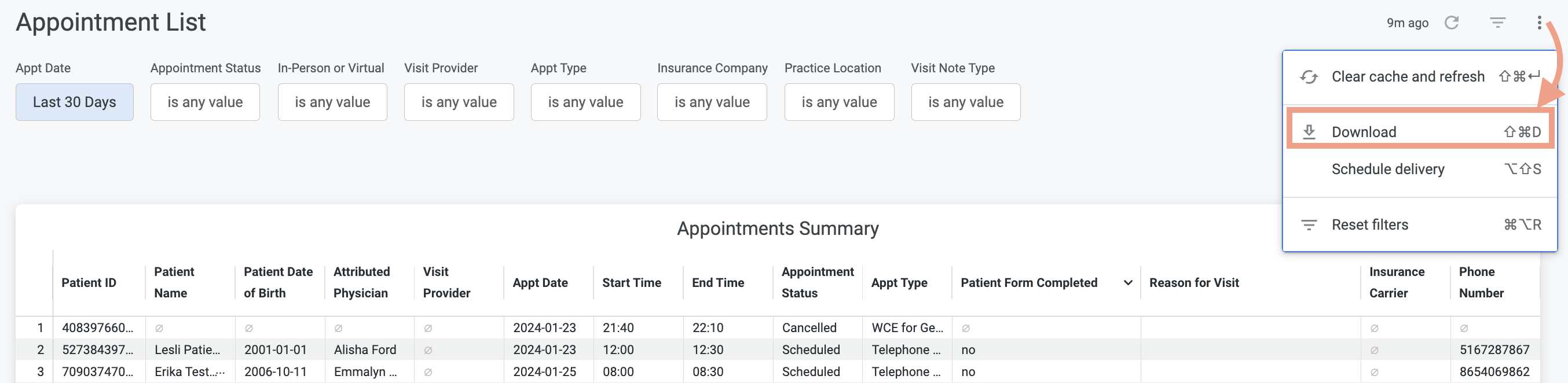
- Download the data
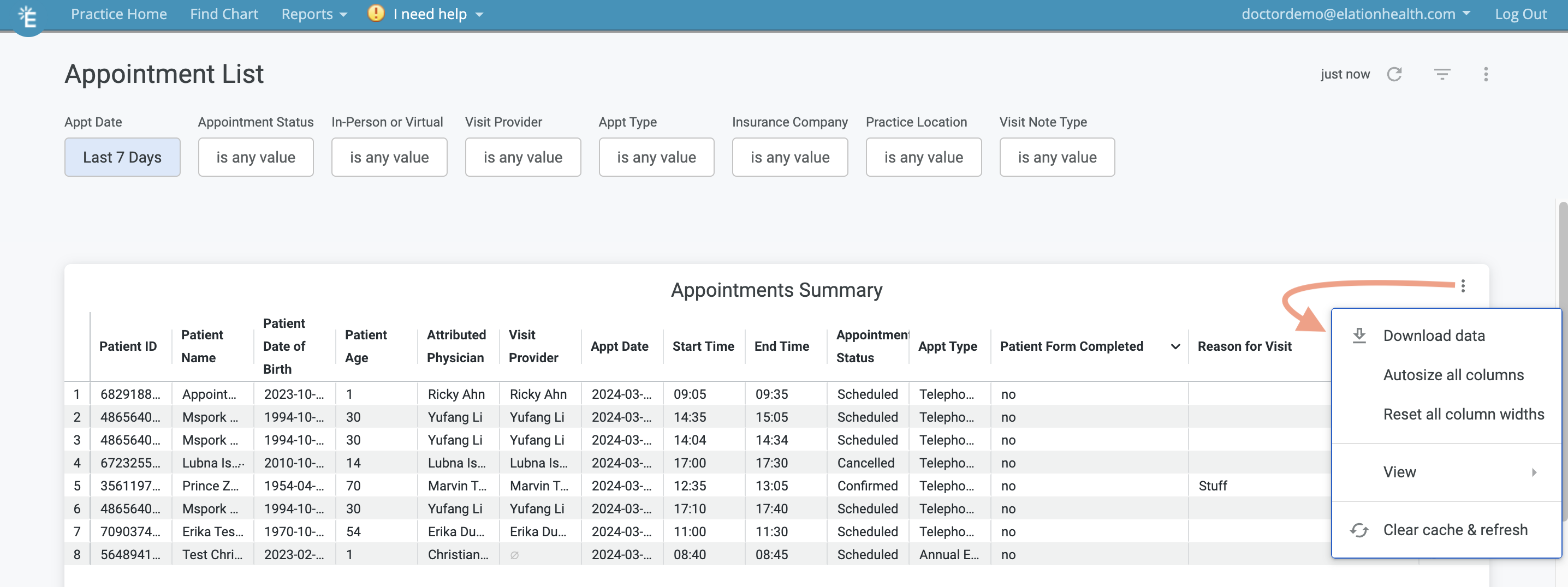
- Adjust column widths
- Expand the table
- Refresh the data
Visit Note Dashboard
Visit Note Dashboard Overview
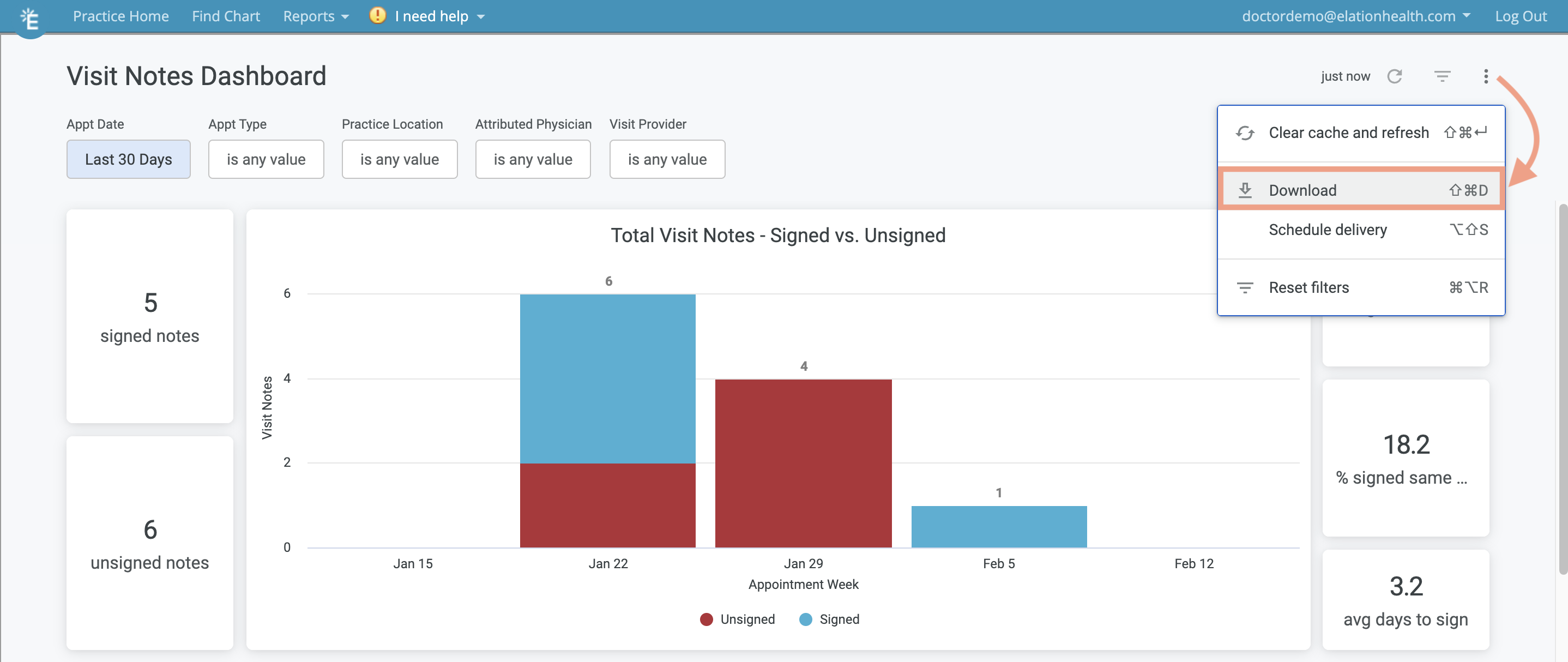
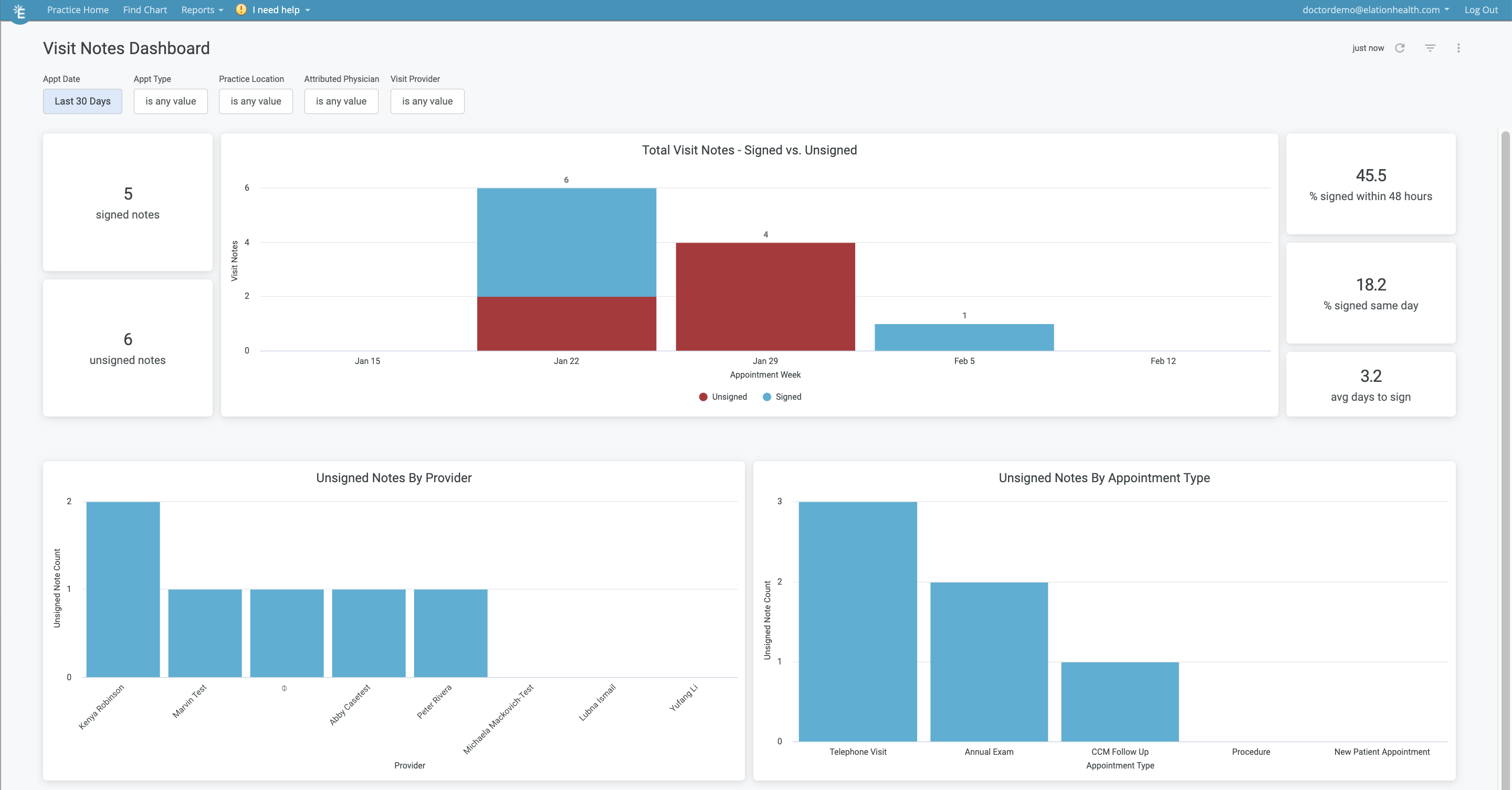
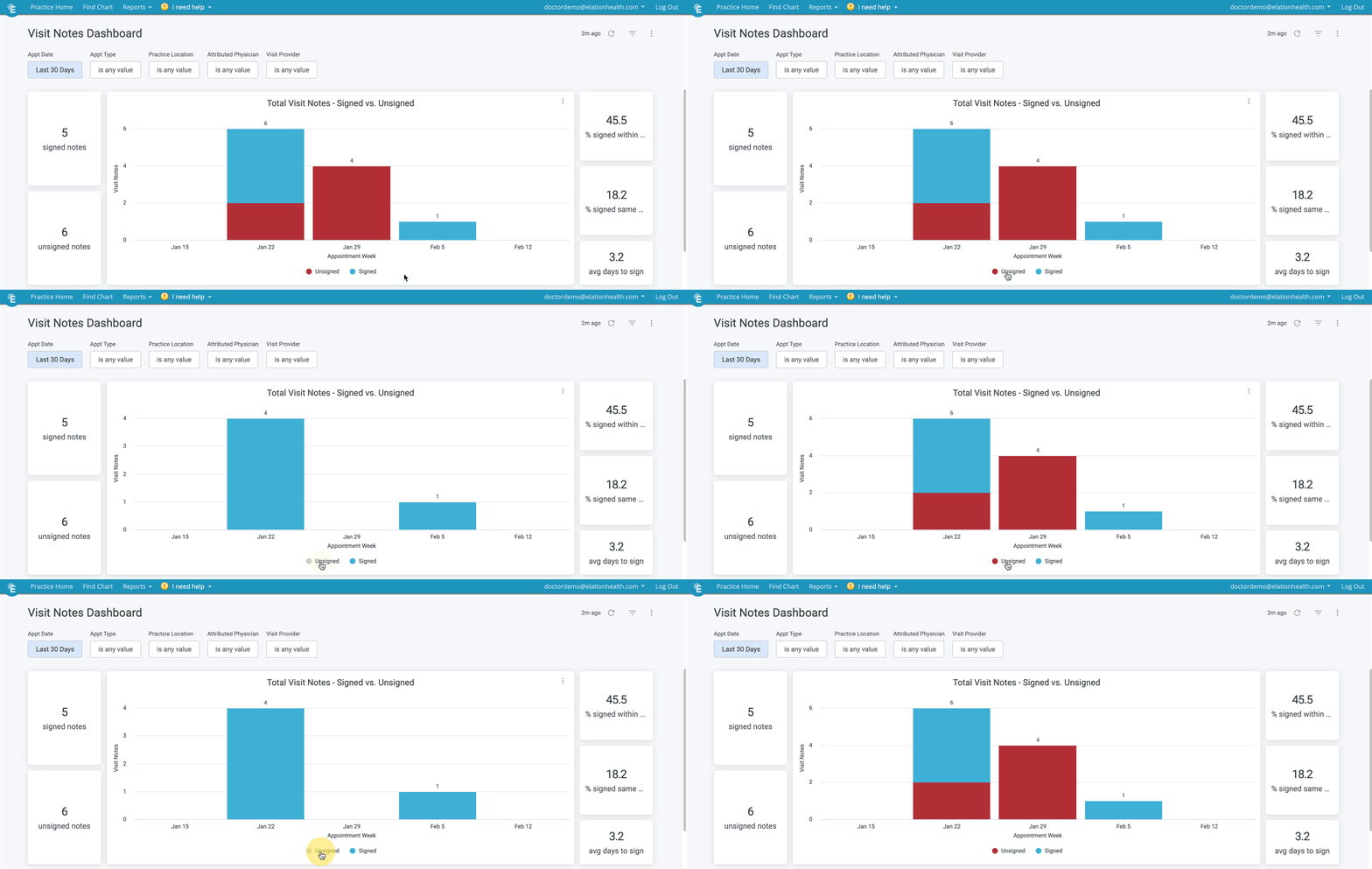
The Visit Note Dashboard is divided into 3 main sections:- (Top) A graph of Total Visit Notes - Signed vs Unsigned along with a quick view count of
- % signed within 48 hours
- % signed same day
- Avg days to sign
- (Bottom Left) A graph of ‘Unsigned Notes by Provider’
- (Bottom Right) A graph of ‘Unsigned Notes by Appointment Type’
How to use the Visit Note Dashboard
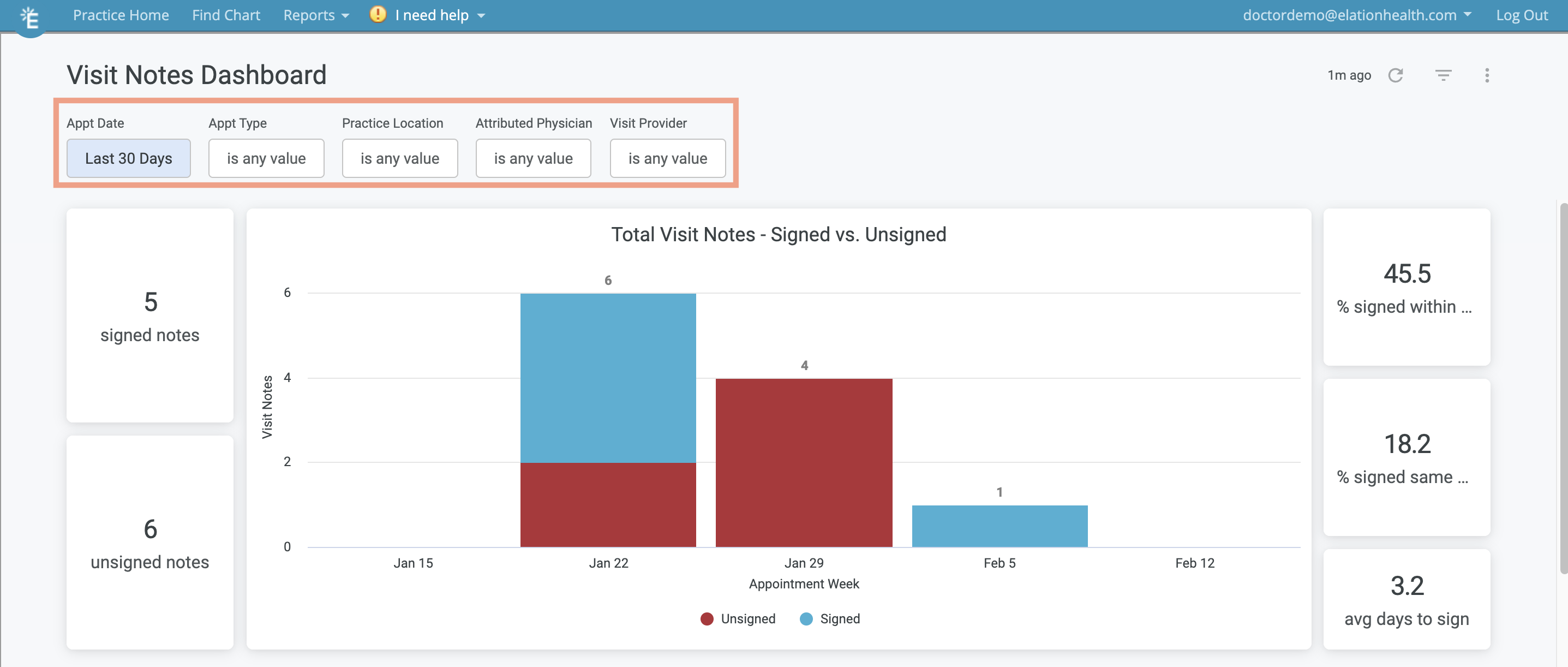
- Appointment Date
- Appointment Type
- Practice Location
- Attributed Physician(Provider Assigned in Practice)
- Visit Provider
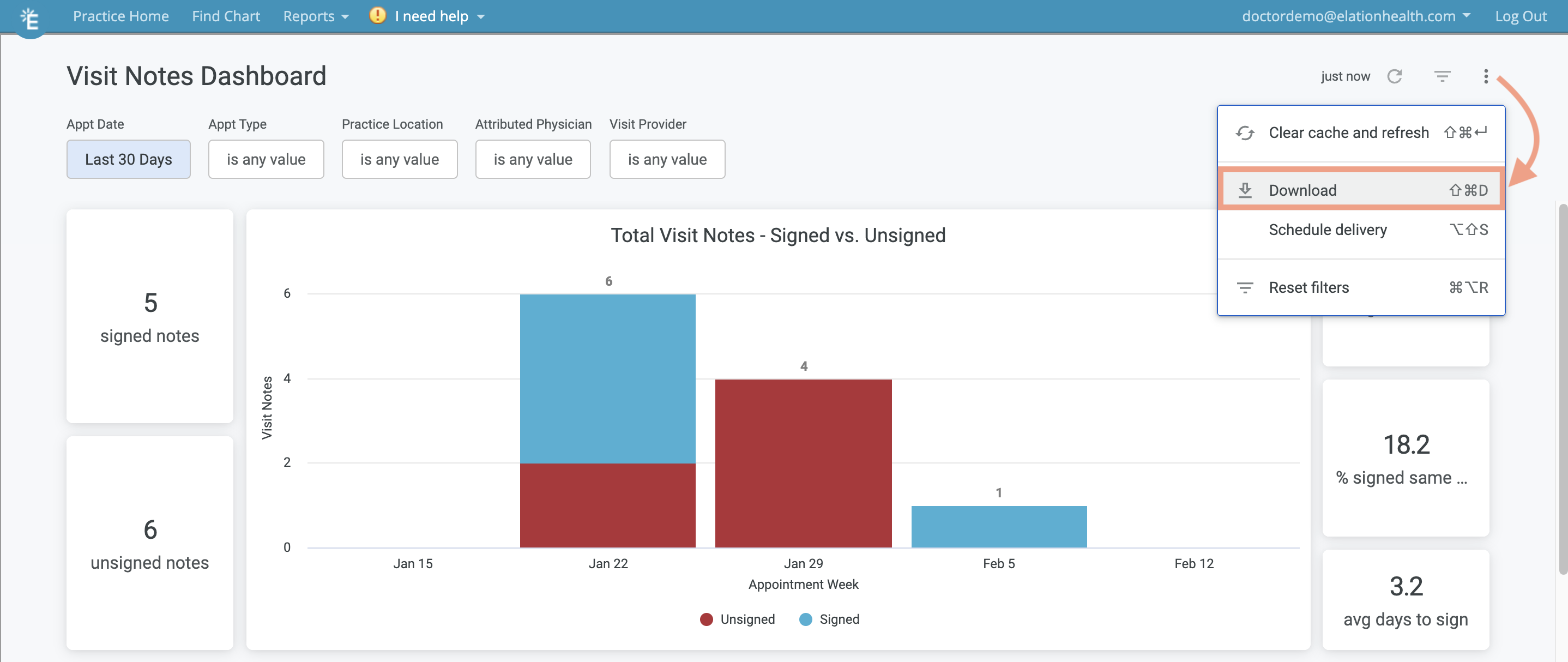
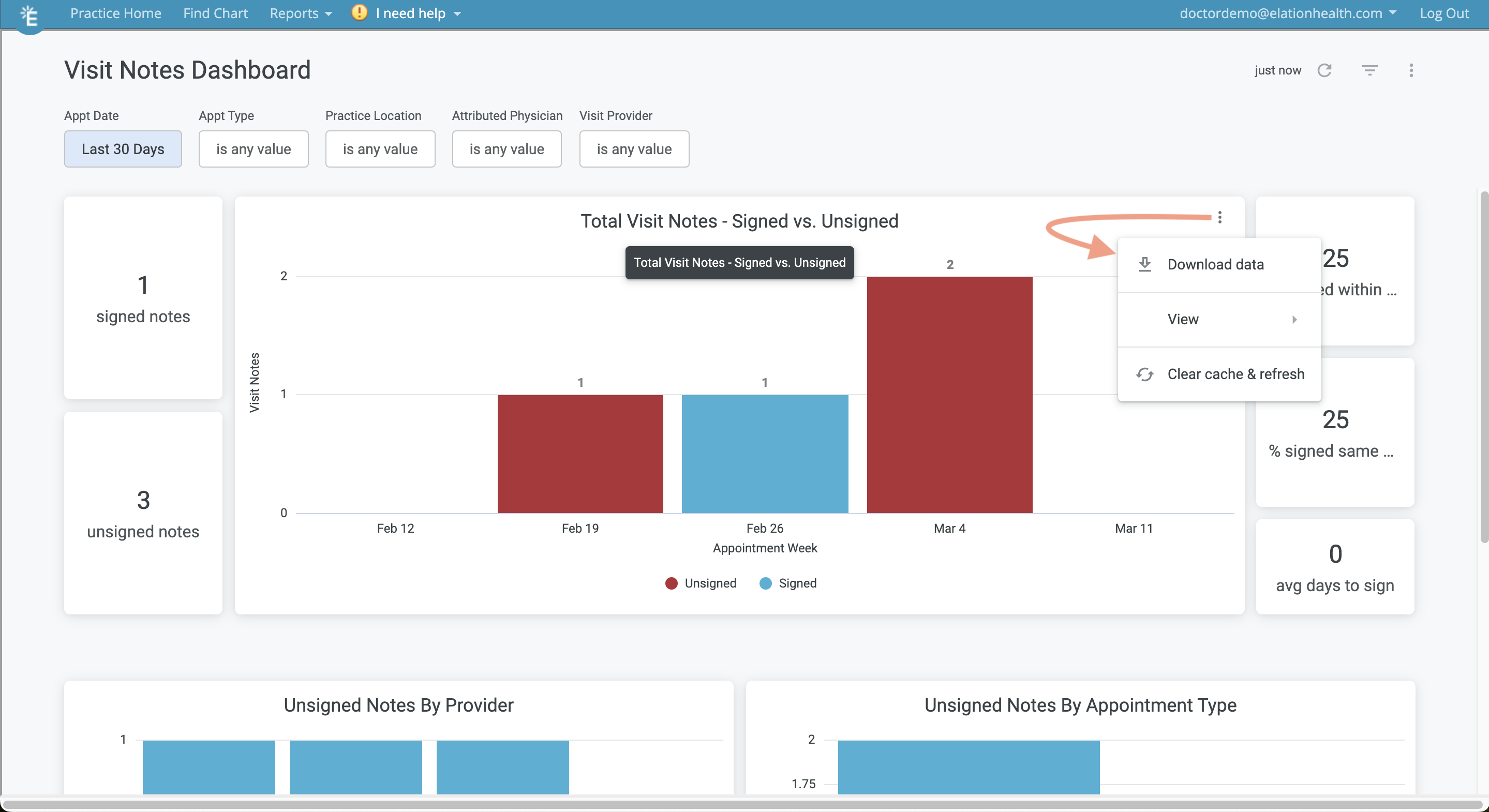
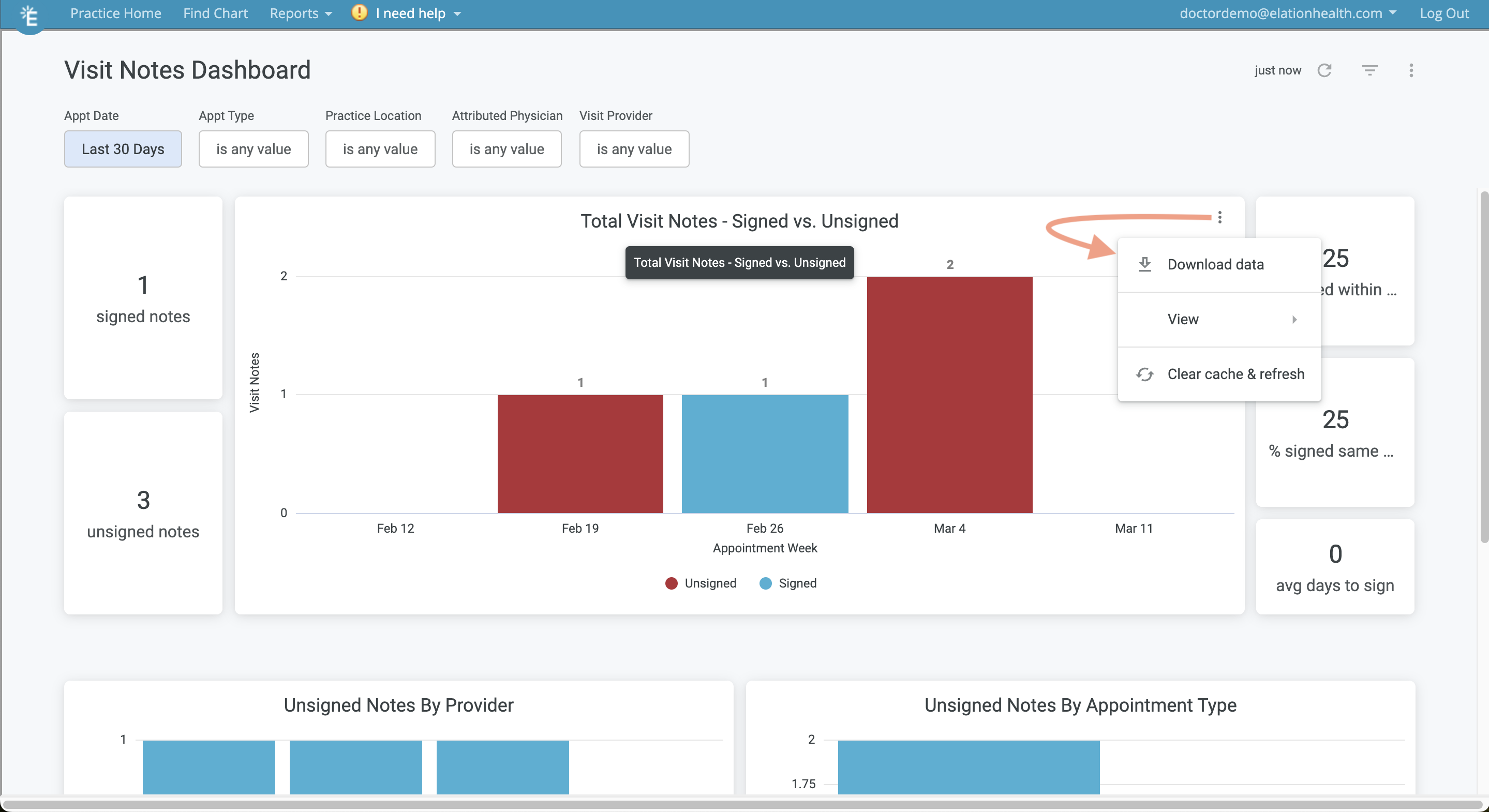
- Download the data
- Expand the visual
- Refresh the data
Visit Note List
Visit Note List Overview
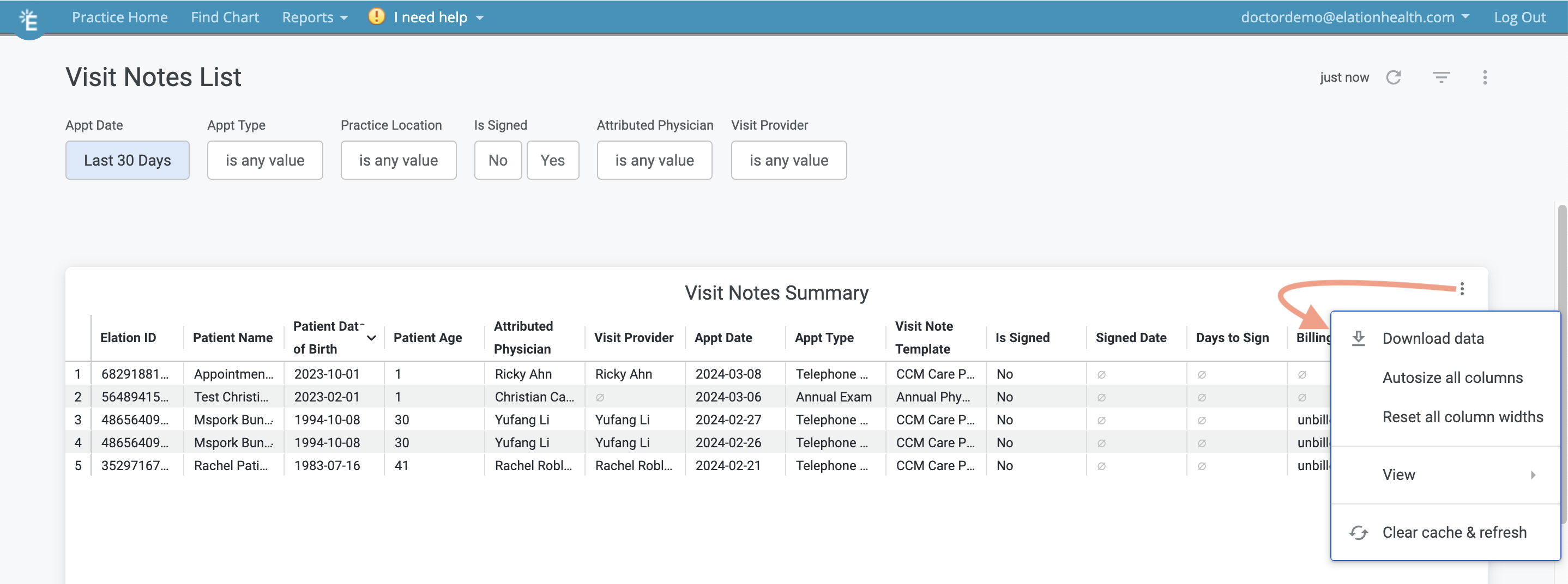
The Visit Notes List allows you to see a tabular view of the visit note data in the Visit Notes Dashboard with extra granularity. The following columns are available in the Visit Notes List. You can hover your cursor over each column name to see additional column options or the sort option.- Patient Name
- Patient Date of Birth
- Attribute Physician(Provider Assigned in Practice)
- Visit Provider
- Appointment Date
- Appointment Type
- Visit Note Template
- Is Signed (Yes/No)
- Signed Date
- Days to Sign
- Billing Status
- Appointment Status
How to use the Visit Note List
The following filters are available in the Visit Notes List. After applying filters, click the- Appointment Date
- Filter by the date of the appointment. By default the Dashboard will show you Appointment data for the last 30 calendar days.
- Appointment Type
- Practice Location
- Is Signed (Yes/No)
- Attributed Physician (Provider Assigned in Practice)
- Visit Provider
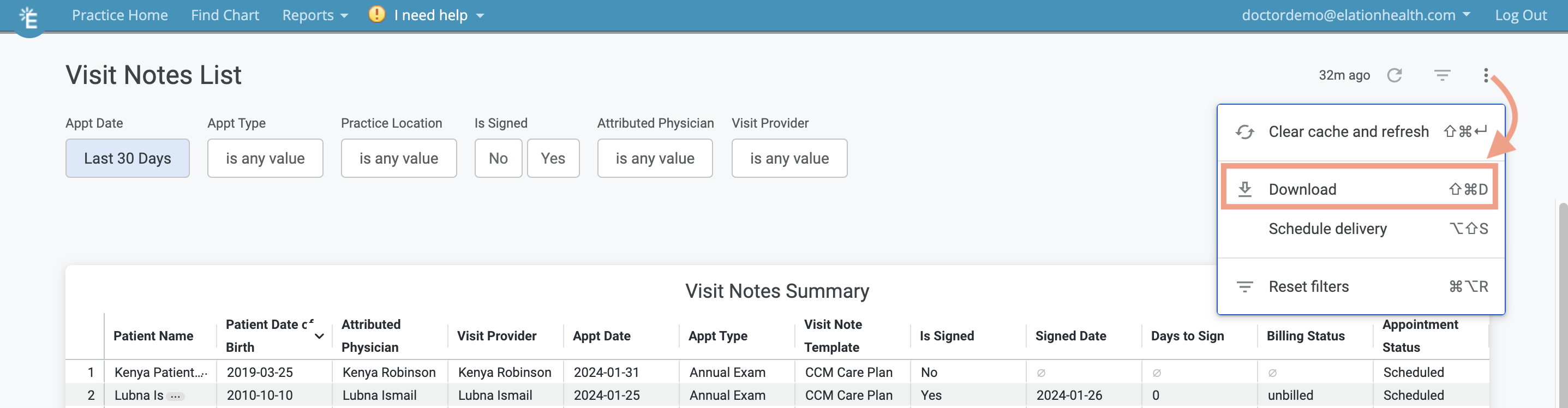
- Download the data
- Adjust column widths
- Expand the table
- Refresh the data
Frequently Asked Questions
How often is data refreshed?
Data in the reports and dashboards are refreshed every hour.What is the difference between the Appointment Report and the Appointment List?
The Appointment Report will continue to show you appointment data during a select period of time with pre-defined data fields. The new Appointment List provides more detailed appointment data and enhanced filtering options.The Appointment Report will be deprecated once all customers are accustomed to the new Appointment List.
Can I save my filter preferences?
Filters cannot be saved at this time. We will update you if this feature becomes available.Can I add or remove columns in the reports?
Data columns cannot be adjusted at this time. We will update you if this feature becomes available.Can I add or request additional automatic calculations in the dashboards?
We do not offer any additional automatic calculation options in the dashboards at this time. We will update you if this option becomes available.Can I print the dashboards?
Yes, you can print the dashboards by clicking on the Actions button in the dashboards, and then clicking Download to save a PDF copy of the dashboard to your computer. Afterwards open the PDF and then print the PDF to print a copy of the dashboard.Can I download the graphs or tables?
Yes, you can download all of the visuals, graphs and tables in the dashboards and reports. To download a PDF version of the entire dashboard, Click on the