
What is the blue navigation bar?
The blue navigation bar is a consistent and static resource bar located at the top of the Elation screen to help you navigate between the various pages of the EHR.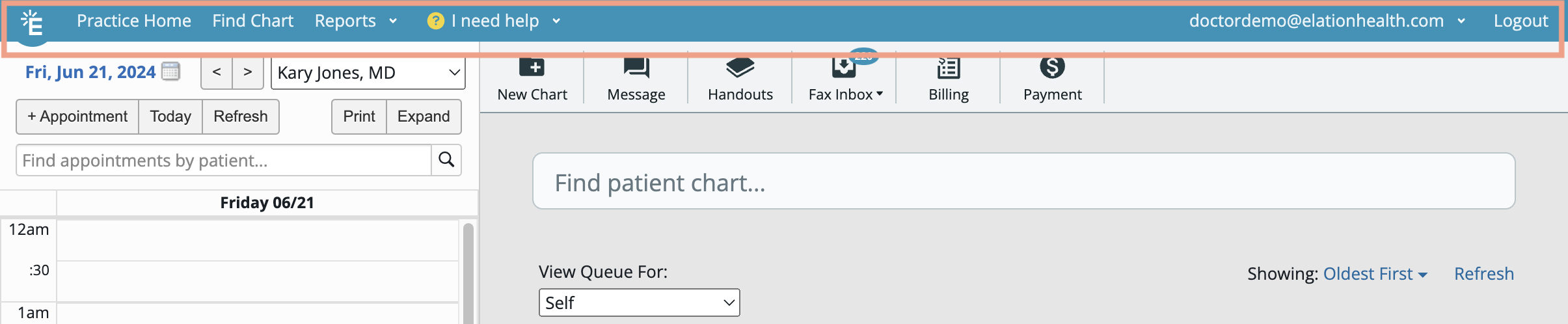
What are the benefits of the blue navigation bar?
The blue navigation bar organizes Elation’s pages so that you can easily move from page to page. The navigation bar remains fixed at the top of every Elation page, ensuring consistent access to resources whenever needed.How to use the blue navigation bar option
The following sections detail how to best utilize each option in the blue navigation bar:Practice Home
Navigate to the Practice Home at any time by clicking the Elation logo or clicking Practice Home.Find Chart
Click Find Chart to pull up the patient search window below. In the patient search window, you can navigate directly to any patient chart by searching for their name, DOB, or phone number.Reports
Click Reports to pull up a list of the various reporting features Elation offers.- Patient List
- Patient List allows your practice to run complex searches and generate specific lists from your entire patient panel. These lists can be exported as Excel-compatible spreadsheets for further analysis.
- Bulk Letter Dashboard
- Bulk Letter Dashboard shows a summary level view of all the Letters that have been sent in bulk. From here, providers and staff can get a quick glance at the progress and status of their Bulk Letters.
- Billing Home
- Billing Home helps your practice track all billing information recorded in both signed and unsigned visit notes and allows you to generate patient invoices.
- Patient Payment Report
- This Report will only have data if your practice is using Elation’s Patient Payment integration.
- Patient Payment Report allows your practice to view all patient payment transactions including completed payments (from a request, charge, or submitted through the payment site), outstanding requests, and cash/check collections.
- Appointment Report
- Appointment Report is an administrative report that helps your practice track patient appointments over a period of time.
Additional Reports
The following reports will only appear in the Reports option if you are using certain optional features, add-on features or Premium EHR features.- Patient Cohort
- This Report will only be visible for Premium EHR customers using the Patient Cohort feature.
- The Patient Cohort dashboard allows you to segment access to charts based on a patient’s criteria.
- Appointment Dashboard
- This Report will only be visible for Premium EHR customers.
- The Appointment Dashboard shows you visuals and graphs about your practice’s appointment data.
- Appointment List
- This Report will only be visible for Premium EHR customers.
- The Appointment List shows you a tabular view of your practice’s appointment data with extra granularity.
- Visit Notes Dashboard
- This Report will only be visible for Premium EHR customers.
- The Visit Notes Dashboard shows you visuals and graphs about your practice’s visit note data.
- Visit Notes List
- This Report will only be visible for Premium EHR customers.
- The Visit Notes List shows you a tabular view of your practice’s appointment data with extra granularity.
- Membership Report
- This Report will only be visible for practices using the Membership Management feature.
- Membership Report helps your practice track patient membership plans and recurring patient membership payments.
- Clinical Quality Measures (MIPS)
- This Report is only visible for practices that are reporting for MIPS.
- The Clinical Quality Measures dashboard provides detailed information about the specific MIPS measures that can be tracked during reporting years. For more general information about MIPS, please reference Elation’s MIPS Help Center landing page.
- Promoting Interoperability (MIPS)
- This Report is only visible for practices that are reporting for MIPS.
- The Promoting Interoperability report helps your practice track their Health Information Exchange data. For additional information on Promoting Interoperability, please reference the articles detailed on this page.
I need help
Click I need help if you are looking for training content, need any guidance about the EHR or if you need support. Reference the Support Guide- How to get help on Elation for more detailed information about contacting our Support Team. We are here to help!- Search our Help Center
- Access our Help Center to search for resources on your topic of interest.
- Learn on Elation University
- Learn about different features and workflows based on your role in the practice via Elation University.
- Show me a map of this page
- View a mapping layer on your screen that provides brief detail on the areas of the page with applicable Help Center links, and shows how you can best navigate the page.
- Contact Elation Support
- Selecting this option will open a window where you can contact the Elation Support Team to:
- Report an issue
- Use this option to report an issue to our Support Team.
- Check off the Urgent box if the issue you are experiencing impacts patient care.
- Report an issue
- Selecting this option will open a window where you can contact the Elation Support Team to:
This option is reserved for inquiries and issues that are blocking immediate patient care and can only be sent from Admin Level Users . We will try to reach you within 30 minutes via the email address you provided in the inquiry.
- Request a feature
- Use this option to request we enable an optional, add-on or paid feature for your practice.
- Use this option to submit feedback about a new enhancement or feature you’re interested in. We value your feedback!
- Request an integration
- Use this option to request an established integration or interface be enabled for your practice.
- Inquire about something else
- Use this option to inquire about any other topics.
Clicking the I need help options from the patient chart view will display an additional option called I accidentally deleted a note or report . This option will pull up a window where you can easily restore a deleted visit note or report from the patient’s chart.
Email Address
Click your email address (which is your Elation username) to see the following resources:- Settings
- Click Settings to view and configure the settings for your account or your EHR.
- Product Updates
- Click Product Updates to read about the latest additions and enhancements via Elation’s Product Updates Help Center page.
- Invite a Colleague
- Click Invite a Colleague to recommend Elation to a colleague. The Elation Team will contact your referral to learn more about their practice and needs.
- Provider Security Code
- Click Provider Security Code to view the unique code that your practice must provide to your Referral recipients to ensure they can access the interactive chart link shared with them.
Log Out
Click Log Out to log out of your Elation session. Once logged out, you will need to log back in with your email and password to access Elation.Frequently Asked Questions
Is there a phone number to reach Elation Support?
Elation Support does not offer a general inbound phone line. Reach the Support Team by clicking I need help → Contact Elation Support in the blue navigation bar, or through our support page. For Urgent issues that block immediate patient care, Elation will try to reach you within 30 minutes. Include your email and phone number in case we need to call.- In support chat, click the 💬 Urgent: An issue is blocking patient care chat suggestion or mention “Urgent” to the agent.
- In support contact forms, your message will be routed to our Urgent queue based on the nature of your request.