
What is Voice Typing?
Voice Typing lets you speak instead of type in any text field in Elation EHR. Hold a keyboard shortcut and talk, or click the microphone next to a field, and Elation turns your speech into text and inserts it where your cursor is. Use Voice Typing for short entries such as messages, tasks, letters, searches, and individual visit note sections. To document a full patient visit, use Note Assist.Why use Voice Typing?
Speaking is often faster than typing for most free-text entries. Voice Typing works in any text field on any page, and you can keep working while you talk: scroll the chart, check a lab, or click into another field.Who can use Voice Typing?
Voice Typing is in limited beta for some users with an unlimited Note Assist subscription. If you have one and don’t see Settings > Voice Typing, it hasn’t been turned on for your account yet. For more about subscriptions, see Note Assist Guide - Frequently Asked Questions. It works across Elation EHR, including the patient chart, Home, Reports, and Settings. It is not available in Patient Passport. You’ll need a microphone and permission for Elation to use it in your browser. For help, seeNote Assist Guide - Microphone Setup and Troubleshooting.Set up Voice Typing
- Go to Settings > Voice Typing.
- Confirm Enable Voice Typing is on.
- Under How It Works, click Allow Microphone, then click Allow in your browser’s prompt.
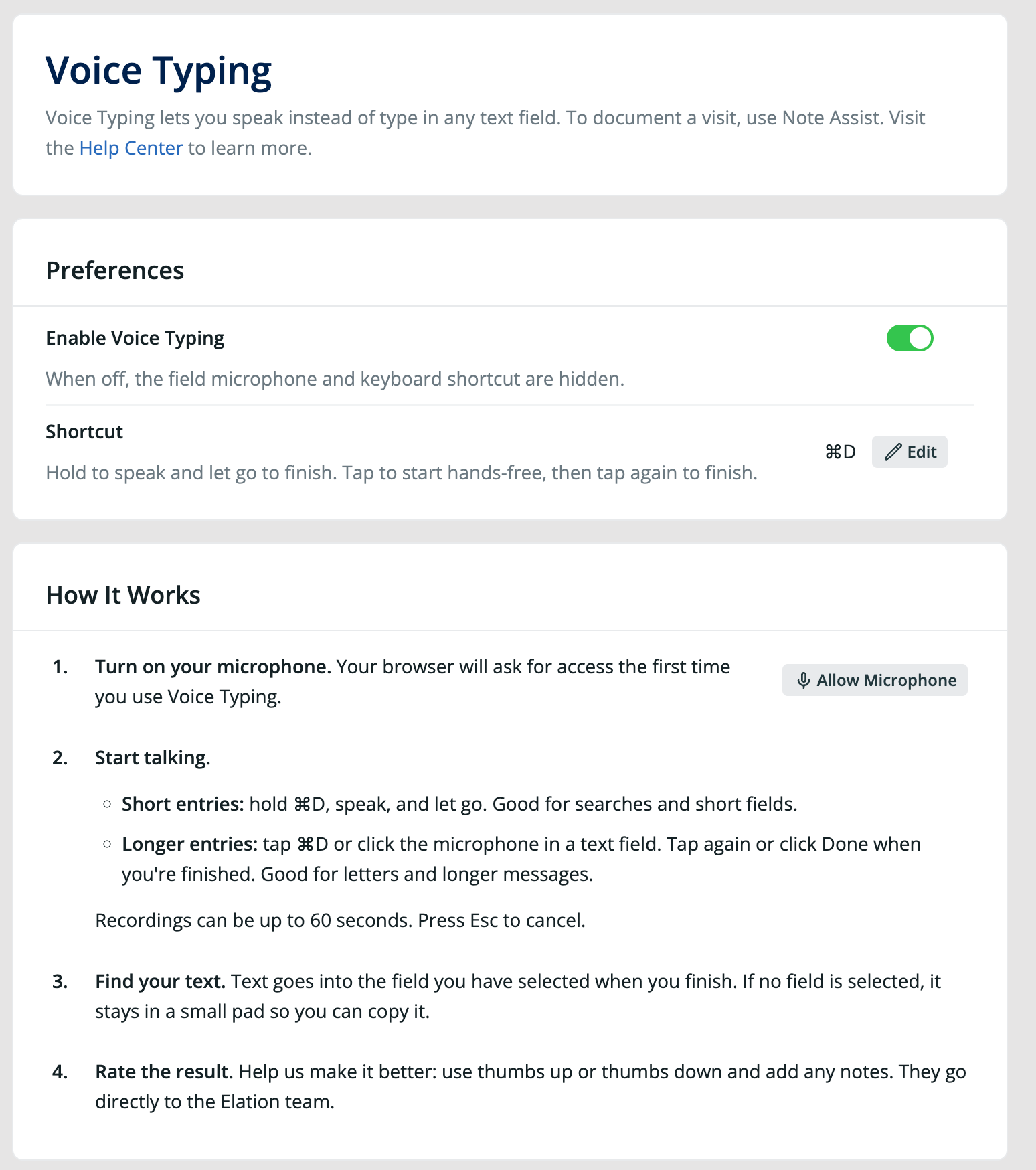
Voice Typing settings apply to your user account only. They do not change settings for anyone else in your practice.
Dictate with the keyboard shortcut
The default shortcut is Cmd + D on Mac and Ctrl + D on Windows. You can use it two ways.Hold to talk (short entries)
Best for searches and short fields.- Click into the text field where you want the text to go.
- Press and hold Cmd + D (Mac) or Ctrl + D (Windows).
- Speak while holding the keys.
- Let go to finish.
Tap for hands-free (longer entries)
Best for letters, longer messages, and note sections.- Click into the text field where you want the text to go.
- Tap Cmd + D (Mac) or Ctrl + D (Windows) once and release.
- Speak.
- To finish, tap the shortcut again, press Enter, or click Done.
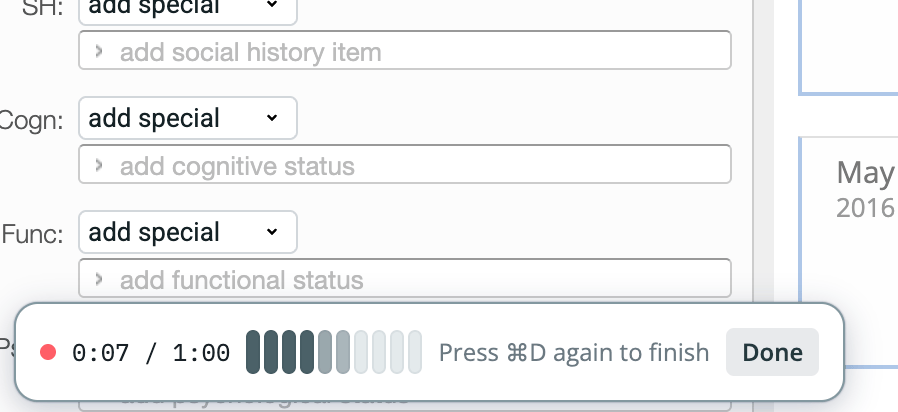
Each recording can be up to 60 seconds long. The timer on the recording card shows how much time you have used. When you reach 60 seconds, Elation stops recording and transcribes what you said.
Dictate with the field microphone
When you click into a text field that supports Voice Typing, a microphone button appears at the right edge of the field.- Click into the text field.
- Click the microphone button. Recording starts in hands-free mode.
- Speak.
- Click the microphone button again, click Done, or press Enter to finish.
Dictate in Elation AI
The microphone button in the Elation AI question box also uses Voice Typing. Click it to start recording into the question box, and click it again to finish. For more information, see Elation AI — Frequently Asked Questions.Where your text goes
Elation inserts your text into the field that is selected when you finish recording, at the cursor position. This means you can start dictating in one field, click into another, and finish there.
Elation adds a space between your dictation and the words around the cursor, so the words do not run together.
The Inserted notice
After your text is inserted, the Inserted notice shows:- Thumbs up and thumbs down buttons to rate the result.
- A settings button that opens Settings > Voice Typing.
- A close button.
The text pad
When there is no field to insert into, your words wait in a pad so nothing you said is lost.- Click Copy to copy the text to your clipboard, then paste it where you need it.
- Click the close button to dismiss the pad.
Rate a result
Use thumbs up or thumbs down on the Inserted notice or the text pad to tell Elation how a dictation went. You can add notes with your rating. Ratings go directly to the Elation team and help improve Voice Typing.Change the Voice Typing shortcut
- Go to Settings > Voice Typing.
- Next to Shortcut, click Edit.
- Press the key combination you want to use. The combination must include Cmd, Ctrl, or Alt.
Turn Voice Typing off
- Go to Settings > Voice Typing.
- Turn off Enable Voice Typing.
Troubleshooting
”Microphone unavailable” appears
Elation cannot access your microphone. The message on screen explains why:- Microphone access is blocked. Your browser is set to block the microphone for Elation. Click the icon to the left of the address bar, allow microphone access, and try again.
- Microphone access was denied. You dismissed or denied the browser’s permission prompt. Try again and click Allow when prompted.
- No microphone was found. Connect a microphone and try again.
”No speech detected” appears
Elation did not hear any words in your recording. Check that your microphone is connected, selected in your browser, and not muted, then try again. If you used hold to talk, keep holding the shortcut until you finish speaking.”Transcription timed out” appears
Elation could not finish transcribing your recording. Try again. If the problem continues, check your internet connection.Nothing happens when I press the shortcut
- Go to Settings > Voice Typing and confirm Enable Voice Typing is on.
- Confirm which shortcut is set under Shortcut.
- Confirm you are on a clinician page in Elation EHR, such as the patient chart.
- Confirm your browser is up to date.
My text went into the text pad instead of the field
The field was not selected when you finished recording, or it could not take the text. Click into the field, then click Copy on the pad and paste.Frequently Asked Questions
Does Voice Typing replace Note Assist?
No. Note Assist listens to a full patient visit and drafts a visit note. Voice Typing transcribes short dictations, up to 60 seconds each, into the field you choose. You can use both.Can I review the text before it is added?
Text is inserted directly into the field. Review it there and edit as needed before you save or sign.Can I keep working while I record?
Yes. The page stays usable while you record. You can scroll, read the chart, or click into a different field. The text goes into the field that is selected when you finish.Is my recording saved?
Elation does not keep the audio of your recording. Elation does keep the text transcript.While Voice Typing is in beta, these retention policies may change.