
Frequently Asked Questions
- Access & Consent
- Who can use Note Assist?
- What counts as an AI-generated note?
- Why do I only get 10 free AI-generated notes each month?
- When does my free monthly allowance reset?
- Does retrying, deleting, or editing a note use an additional credit?
- Does a new provider automatically get unlimited Note Assist if my practice already upgraded?
- Do I need patient consent to record the visit?
- Feature Functionalities
- Can I customize how Note Assist writes my notes?
- Can I use Note Assist with any web browser?
- Can I use Note Assist with all visit note formats?
- Why are 2-column visit note formats preferred?
- Can I use Note Assist on a draft note with existing content?
- Does using a Visit Note Template help?
- How often does Note Assist update the note?
- What happens if I switch to another patient chart without finishing the recording?
- What happens if I close the Note Assist dialog before clicking the Finish Recording button?
- Why don’t I see the Scribe button?
- Is there a time limit for using Note Assist during a visit?
- Does Note Assist require verbal cues to identify sections like the physical exam?
- Can Note Assist tell the difference between similar terms (e.g. Hypertension vs. Hypotension)?
- Will chit chat or side conversations be excluded from the visit note?
- How do I correct mistakes when recording?
- Does Note Assist add ICD-10 codes to the Assessment or Billing Details of the visit note draft?
- Transcriptions
- Is my data being used to train AI models?
- Is the transcription created in real-time?
- Can Note Assist translate my conversation with the patient in real time?
- How do I access my transcripts?
- How long is the transcript available?
- If I amend the visit note, can I still access the transcript of the original Note Assist session?
- If I delete and then restore a visit note draft, is the transcript also restored?
- There’s missing information in the Note, what should I do?
- Can I restore the first version of the Note after clicking retry?
- Technical Specifications & Usage
- Do the patient and I need to sit close to the microphone?
- What happens if I lose internet connection while recording?
- Can I use Note Assist for telehealth/virtual encounters?
- Can I use Note Assist on a mobile device or tablet, if so, do I need to download an application? Which internet browsers are specifically supported on a mobile device/tablet?
- Can I use a keyboard shortcut or an external microphone’s button to start or stop recording?
Access & Consent
Who can use Note Assist?
Any Provider-Level User can start using Note Assist right away. Note Assist integrates seamlessly into your everyday workflow, delivering AI-driven documentation directly in your Elation EHR. With your free monthly allowance of 10 AI-generated notes, you immediately save time on charting, reduce administrative burdens, and spend more of your clinical day engaged with patients rather than documentation.What counts as an AI-generated note?
An AI-generated note is defined as each time you use Note Assist in a visit note - whether the note is signed or deleted.Why do I only get 10 free AI-generated notes each month?
Your Elation subscription includes 10 AI-generated notes each month at no extra cost, allowing you to experience the benefits of AI-powered documentation firsthand. This helps you see how Note Assist can transform your charting before considering higher volume usage.When does my free monthly allowance reset?
Your 10 free AI-generated notes reset on the 1st of each calendar month at 12:00 AM UTC. Any unused notes from the previous month do not carry over — the count resets to 10 regardless of how many you used. For example, if you only use 3 notes in March, you will still receive 10 fresh notes on April 1st, not 17.Does retrying, deleting, or editing a note use an additional credit?
- Retrying note generation on the same visit does not count as an additional use.
- Deleting a visit note draft that used Note Assist does not refund the use — it still counts toward your monthly total.
- Manually editing the AI-generated text after it has been generated does not count as an additional use.
Does a new provider automatically get unlimited Note Assist if my practice already upgraded?
No. An unlimited Note Assist subscription is tied to a specific Provider Level account, not to the practice as a whole. When you add a new provider, their account starts with the standard free monthly allowance of 10 AI-generated notes even if other providers at your practice have the unlimited upgrade. To extend unlimited access to a newly added provider, reach out to Elation Support or your Customer Success Manager and request that the provider be added to your practice’s unlimited Note Assist subscription.Do I need patient consent to record the visit?
Yes, when using Note Assist, you may be subject to laws about recording conversations. These rules vary by location. It’s your responsibility to understand the laws where you practice and get your patient’s consent—ideally before or during their visit. Here’s an example of consent language you can use:
Click here for additional information about Patient Consent Regulations.
Feature Functionalities
Can I customize how Note Assist writes my notes?
Yes. Custom instructions let you control how Note Assist structures and writes each section of your visit note, such as the HPI and A&P. You can specify preferences for style, format, and content so the AI-generated output matches your documentation approach. To set up custom instructions, go to Settings -> AI Personalization and scroll to the Note Assist section. Click on a visit note section to expand it and add your instruction. Custom instructions are available for all Note Assist customers, including both paid and freemium plans. Click here for more information about setting up custom instructions.Can I use Note Assist with any web browser?
Note Assist works on:- Computer/laptop: Firefox, Chrome
- Android devices: Chrome
- iPhones/iPads: Safari
Can I use Note Assist with all visit note formats?
Best supported formats:- Complete H&P Note (2 column)
- Complete H&P Note (2 col-A/P)
- SOAP Note
- Complete H&P Note (1 column)
- Simple Note
- Pre-op Note
- Non-Visit Note
- Phone Note
- Email Note
Why are 2-column visit note formats preferred?
2-column visit note formats offer more structure, helping Note Assist better organize the note and avoid overwriting existing content. Here are more details around how Note Assist detects and populates specific fields in the 2 column Visit Note Formats:- Vital readings spoken aloud during encounters will be automatically recorded directly into the appropriate vital fields in the visit note.
- Physical evaluations will be recorded in discrete PE (Physical Exam) fields.
- Patient instructions will be recorded in the Care Plan.
- Symptoms and conditions will be organized in the HPI section.
- Diagnoses, including suspect conditions, will be grouped and labeled in the Assessment and/or Plan sections.
- Note Assist populates the Assessment section with the diagnosis name if your conversation mentions any and this jumpstarts the search for ICD-10 codes in our system. Simply click the name of a diagnosis and the system will launch the diagnosis search to narrow down the search results for you.
Exception: Note Assist will not generate data in the Review of Systems (ROS) section of any visit note formats at this time.
Can I use Note Assist on a draft note with existing content?
Yes, you can use Note Assist on a draft note that already has content, such as Visit Note Templates. Note Assist will update the note with new information. If there’s a conflict, the new data may replace what’s already written.Does using a Visit Note Template help?
Yes, Visit Note Templates help Note Assist understand what information to include and how to organize the information in the note.How often does Note Assist update the note?
Note Assist updates the note at the end of the session.What happens if I switch to another patient chart without finishing the recording?
Note Assist only records one chart at a time. If you open a new chart, the previous recording will pause automatically.What happens if I close the Note Assist dialog before clicking the Finish Recording button?
If you close the Note Assist dialog before clicking the Finish Recording button, you will be prompted to- Click End Session to save and stop recording.
- Click Keep Recording to continue recording.
Why don’t I see the Scribe button?
The Scribe button is hidden while the Note Assist dialog is open. This includes when the dialog is minimized — a minimized dialog shows only a compact title row, so it can look like the button is gone. Look for the Note Assist dialog on your screen and click Maximize to expand it and continue your session. To bring the Scribe button back, close the dialog by clicking Close or X. If a recording is still in progress, you’ll be prompted to click End Session to save and stop recording, or Keep Recording to continue.Is there a time limit for using Note Assist during a visit?
No, there is no time limit. Note Assist will continue recording and transcribing until you click Finish Recording.Does Note Assist require verbal cues to identify sections like the physical exam?
Verbal cues aren’t always required, but they can enhance accuracy. When information could belong to multiple sections, using clear verbal cues ensures it is placed in your intended section.Can Note Assist tell the difference between similar terms (e.g. Hypertension vs. Hypotension)?
Yes. Note Assist uses speech models and context clues in your conversation to make accurate guesses, similar to a human scribe. For example, if you and your patient are talking about high blood pressure or blood pressure readings that are high, it’s likely to predict that Hypertension was what was said and input the correct word.Will chit chat or side conversations be excluded from the visit note?
Note Assist filters out obvious chit-chat (e.g. parking questions) but may include lifestyle details if they seem relevant.How do I correct mistakes when recording?
If you made any mistakes while recording, simply speak your corrections and Note Assist will take them into consideration when generating your note contents. You can also pause the recording and start your recording again to speak any corrections.Does Note Assist add ICD-10 codes to the Assessment or Billing Details of the visit note draft?
Note Assist does not add ICD-10 codes to the visit note draft. However, Note Assist will populate the Assessment or Plan with the diagnosis name so you can launch the ICD-10 search by clicking on the diagnosis name.Transcriptions
Is my data being used to train AI models?
No, your patient data is not being used to train AI models nor do we allow any of our third party vendors to retain or train on data. We delete patient transcript data after a short period reserved for troubleshooting or data recovery at your request.Is the transcription created in real-time?
Yes, the transcription is created real-time. If there are internet issues then the transcription may briefly fall behind, but it will catch up once the internet is stable again.Can Note Assist translate my conversation with the patient in real time?
No. Note Assist is designed to document the visit, not interpret it. It transcribes the language you select in real time and generates the final visit note in English, but it does not provide live English translation on screen or out loud during the encounter.How do I access my transcripts?
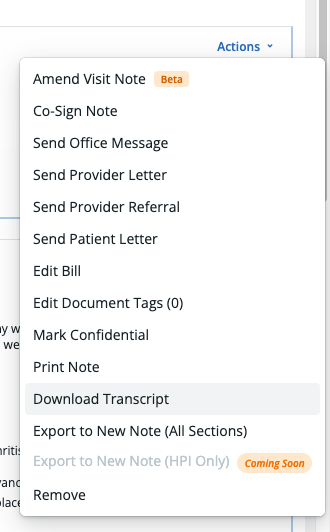
Transcripts are stored in the Note Assist dialog, and visible to you, until you sign the visit note. Click View transcript in the Recording Finished screen to see the transcript. Once the visit note is signed, you can download the transcript from the patient’s chronological record. Click Actions on the note and select Download Transcript. This option is available for both Elation Notes and legacy notes.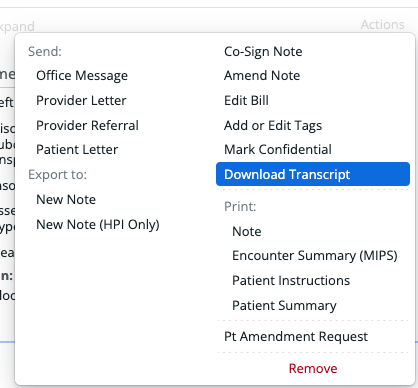
How long is the transcript available?
Once a visit note is signed, Elation keeps the transcript in an archive for 14 days. After that 14 day window, the transcript is no longer available. If you have inquired about a specific transcript via conversations with our Support Team, that transcription may be kept for up to 60 days. If you need access to a transcript in our archive, submit a request via I need help -> Contact Elation Support and a member of our Support Team will be able to assist you.Is the recording saved & will I have access to the audio recordings?
No, the audio recordings are not saved and you will not have access to the audio recordings. Note Assist uses the audio recordings to generate the transcripts continually throughout the visit and then the audio recordings are erased once the transcript is available. Before a visit note is signed, you will have access to the transcript by clicking Scribe and then Transcript at the top of the Note Assist dialog. Once the visit note is signed, you can download the transcript from the patient’s chronological record. Click Actions on the note and select Download Transcript. Once a visit note is signed, Elation keeps the transcript in an archive for 14 days. After that 14 day window, the transcript is no longer available. If you have inquired about a specific transcript via conversations with our Support Team, that transcription may be kept for up to 60 days. If you need access to a transcript in our archive, submit a request via I need help -> Contact Elation Support and a member of our Support Team will be able to assist youIf I amend the visit note, can I still access the transcript of the original Note Assist session?
Note Assist is not available when amending visit notes.If I delete and then restore a visit note draft, is the transcript also restored?
Yes, the transcript will be restored with the visit note draft.There’s missing information in the Note, what should I do?
If the note is inaccurate, you can click the retry icon to try generating it again. Keep in mind that once you do, you won’t be able to go back to the previous version.