
Overview
Using Note Assist for encounters
Follow the instructions in this article to use Note Assist during your patient encounters.Tracking your monthly free AI-generated note usage
The free AI-generated notes option will be gradually rolled out to groups of customers until it’s available to everyone.
If you’ve upgraded to unlimited AI-generated notes, usage tracking is not necessary and won’t appear in the Note Assist dialog.
Workflow Instructions
1. Launching Note Assist
| 1 | Create a new visit note and prepare the visit note as you normally would (i.e. reference Clinical Profile information or apply Visit Note Templates ). |
|---|---|
| 2 | Click Scribe at the bottom right of the chart to open Note Assist. 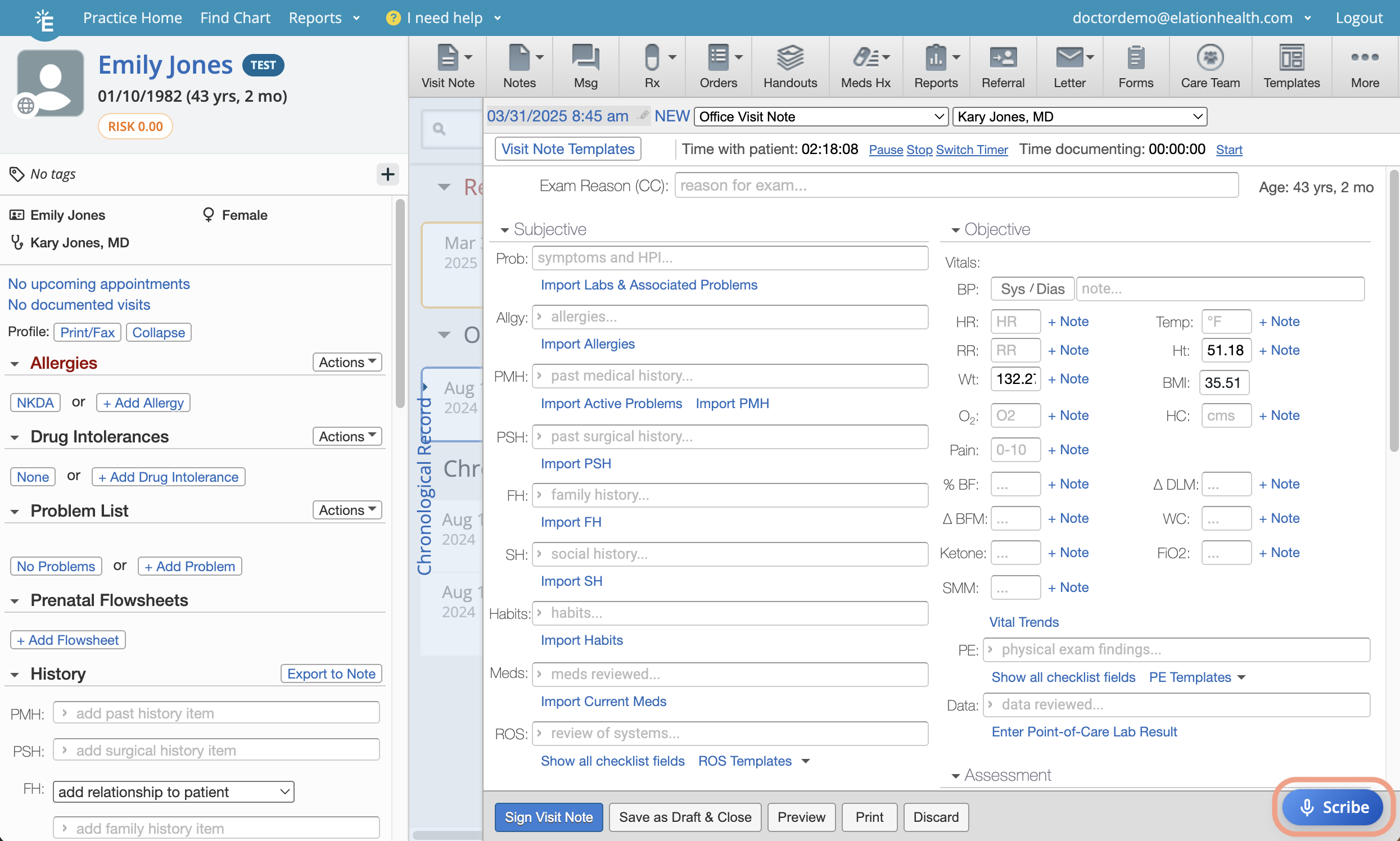 |
2. Allowing Note Assist to use your specified microphone
The first time you use Note Assist, your browser will prompt you to allow microphone access. Click Allow to give Note Assist permission to use the microphone you specify. Here are samples of what the prompts may look like for Firefox & Chrome:
Click here for full instructions on preparing your microphone for recording.
3. Specifying recording settings
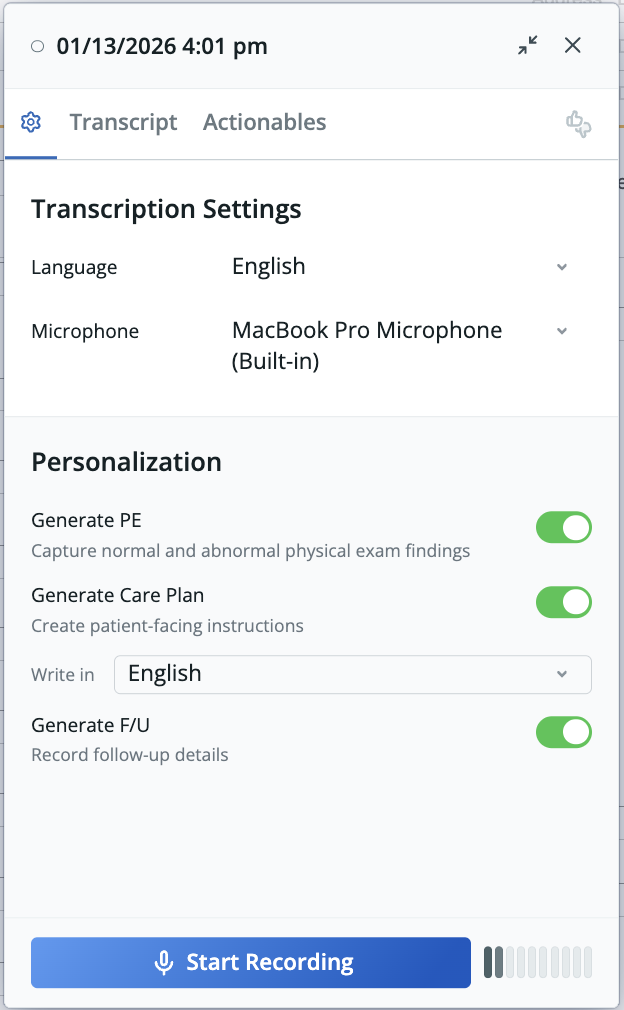
- Language
- Note Assist defaults to English. If needed, use the drop-down to choose another supported language. Your conversation will be transcribed in that language, but the visit note will be translated and written in English.
- Arabic
- Chinese (Cantonese)
- Chinese (Mandarin)
- French
- German
- Hindi
- Japanese
- Korean
- Portuguese
- Russian
- Spanish
- Tagalog
- Vietnamese
- Note Assist defaults to English. If needed, use the drop-down to choose another supported language. Your conversation will be transcribed in that language, but the visit note will be translated and written in English.
- Microphone
- Note Assist will use your default microphone settings. You can choose a different microphone if needed.
- Personalization
- Generate PE: Allow Note Assist to write in the PE (Physical Exam) section.
- Generate Care Plan: Allow Note Assist to write in the Care Plan section.
- Specify if you want the Care Plan to be generated in English (default) or the patient’s Preferred Language.
- Generate F/U: Allow Note Assist to write in the F/U (Follow-Up) section.
- Custom instructions: Tailor how Note Assist writes each section of your visit note (e.g., HPI, A&P) to match your documentation style. Configure these in Settings -> AI Personalization. Click here for more information about custom instructions.
4. Recording a conversation
1 Click Start Recording to let Note Assist capture your conversation with the patient using ambient AI.- A solid red dot in the upper left corner means it’s recording.
- Transcriptions will appear in real time in the Note Assist dialog.
- Content will appear once you stop recording (see step #4).
- Any text generated by Note Assist will be highlighted in light orange.
- If you made any mistakes while recording, simply speak your corrections and Note Assist will take them into consideration when generating your note contents. You can also pause the recording and start your recording again to speak any corrections.
For Elation Note users,To provide Elation feedback about the AI generated content, click the Feedback button and fill out the feedback form.
- Click Start Recording again to pick up where you left off.
- Close the Note Assist dialog by clicking Close or X.
- View the full transcript by clicking View transcript.
5. Reviewing the AI-generated visit note
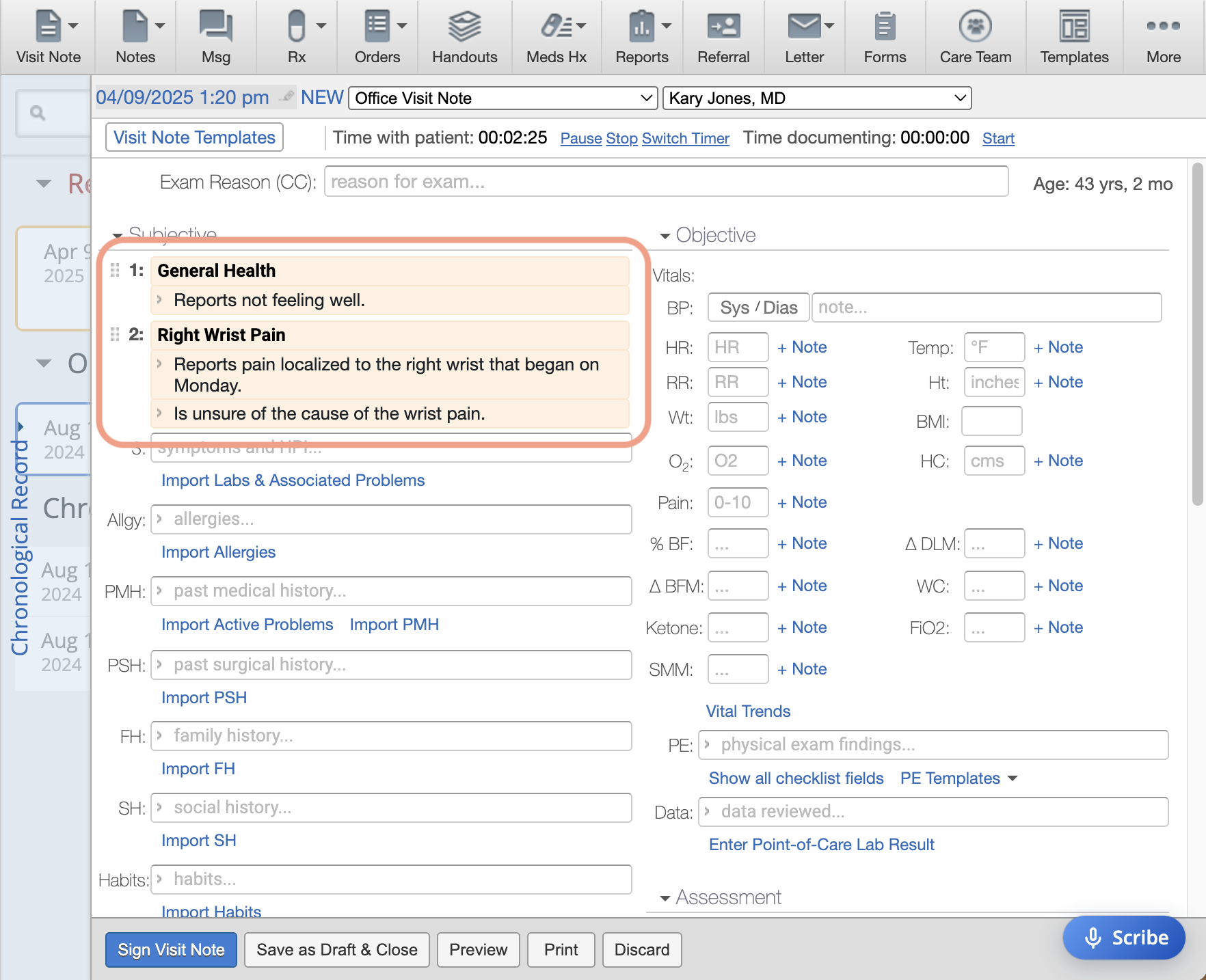
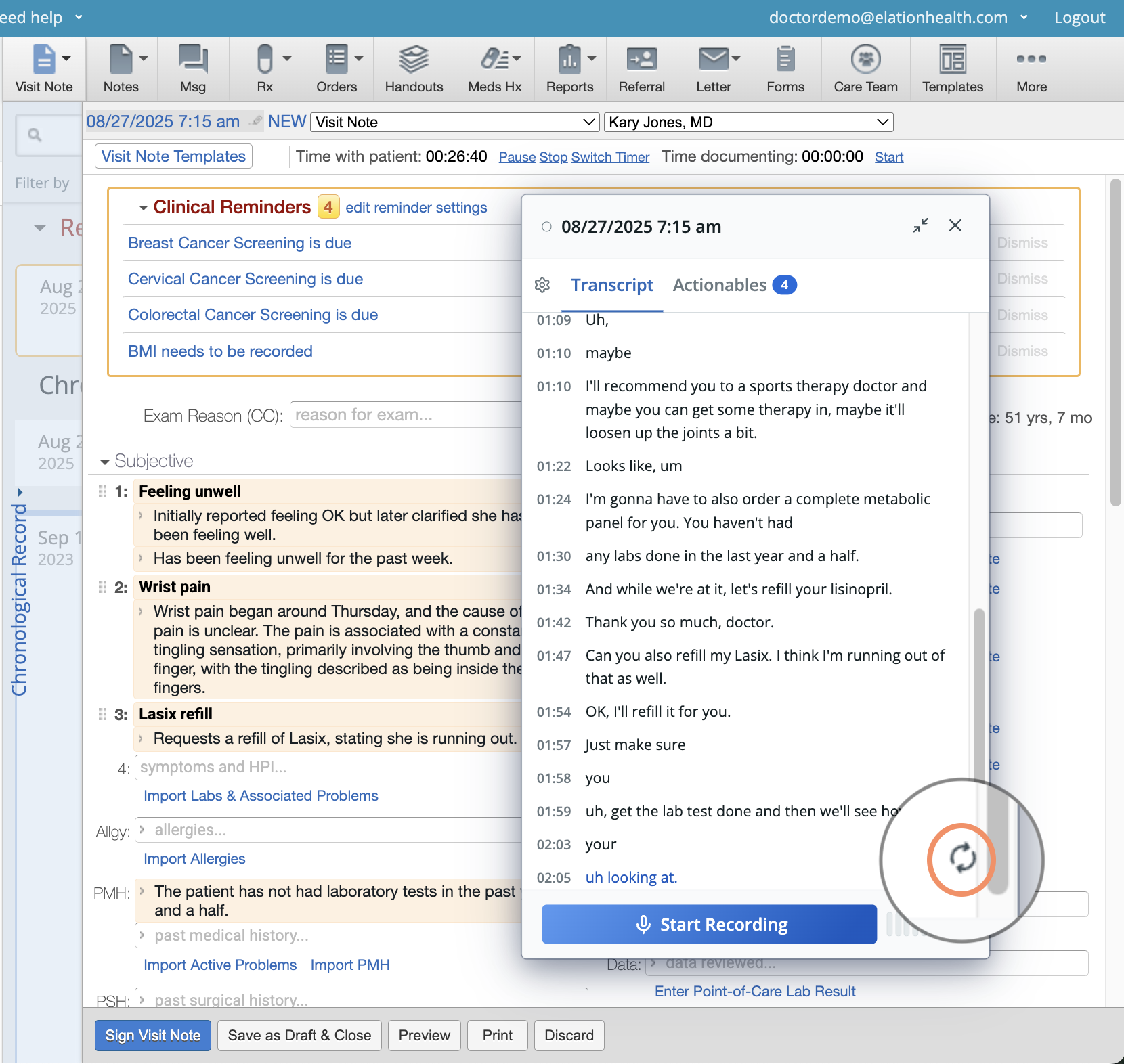
- If the note is inaccurate, you can click the retry icon (shown below) to try generating it again. Keep in mind that once you do, you won’t be able to go back to the previous version.
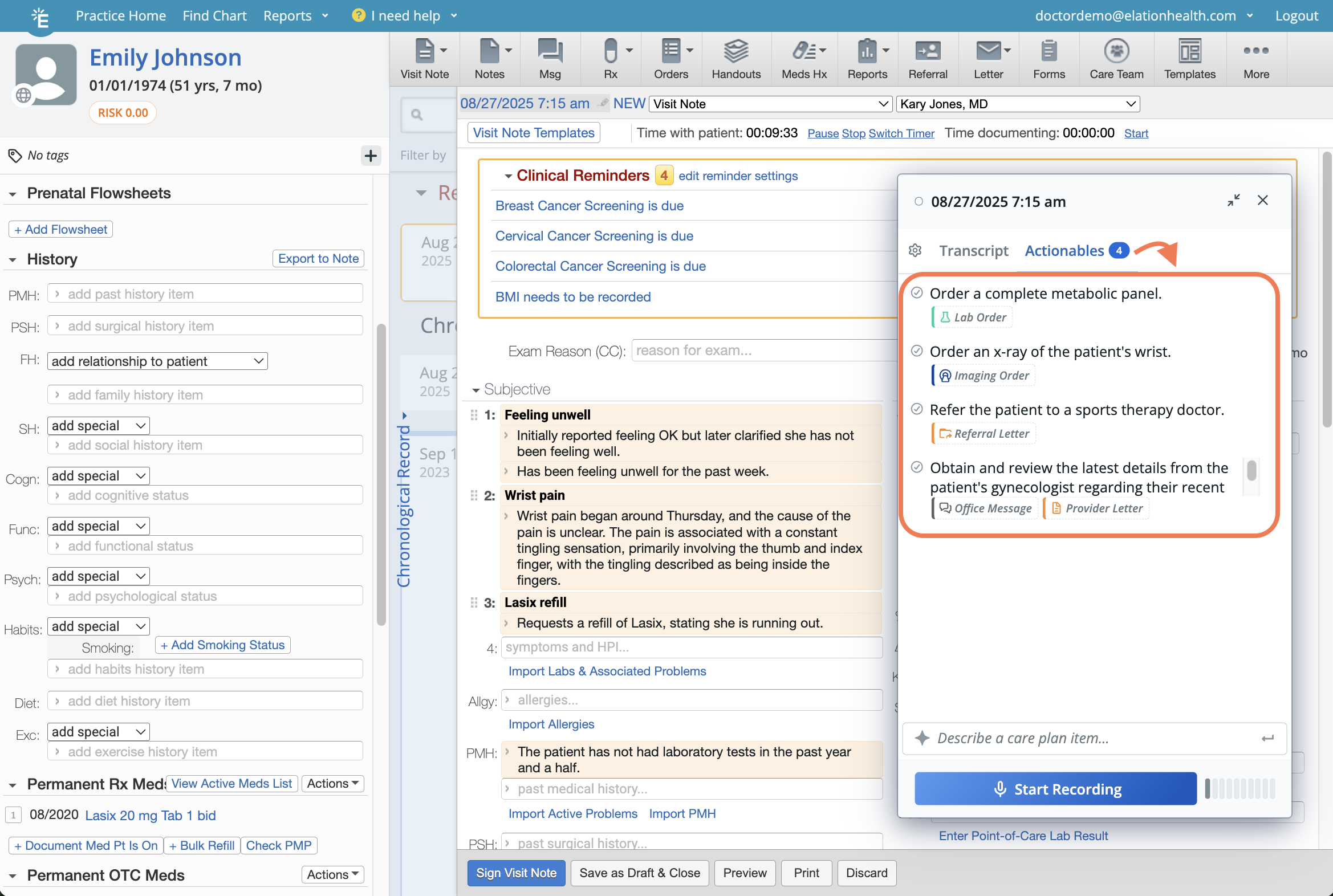
Using Note Assist Care Plan Actions
When you and a patient discuss the care plan follow-ups or actions to be completed at the end of, or after their visit, Note Assist will automatically organize those actions into the following categories:- Medications
- Lab Orders
- Imaging Orders
- Referrals
- Other
- Office Messages
- Provider Letters
- For medications, lab orders, imaging orders and referrals, completed actions will automatically be marked off within a few seconds. You can also manually mark any item as complete by clicking the checkmark.
- To manually add an actionable, type the action in the Describe a care plan item… box.
Prescribing Medications
Prescription intent is tracked and grouped into categories to help you take action easily.Ordering Labs
Lab order intent is tracked- click Lab: Create to open a blank Lab Order Form and draft an order.Ordering Imaging
Imaging order intent is tracked- click** Imaging: Create** to open a blank Imaging Order Form and draft an imaging order.Creating Referrals
Referral order intent is tracked- click** Referral: Create** to open a blank Referral Form and draft a referral.Writing an Office Message
Office Message intent is tracked- click Message: Create to open a pre-filled Office Message draft with the content from the visit conversation.Writing a Provider Letter
Intent to contact external collaborators is tracked- click Letter: Create to open a blank Provider Letter.Tracking other actions
Other Care Plan actions that don’t fit the above categories are tracked as To Do items for you to review. These actions aren’t linked to any other features.Related Articles
- Note Assist Introduction (Add-On)
- Note Assist Guide - Preparing to use Note Assist
- Note Assist Guide - Using Note Assist for encounters
- Note Assist Guide - Best Practice Recommendations
- Note Assist Guide - Frequently Asked Questions
- Note Assist Guide - Microphone Set-up and Troubleshooting
- Note Assist Guide - Feature Updates