
What is the Practice Home?
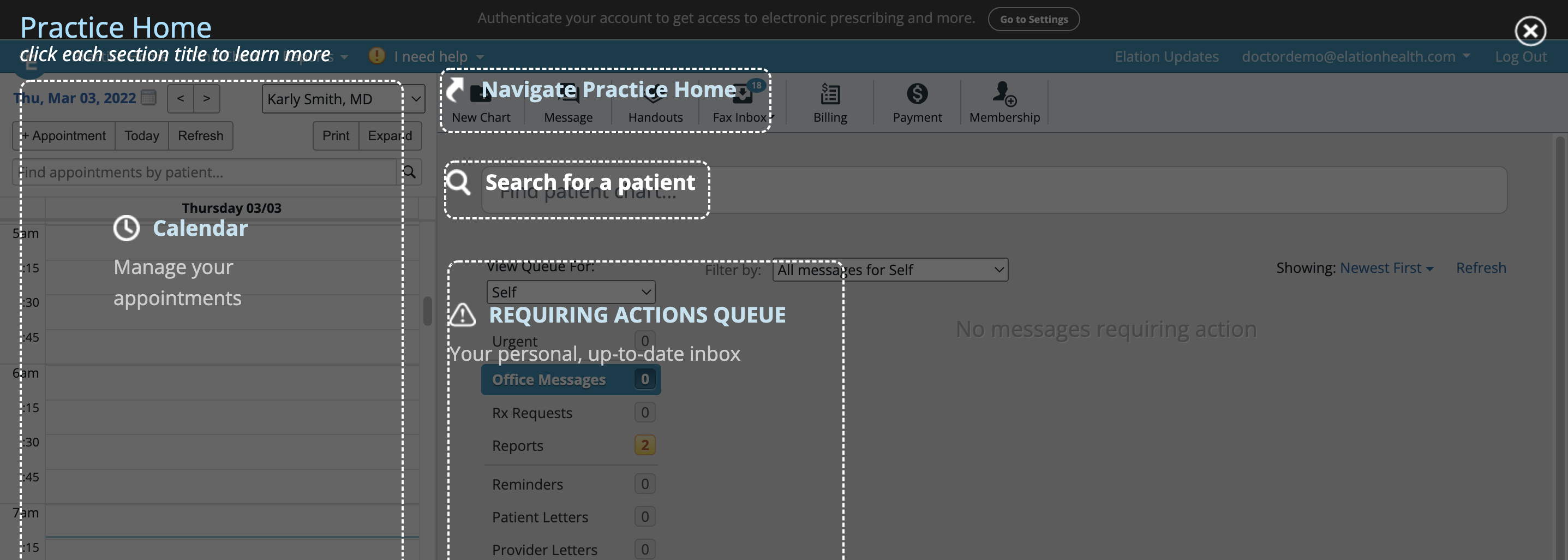
The Practice Home page is the initial page that displays once you sign in to your Elation EHR account. The Practice Home page is divided into 4 main components.- Calendar
- Navigation Bar
- Patient Search Bar
- Requiring Actions Queue
Why is the Practice Home important?
The Practice Home serves as a hub for you to manage some of your most important responsibilities in the practice. Data in the Practice Home is constantly kept up to date to ensure you have all the tools you need to perform different tasks.For those whose main responsibilities are clinical based:
- the Calendar will allow you to manage your schedule for the day
- the Navigation Bar will allow you to:
- message various members of the practice to coordinate care
- share handouts with patients for instructional or education purposes
- bill insurance or patients for services rendered
- manage your patient’s memberships
- the Patient Search bar will allow you to search for and locate any patient chart to access data in their chart
- the Requiring Action queues will allow you to monitor for items that require your attention
For those whose main responsibilities are administrative:
- the Calendar will allow you to manage each provider’s schedule
- the Navigation Bar will allow you to:
- create charts for new patients
- message various members of the practice to coordinate tasks and responsibilities
- manage & share handouts with patients for instructional or education purposes
- manage incoming faxes and upload documents to assist providers with various clinical followups
- manage patient’s financial responsibilities
- the Patient Search bar will allow you to search for and locate any patient chart to access data in their chart
- the Requiring Action queues will allow you to monitor for items that require your attention
Viewing my Calendar
The Elation Calendar will always be on the left hand side of the Practice Home screen and will always show a single provider’s calendar at a time. This will allow you to manage and view the schedule with ease.- If there is only one provider in the practice, the Calendar will always default to showing that provider’s Calendar.
- If you are provider viewing the Calendar in a multi-provider practice, the Calendar will always default to showing your Calendar.
- If you are a staff viewing the Calendar in a multi-provider practice, the Calendar will default to showing the Calendar for the provider you set as your Default physician under Settings >> User Settings.
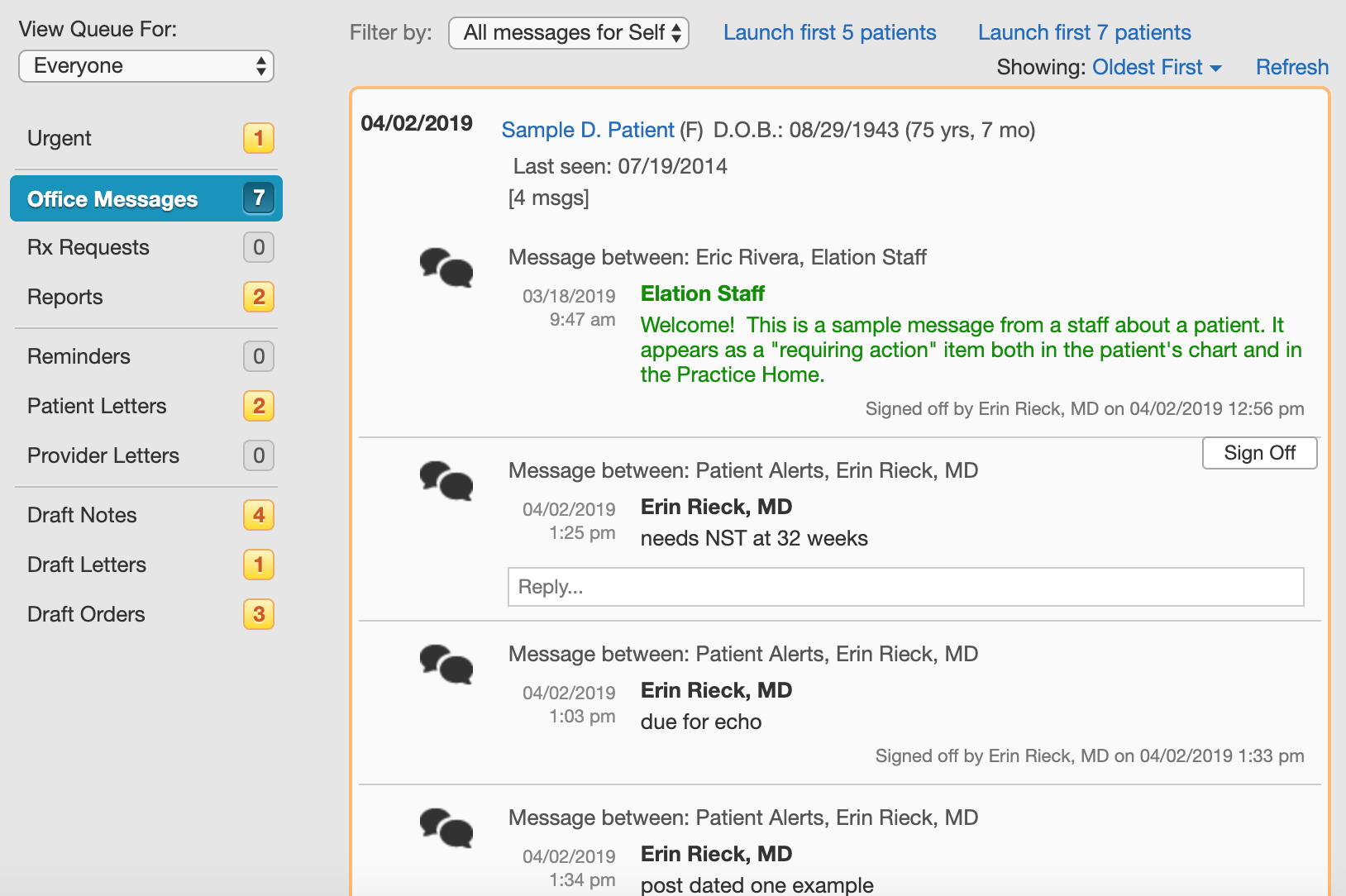
Managing requiring action items
The Requiring Action queues will always appear next to the Calendar and will keep track of items that need your attention. Queues with items will have a yellow number label and will display the number of items that require your attention within that queue. Learn more about the Requiring Action Queues in the Practice Home Guide- Checking for requiring action items article.Practice Home queues reflect all of your pending work — including failed faxes, failed ePrescriptions, CancelRx items, unread patient letters, provider letters awaiting sign-off, and unfinished notes — even when you switch between linked practices or workspaces.
Finding existing patient charts
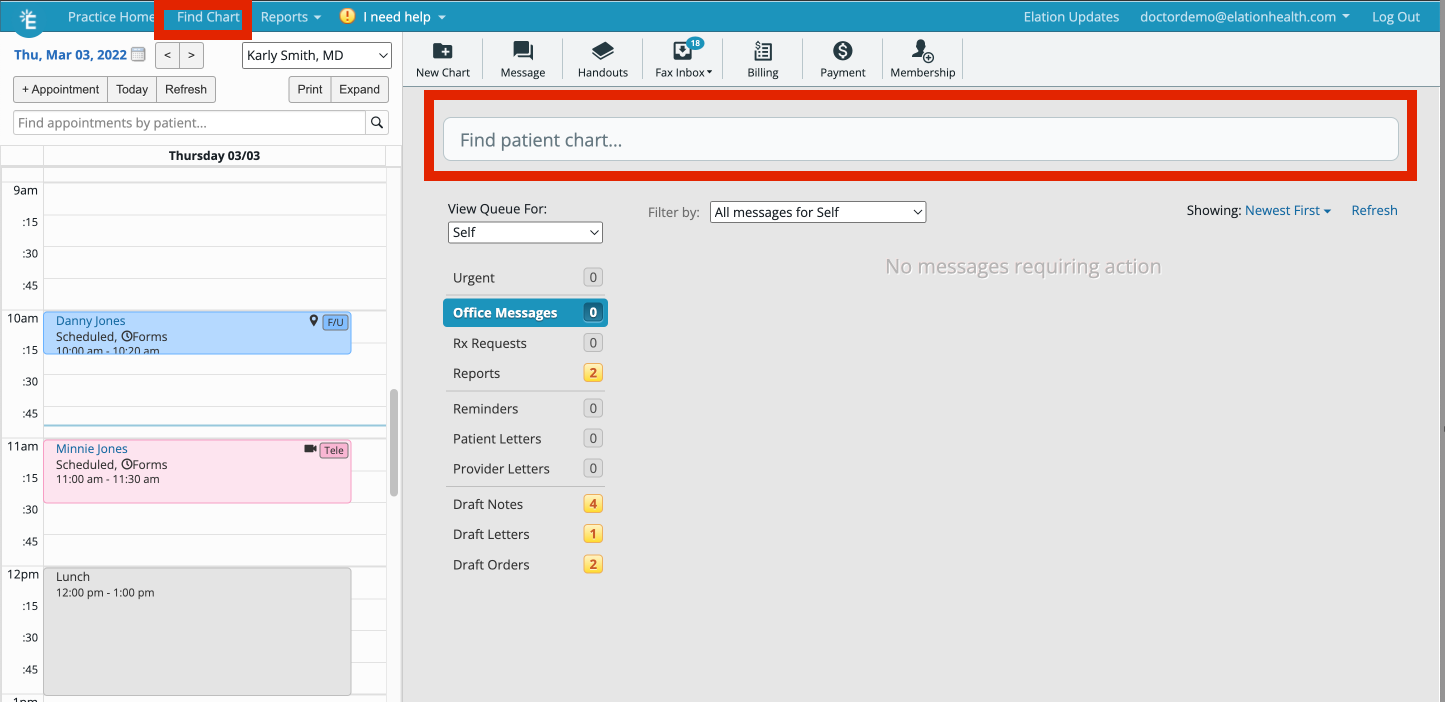
There are two ways to search for existing patient charts in your practice.- Click the Find Chart button in the blue navigation bar at the top of your Elation account
- Use the Find patient chart… bar at the top of your Practice Home.
- any amount of letters in their first or last name (not case sensitive)
- their phone number (does not need to include dash or the area code but using area code will help narrow down your search if you have a lot of patients)
- their date of birth (month/date/year)
Navigating important tasks
The gray navigation at the top of the Practice Home will allow you to quickly take action on different responsibilities.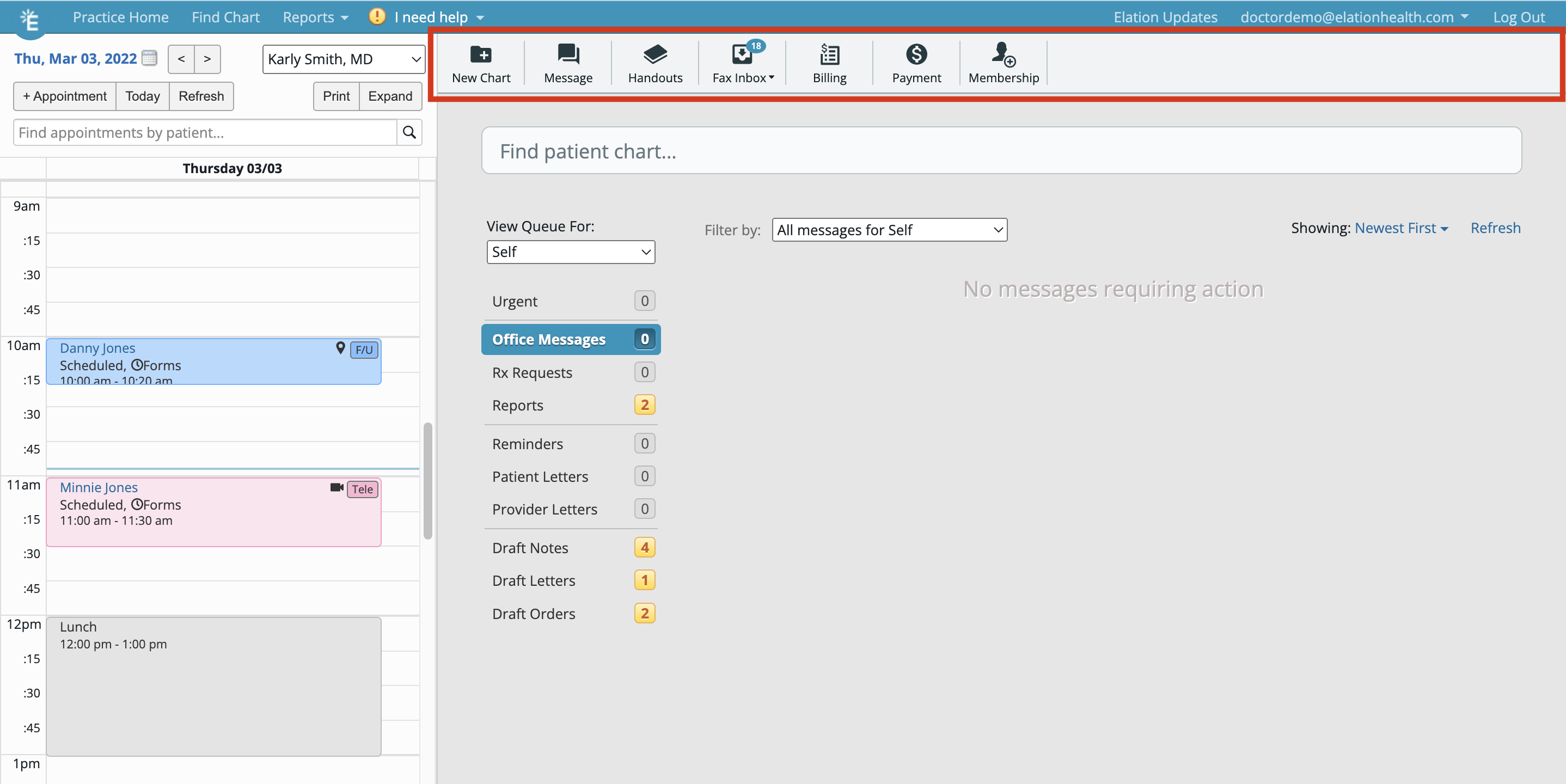
Creating new charts
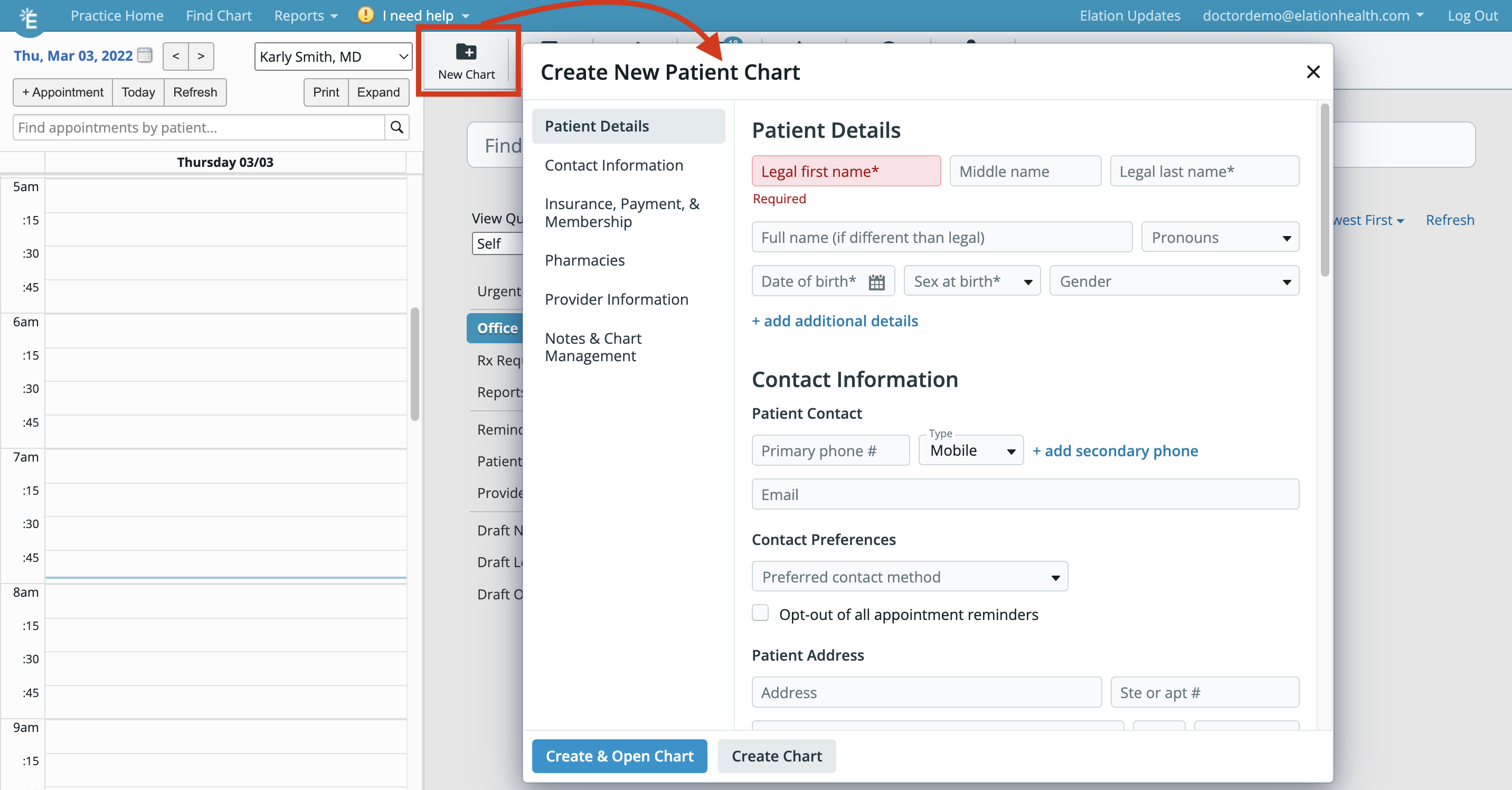
You can only creating new patient charts from the Practice Home. To create a new patient chart:- Click on the New Chart button in the gray navigation bar.
- Fill in the patient’s demographics details- especially the required fields of legal first name, legal last name, date of birth, sex at birth and Provider assigned in practice
- Click Create & Open Chart or Create Chart when done.
Coordinating with staff using messages
The Message button will allow you to use Elation’s internal communication mechanism built into your EHR to communicate with all members of your practice who also have a log in to the EHR. Office messages allows you to keep track of tasks that need to be completed by anyone in your office. You can also set reminders for yourself, your colleagues and your staff to follow up. Learn more about the different uses of the Office Message feature in the Office Message Feature Guide .Managing patient handouts
The Handouts tool keeps all patient handouts in one place for quick reference and printing. The list automatically includes standard CDC handouts and you can also upload your own instructional or educational handouts. Learn more about the Handouts tool in the Patient Handouts Guide .Managing faxes & documents
As a medical practice, you receive a lot of reports and records for various patients. To eliminate physical paperwork, we recommend setting up fax forwarding from your landline fax number to forward faxes to the Elation fax number assigned to you during implementation. Alternatively you can update your business details to advertise the Elation fax number as your new business fax number. This way, all faxes will immediately appear in your Fax Inbox which can be accessed by clicking the Fax Inbox button at the top of your Practice Home. If you use a scanner in the office, you can also upload scanned reports and records from your computer into your Fax Inbox and use the Fax Inbox to file these records into the patient’s chart. Learn more about using the Fax Inbox in the Fax Inbox Guide- Managing records and reports received through electronic fax article.Billing for services rendered
Billing Home, which can be accessed by clicking on the Billing button, shows all billing information recorded in both signed and unsigned visit notes for the entire practice. Use Billing Home to ensure you are getting paid for all services rendered for your patients. Learn more about Billing Home in the Billing Home Guide- A dashboard for managing your bills article.Managing payments
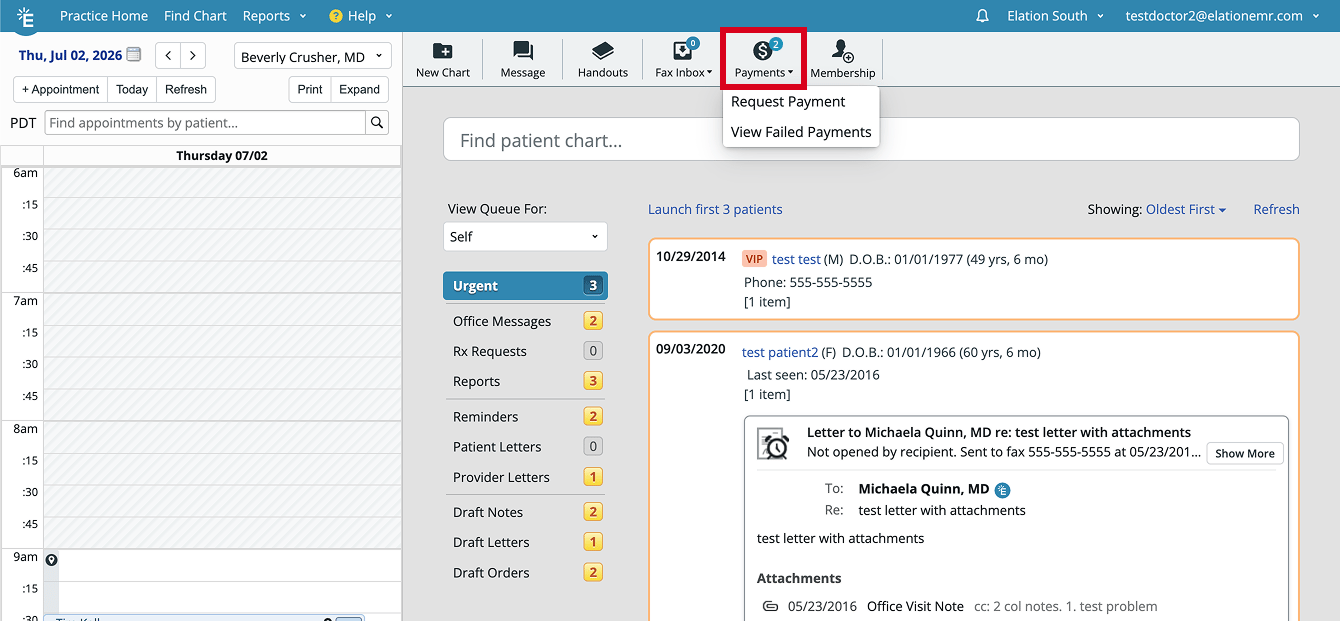
The Payments button gives you quick access to Elation’s integrated patient payment tools directly from the Practice Home. Clicking Payments opens a dropdown with two options:- Request Payment — Open the payment dialog to charge a patient, send a payment request, or log a cash/check payment.
- View Failed Payments — Jump to the Patient Payment Report filtered to show only failed transactions.
Managing patient memberships
Elation’s Membership Management functionality (an optional feature) provides a convenient and flexible way to create and manage recurring membership plans or fees, enroll patients in individual or group memberships, receive payments, and report on memberships and enrollments from within Elation. Learn more about activating the Membership feature and how to manage memberships in the Introduction to Membership Management with Elation article. You will see a Memberships button at the top of your Practice Home once the feature is activated. Next StepExplore the different tools in the Practice Home and stay on top of important daily activities!Related Articles
- Calendar Guide- Using the Calendar for appointments & events
- Practice Home Guide- Checking for requiring action items
- Patient Demographics Guide
- Office Message Feature Guide
- Patient Handouts Guide
- Fax Inbox Guide- Managing records and reports received through electronic fax
- Billing Home Guide- A dashboard for managing your bills
- Patient Payments Guide- Securely collect payments digitally from patients
- Introduction to Membership Management with Elation